
Create a voucher template
Define a gift card once, with its type, face value, selling price, validity, format and design, so staff can sell it from Checkout.
Steps
On the web
-
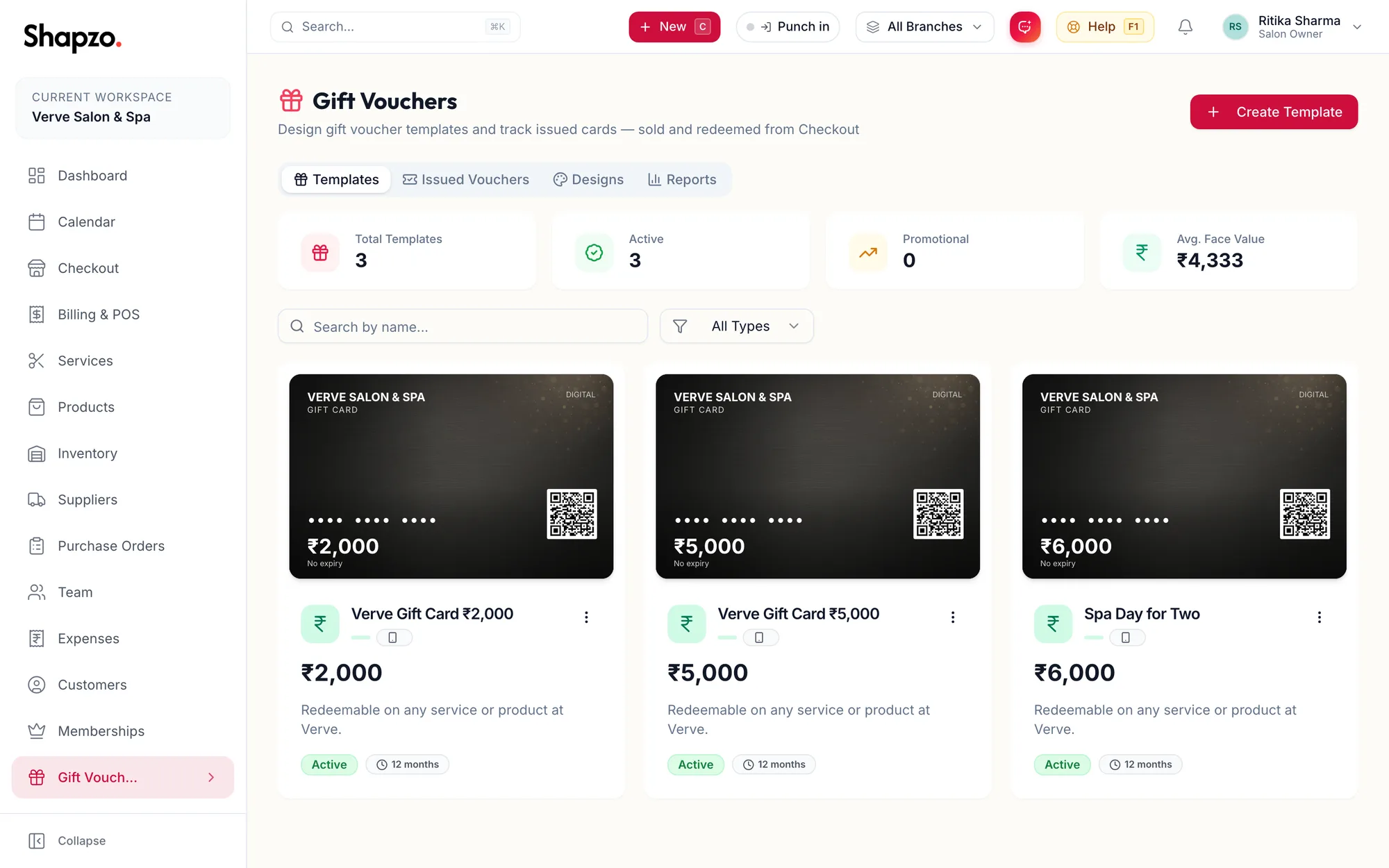
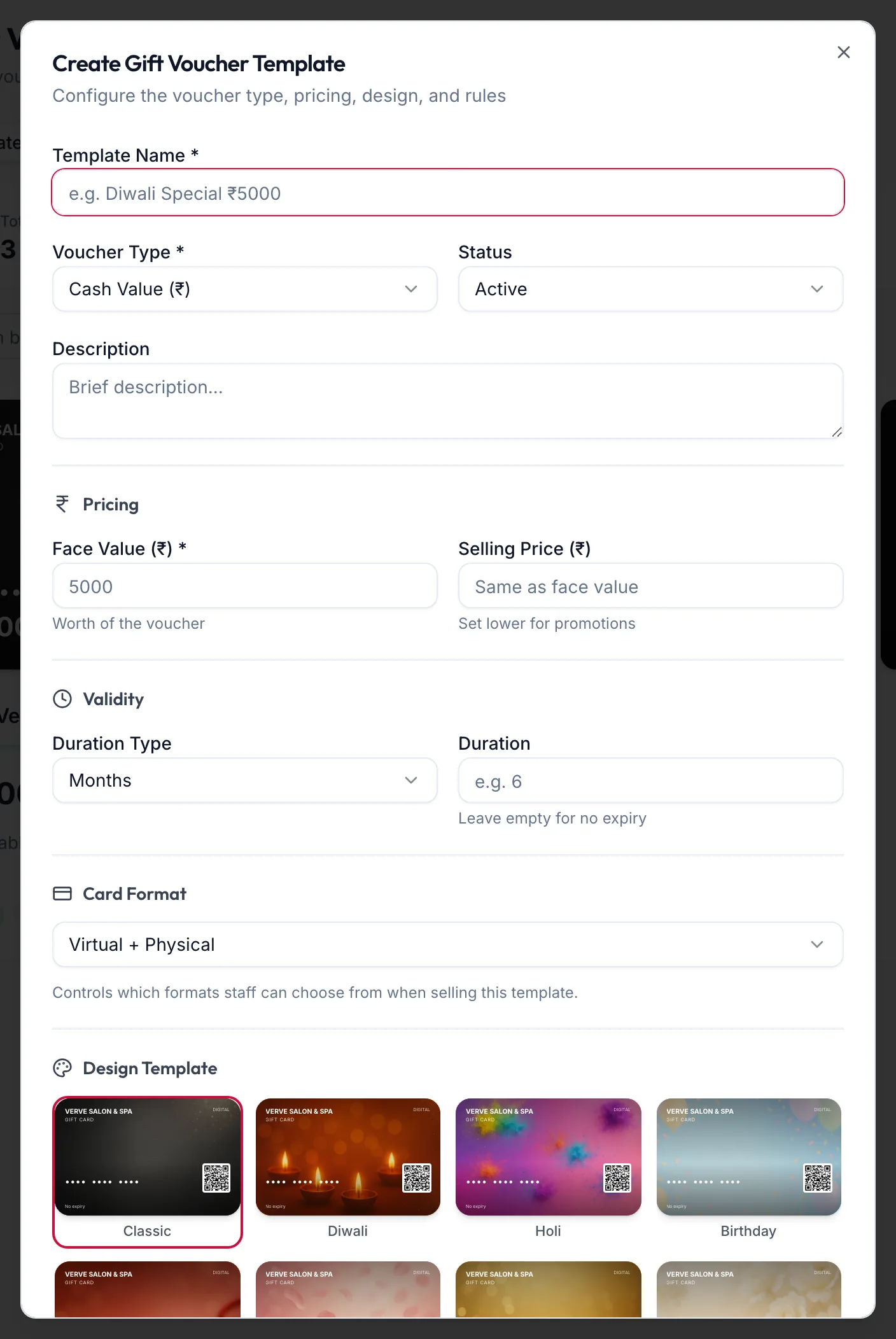
Open Gift Vouchers and click Create Template, or press n. From anywhere, the New menu offers Voucher template.
The Create Gift Voucher Template dialog -
Enter the Template Name and choose the Voucher Type:
- Cash Value: worth a rupee amount, spent on anything.
- Service-Linked: good for one Linked Service.
- Package-Linked: good for a package.
- Multiple Services: a list of Included Services, each with a number of Visits.
-
Under Pricing, set the Face Value (₹). Set a lower Selling Price (₹) for a promotion; the banner reads Promotional: Pay {{price}} for {{value}} ({{percent}}% savings).
-
Under Validity, choose the Duration Type and Duration, or leave it empty for no expiry.
-
Under Card Format, choose Virtual + Physical, Virtual only or Physical only. This controls which formats staff can choose when selling.
-
Pick a Design Template and check the Preview. Your own artwork can be attached after the first save; see Designs and your own artwork.
-
Read the Tax (GST) notice; see GST on gift cards.
-
Under Settings, decide Transferable, Max redemptions per visit and a Min. Purchase Amount (₹). Add Terms & Conditions.
-
Click Create Template.
In the app
-
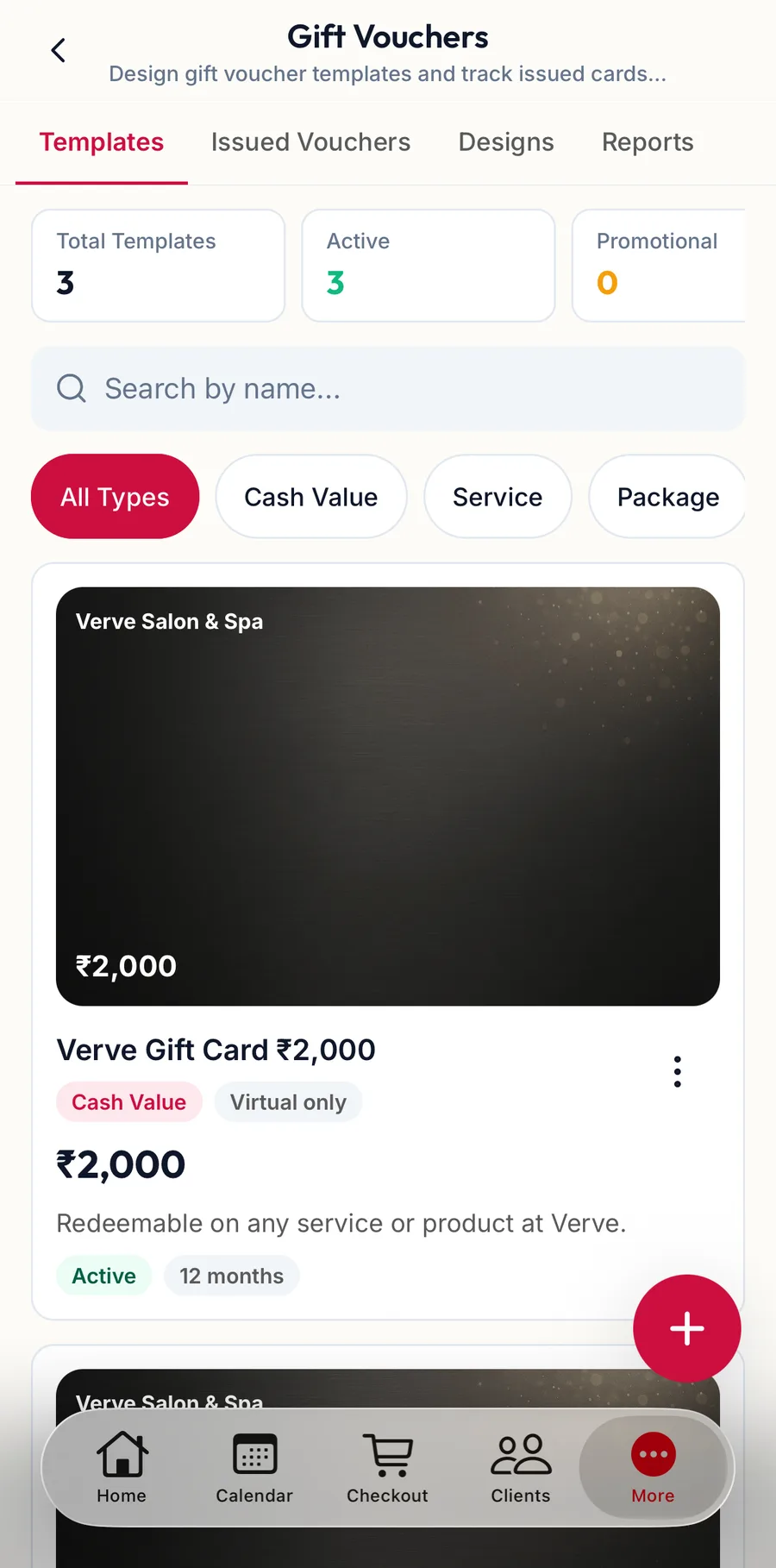
Tap More, then Gift Vouchers. On the Templates tab, tap the + button.
The Templates tab in the app -
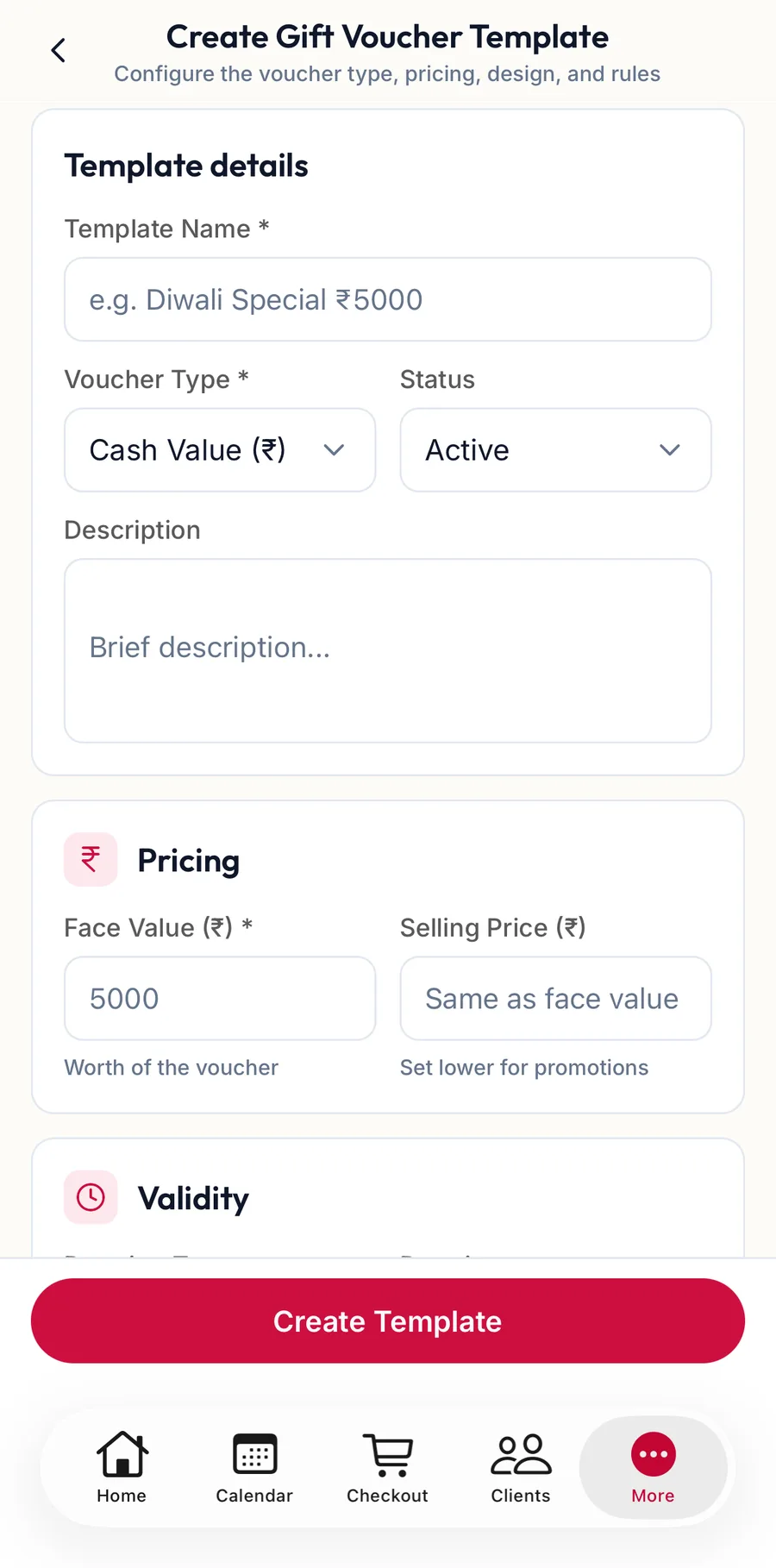
Under Template details, enter the Template Name and choose the Voucher Type; link the service, package or Included Services the type needs.
The Create Gift Voucher Template form in the app -
Under Pricing, set the Face Value (₹) and, for a promotion, a lower Selling Price (₹).
-
Under Validity, choose the Duration Type and Duration, or leave it empty for no expiry.
-
Under Card Format, choose the formats staff can sell, and pick a Design Template or Choose artwork for your own.
-
Read the Tax (GST) notice, then under Settings decide Transferable, Max redemptions per visit and Min. Purchase Amount (₹). Add Terms & Conditions.
-
Tap Create Template.
Manage templates
On the web
The cards show Total Templates, Active, Promotional and Avg. Face Value. Filter by type. Each template's menu offers Edit, Duplicate and Archive; archiving means It won't be available for new sales.
In the app
Tap Actions on a template card for Edit, Duplicate and Archive.
Related articles
- GST on gift cards · Gift vouchers
- Designs and your own artwork · Gift vouchers
- Sell a gift card · Checkout