
Issued vouchers: top up, extend, cancel, print
Track every card sold, open one to see its balance and history, and add value, extend its expiry, cancel it or print it.
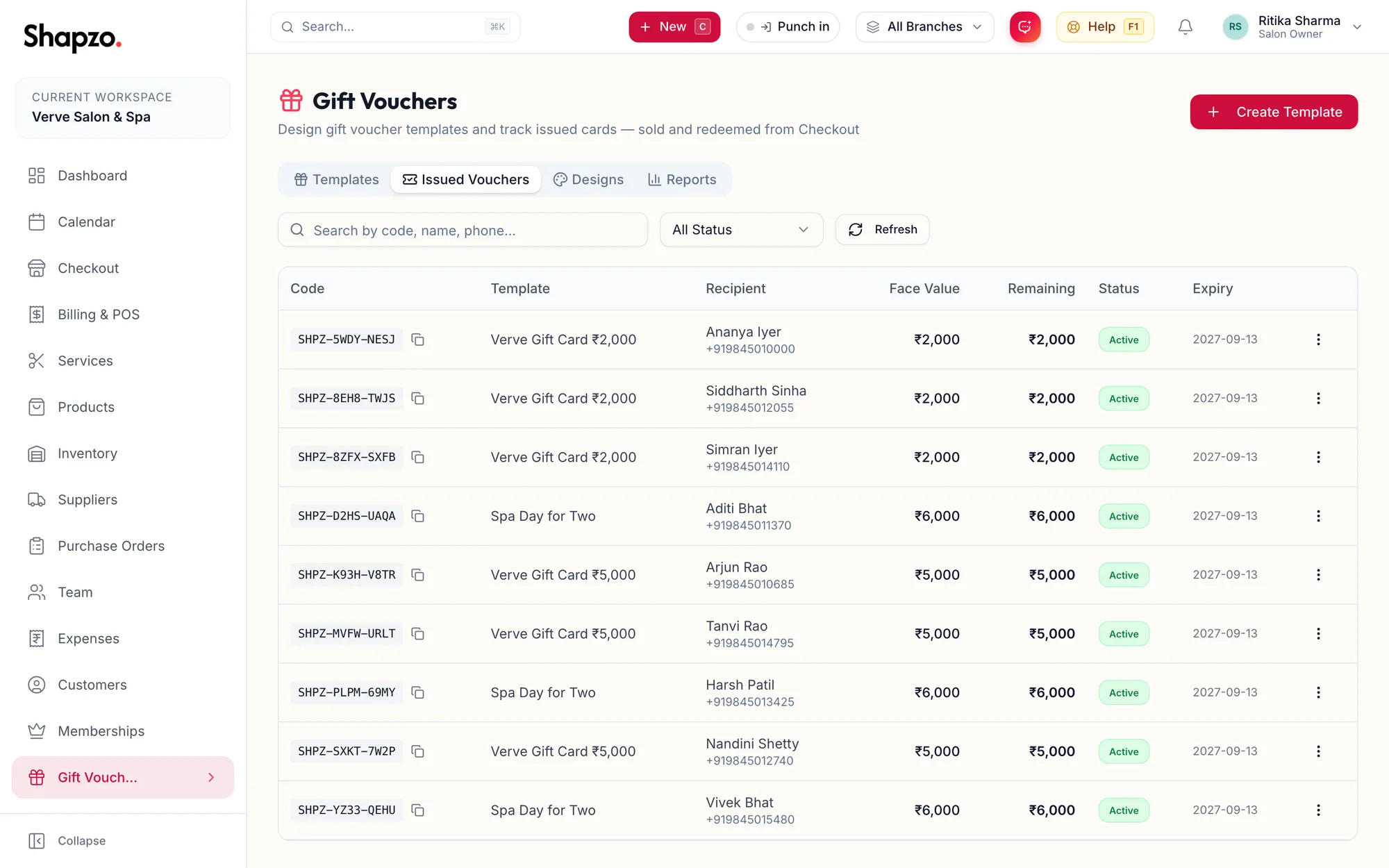
Open Gift Vouchers and the Issued Vouchers tab. Filter by Active, Partial, Redeemed, Expired or Cancelled, and search by code, name or phone. Each row has the code (click the copy icon: Voucher code copied!), the recipient, the balance and the expiry.
The card sheet
On the web
Click a row.
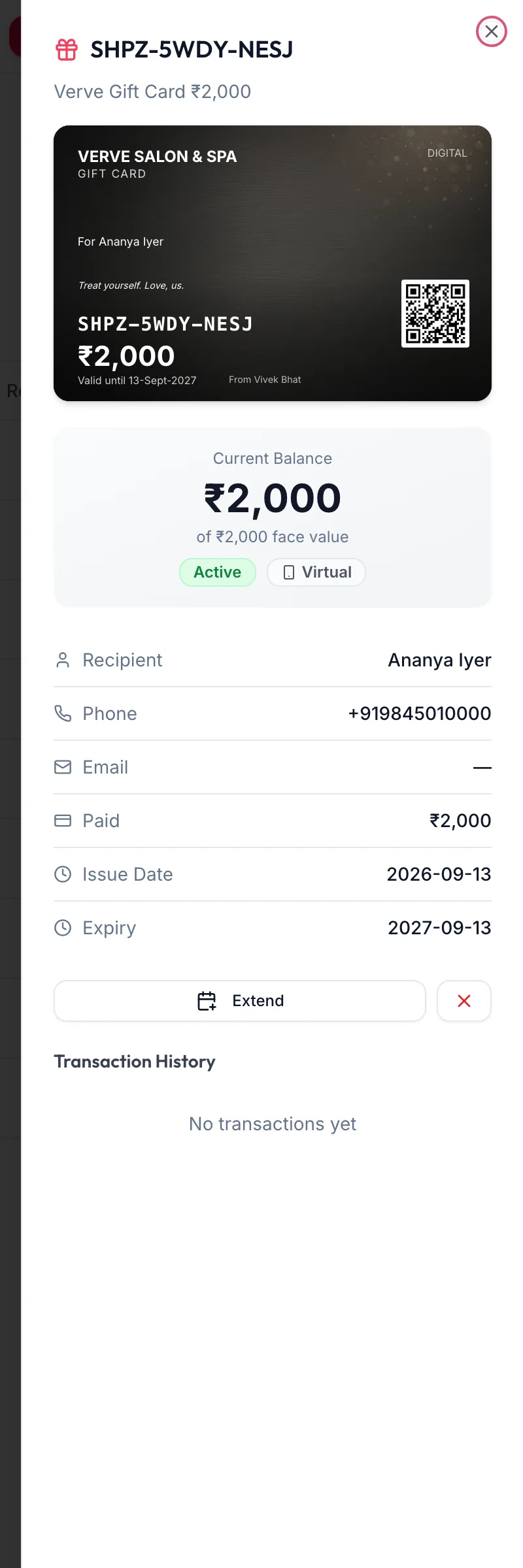
It shows Current Balance (or Visits remaining), whether it is Physical or Virtual, and the Recipient, Phone, Email, Paid, GST at sale, Topped up, Issue Date and Expiry. Transaction History lists every sale, redemption and top-up.
In the app
Tap More, then Gift Vouchers, then the Issued Vouchers tab; filter by status or search by code, name or phone, and tap a row.
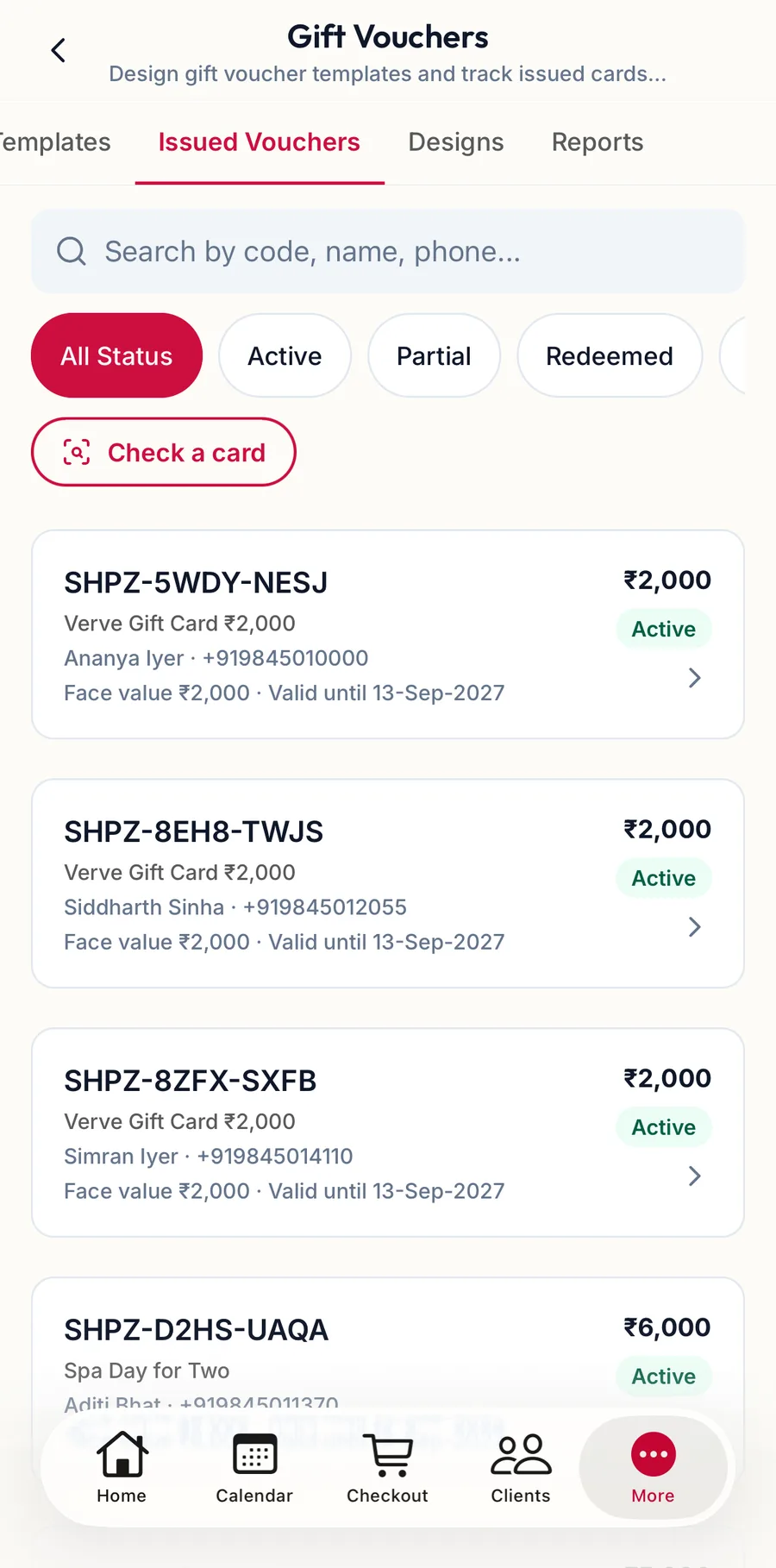
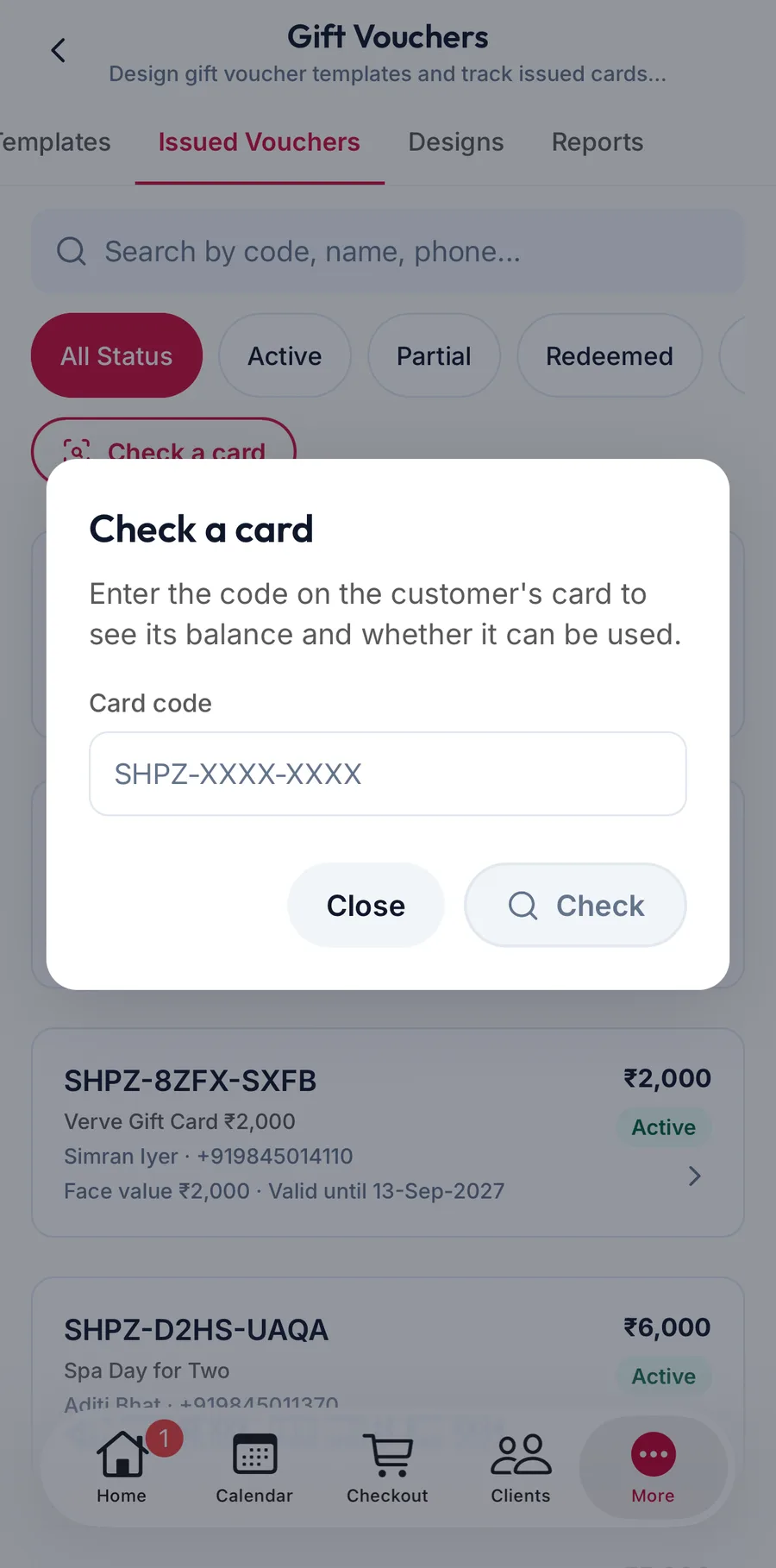
Check a card at the top of the screen looks up any code and says whether it Can be used at checkout.
Actions
On the web
| Action | Where | Dialog |
|---|---|---|
| Top up | The sheet, for cash-value templates that allow it | Top up card: Amount to add (₹), then Add value |
| Extend | The row or the sheet | Extend Validity: Extend by (days), then Extend |
| Cancel voucher | The row or the sheet | Cancel Voucher: Cancel voucher {{code}}? Remaining balance will be forfeited. with a Reason |
| Print Card | The sheet | Opens the card as a PDF for printing on card stock |
In the app
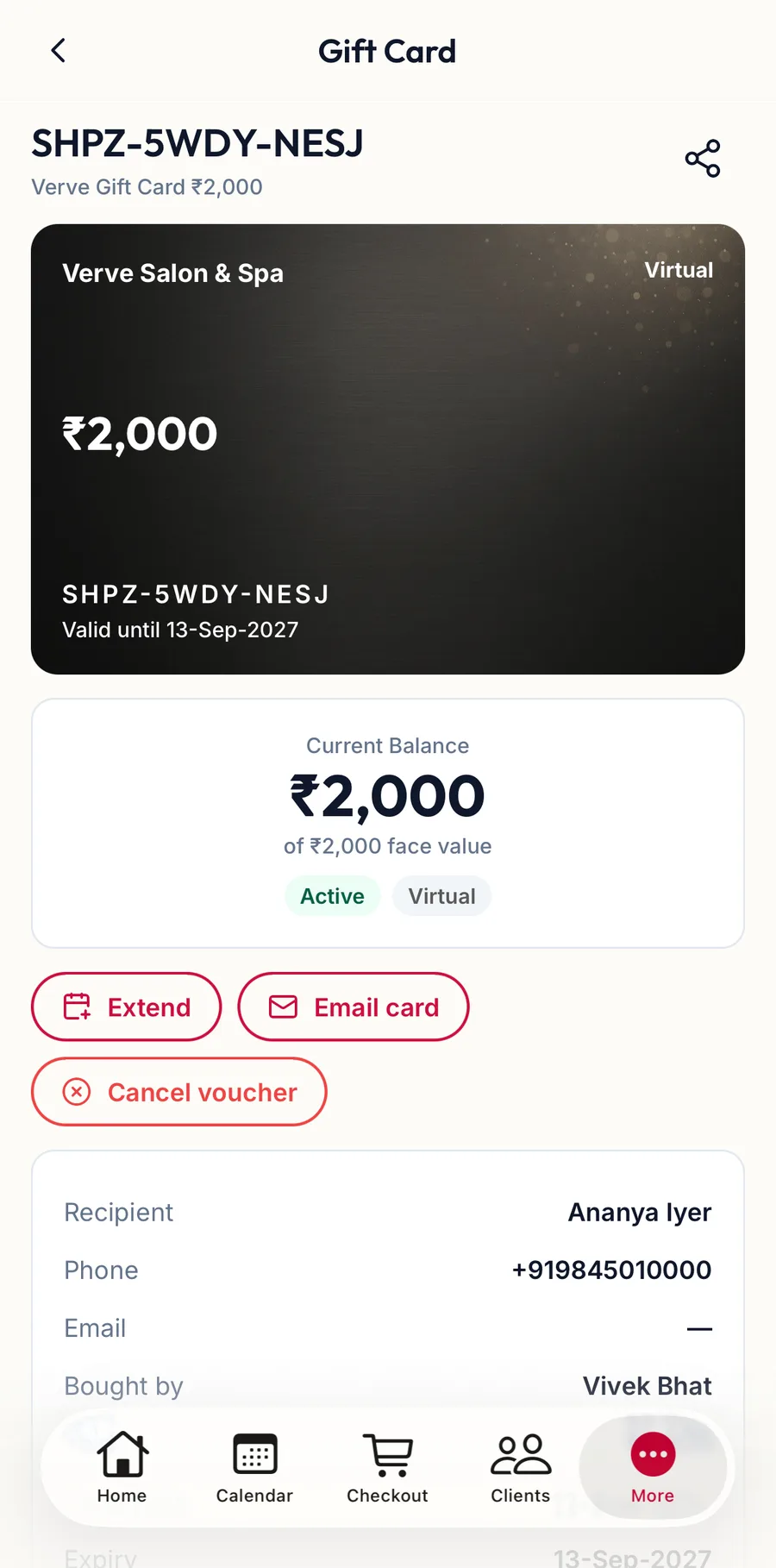
The same actions sit at the bottom of the card's sheet: Add value, Extend, Cancel Voucher, Print Card and Share code, which sends the code by any app on the phone.
Related articles
- Sell a gift card · Checkout
- Redeem a gift card and loyalty points · Checkout
- Voucher reports · Gift vouchers