
Sell a gift card
Pick a voucher template, fill in the recipient and message, choose a design, and deliver the card by email, print or in person.
Gift cards are sold at checkout and redeemed at checkout. The templates they are based on are set up under Gift Vouchers.
Steps
-
Choose the customer who is buying the card.
-
On the add-items bar, click Voucher or press v.
-
In Sell gift voucher, click a template. The card wizard opens.
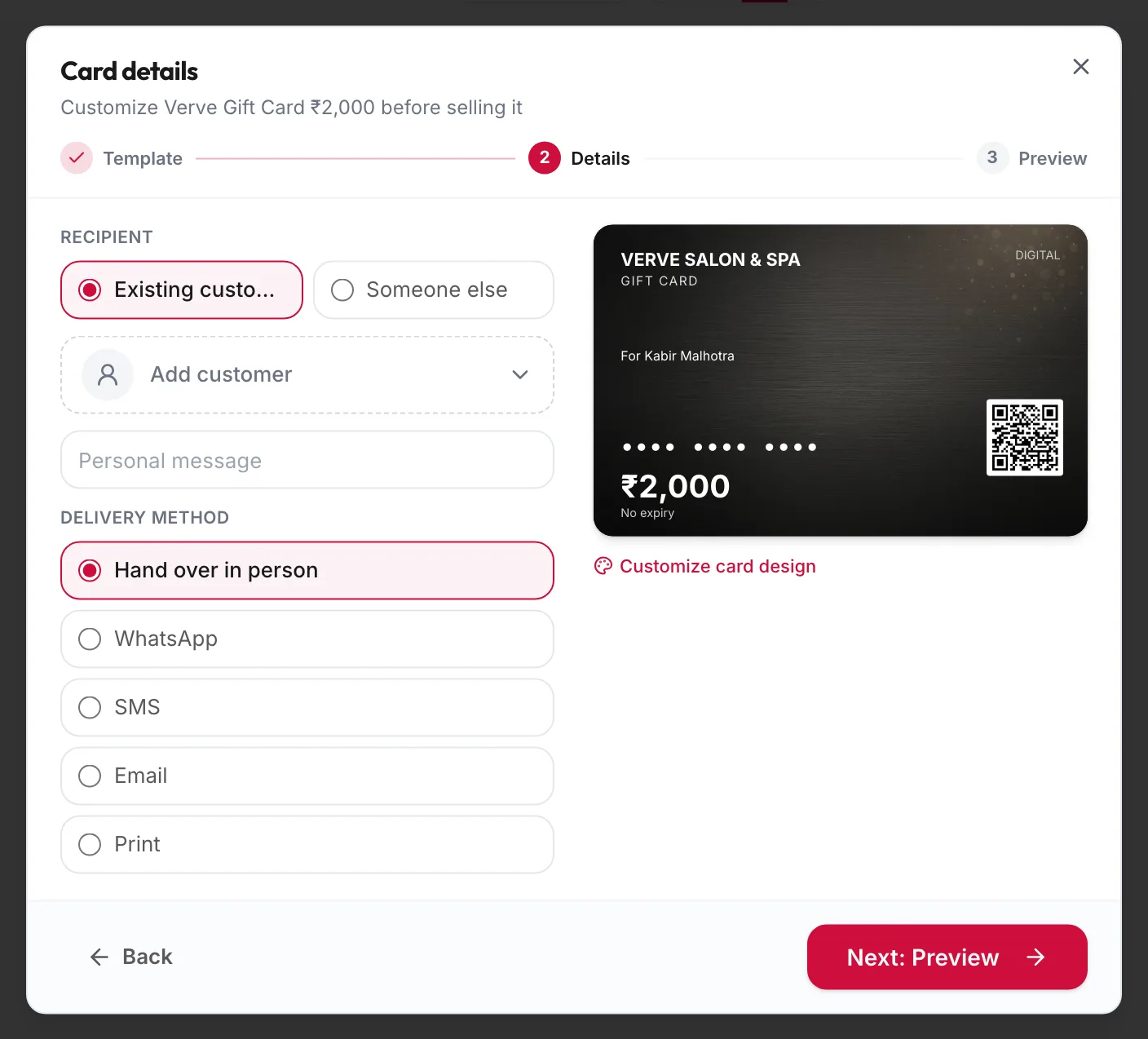
The gift card wizard on the Card details step -
On Card details, choose the Recipient: Existing customer or Someone else with a Recipient name, Recipient phone and Recipient email. Add a Personal message.
-
Pick the Card type, Virtual or Physical, the Delivery method (Email, SMS, WhatsApp, Print or Hand over in person), and a design under Customize card design, or upload your own image.
-
Click Next: Preview, check the card, then Add to order.
-
Take payment and click Checkout & Pay.
After the sale
The Gift card issued! dialog lists each card sold. For each one choose Print, Email or both, add a recipient email if none was captured, and click Done. Cards marked Printed and Emailed are recorded as delivered.
The card appears under Gift Vouchers, Issued Vouchers, and on both the buyer's and the recipient's profiles under Gift Vouchers.
GST on gift cards
A cash-value card is not taxed when sold; GST is charged when it is spent. Service-linked cards are taxed at sale. The invoice reflects whichever applies.
Related articles
- Redeem a gift card and loyalty points · Checkout
- Create a voucher template · Gift vouchers