
Choose or add a customer
Pick a registered customer, create one on the spot, or bill a walk-in without saving a record.
Every order needs someone to bill. The customer box at the top of checkout offers three ways to fill it.
Pick an existing customer
On the web
-
Click Add customer.
-
Type a name, phone or email; the matches appear under Recent and below it.
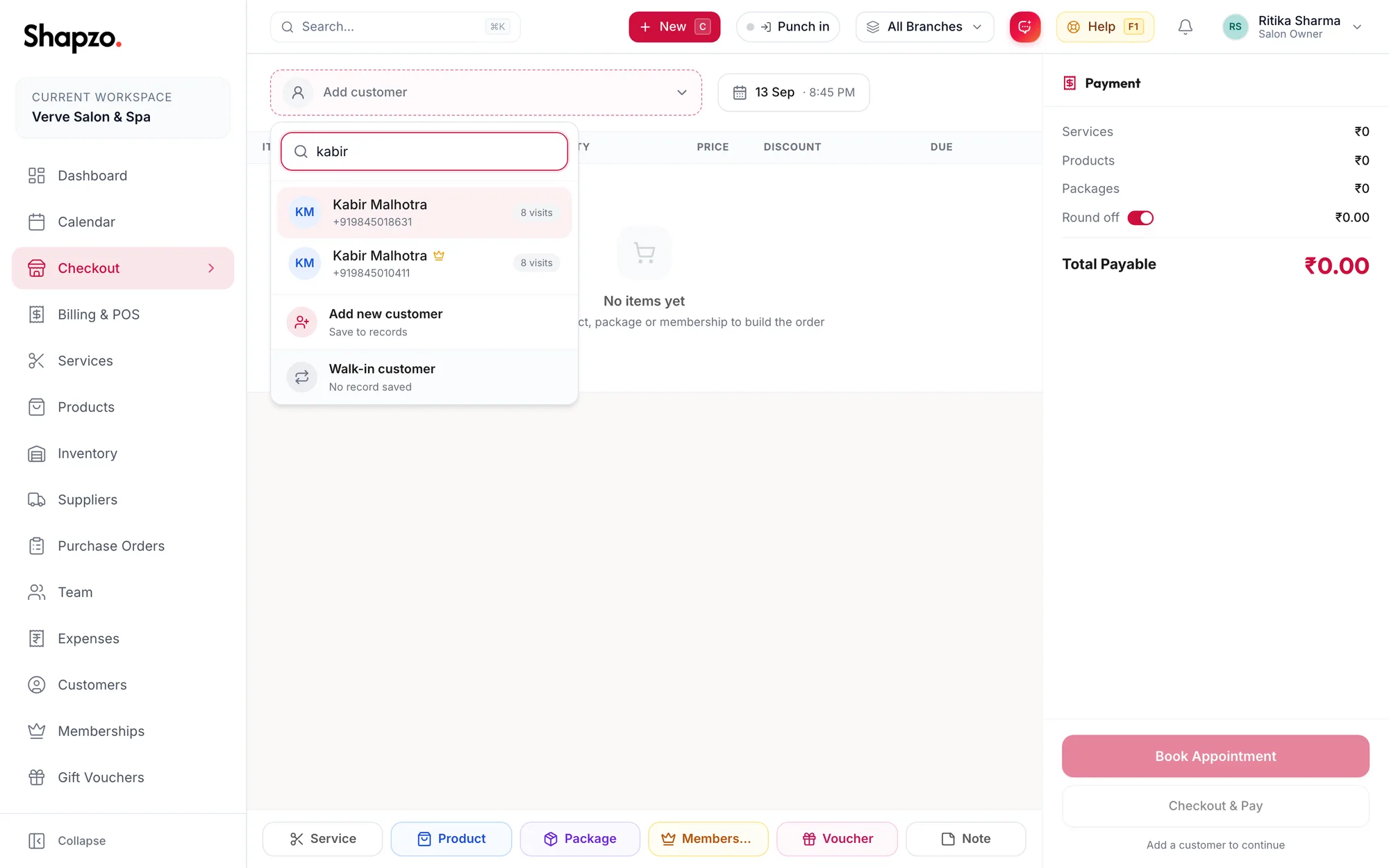
The customer picker on checkout with search results -
Click the customer.
Their profile summary loads: visits, membership, birthday, and any alert notes.
In the app
-
On the Checkout tab, tap Add customer at the top.
-
Type a name, phone or email; the matches appear under Recent and below it.
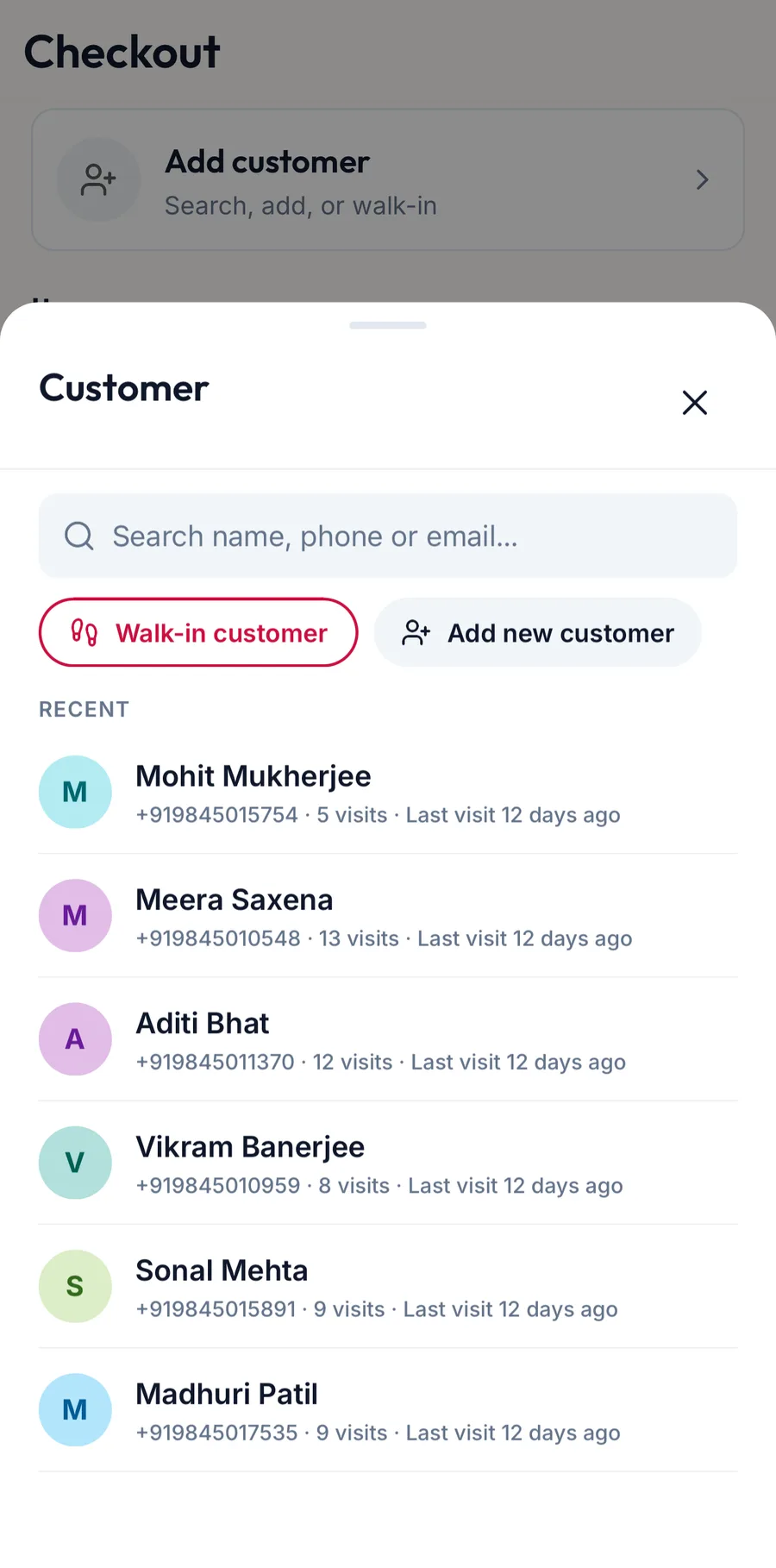
The customer picker in the app with search and recent customers -
Tap the customer.
Their card shows visits, last visit and membership; More details unfolds the rest, and Change customer swaps them.
Add a new customer
On the web
- Click Add customer, then Add new customer.
- Enter the Full name and Phone (both required) and, if you have them, Email, Gender and Birthday.
- Click Add Customer.
The record is saved to Customers and selected for this order. Fill in the rest of the profile any time.
In the app
- Tap Add customer, then Add new customer.
- Enter the Customer name and Phone and, if you have them, Email (optional), Gender and Birthday.
- Tap Add customer.
Bill a walk-in
On the web
Choose Walk-in customer instead. Enter a Customer name and, if you like, a Phone (optional). No customer record is created; the name and phone are printed on the invoice and that is all.
In the app
Tap Add customer, then Walk-in customer. Enter the Customer name and, if you like, the Phone (optional), and tap Add walk-in.
Change your mind
Click Change or Change customer at the top to swap the customer. The items in the order stay as they are.
Related articles
- The checkout screen · Checkout
- Add a customer · Customers