
Add a customer
Create a customer record with a name and phone, and fill in contact, address, preferences and marketing consent as you learn them.
A customer record is where bookings, bills, memberships, points and notes come together. Name and phone are enough to start; everything else can be added later.
Steps
On the web
-
Open Customers and click Add Customer, or press n. From anywhere else, use the New menu, Customer.
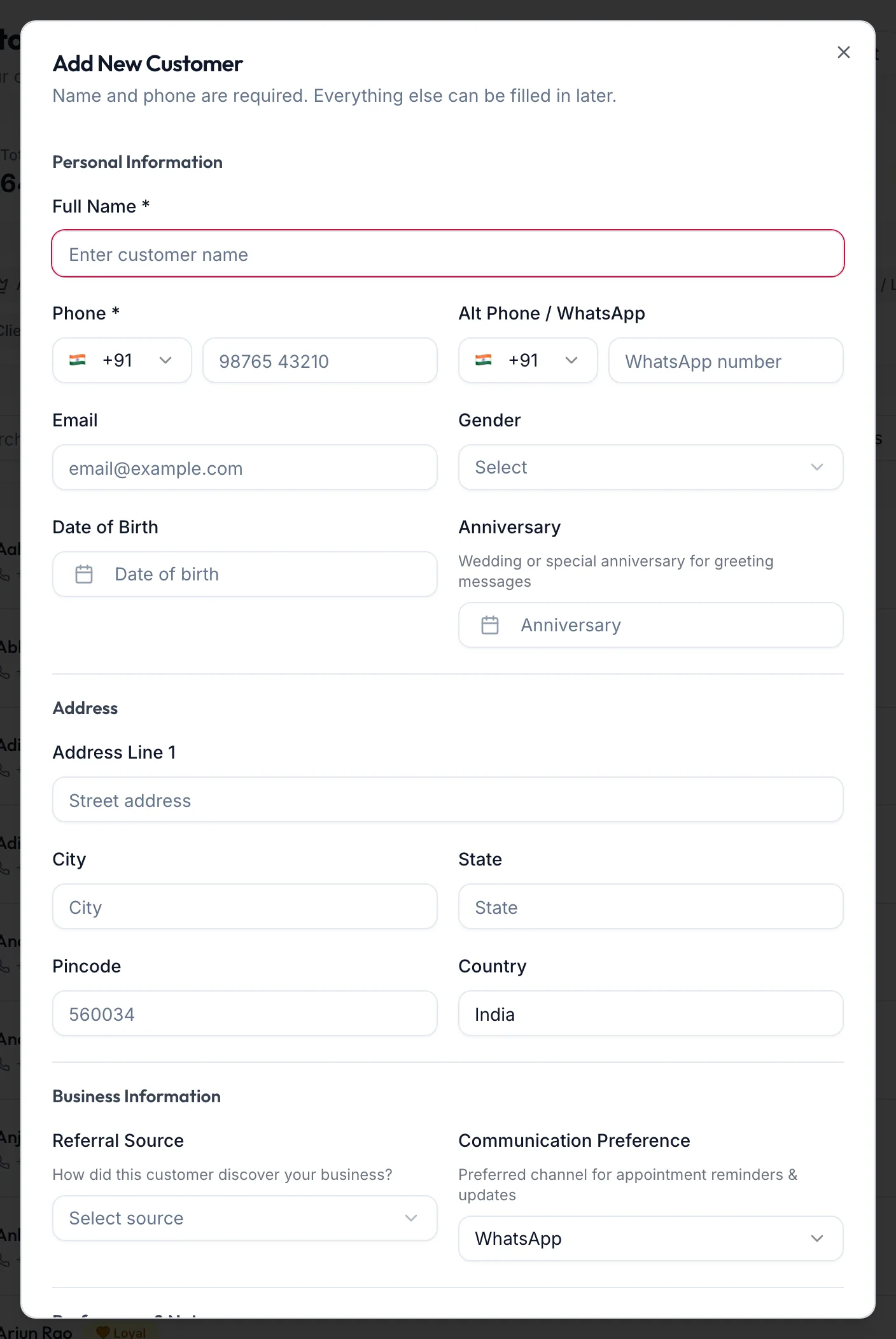
The Add New Customer dialog -
Under Personal Information, enter the Full Name and Phone. The phone must be unique; if it is already on another record the form shows Phone already used by that customer. Add Alt Phone / WhatsApp, Email, Gender, Date of Birth and Anniversary if you have them. Click the photo to upload one after the record is saved.
-
Under Address, fill in Address Line 1, City, State, Pincode and Country if you want them on file.
-
Under Business Information, choose a Referral Source so you know where customers come from, and a Communication Preference for reminders: WhatsApp, SMS, Email or None.
-
Under Preferences & Notes, record Allergies / Sensitivities (for example a reaction to ammonia-based colour) and tick Marketing Opt-in only if the customer has agreed to promotional messages.
-
Click Add Customer, or press ⌘S / Ctrl S.
The portal confirms with Customer created and the record appears in the list.
In the app
-
Open Clients in the tab bar and tap the + button at the bottom right.
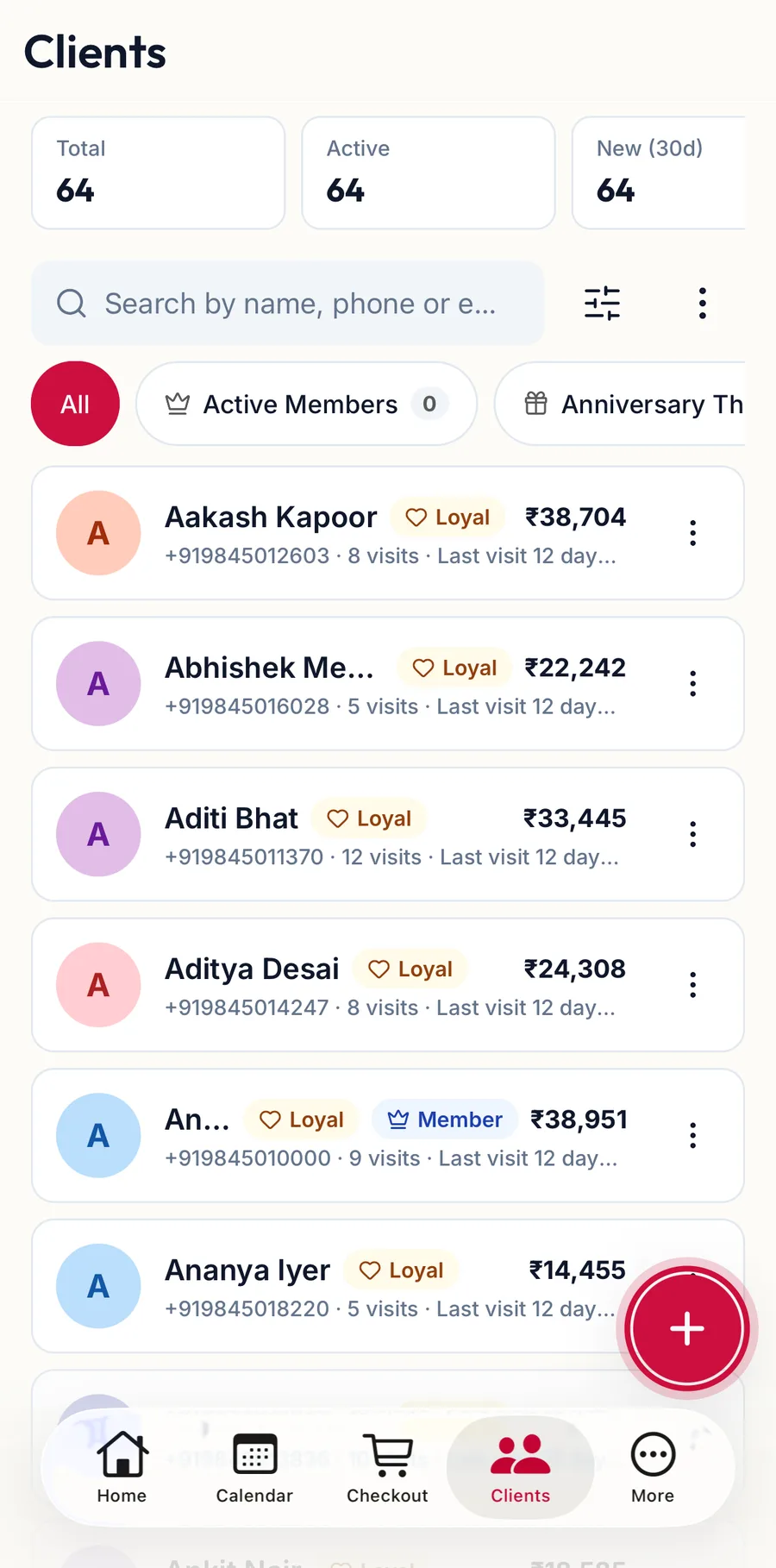
The Clients tab with the add button highlighted -
Under Personal Information, enter the Full Name and Phone. The phone must be unique. Add Alt Phone / WhatsApp, Email, Gender, Date of Birth and Anniversary if you have them. Choose photo adds a picture.
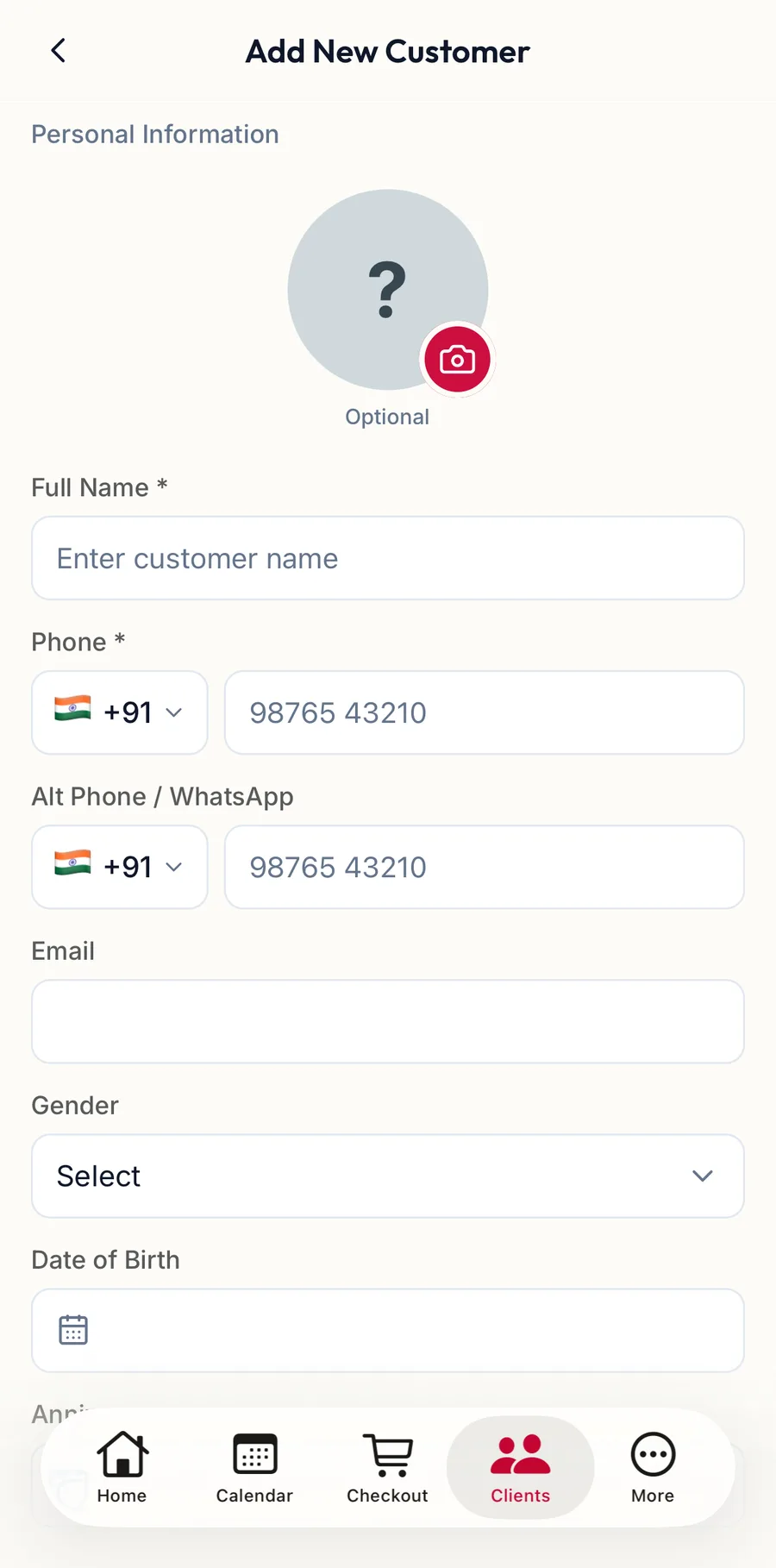
The Add New Customer form in the app -
Under Address, fill in Address Line 1, City, State, Pincode and Country if you want them on file.
-
Under Business Information, choose a Referral Source and a Communication Preference.
-
Under Preferences & Notes, record Allergies / Sensitivities and switch on Marketing Opt-in only if the customer has agreed to promotional messages.
-
Tap Add Customer.
The app confirms with Client added and opens the profile.
Edit later
Open the customer, or choose Edit from the row menu, change anything and click Update Customer.
Related articles
- The customer profile · Customers
- Choose or add a customer · Checkout
- Import customers from Excel · Customers