
Family links and shared memberships
Link relatives so a family can share one membership, and see each other's records side by side.
Link a family member
-
Open the customer and the Family tab.
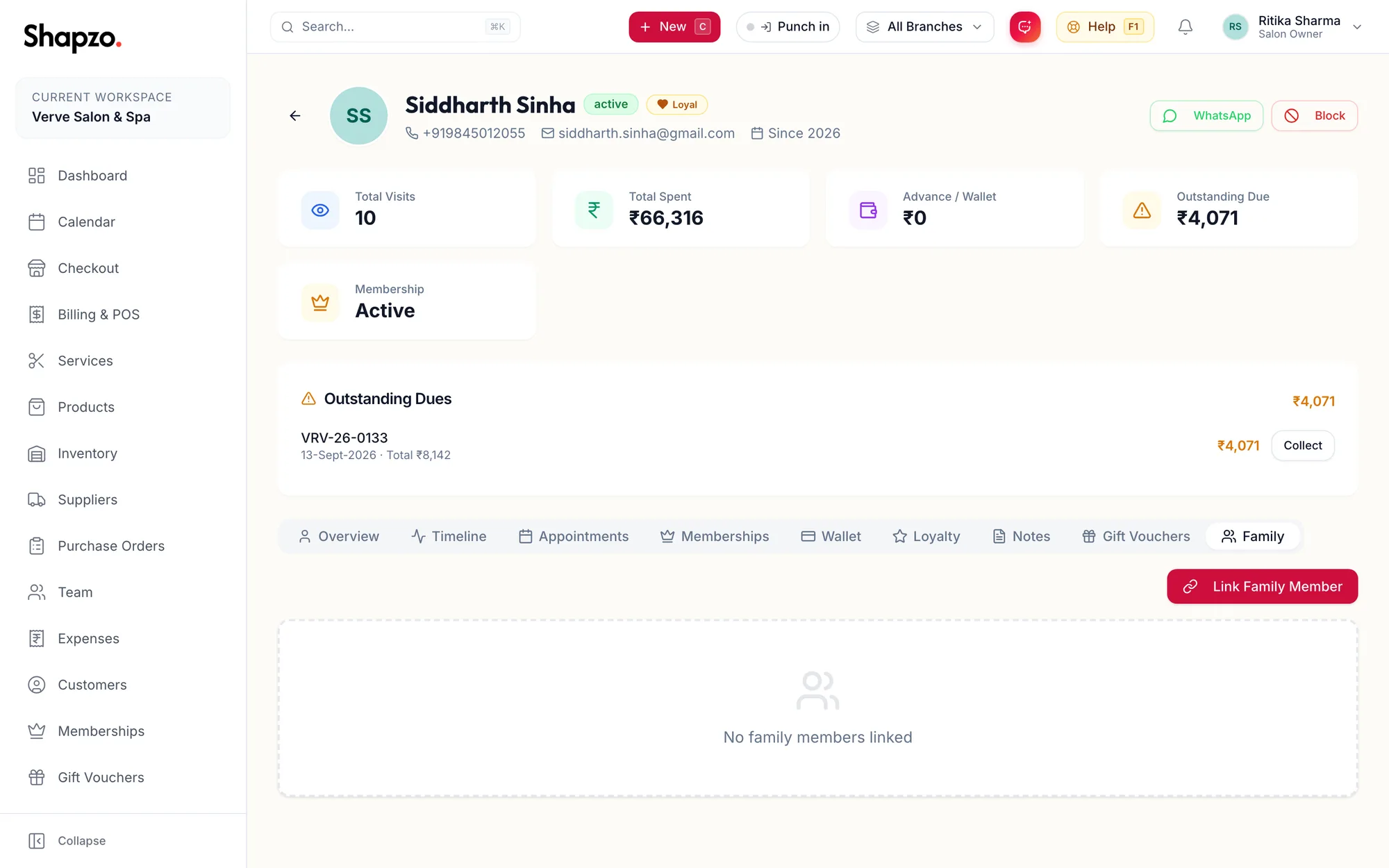
The Family tab of a customer profile -
Click Link Family Member.
-
Under Search Customer, find the relative by name or phone. They must already be a customer.
-
Choose the Relationship: Spouse, Parent, Child, Sibling, Friend or Other.
-
Tick Can share memberships if the relative may use this customer's membership benefits.
-
Add Notes (Optional) and click Link Member.
The link shows on both profiles. Unlink on either side removes it.
Sharing a membership
When Can share memberships is on, the relative's checkout shows the Membership benefits bar for the shared plan, marked Shares Membership on the profile. Sessions used and credit spent come off the one membership.
Related articles
- The customer profile · Customers
- Redeem membership benefits at checkout · Checkout