
Find and filter customers, and use smart segments
Search by name, phone or email, filter by status, gender, source and tag, and use the segments the portal keeps up to date on its own.
Search and filters
On the web
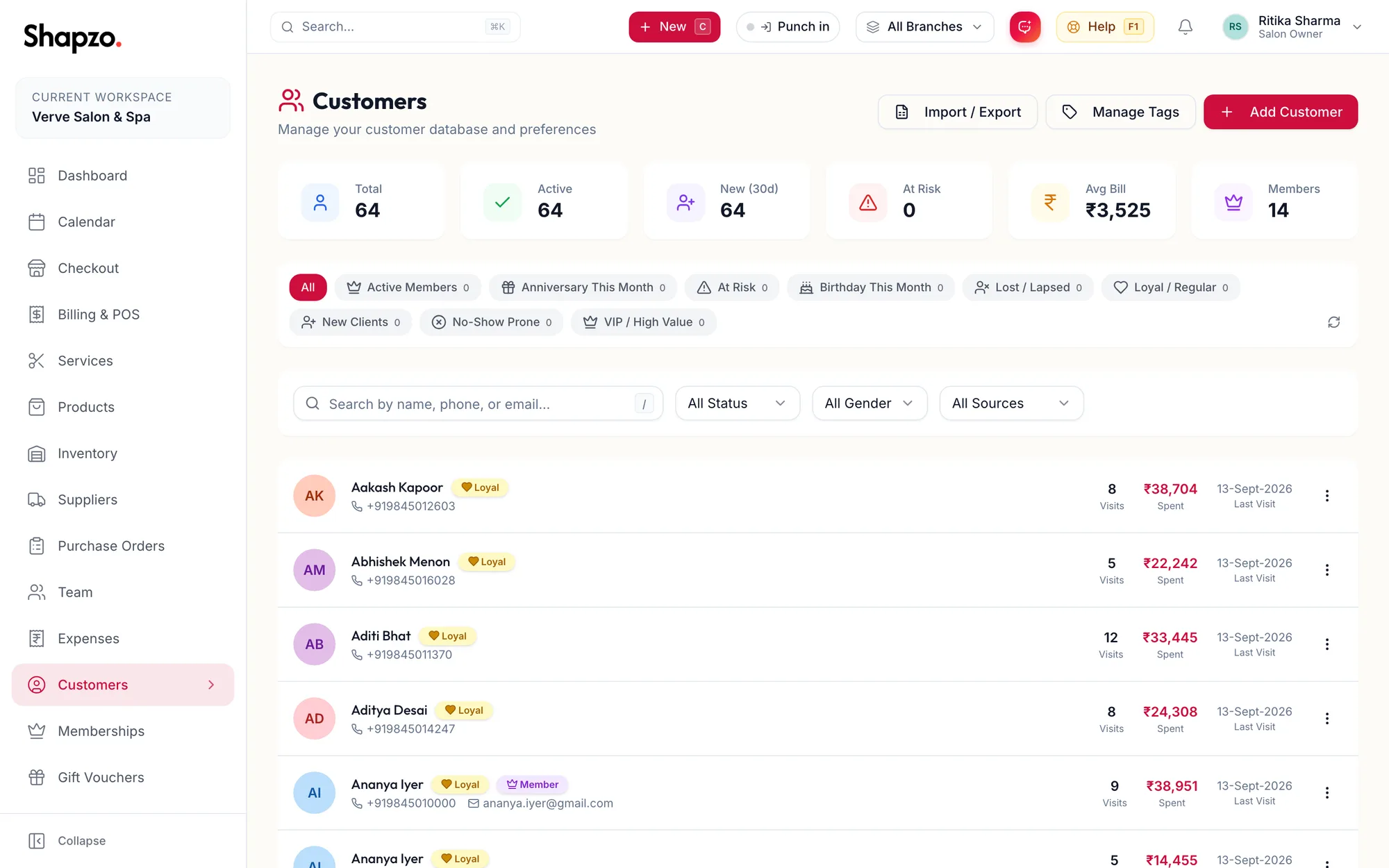
- Type into the search box (press / to focus it) to search by name, phone or email.
- Filter by status (Active, Inactive, Blocked), gender, Referral Source and tag. Clear resets everything.
- The stat cards along the top count Total, Active, New (30d), At Risk, Avg Bill and Members.
In the app
-
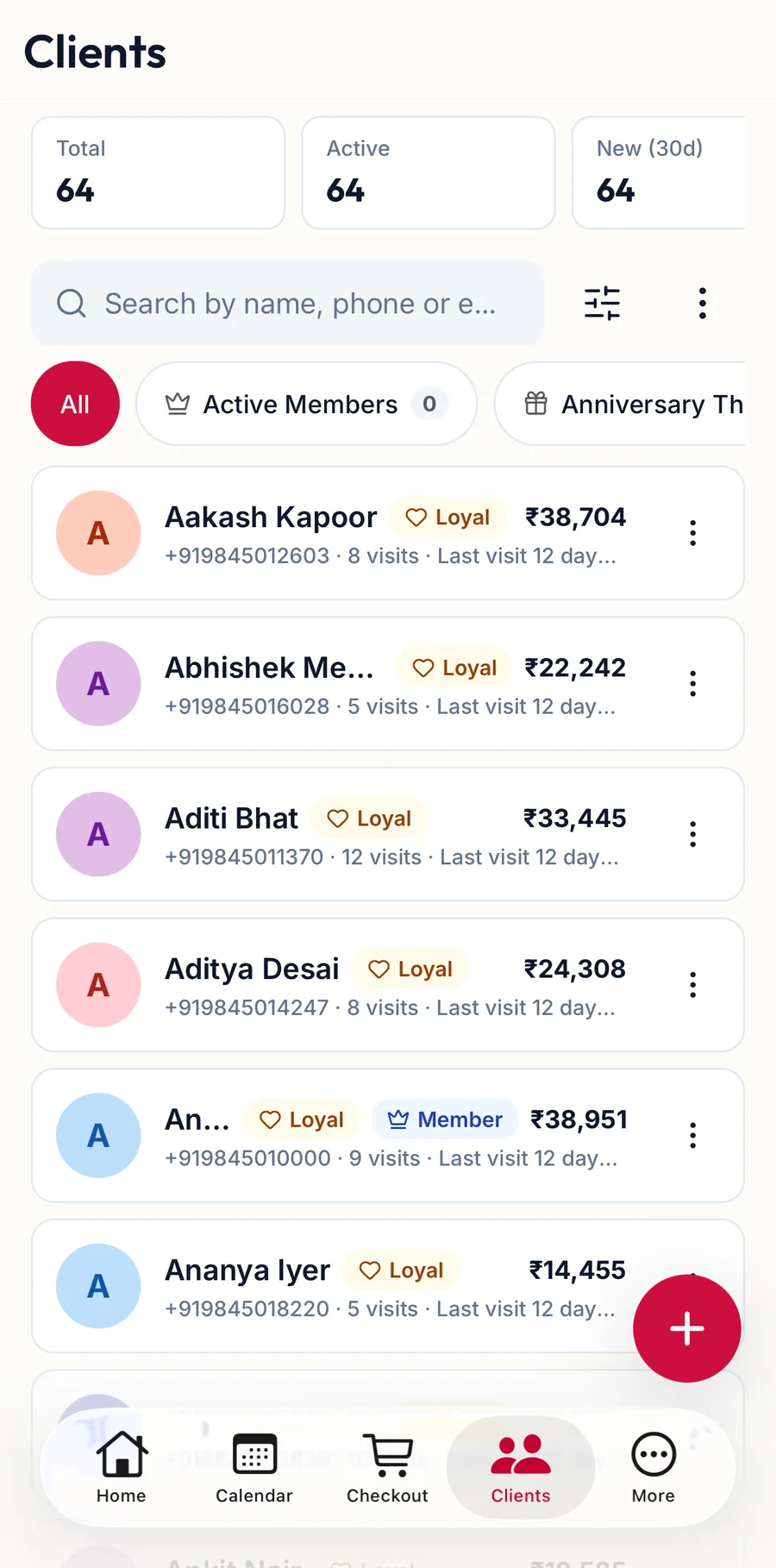
Tap Clients in the tab bar. The cards along the top count Total, Active, New (30d) and the rest; swipe them sideways. Type into Search by name, phone or email.
-
Filters opens a sheet with Status, Gender, Referral and Tag. Tap Apply; Clear Filters resets everything.
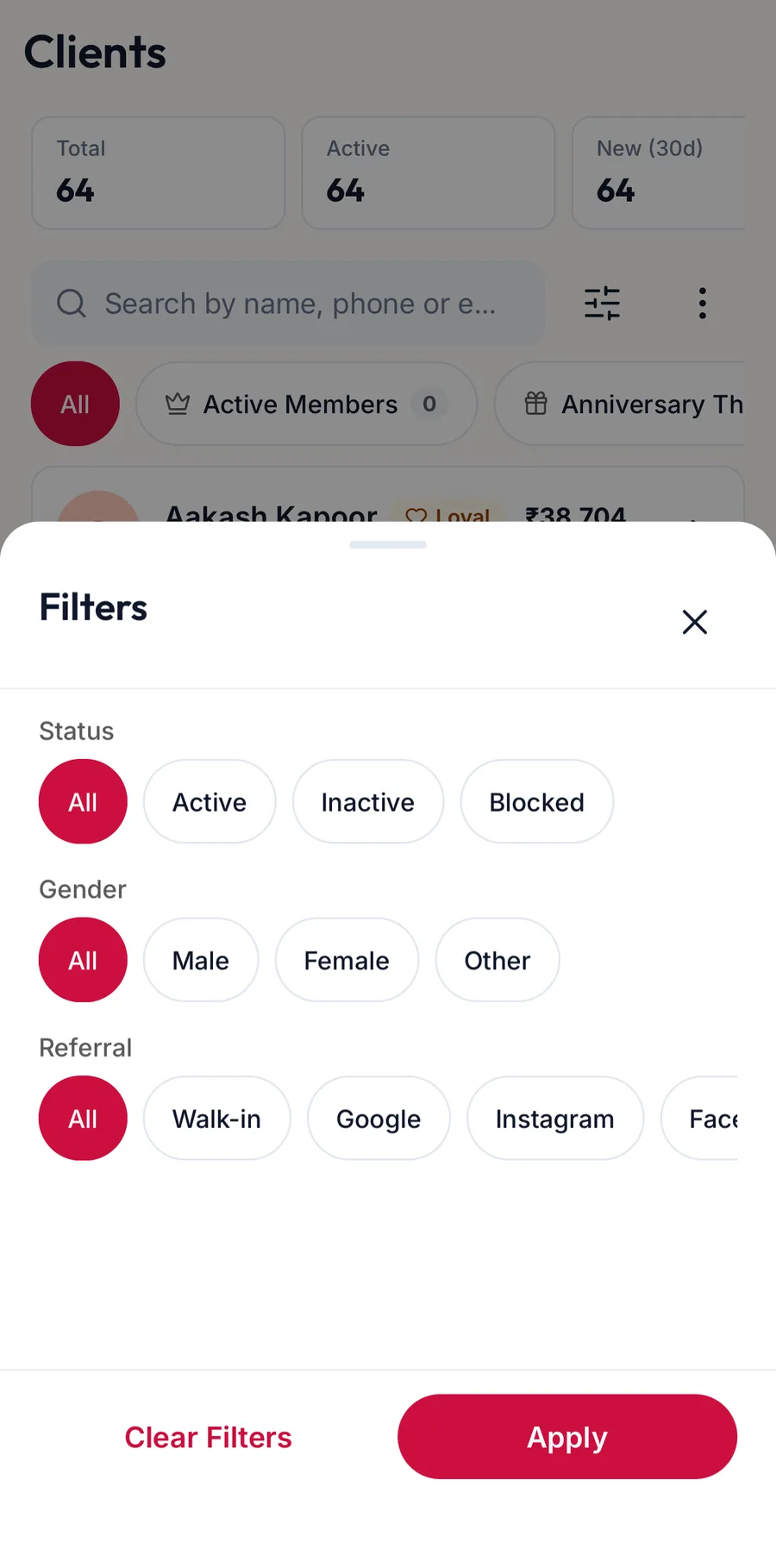
The Filters sheet on the Clients tab -
The chips under the search box are the segments below; tap one to filter the list to it.
-
Each row shows the name, phone, badges and the last visit. Tap the row to open the profile; the + button adds a customer.
Smart segments
The row of chips under the stats groups customers by behaviour. The portal recalculates them from visits and spend; you never maintain them.
| Segment | Who is in it |
|---|---|
| New clients | Joined recently |
| Loyal / Regular | Visit steadily |
| VIP / High value | The highest spenders |
| At risk | Have not visited for a while |
| Lost / Lapsed | Have not visited for a long time |
| No-show prone | Miss bookings |
| Active members | Hold an active membership |
| Birthday this month, Anniversary this month | Worth a message |
Click a chip to filter the list to that segment. Refresh counts recomputes the numbers.
Each row
Name, phone, badges (Blocked, Loyal, Member), then Visits, Spent and Last Visit. Click the row to open the profile; the Row actions menu on the right offers View Profile, Edit, tag changes, Deactivate, Block and Erase client data.
Related articles
- Tags · Customers
- The customer profile · Customers