
Record a due and settle later
Let a customer pay part now and the rest later. The balance is tracked on the invoice and on their profile until it is collected.
Steps
-
Build the order and choose the customer. Dues need a registered customer, not a walk-in.
-
Under Payment method, enter only the amount being paid now. Leave the rest unallocated, or remove every tender to record the whole bill as due.
-
The panel shows Balance due (recorded) and the button changes to Checkout · Save Due with the amount.
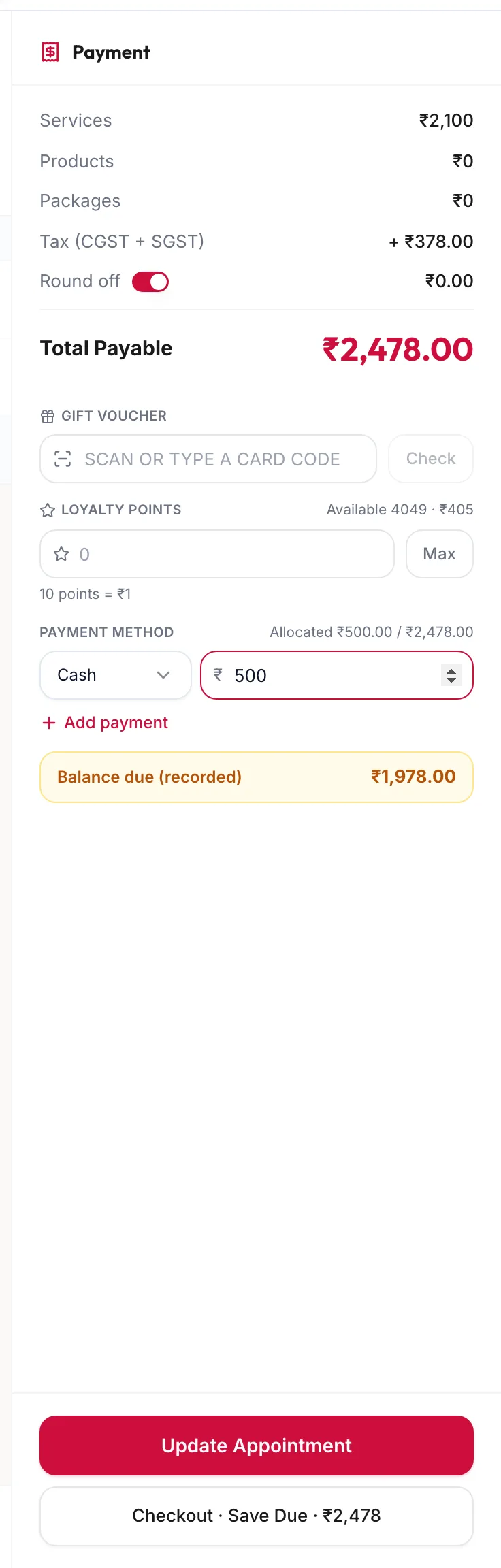
The payment panel showing a balance recorded as due -
Click it and confirm. The confirmation lists Balance recorded as due.
What happens to the due
- The invoice is created with the status Partial, or Pending if nothing was paid, and shows a Due: {{amount}} chip in Billing & POS.
- The customer's profile shows the amount under Outstanding Due and lists the invoice under Outstanding Dues.
- The Unpaid invoices dashboard widget and the Outstanding Receivables Report total every due across the business.
Collect it later
From Billing & POS, click Collect on the invoice, or Collect on the customer's profile. See Collect a due payment.
Related articles
- Take payment: cash, card, UPI and split tenders · Checkout
- Collect a due payment · Billing & POS