
Collect a due payment
Take the balance on a part-paid invoice, in one or more tenders or from the customer's advance.
Steps
On the web
-
In Billing & POS, switch on Dues only to see the invoices with a balance, or find the invoice by number.
-
Click Collect on the row, or open the invoice and click Collect Payment.
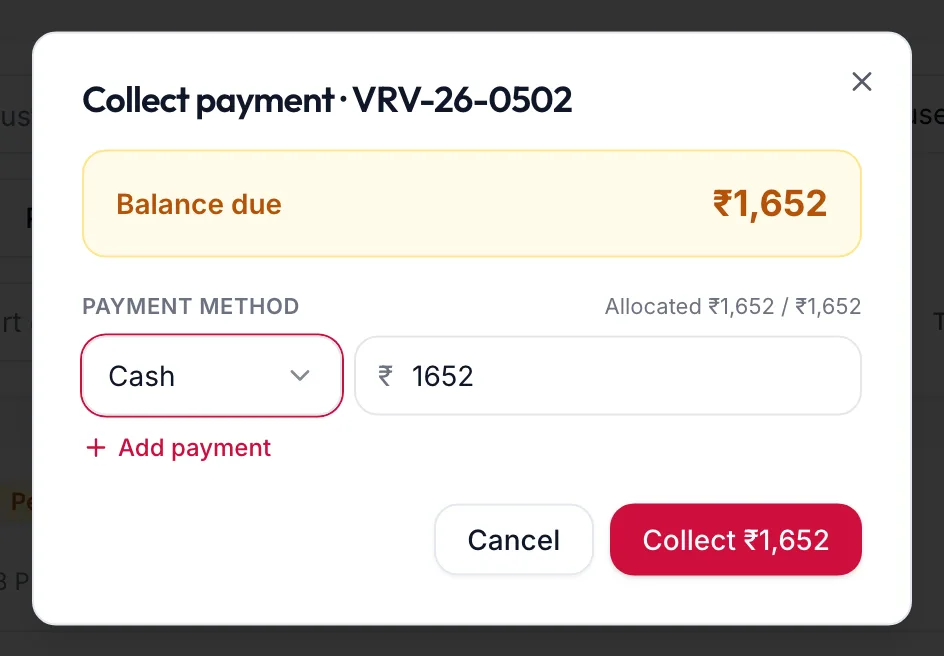
The Collect payment dialog -
The dialog shows the Balance due. Under Payment method, choose the Method and amount. Split across methods with Add payment, or use the customer's Advance if they have one.
-
Click the button that reads Collect with the amount.
The invoice becomes Completed when the balance reaches zero, or stays Partial with the new, smaller due. The portal confirms with Due settled or Payment recorded · balance still due.
In the app
-
Under More, open Invoices & payments. In Filters, switch on Dues only and tap Apply, or search for the invoice by number.
-
Open the invoice and tap the button that reads Collect with the amount.
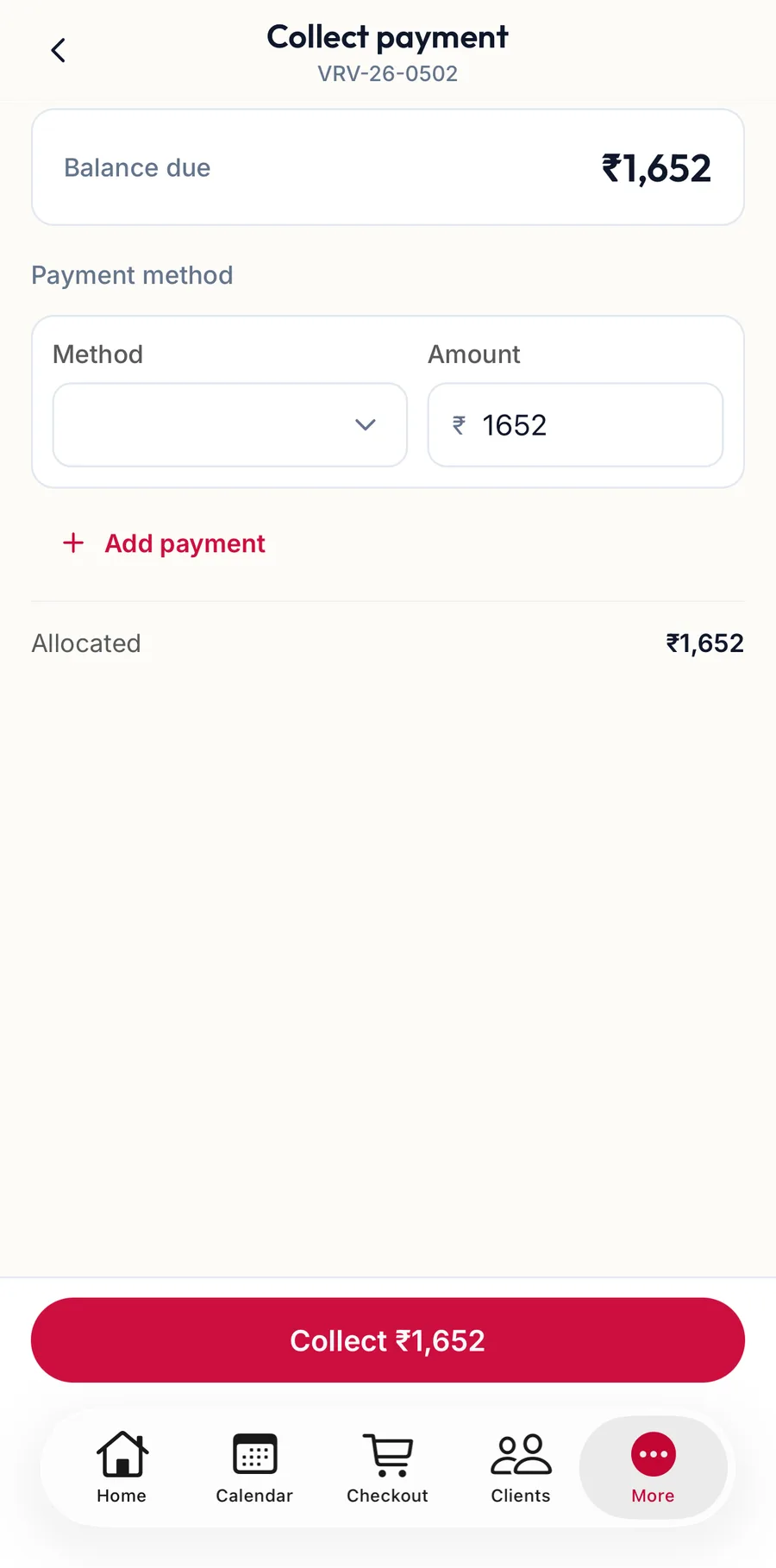
The Collect payment screen in the app -
The screen shows the Balance due. Under Payment method, choose the Method and the Amount. Split across methods with Add payment, or use the customer's Advance if they have one. Allocated tracks how much of the balance is covered.
-
Tap the button that reads Collect with the amount.
The app confirms with Due settled or Payment recorded · balance still due.
From the customer's profile
Open the customer, and under Outstanding Dues click Collect next to the invoice. The same dialog opens.
Rules
- Amount exceeds the balance due. Reduce a tender. You cannot collect more than is owed.
- Enter the payment reference to continue. The chosen method needs a code.
- A message {{amount}} will remain due after this payment. simply confirms you are taking part of the balance.
Related articles
- Record a due and settle later · Checkout
- Find an invoice · Billing & POS