
Invoice details and printing
Open an invoice to see its lines, taxes, payments and notes, and print it in the format set under Point of Sale.
Open an invoice
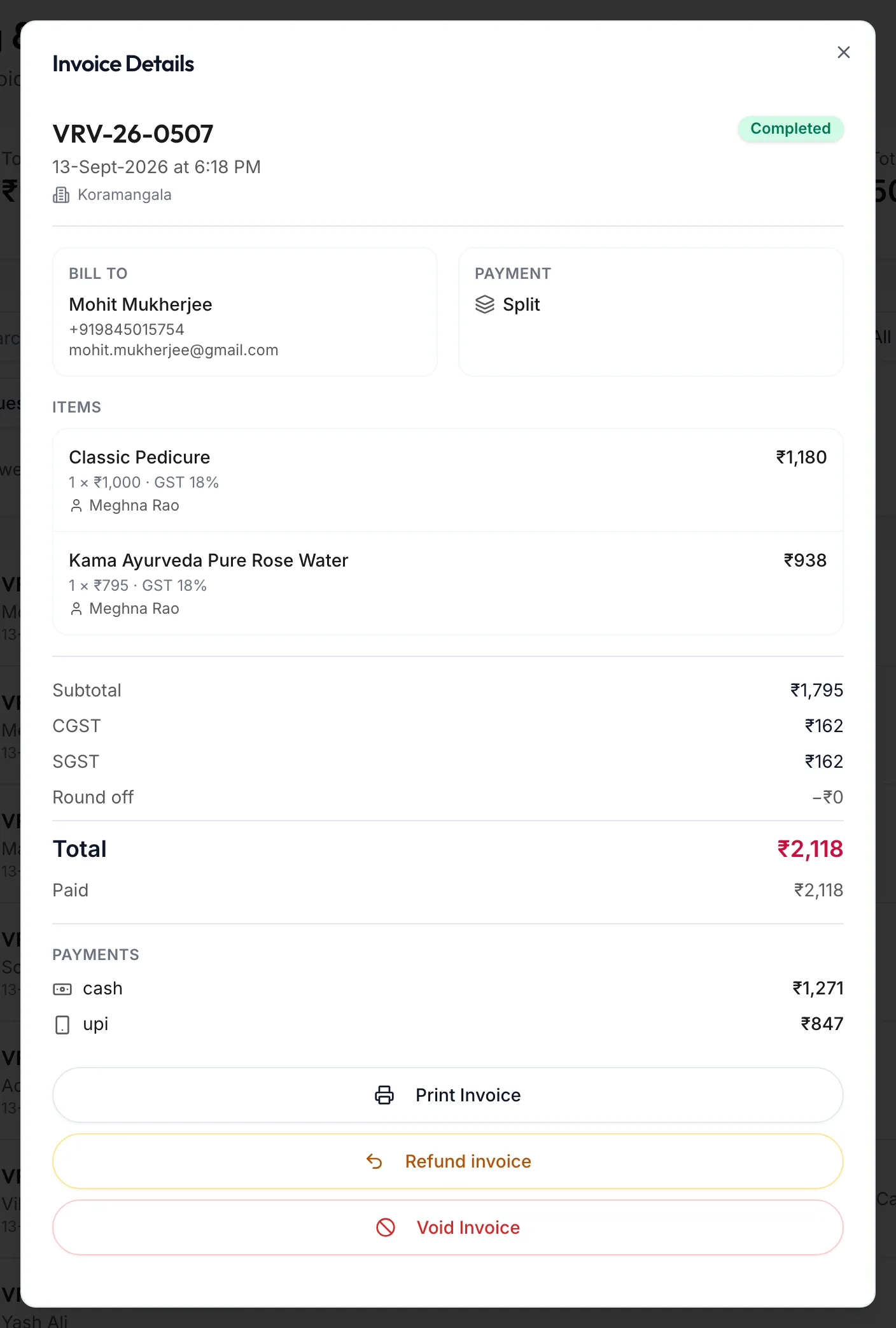
On the web
Click the eye icon, View invoice, on a row. The Invoice Details dialog opens.
In the app
Under More, open Invoices & payments and tap the row. The Invoice Details screen opens with the same sections, and the buttons along the bottom: Print, Share PDF, Refund and Void, plus Collect with the amount when a balance is due.
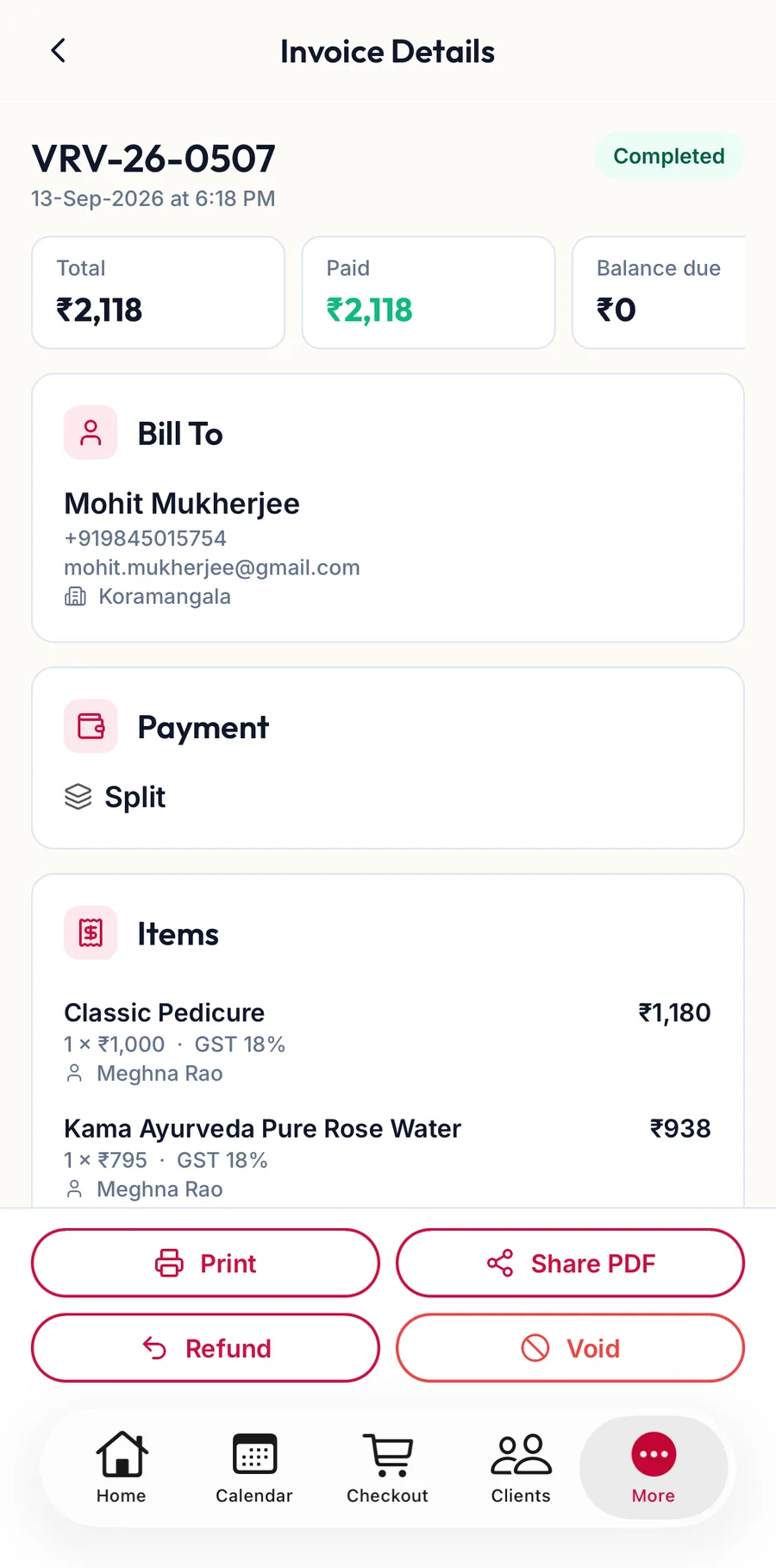
Share PDF hands the invoice to any app on the phone, for example WhatsApp or Mail, which is the usual way to send a receipt from the counter.
What it shows
It shows:
- Bill To: the customer, or Walk-in customer.
- Payment: the mode and, for a part-paid bill, {{amount}} outstanding.
- Items: each line with its quantity, price and any Discount −{{amount}}.
- The totals: Subtotal, CGST, SGST, Discount, Round off, Total, Paid, Change returned and Balance due.
- Payments: every tender, with its reference where one was captured.
- Notes.
The buttons at the bottom, Collect Payment, Print Invoice, Refund invoice and Void Invoice, are the same actions as the row icons.
Click Print Invoice in the dialog, or the printer icon on the row. The browser's print dialog opens with the invoice laid out in the business's chosen format.
The format, the number of copies, the logo position, which customer details appear and whether per-item CGST and SGST columns are shown are all set under Settings, Point of Sale, Print Configuration. See Payment methods and print configuration.
Related articles
- Find an invoice · Billing & POS
- Payment methods and print configuration · Settings