
Refund an invoice
Return money to the customer for some or all of a bill, put the stock, commission and points back, and mark the refund paid once the cash leaves.
A refund keeps the invoice on record and adds a matching record of money going back. It reverses what the sale did: products return to stock, the provider's commission is taken back, and any loyalty points earned on the bill are reversed.
Record the refund
On the web
-
In Billing & POS, click Refund on the invoice, or open it and click Refund invoice.
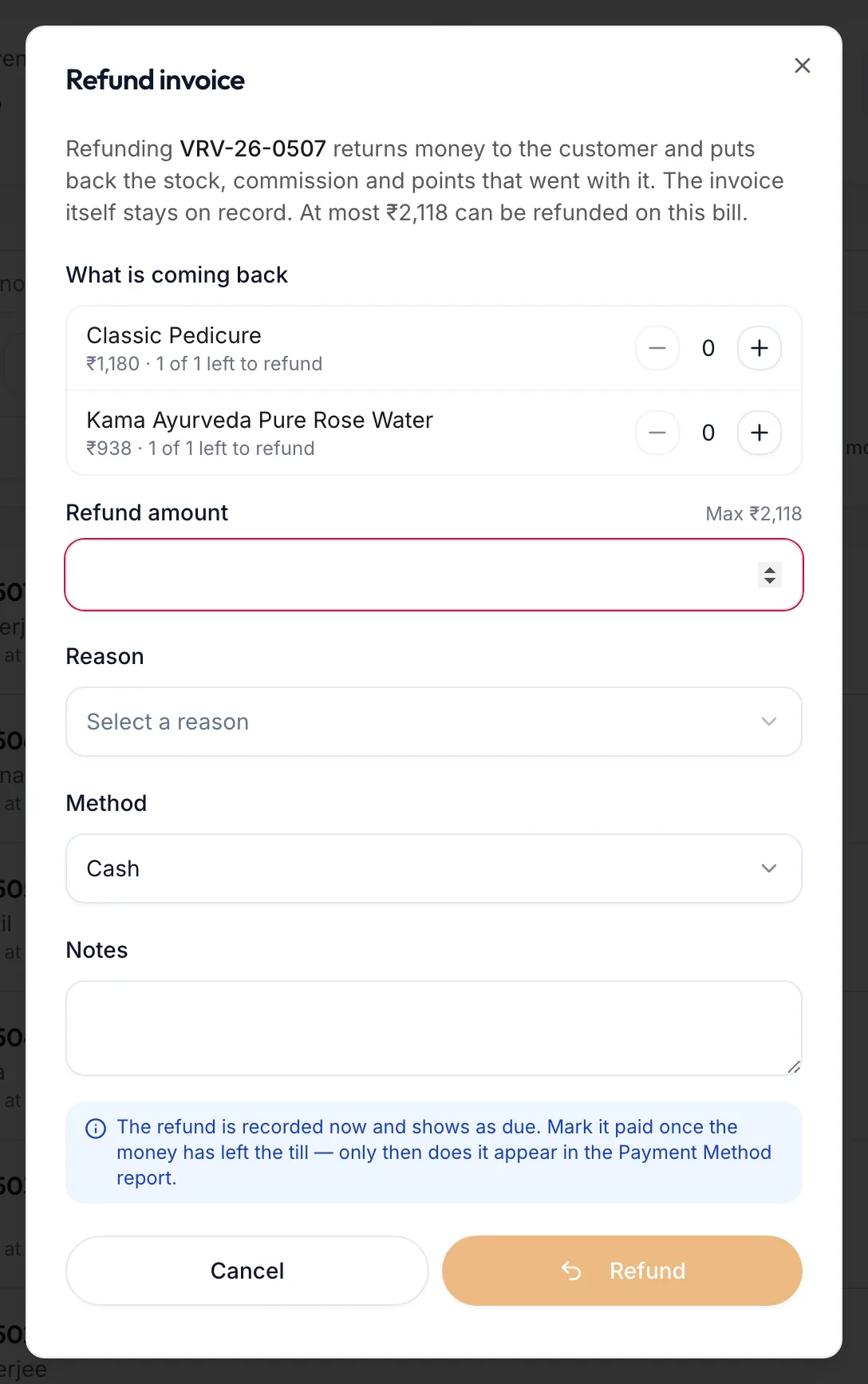
The Refund invoice dialog -
Under What is coming back, set the quantity for each line being returned. A line shows {{left}} of {{sold}} left to refund.
-
Leave Refund amount blank to refund those lines' share of what was actually paid, or type a different amount. The dialog shows Max {{max}}, the most this bill can still refund.
-
Choose a Reason and the Method the money will go back by (Cash, Card, UPI or Other). Add Notes if useful.
-
Click Refund.
In the app
-
Under More, open Invoices & payments. Tap Refund under the invoice's row, or open the invoice and tap Refund.
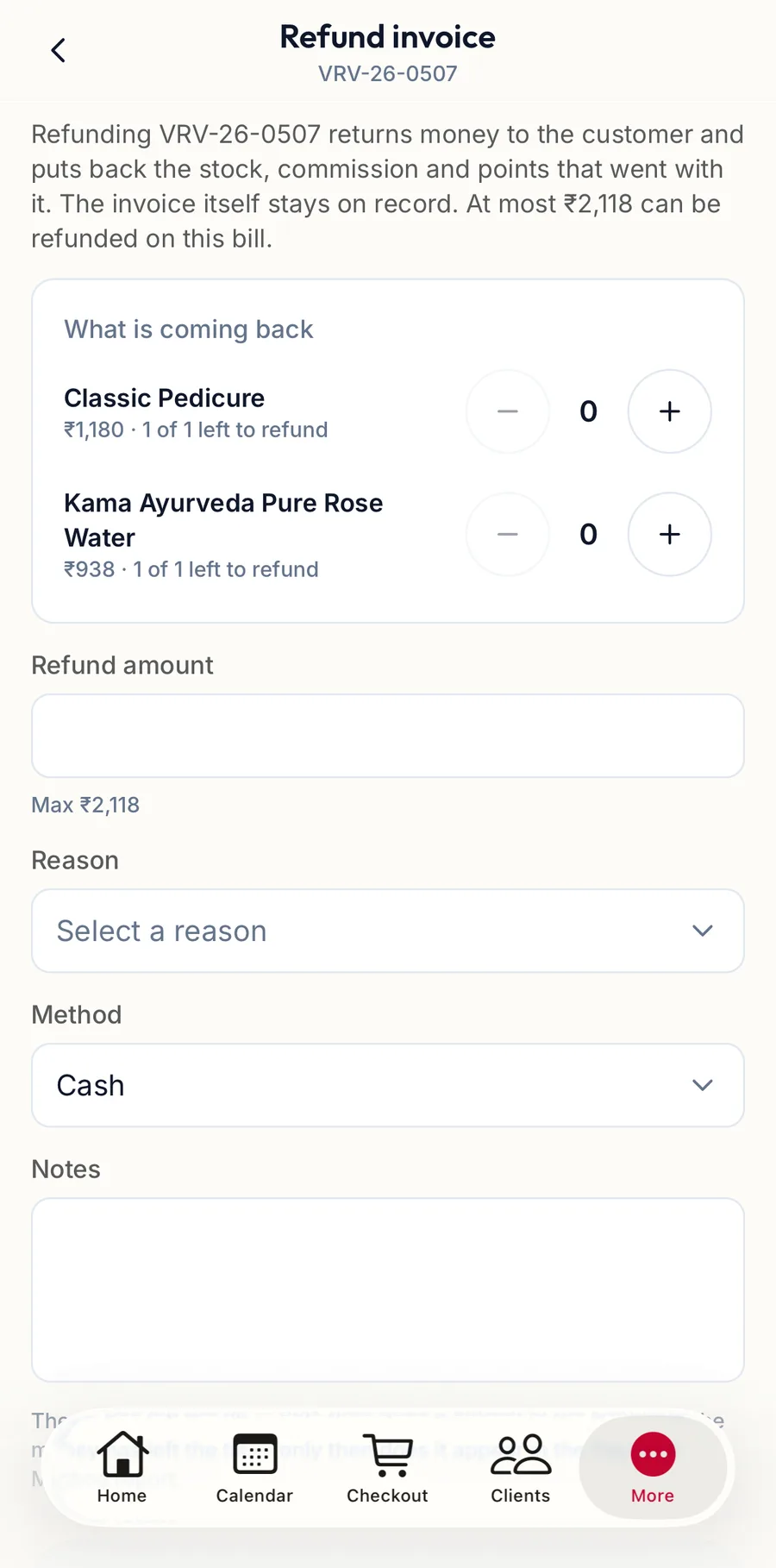
The Refund invoice screen in the app -
Under What is coming back, set the quantity for each line being returned with the plus and minus. A line shows {{left}} of {{sold}} left to refund.
-
Leave Refund amount blank to refund those lines' share of what was actually paid, or type a different amount. The line under it shows Max {{max}}.
-
Choose a Reason and the Method the money will go back by. Add Notes if useful.
-
Tap Refund invoice.
The portal confirms with Refund recorded. The invoice shows a Refunded {{amount}} chip and its status becomes Refunded when fully returned.
Mark the refund paid
A refund is recorded as due until the money has actually left the till. When it has, click Pay {{amount}} on the row. The Refunds due filter lists everything still to be paid out, and only paid refunds appear in the Payment Method Report.
Refund or void?
- Refund when a sale happened and money is going back: a returned product, an unhappy customer, an overcharge.
- Void when the bill itself was a mistake: a duplicate entry or the wrong customer. See Void an invoice.
Related articles
- Void an invoice · Billing & POS
- Find an invoice · Billing & POS