
Payment methods and print configuration
Add your own tenders such as PhonePe or bank transfer, and set the paper size, copies, logo and columns of the printed invoice.
Payment Methods
On the web
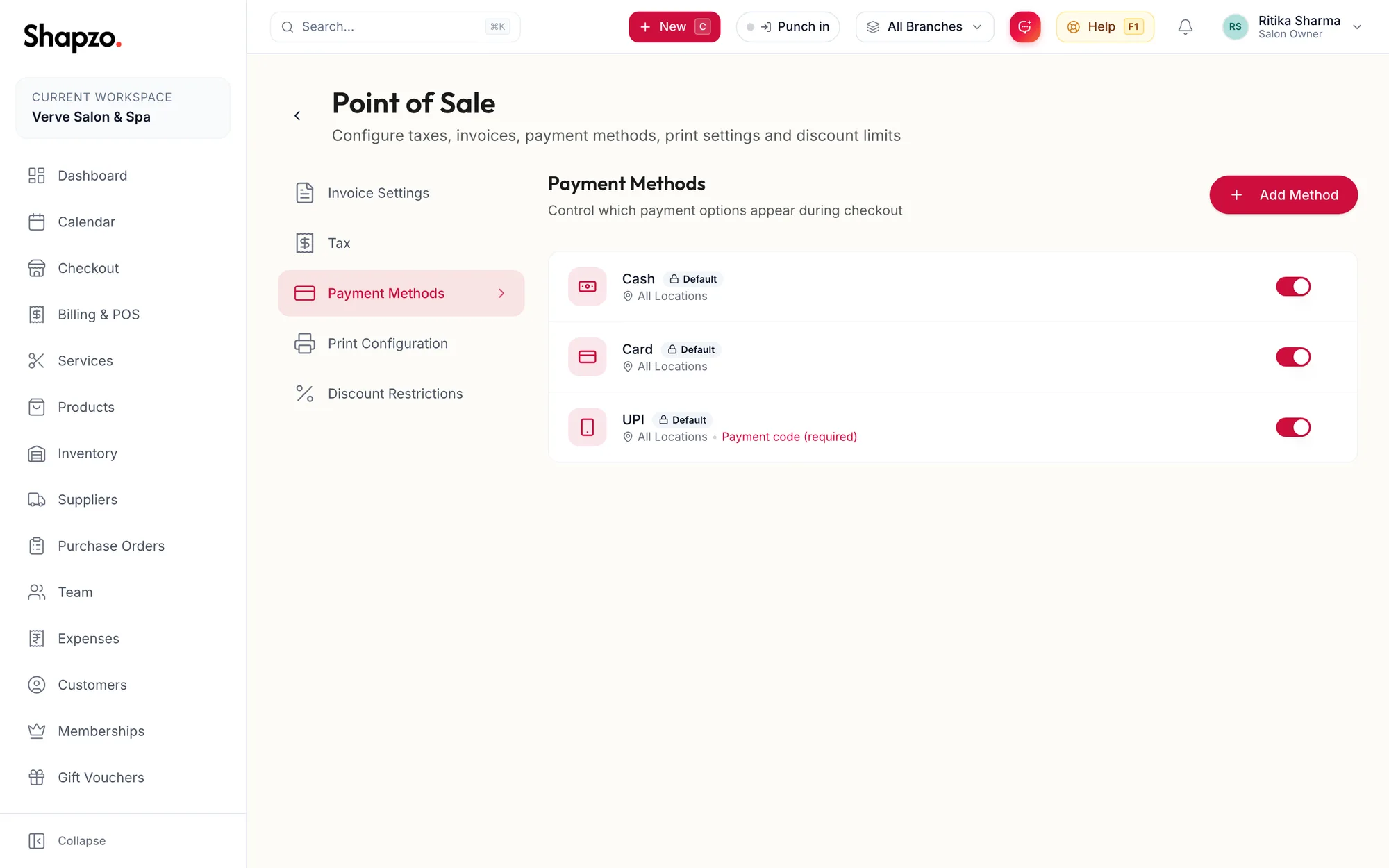
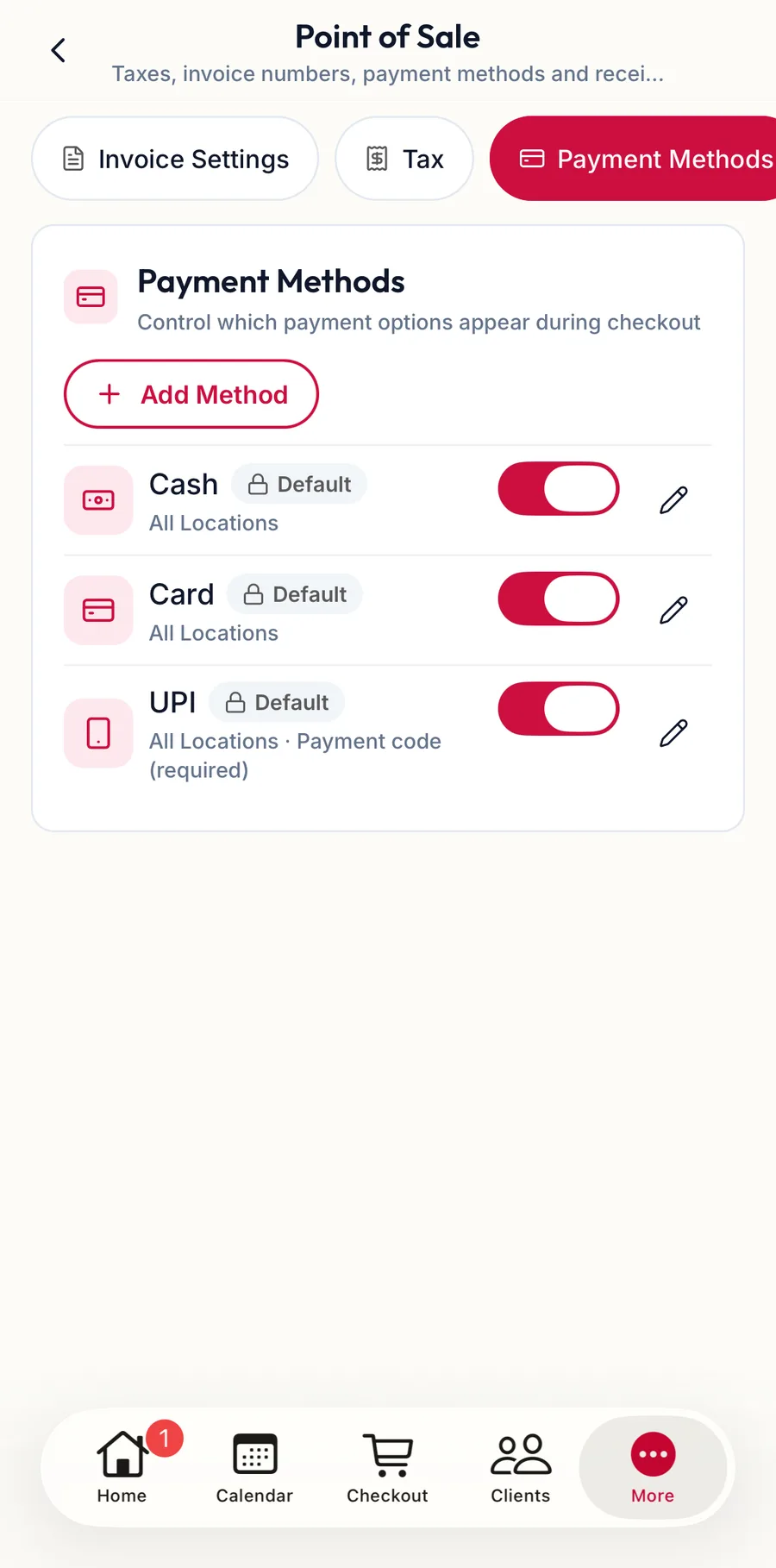
Cash, Card and UPI are built in. Click Add Payment Method, enter the Payment Method Name (for example PhonePe, Paytm or Bank Transfer) and switch on Collect payment code if staff should Capture a payment reference (e.g., UPI transaction ID) at checkout. The toast reads Payment method added. Each custom method becomes a button in the checkout payment panel and a line in the Payment Method Report.
In the app
Tap More, then Settings, then Point of Sale, then the payment-methods chip.
Print Configuration
On the web
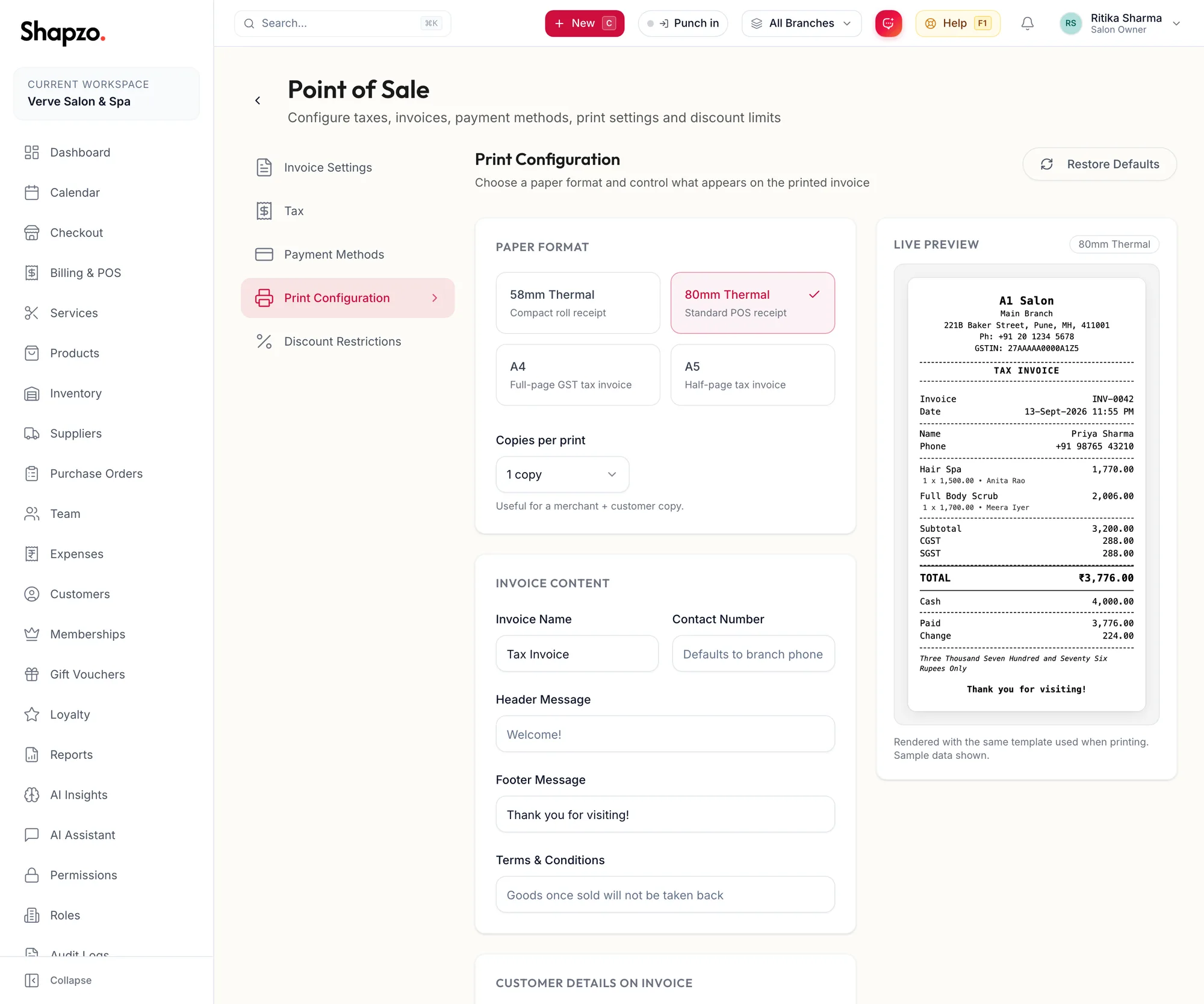
- Paper Format: 58mm Thermal (compact roll receipt), 80mm Thermal (standard POS receipt), A4 (full-page GST tax invoice) or A5 (half-page tax invoice).
- Copies per print, useful for a merchant and a customer copy.
- Invoice Content: the Invoice Name (Tax Invoice, for example), a Contact Number that defaults to the branch phone, Header Message, Footer Message and Terms & Conditions, such as Goods once sold will not be taken back.
- Logo Placement and Customer Details on Invoice.
- Per-item CGST / SGST columns: Adds tax columns to the item table. It is Not available on thermal receipts — switch to A4 or A5.
The Live Preview updates as you change things. Print Test Receipt sends one to your printer. Restore Defaults puts everything back. Click Save Print Settings.
In the app
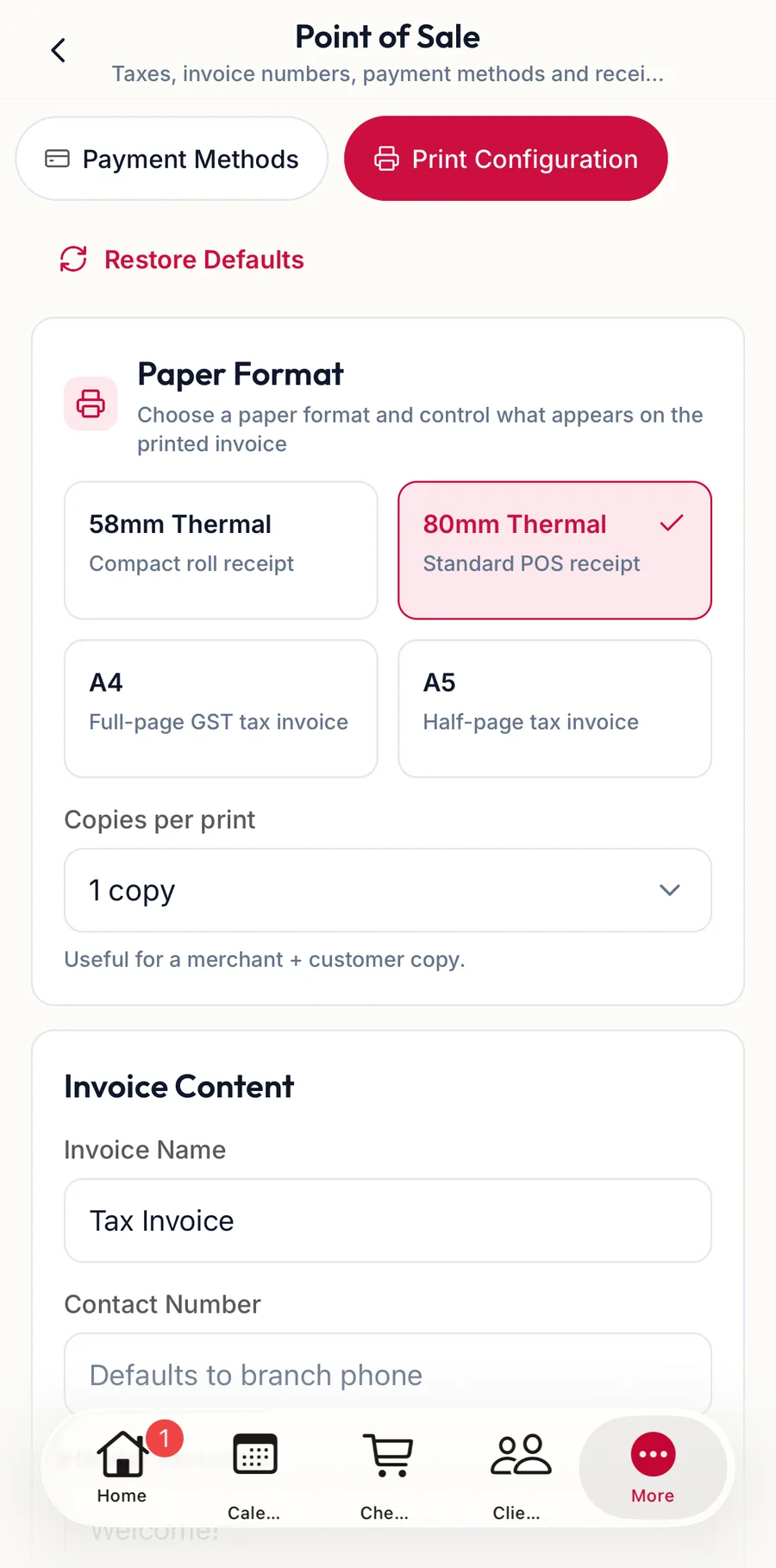
The print chip holds the same paper format, copies, invoice content and placement choices. Printing itself happens from the invoice's Print button, through the phone's print dialog.
Related articles
- Take payment: cash, card, UPI and split tenders · Checkout
- Invoice details and printing · Billing & POS
- Payment tenders · Reference