
Waitlist settings
Turn the waitlist on and choose whether the first to ask or the most valuable customer is offered a freed slot first.
Turn the waitlist on and set its priority
On the web
-
Open Settings, Scheduling, Waitlist.
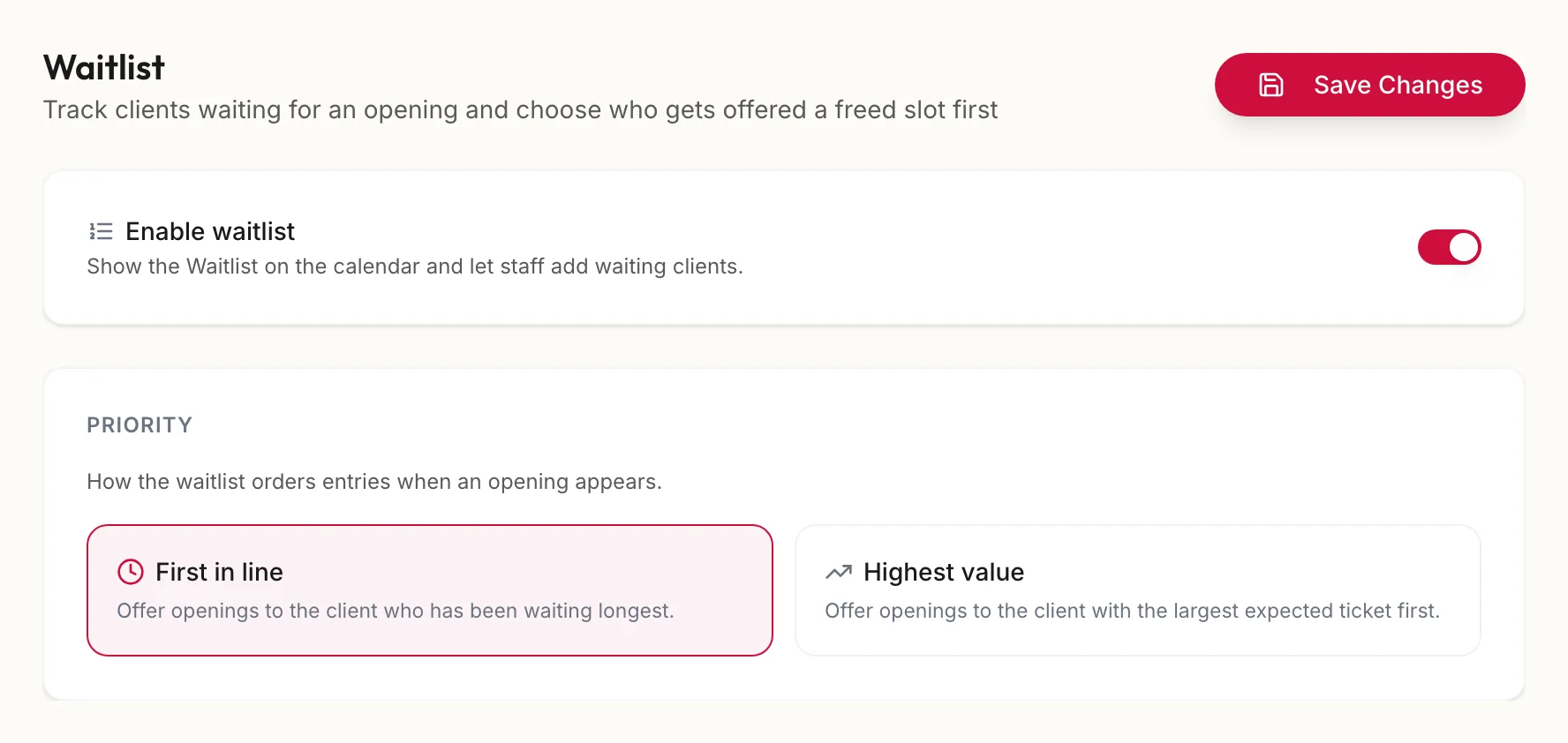
The Waitlist settings section -
Switch on Enable waitlist. The calendar gains its waitlist drawer; see Use the waitlist.
-
Choose the Priority: First in line offers a freed slot to whoever asked first; Highest value offers it to the customer with the highest lifetime spend.
-
Save. The toast reads Waitlist settings saved.
In the app
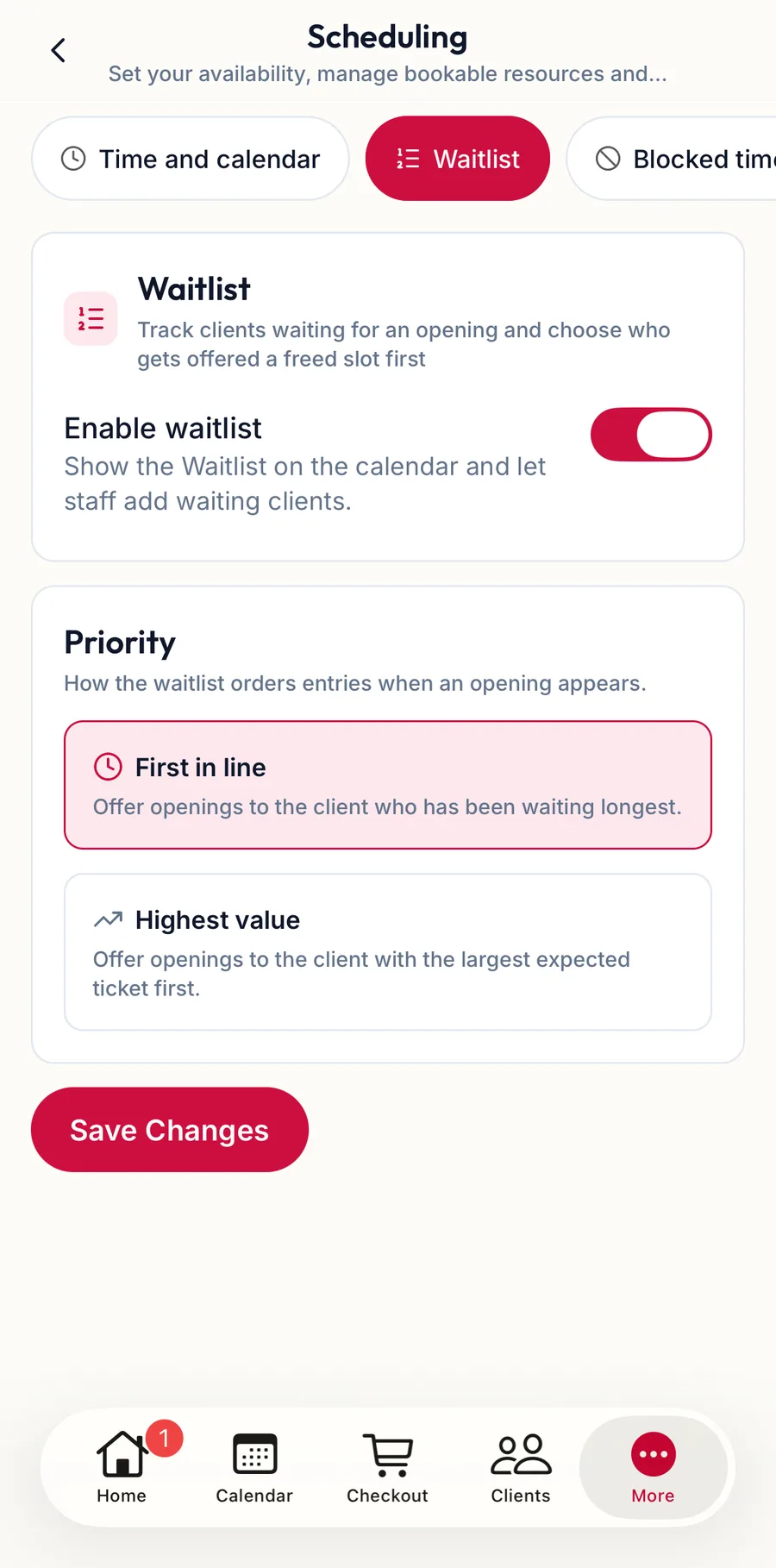
Tap More, then Settings, then Scheduling, then the waitlist chip: Enable waitlist and the Priority.
Related articles
- Use the waitlist · Calendar
- Scheduling: time and calendar · Settings