
Use the waitlist
Capture customers who could not get a slot, see when an opening fits them, and book them into it in one click.
When the day is full, put the customer on the waitlist instead of turning them away. The calendar watches for cancellations and tells you when someone on the list fits an opening.
Add someone to the waitlist
On the web
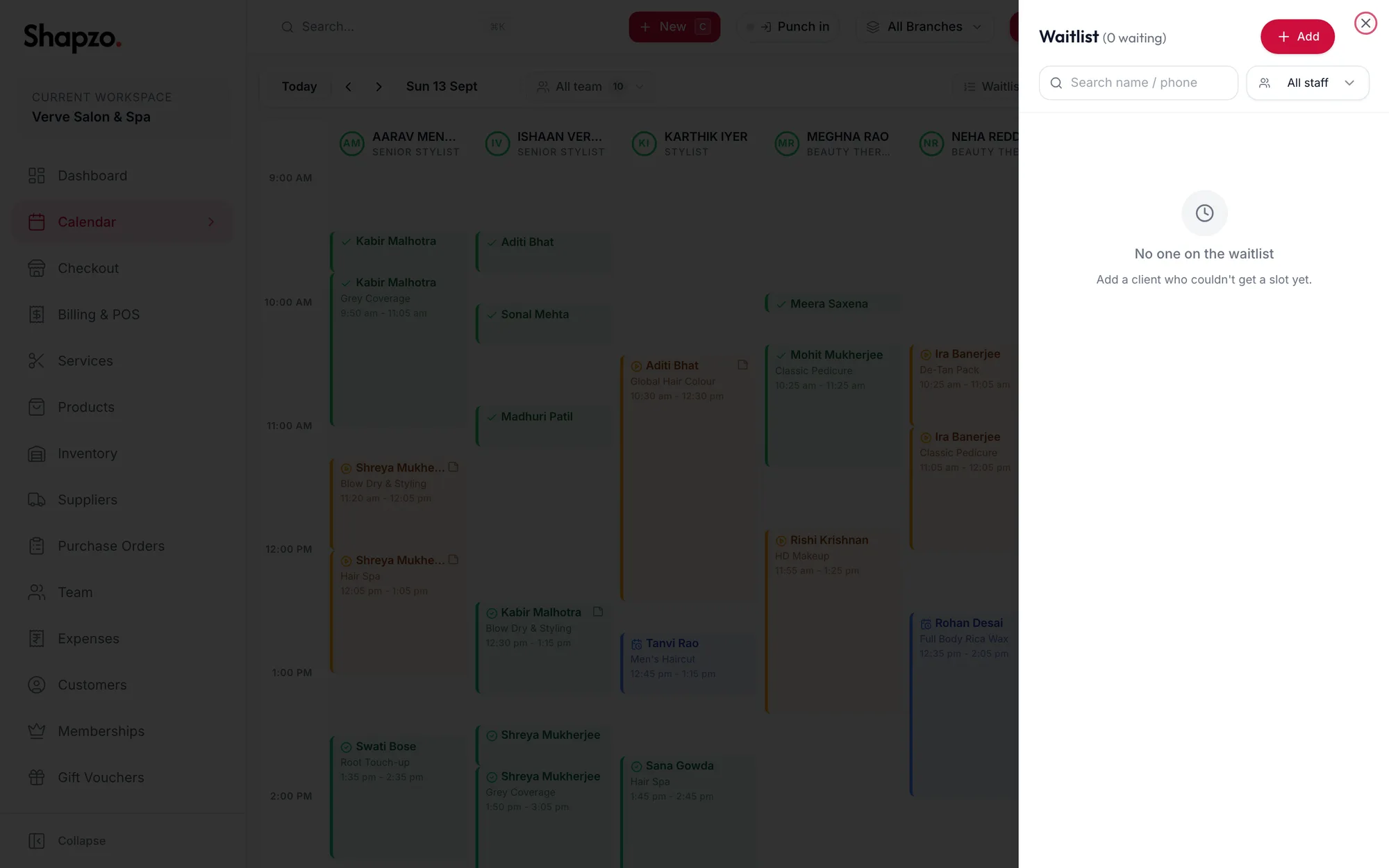
- On the Calendar, click Waitlist.
- Click Add.
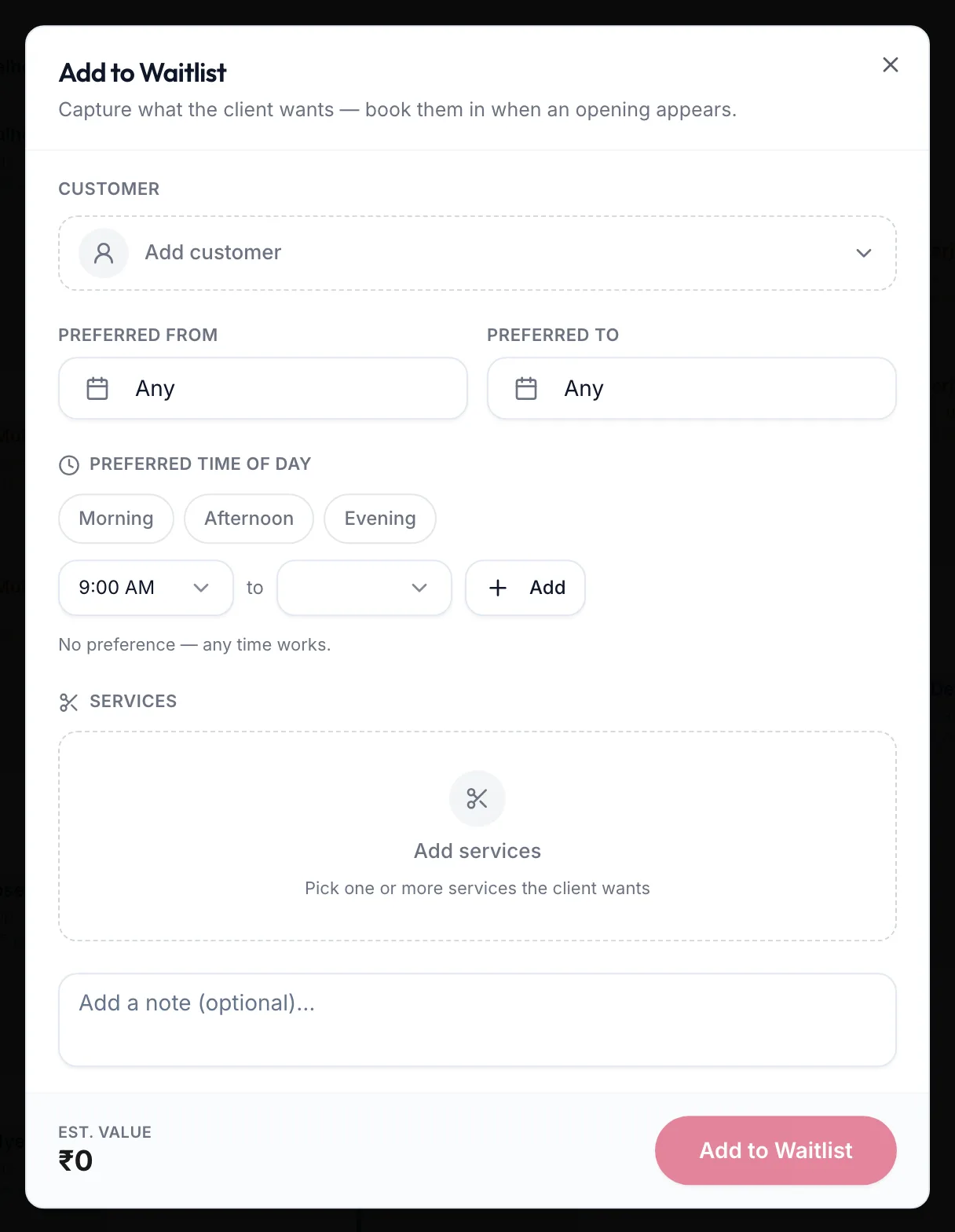
- Choose the Customer.
- Set when they could come: Preferred from and Preferred to dates, and a Preferred time of day of Morning, Afternoon or Evening, or a custom range. Leave everything blank if any time works.
- Under Services, click Add and tick what they want. Pick a stylist per service or leave Any stylist.
- Add a note if useful and click Add to Waitlist.
In the app
-
On the Calendar tab, tap the clock icon at the top to open the Waitlist.
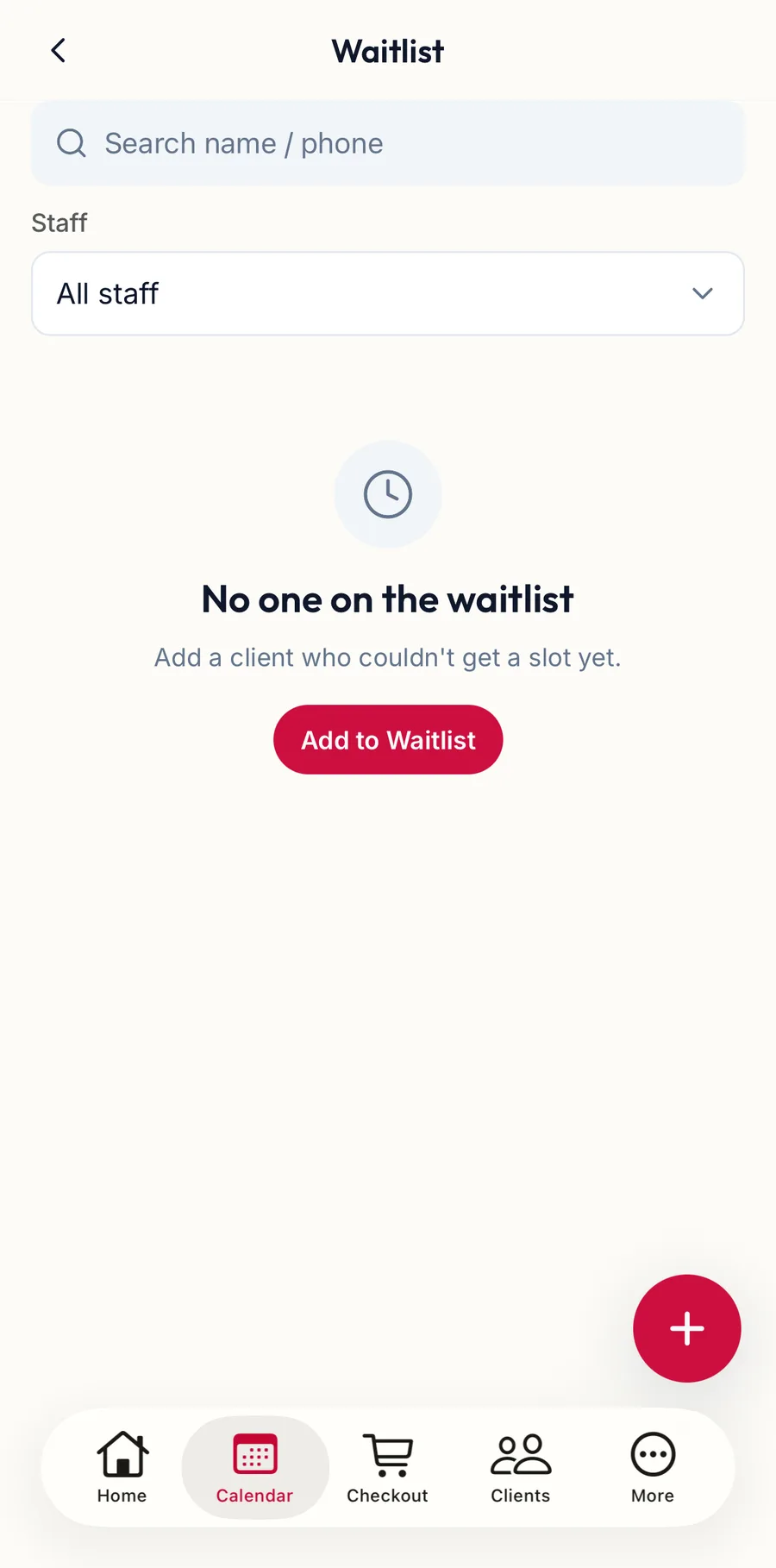
The waitlist in the app -
Tap +, or Add to Waitlist when the list is empty.
-
Under Customer, tap Add customer and choose who is waiting.
-
Set when they could come: Preferred from and Preferred to dates, and a Preferred time of day of Morning, Afternoon or Evening, or Custom time. Leave everything as it is if any time works.
-
Under Services, tap Add services and choose what they want. Pick a stylist per service or leave Any stylist.
-
Add a note if useful and tap Add to Waitlist.
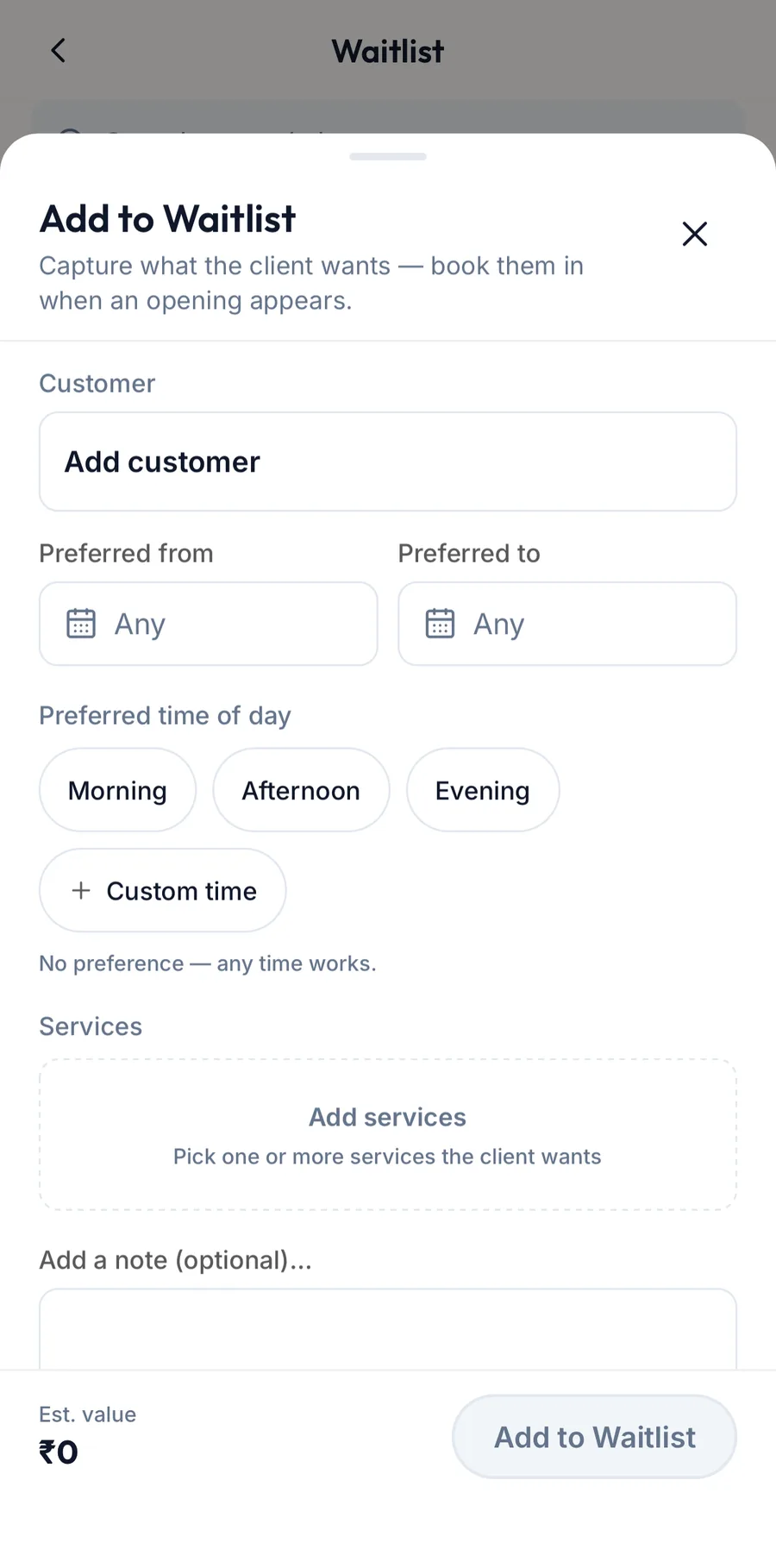
The Add to Waitlist form in the app
Entries that fit an opening carry a Fits chip. Tap an entry for Book into slot, Book, Mark contacted, Edit and Remove.
Book them in
- The Waitlist button shows how many people are waiting. An amber dot and the line {{n}} fit an opening mean the calendar has found a free slot that matches someone's preferences.
- Open the drawer. Entries that fit carry a Fits … chip. Click Book into slot to book that exact opening, or Book to open the booking form and choose the time yourself.
- After you have phoned or messaged someone, click Mark contacted so colleagues know.
- Edit changes the entry; Remove takes them off the list.
Settings
The waitlist is switched on under Settings, then Scheduling, then Waitlist, where Priority decides whether First in line or Highest value is offered an opening first.
Related articles
- Book an appointment · Calendar
- Read the calendar · Calendar