
Open an appointment and change its status
The side panel shows everything about a booking and moves it through Confirmed, In Progress, Completed, No Show or Cancelled.
Click any booking on the calendar to open its side panel.
Open a booking
On the web
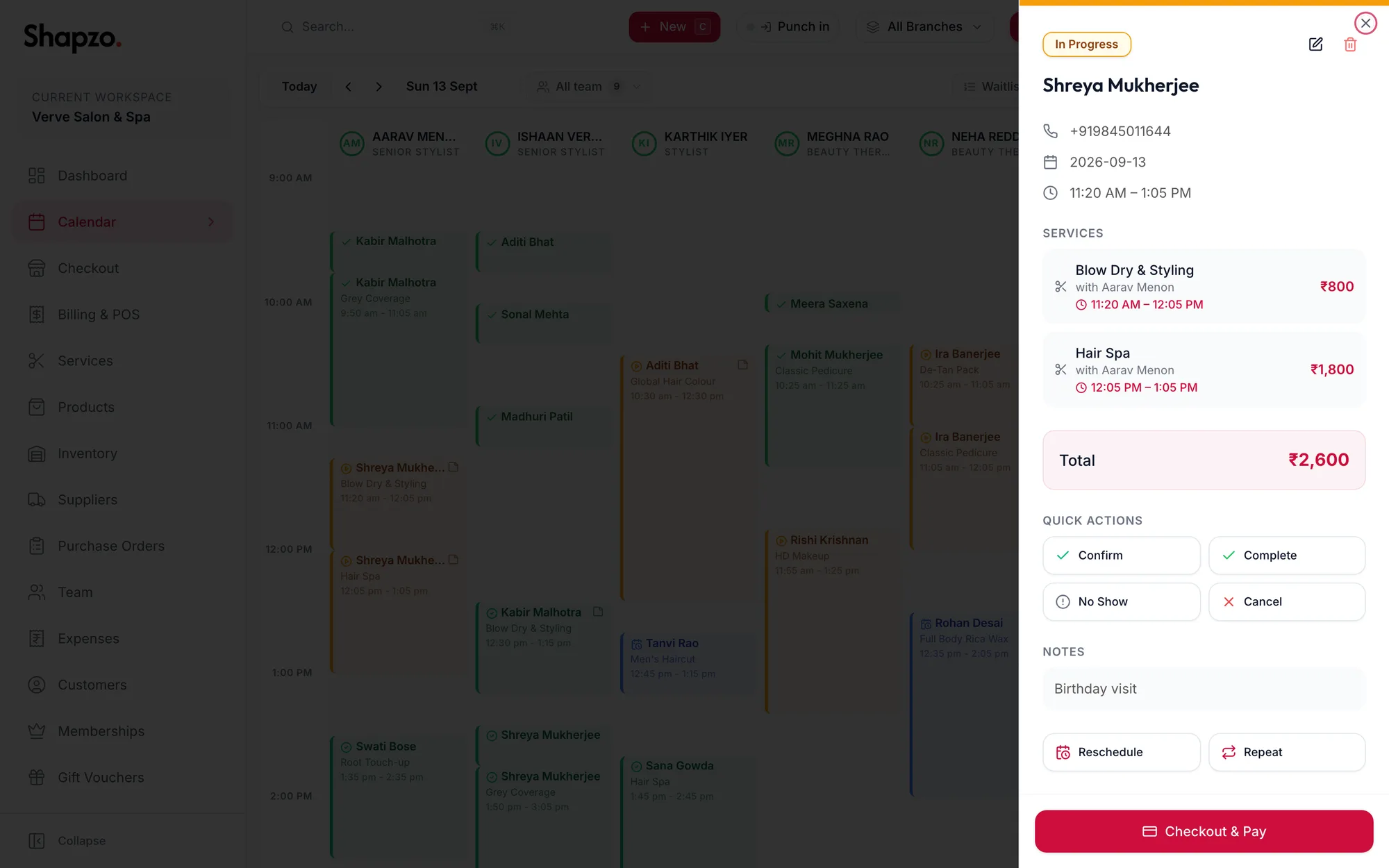
What the panel shows
- The status pill, the customer and their phone, the date and the time.
- Services: each service with its provider, shown as with {{name}}, and its time. Add room appears when the business books rooms.
- Total: the value of the booking at menu prices.
- An Unbilled badge if the visit has not been checked out yet.
- Notes, and the recurring-series note when the booking is part of a series.
Change the status
Under Quick Actions, click the step the visit has reached:
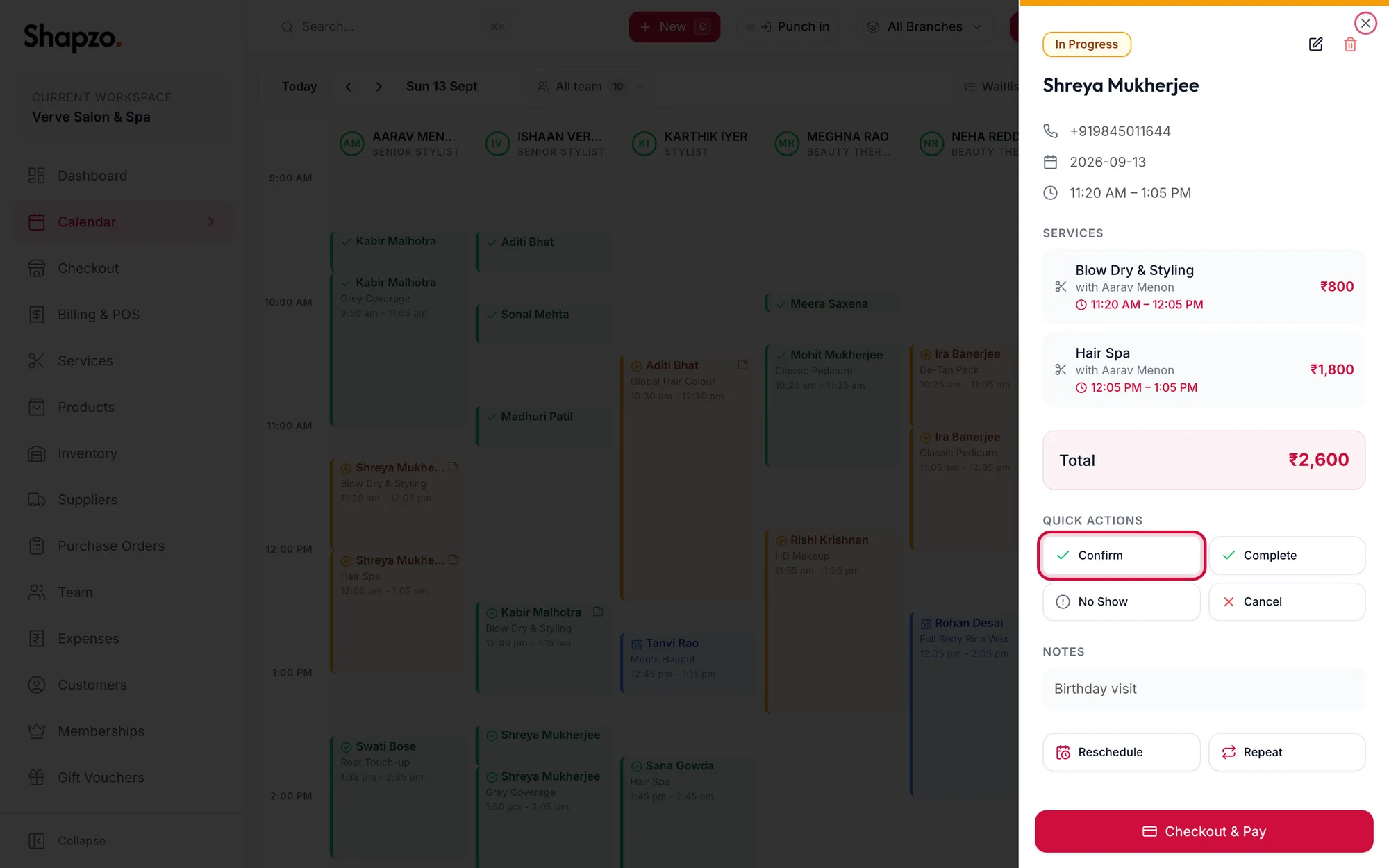
| Action | New status | When to use it |
|---|---|---|
| Confirm | Confirmed | The customer has confirmed they are coming. |
| Start | In Progress | The customer is in the chair. |
| Complete | Completed | The visit is over. The portal asks about billing if the visit is unbilled. |
| No Show | No Show | The customer did not come. A reason is asked for. |
| Cancel | Cancelled | The visit will not happen. A reason is asked for. |
Statuses appear as colours on the calendar and feed the appointment reports, so keeping them current is worth the second it takes.
Other actions in the panel
- Reschedule changes the date and time. See Move, resize and reschedule.
- Repeat books the same services for the same customer again.
- Checkout & Pay takes the booking to checkout. It reads Bill now for a completed but unbilled visit.
- The pencil opens the full booking form; the bin deletes the booking after a confirmation.
In the app
Tap a booking on the calendar and it opens as a sheet.
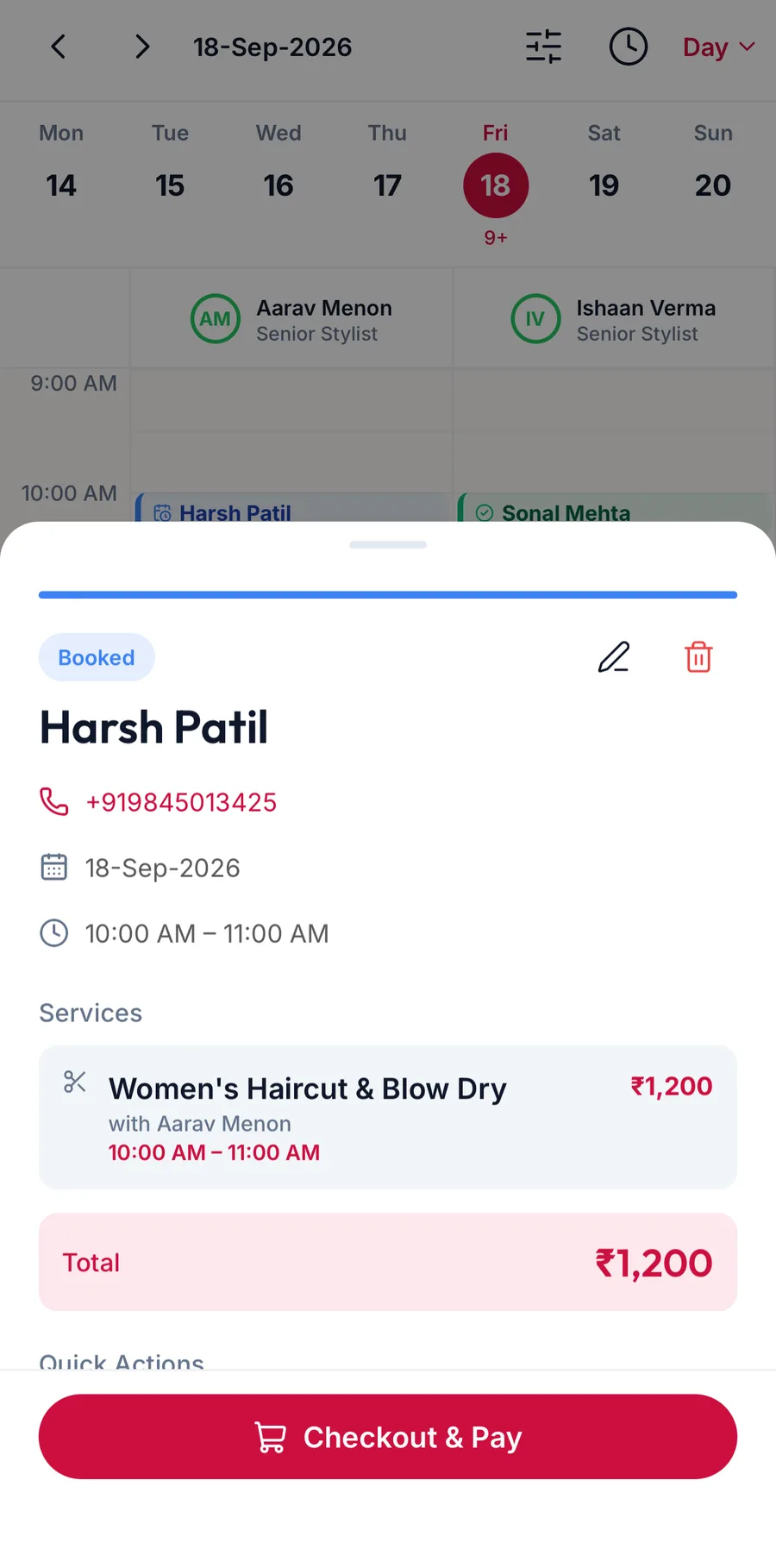
The sheet shows the status, the customer and their phone (tap it to call), the date and time, the Services with their provider, the Total, an Unbilled badge when the visit has not been billed, and the Notes.
Under Quick Actions, tap the step the visit has reached: Confirm, Start, Complete, No Show or Cancel. They do the same as on the web, including the prompts for a reason and for billing.
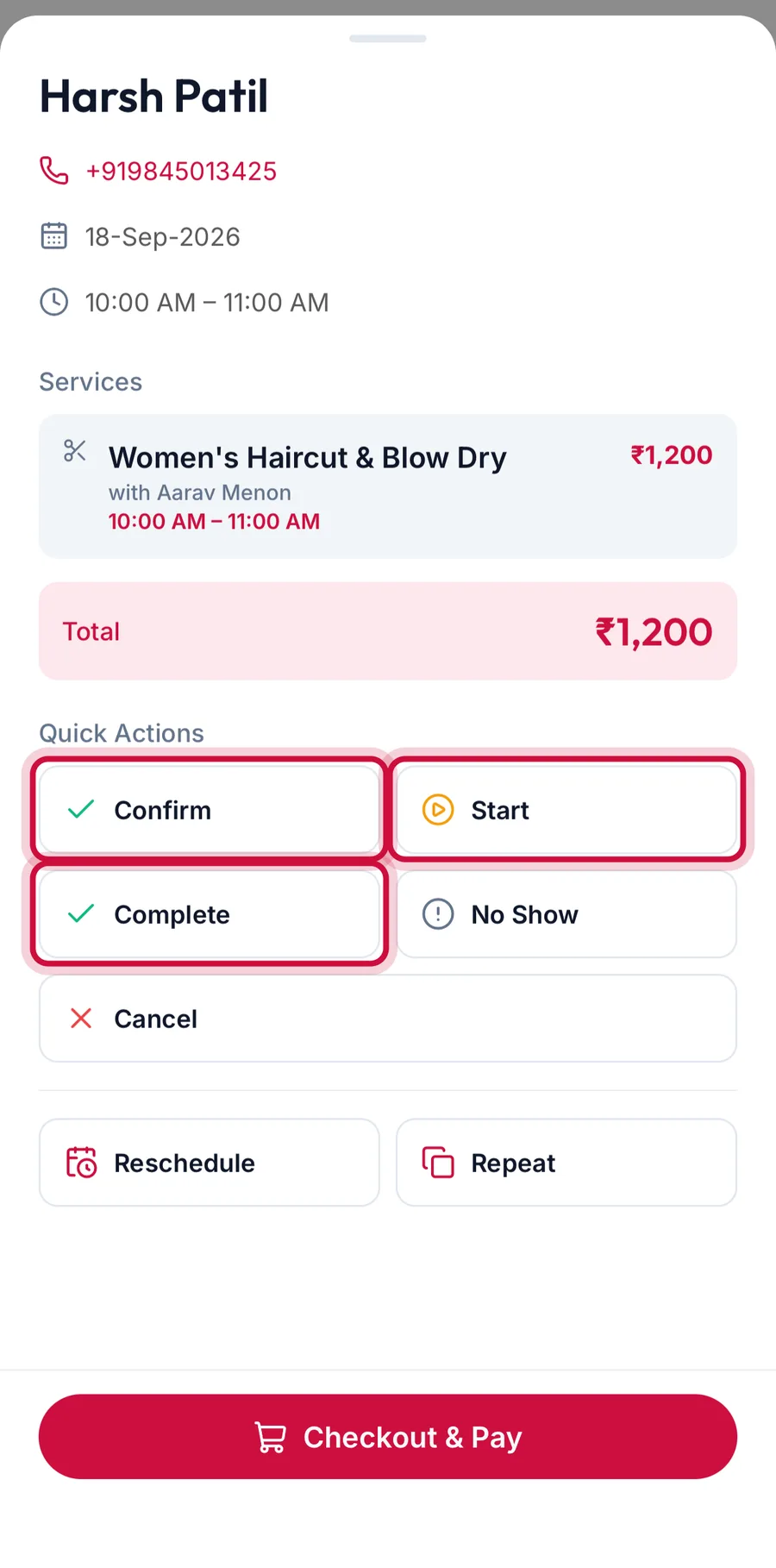
Below them, Reschedule changes the date and time, Repeat books the same services again, and Checkout & Pay (or Bill now for a completed visit) takes the booking to checkout. Edit opens the full form and Delete removes the booking after a confirmation.
Related articles
- Cancel or mark a no-show with a reason · Calendar
- Complete without billing vs Bill now · Calendar