
Rooms and equipment on the calendar
Give massage rooms, chairs and machines their own columns so a room is never double booked, and assign a room to each service.
A spa with two massage rooms cannot take three massages at 3 pm, and a clinic with two chairs cannot take three patients, however many people are free. Resources let the calendar know that.
Turn it on
- Open Settings, then Scheduling, then Time and calendar.
- Under Behaviour, switch on Book rooms and equipment and save.
Add rooms and equipment
-
Still under Scheduling, open Resources.
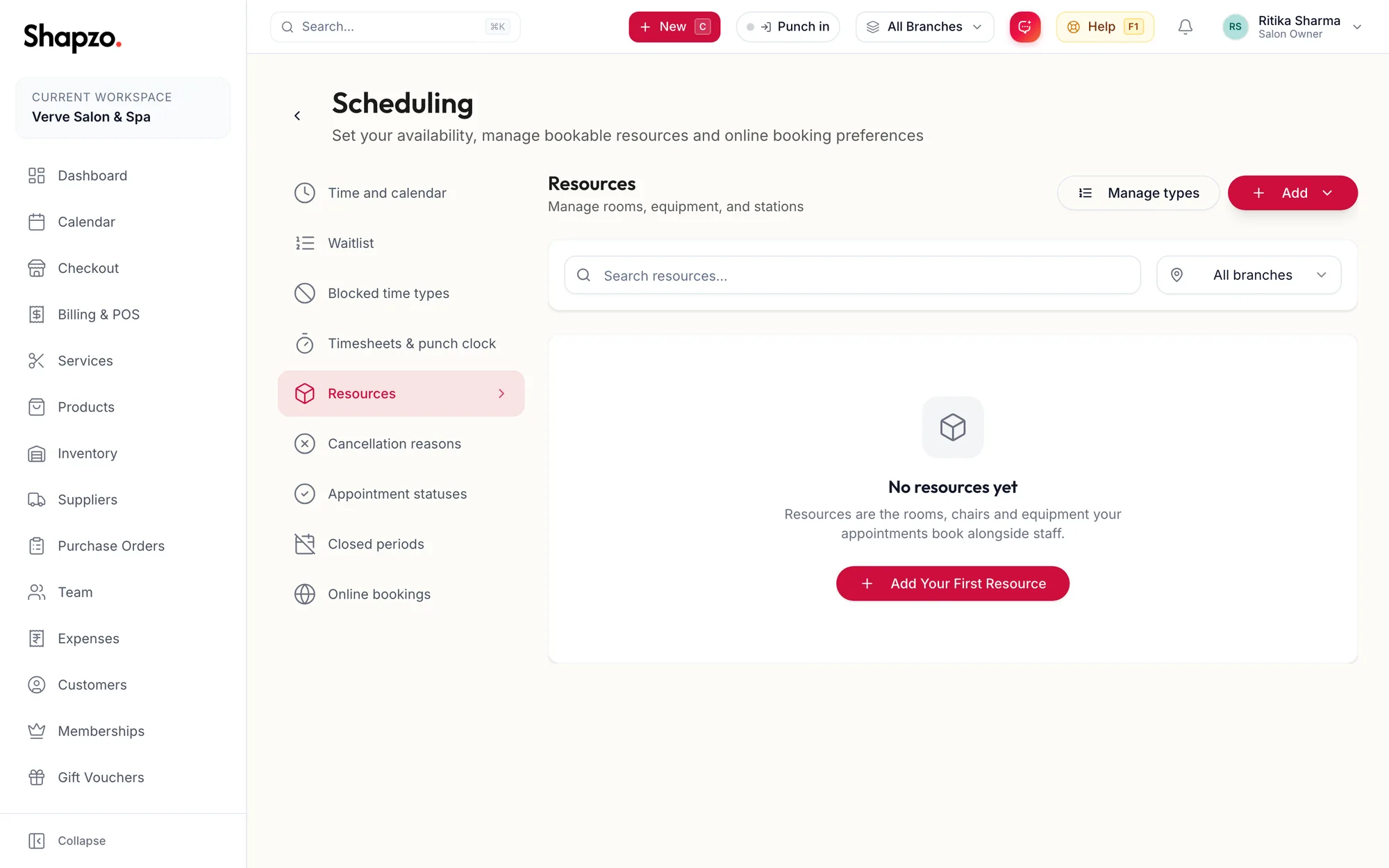
The Resources section of Scheduling settings -
Click New Resource. Give it a Name, choose or create a Resource Type (for example Massage room), pick the Branch, and say how many bookings it can hold at once: One appointment at a time, Multiple appointments can use this resource at the same time, or Specific number of appointments.
-
Save. Manage Resource Types keeps the list of types.
Tell a service which room it needs
Open the service under Services, go to its Resources tab and set the Required resource type. From then on the booking form and checkout ask for a room of that type for the service.
On the calendar
- Switch to By room to get one column per room. By staff returns to team columns.
- In the booking form and the side panel, each service shows Add room or the room it has. The room list shows what is free, Booked {{window}}, or Fully booked for that time.
- A clash is reported as Scheduling conflict with the room's name, exactly like a clash between two bookings for one stylist.
Related articles
- Read the calendar · Calendar
- Book an appointment · Calendar