
Read the calendar
Day, week, month and list views, one column per team member or per room, and what the colours and badges on each booking mean.
The calendar is the front desk's home screen. Every booking, every team member and every room is on it, for the branch selected in the top bar.
The calendar
On the web
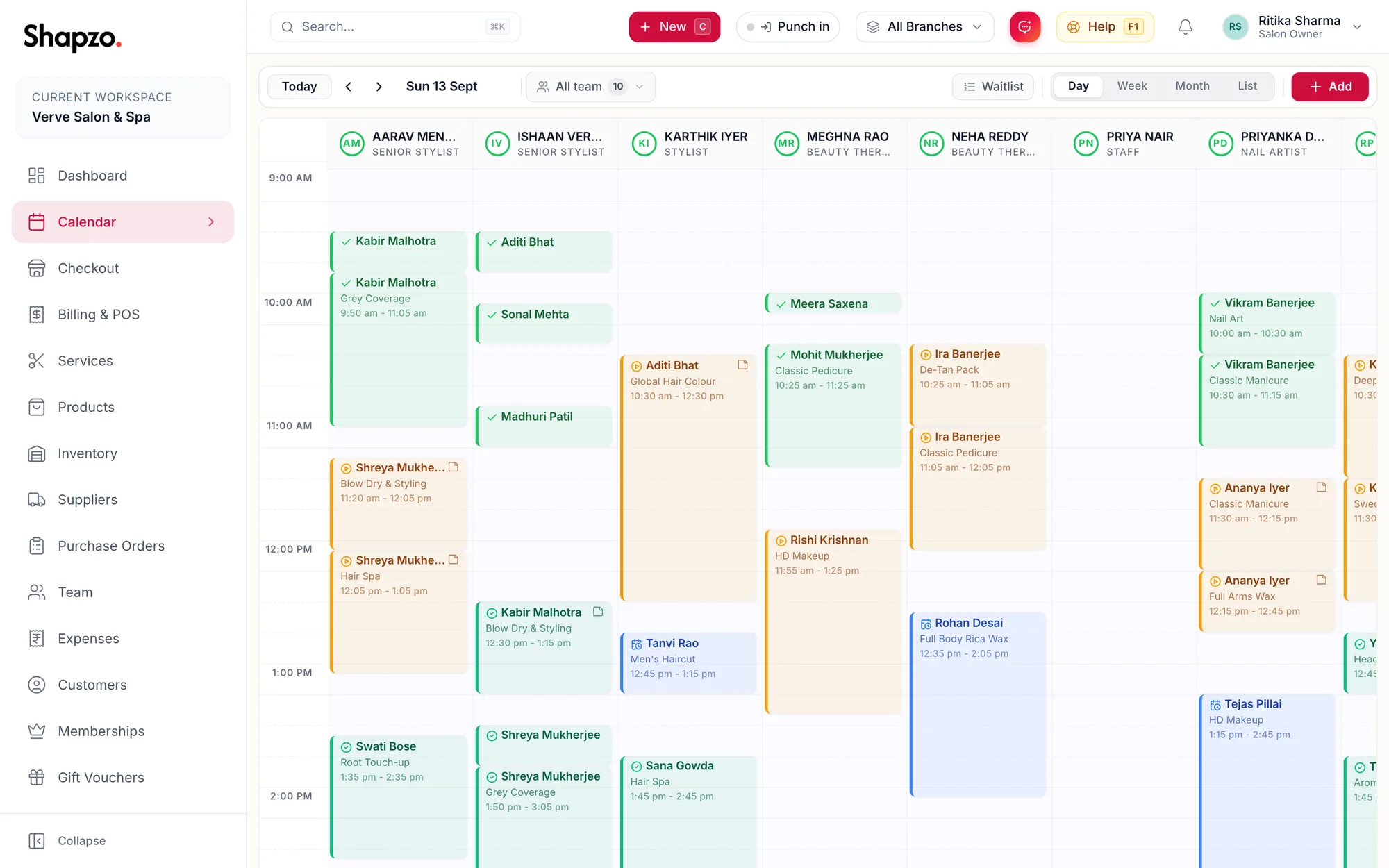
Moving around
- Today jumps back to today. The arrows step one day, week or month depending on the view. The date pill between them shows the day and how many appointments it holds.
- All team narrows the columns to the people you tick. Search the list by name.
- The branch selector in the top bar decides which location you are looking at.
Views
| View | Best for |
|---|---|
| Day | The working day, one column per team member. The default. |
| Week | Planning ahead; each day is a column. |
| Month | Spotting busy and empty days. Days with more bookings than fit show +{{count}} more. |
| List | A plain list of the period's bookings, easy to scan or read out. |
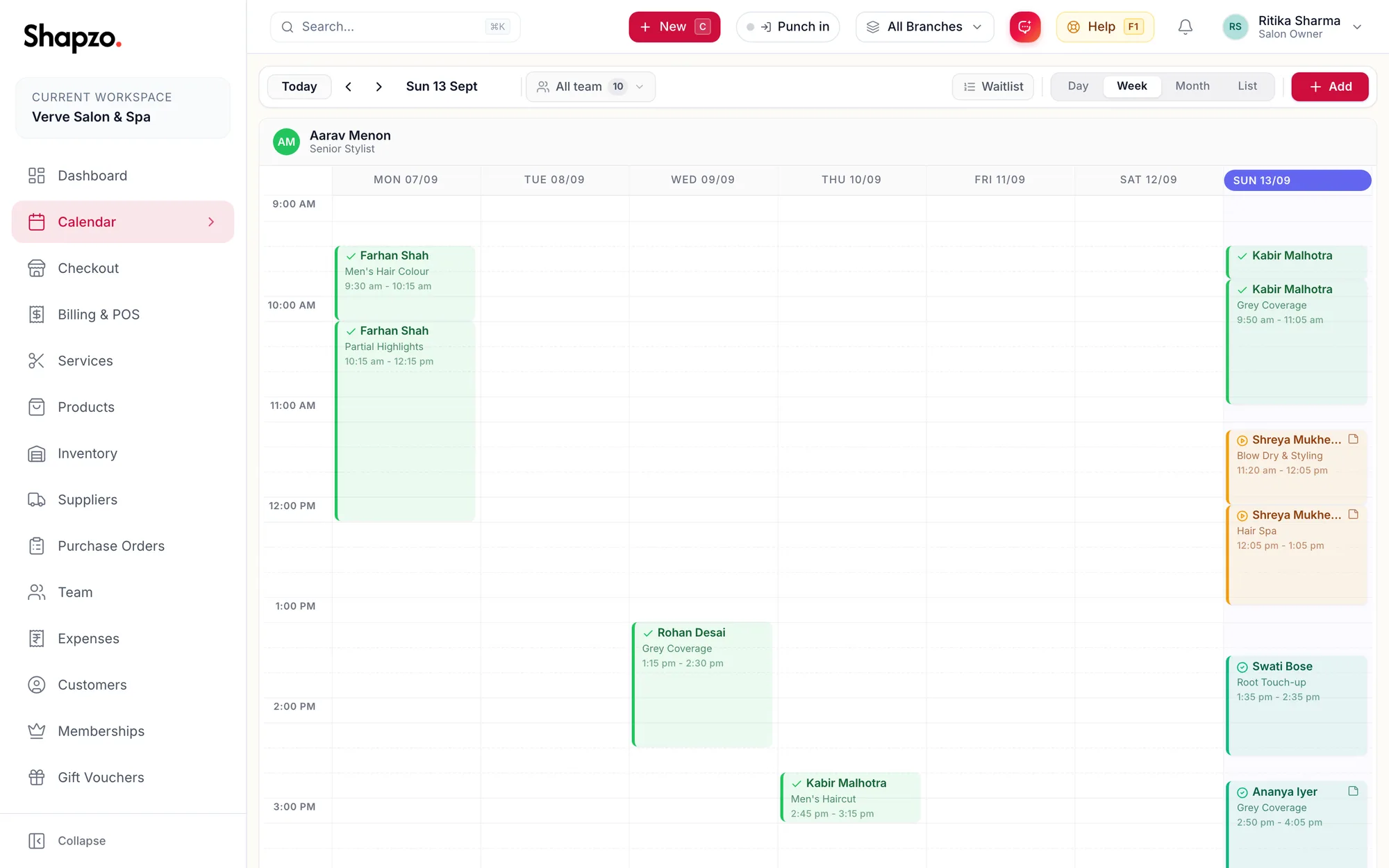
Press d, w, m or l to switch views from the keyboard.
By staff or by room
If the business books rooms and equipment, a switch offers By staff and By room. By room gives each room its own column so you can see what is free. See Rooms and equipment on the calendar.
In the app
Tap Calendar in the tab bar.
-
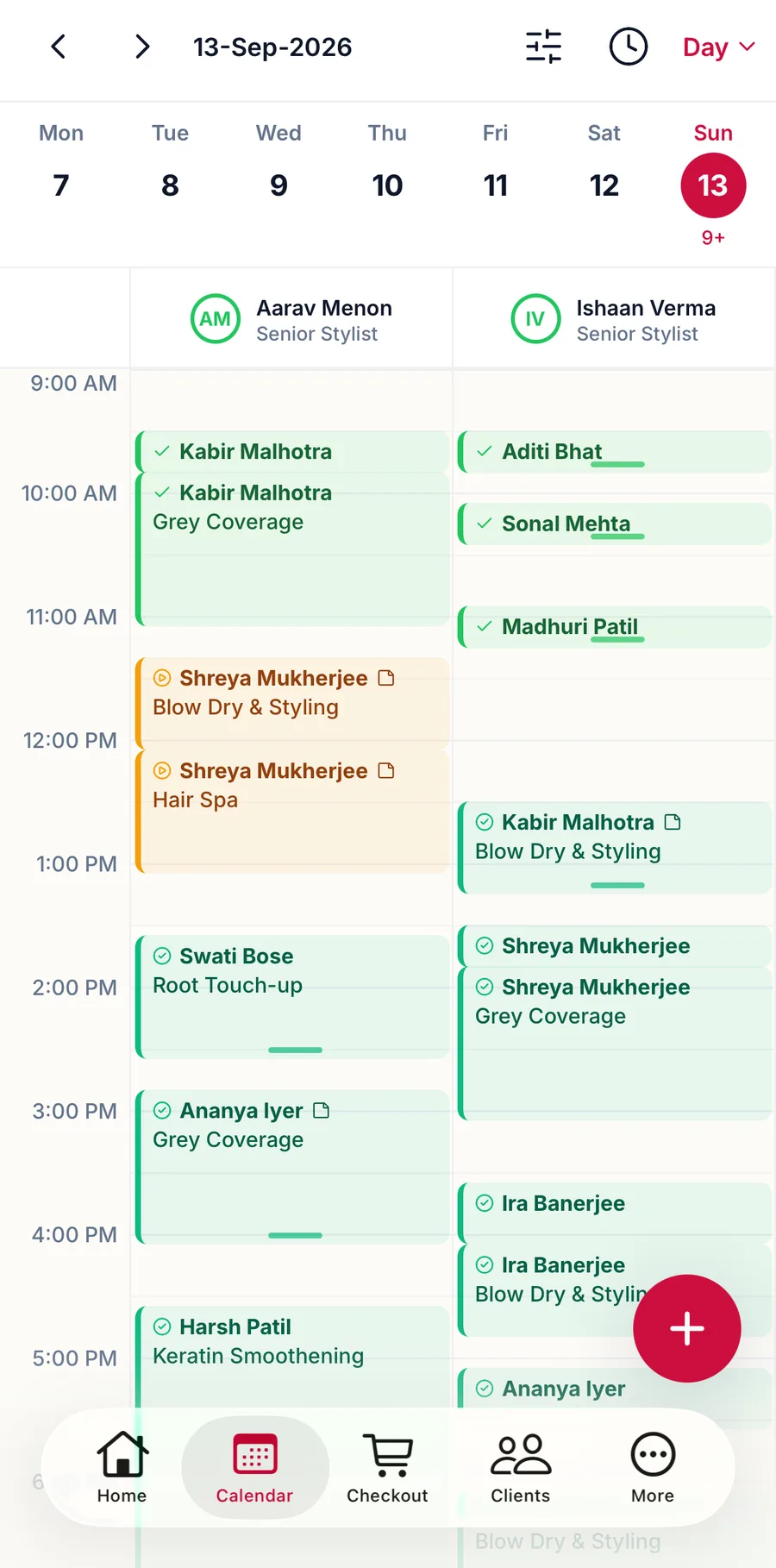
The arrows at the top step one day, week or month; tap the date to pick any day. The week strip under it shows the days around it and how many appointments each holds; tap a day to jump to it.
-
Day is the default. Tap the view name at the top right to switch to Week, Month or List.
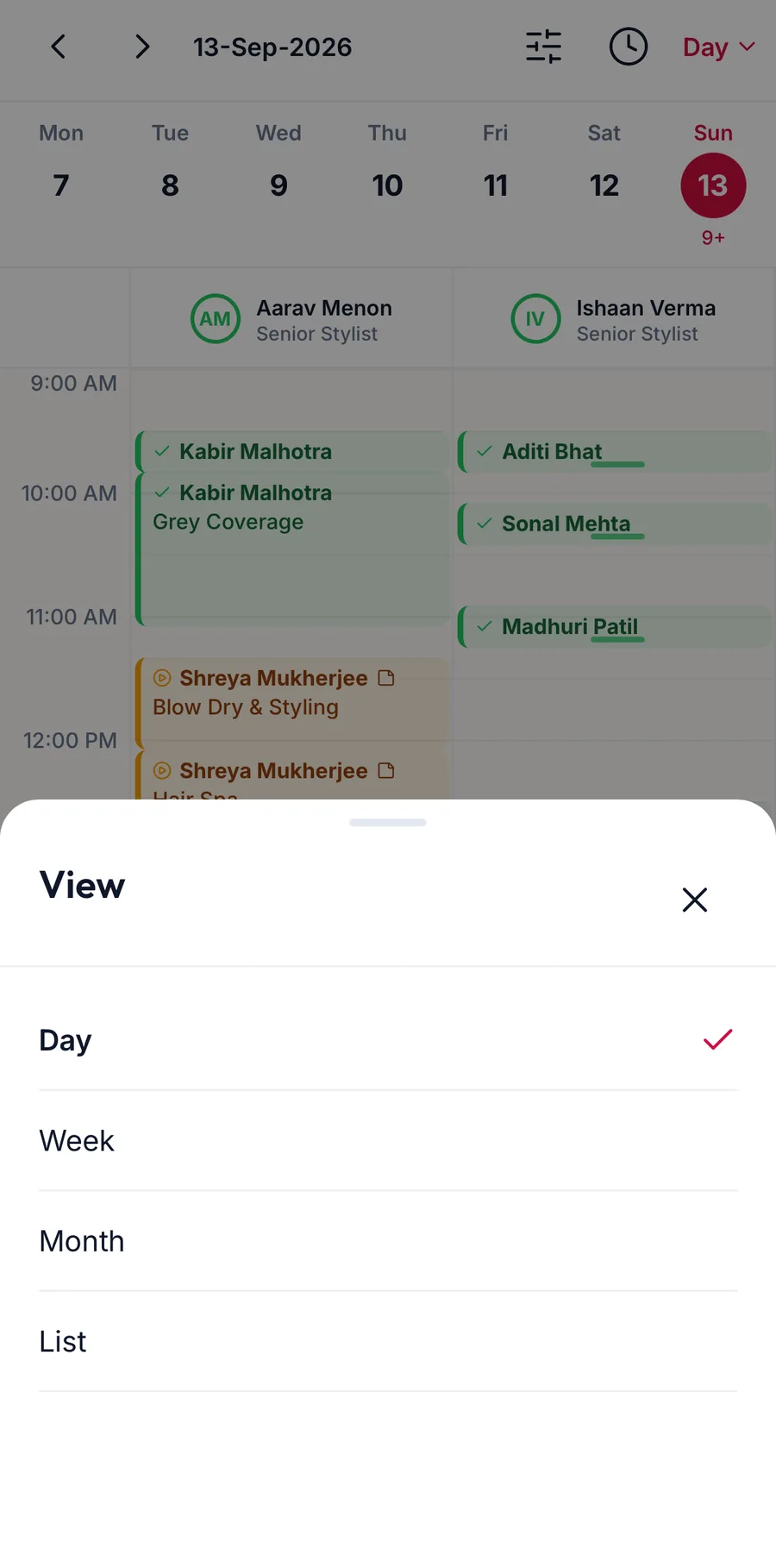
The view switcher offering Day, Week, Month and List -
Filters (the sliders icon) sets the Row height to Compact, Regular or Roomy and picks which of the Team you see. When the business books rooms, Columns switches between By staff and By room. Tap Apply.
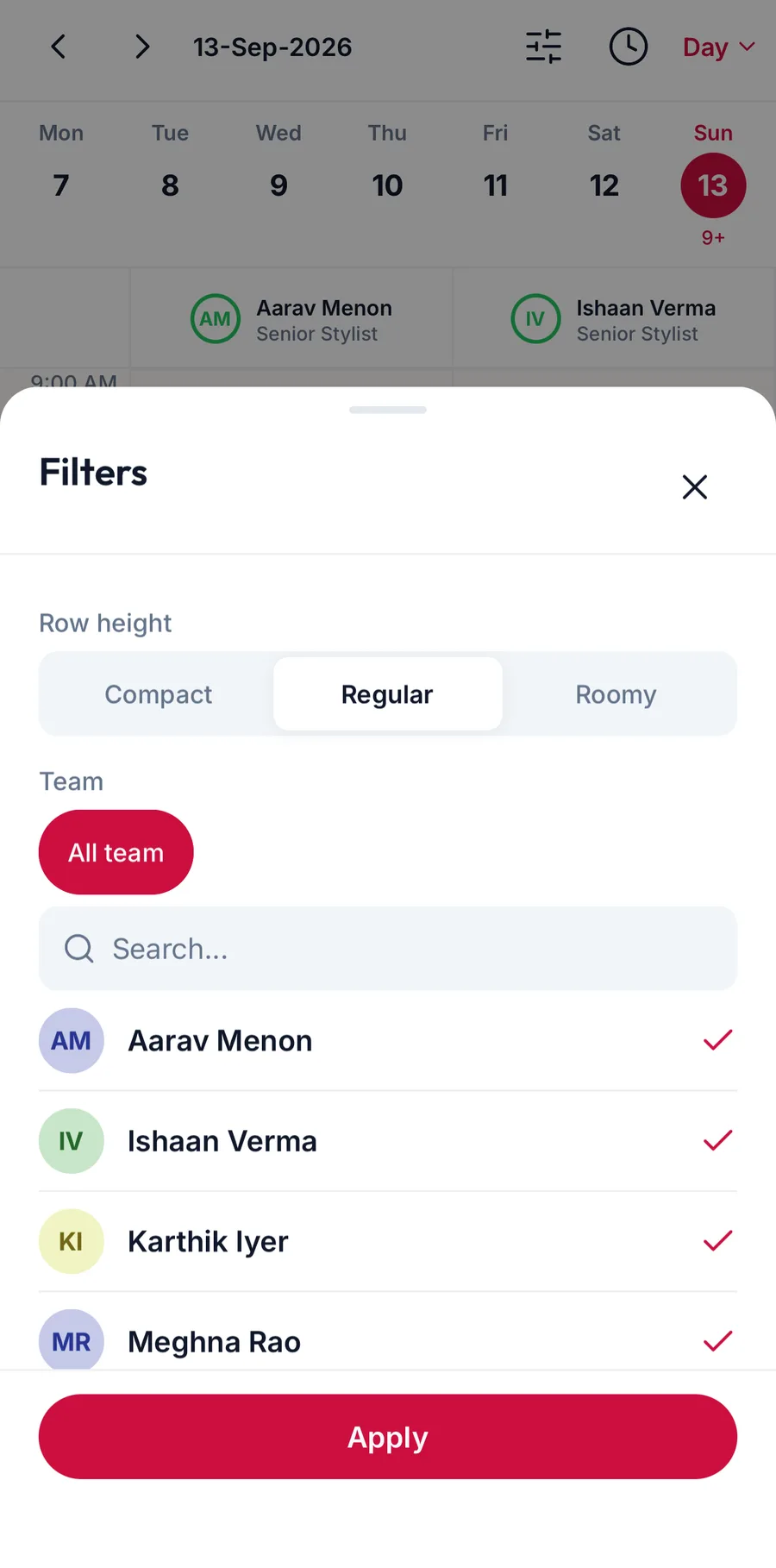
The Filters sheet with team, columns and row height -
The clock icon opens the Waitlist. The + button starts a booking.
-
The branch is chosen from Home; the calendar follows it.
Reading a booking
Each block shows the customer, the services and the time. Its colour follows the status: Booked, Confirmed, In Progress, Completed, Cancelled or No Show. A small note icon means the booking carries a note. Blocked time and closed days are shaded across the column.
A column headed Unassigned holds bookings that have no team member yet. Drag them onto a column to assign someone.
Related articles
- Book an appointment · Calendar
- Calendar shortcuts · Calendar
- Rooms and equipment on the calendar · Calendar