
Book an appointment
Create a booking from the calendar for a registered customer or a walk-in, with one or more services.
A booking holds a slot for a customer with a specific team member. You can book from the calendar, from the + New menu, or by clicking an empty slot.
Before you start
- You need the permission to create appointments. Without it the Add button is not shown and the n shortcut does nothing.
- The customer does not need to exist yet. You can add a new one from inside the booking form.
Steps
On the web
-
Open Calendar in the sidebar.
-
Click Add at the top right of the calendar, or press n.
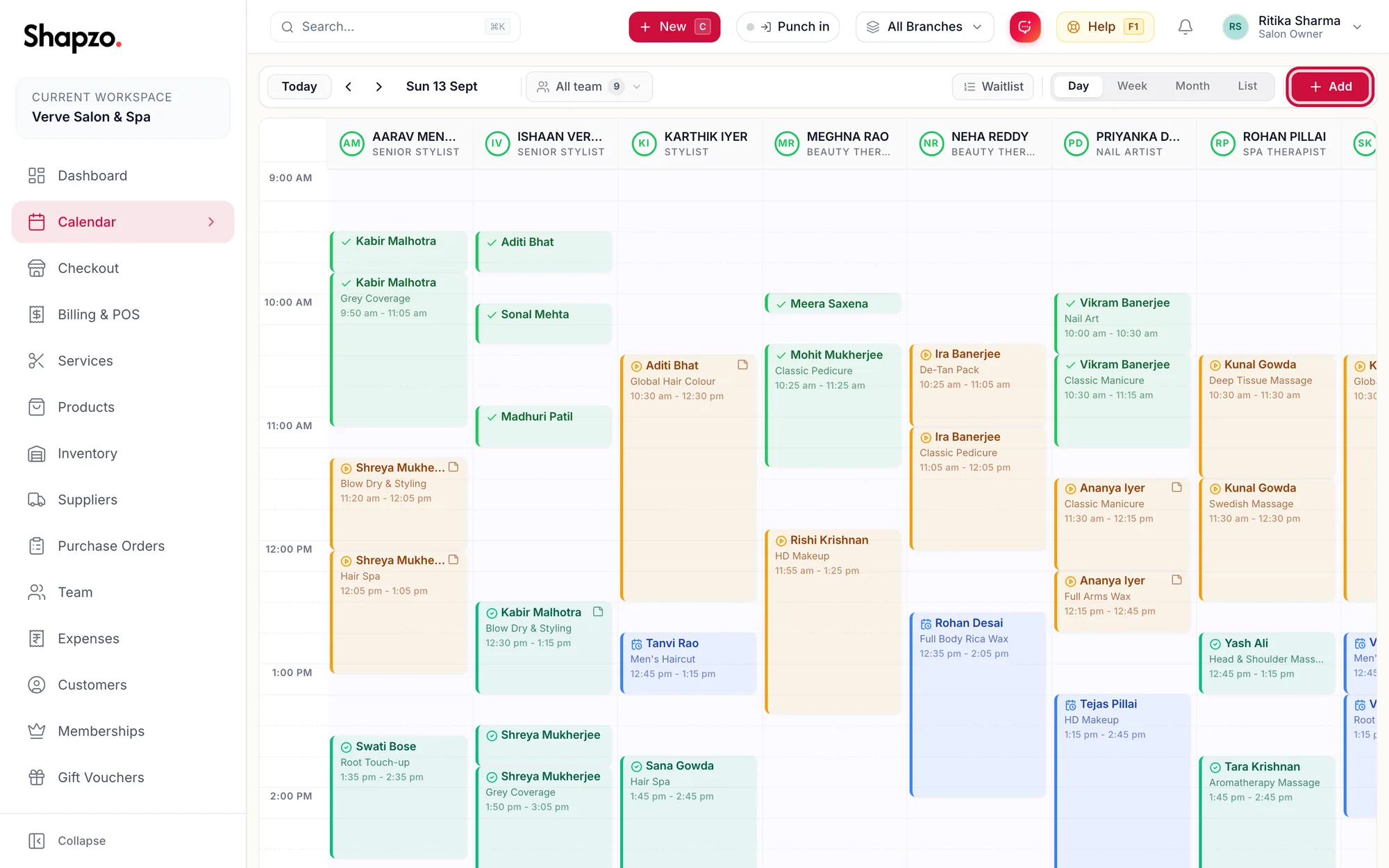
The calendar toolbar with the Add button highlighted -
The Book Appointment form opens.
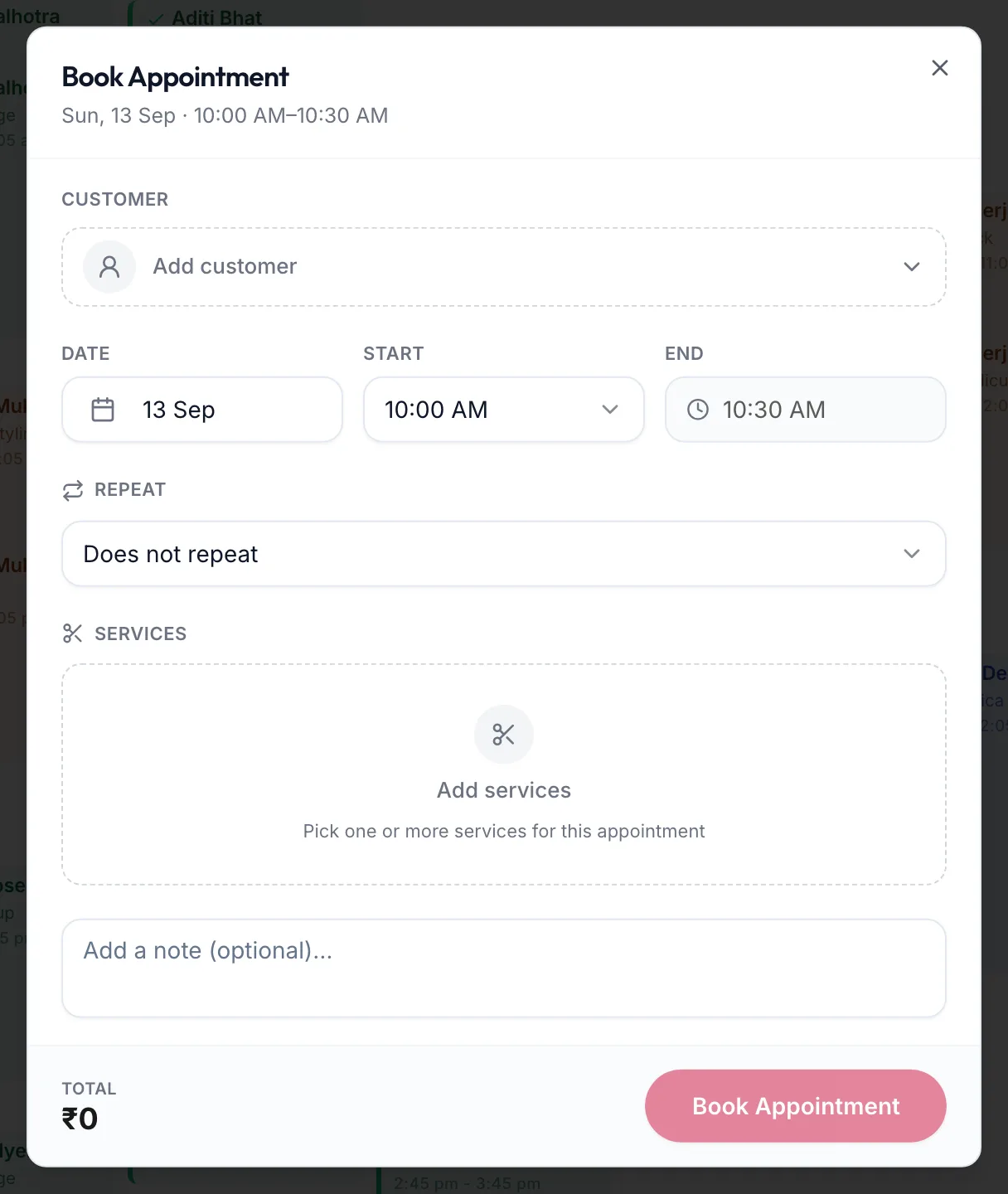
The Book Appointment form with customer, date, time and services -
Choose the Customer. Start typing a name or phone number and pick the match. For someone who is not a customer yet, choose the option to add a new customer and enter at least a name and phone.
-
Check the Date, Start and End. The end time updates itself as you add services; you can still change it.
-
Under Services, click Add and tick one or more services. Click Done.
-
For each service, pick the team member in the Staff dropdown. Leave it empty to keep the service unassigned for now.
-
Add a note if the team needs to know something, for example "Wants the same colour as last time".
-
Click Book Appointment.
In the app
-
Tap Calendar in the tab bar.
-
Tap the + button at the bottom right.
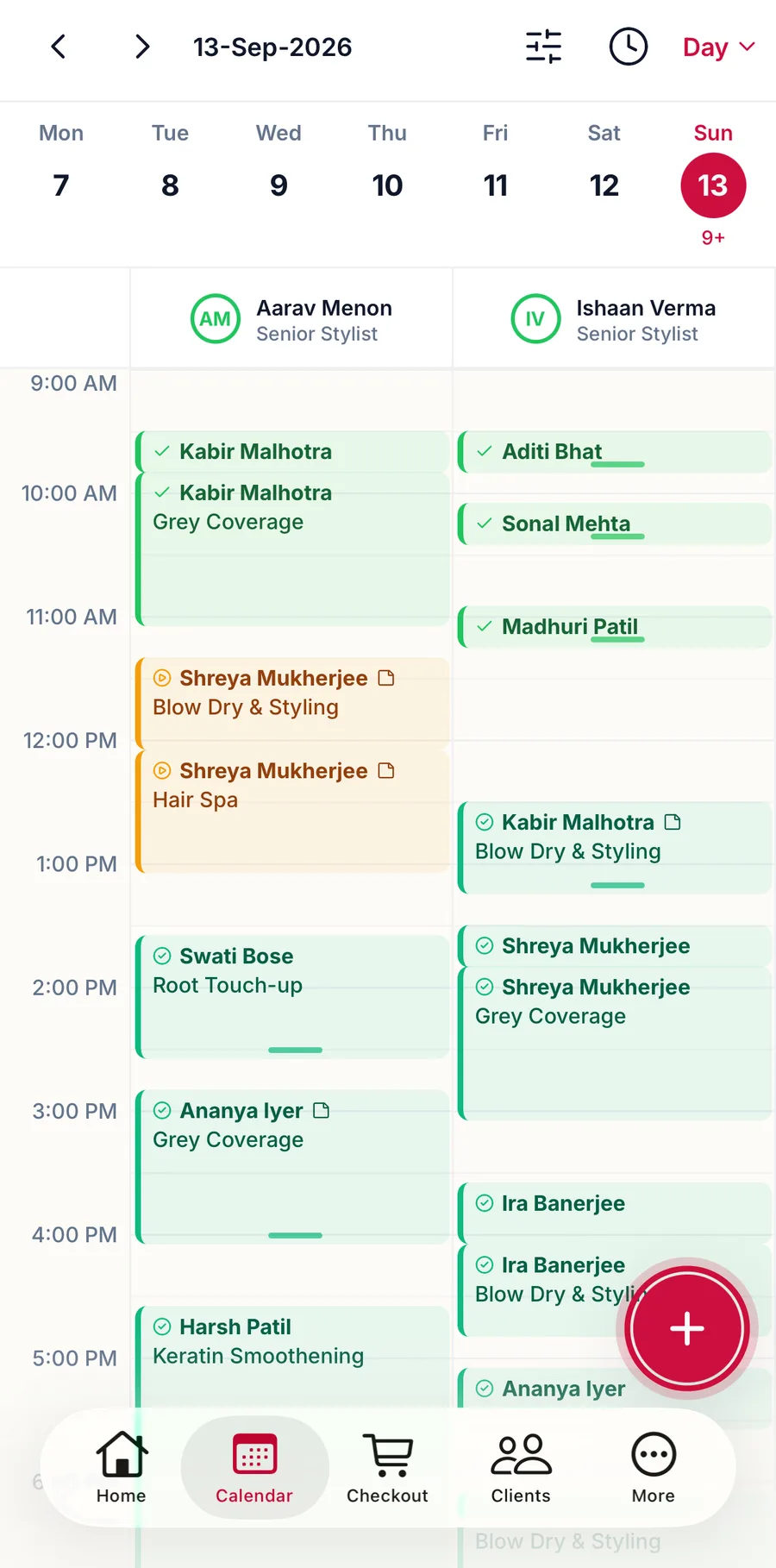
The calendar tab with the add button highlighted -
The Book Appointment form opens with the date and time already set.
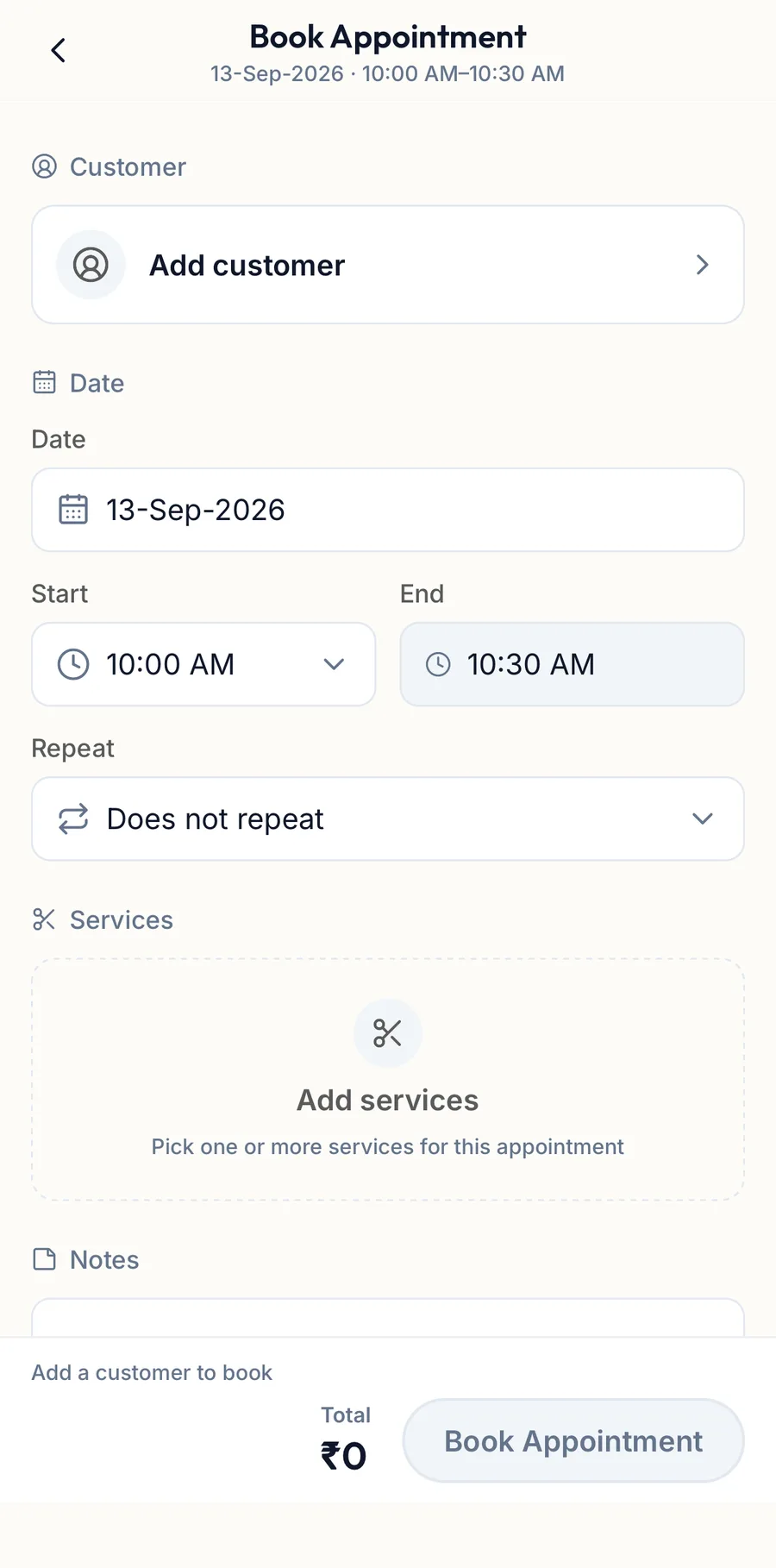
The Book Appointment form in the app with customer, date, time and services -
Tap Add customer. Search by name, phone or email and tap the match, or choose Add new customer or Walk-in customer.
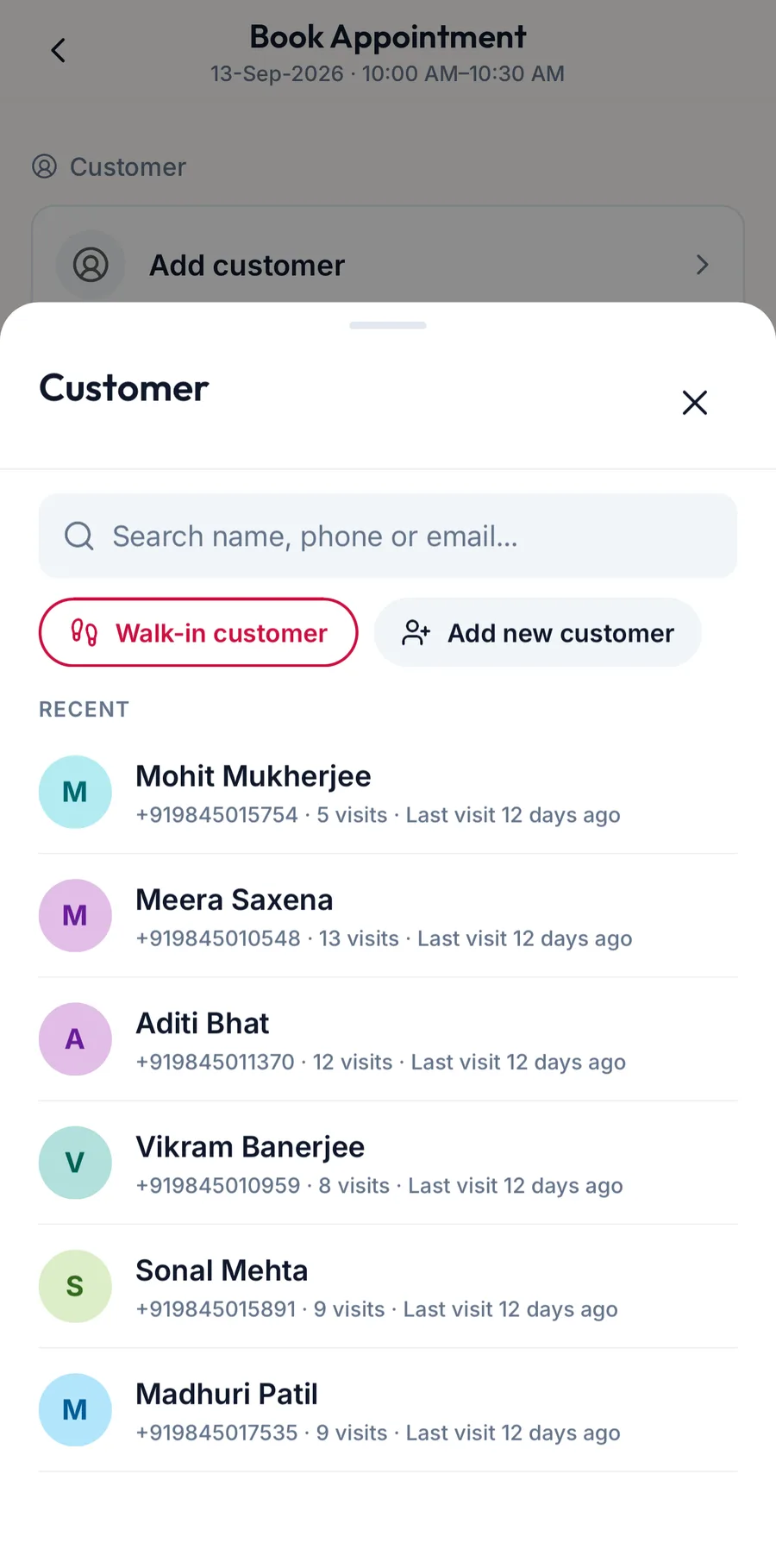
The customer picker with search and recent customers -
Check the Date, Start and End. The end time updates itself as you add services; you can still change it.
-
Under Services, tap Add services and tap one or more services, then Done.
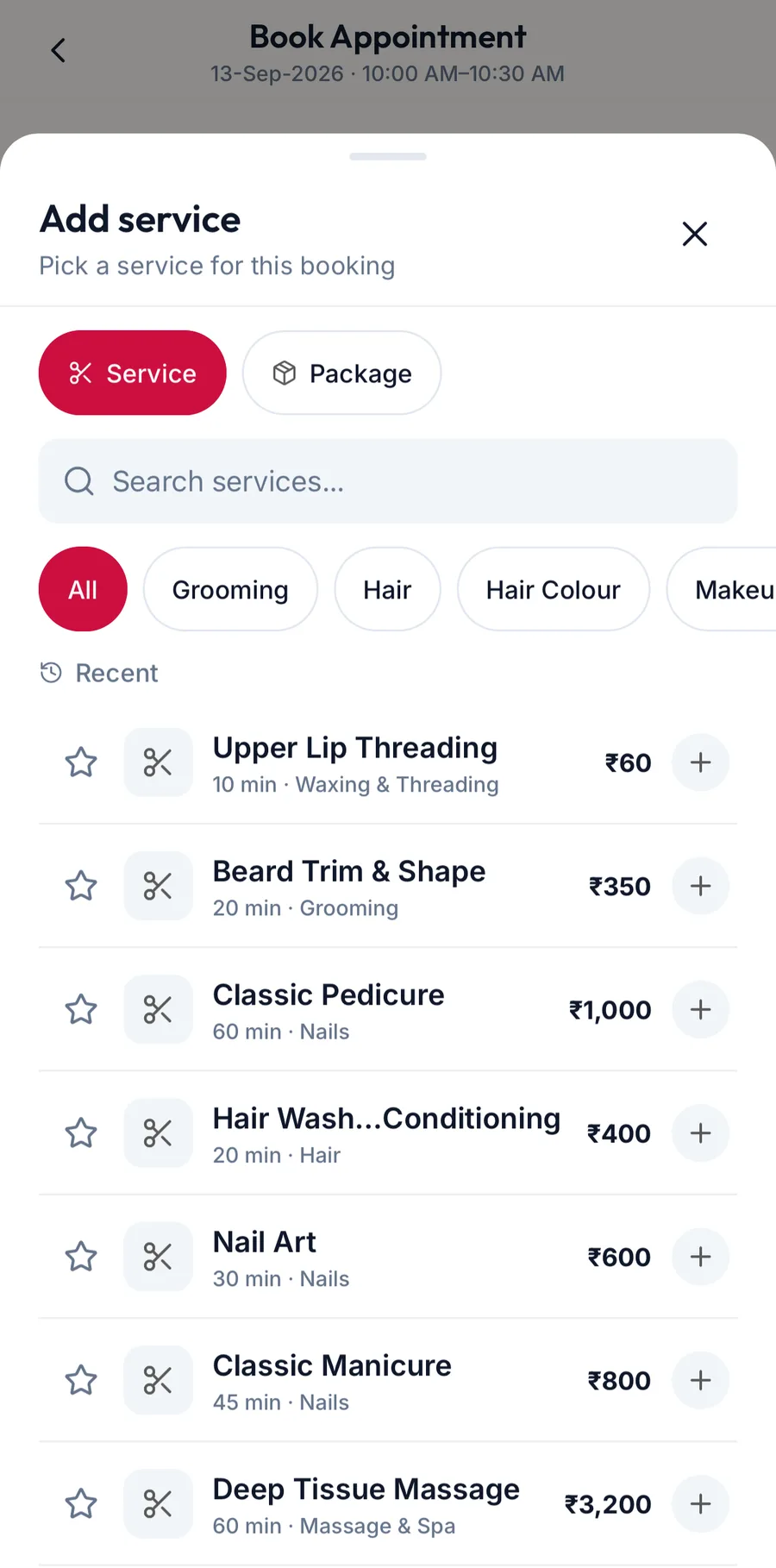
The service picker with search and categories -
For each service, pick the team member under Staff, or leave Any stylist.
-
Add a note if the team needs to know something.
-
Tap Book Appointment.
The booking appears on the calendar in the team member's column. Its status starts as Booked.
What happens next
-
Click the booking at any time to open its side panel, where you can Confirm, Start, Complete, mark a No Show or Cancel it.
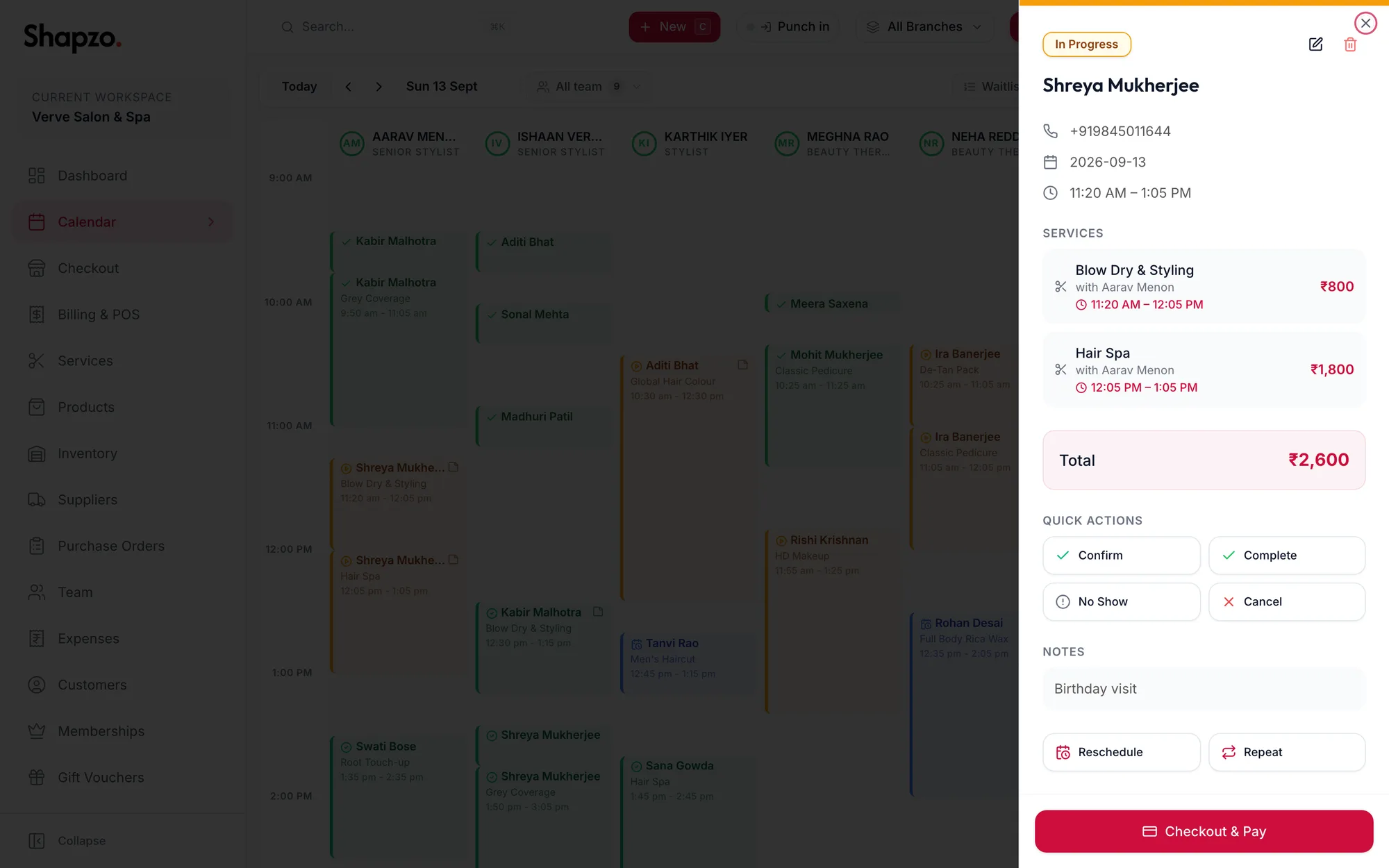
An appointment open in the side panel with its quick actions -
If appointment reminders are switched on under Settings, the customer is reminded automatically before the visit.
-
When the customer arrives, use Checkout & Pay from the same panel to bill the visit.
Troubleshooting
- The Add button is missing. Your role cannot create appointments. Ask the owner to change your role's permissions.
- The form will not book and shows a conflict. Another appointment overlaps for that team member or room. Pick another slot or provider.
- A service you expect is not in the list. It may be archived, or not offered at the branch you have selected at the top of the screen.
Related articles
- Sign in and sign out · Getting started
- Search everything · Around the portal