
Sign in and sign out
Open the portal with your email and password, and end your session from the profile menu.
Every person on your team signs in with their own email address. Your access, your language and your dashboard follow your account, not the computer you use.
Before you start
- You need an account. The business owner creates one when they add you to the team and sends an invitation to your email.
- Keep your password to yourself. If two people share a login, the audit log cannot tell who did what.
Sign in
On the web
-
Open the portal address your business uses. The sign-in page says Welcome back.
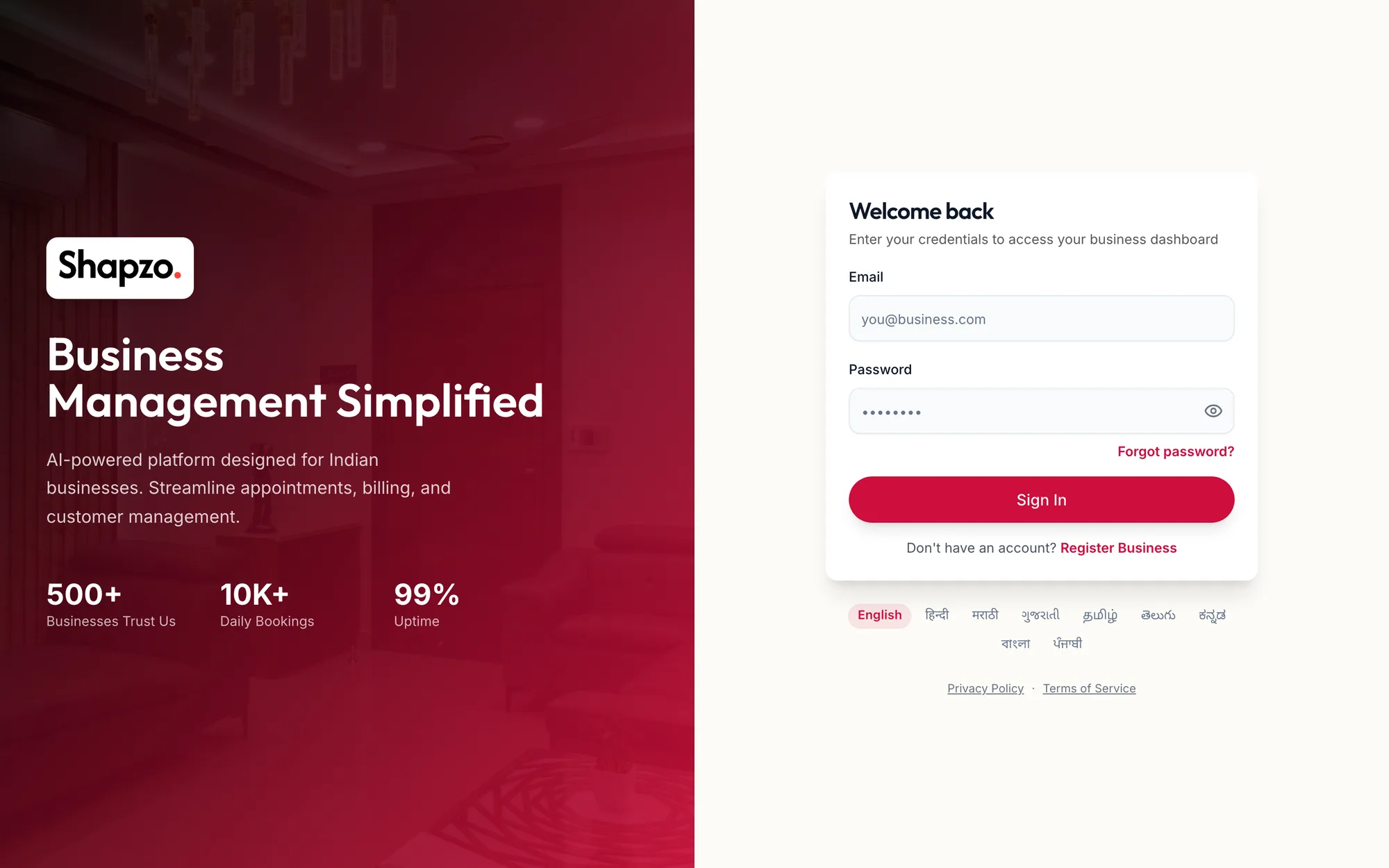
The sign-in page with the email and password fields -
Enter your Email and Password.
-
Click Sign In.
-
If your account has two-step verification turned on, the portal asks for a code next. Enter the 6-digit code from your authenticator app, or the code sent to your email, and click Verify.
You land on the Dashboard. The first time you sign in, a short tour called Around the portal starts automatically. You can leave it at any point with Esc.
In the app
-
Open Shapzo Business on your phone. The first time, a short intro plays; Skip or Get started takes you to the sign-in screen.
-
Enter your Email and Password.
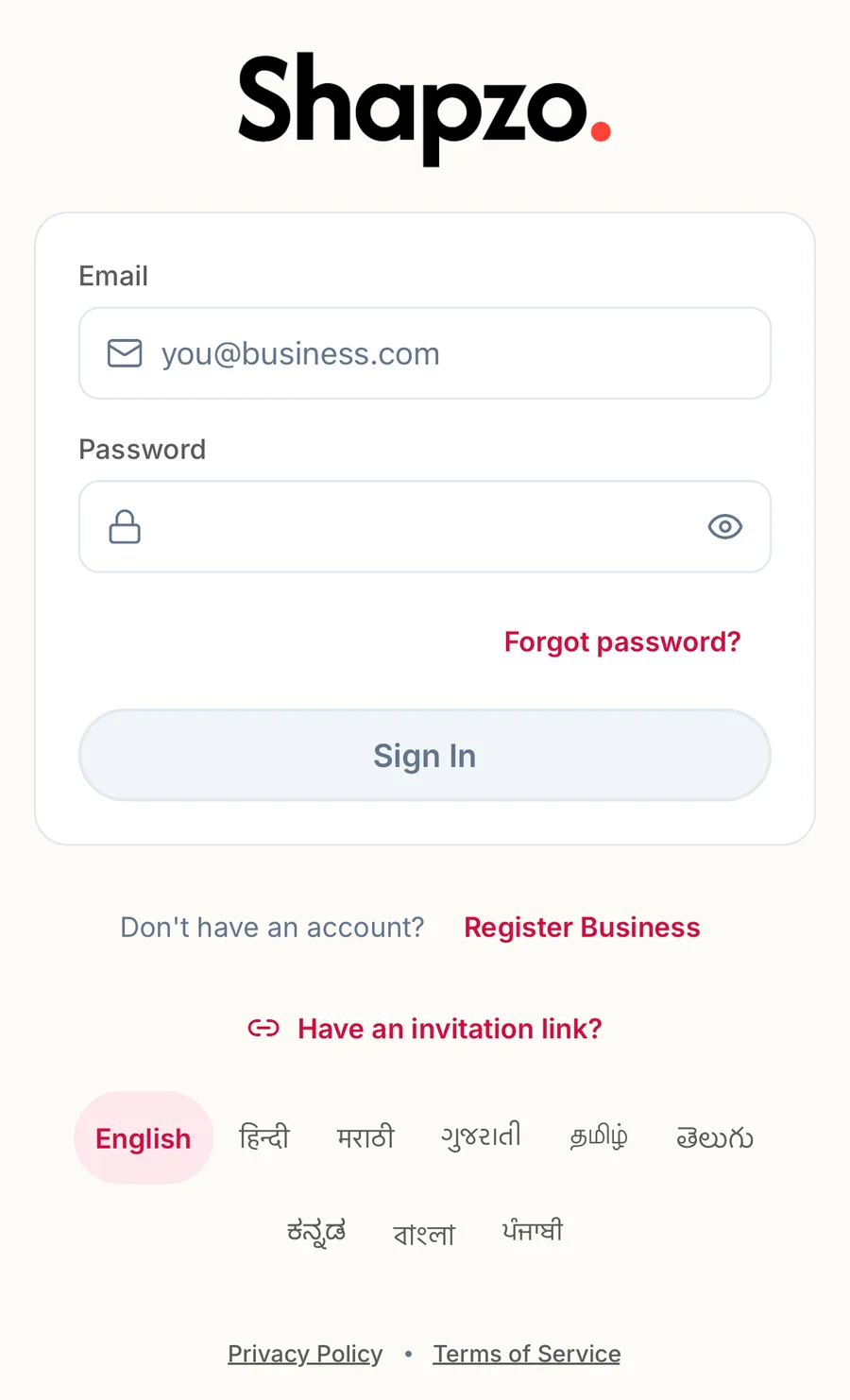
The sign-in screen in the app -
Tap Sign In.
-
If your account has two-step verification turned on, the app asks for a code next. Enter the 6-digit code from your authenticator app, or the code sent to your email.
You land on Home. The language chips under the form switch the app's language before you sign in; after that it follows your account.
Sign out
On the web
-
Click your name at the top right of the screen.
-
Click Logout.
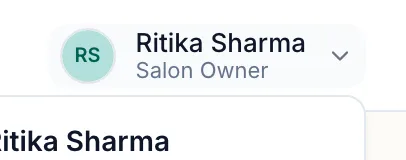
The profile menu open, with Logout at the bottom
In the app
- Tap More in the tab bar.
- Scroll to the bottom and tap Sign Out.
Signing out ends your session on that device only. You stay signed in on any other device until you sign out there too.
Troubleshooting
- "Sign in failed. Check your email and password." The email or password does not match. Passwords are case-sensitive. Use Forgot password? if you are not sure.
- You see "No access configured yet" after signing in. Your account exists but has no role yet. Ask the business owner to open Team, edit your team member record and choose a role under System access.
- Your business shows "Application Status" instead of the dashboard. The business itself is still under review. Use Check status on that page to see whether it has been approved.
Related articles
- Book an appointment · Calendar