
Add your team and invite them
Create a record for each team member so they appear on the calendar, and send the ones who need a login an invitation with a role.
A team member record does two things: it gives the person a column on the calendar so customers can be booked with them, and, if you choose, a login to the portal.
Add a team member
- Open Team in the sidebar and click Add.
- Under Profile, fill in First name, Last name and Email. Everything else can wait.
- Under Services, add the services this person performs so they can be booked for them.
- Under Locations, choose the branch or branches they work at.
- Click Add at the top of the form.
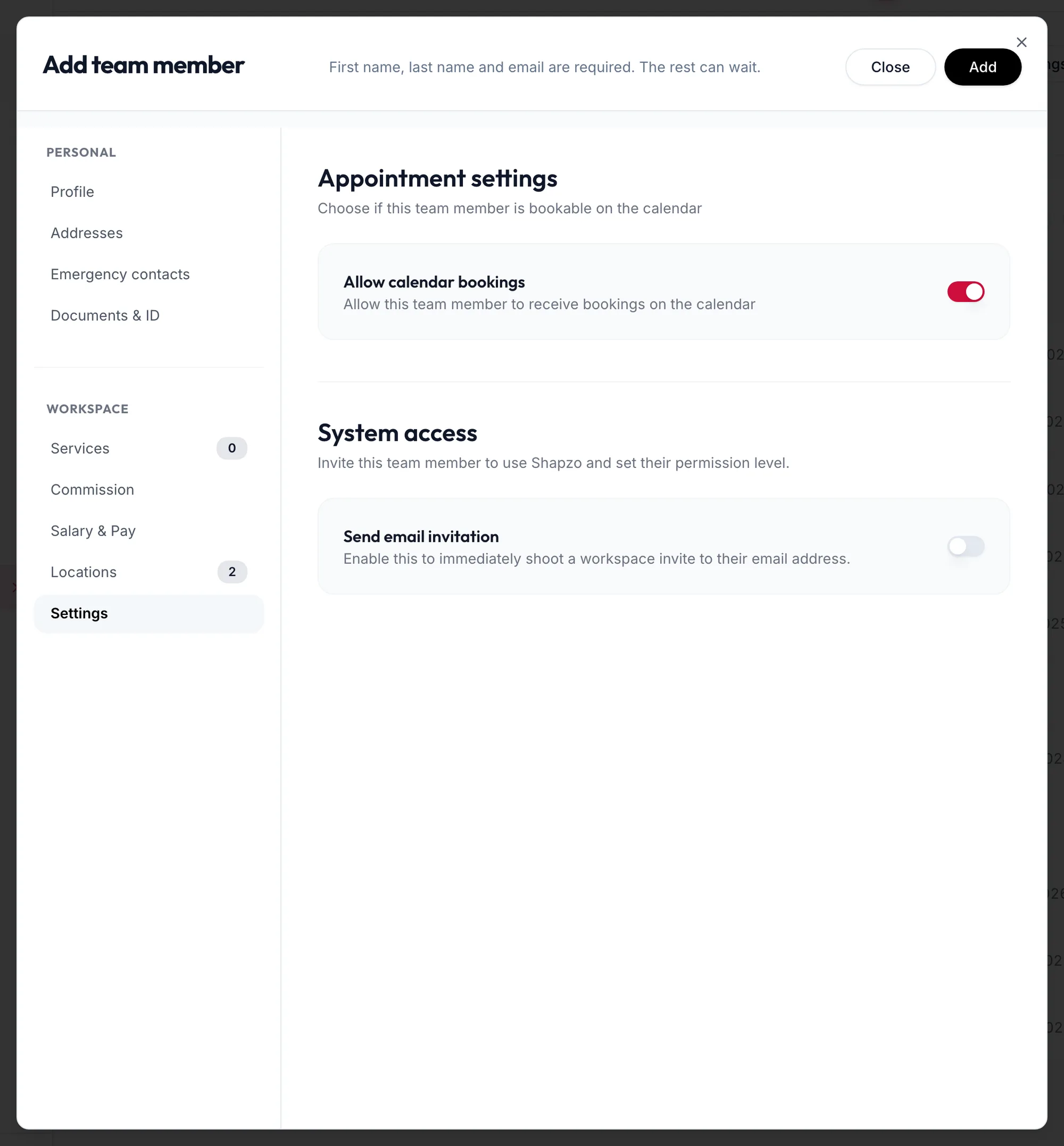
Give them a login
Not everyone needs one. A stylist who only appears on the calendar can be booked without ever signing in. Managers, front desk staff and anyone who records their own leave or checks their payslips do need one.
- Open the team member and go to Settings in the form.
- Switch on Send email invitation.
- Under Workspace Role Permissions, choose a role. The role decides what they can see and do; see the Roles articles.
- Save.
The person receives an email with a link to accept the invitation and choose a password. In the team list, their System access shows Invitation Pending until they accept, then Active User.
Resend or fix an invitation
- If the email was lost, open the team member, go to Settings and switch on Resend invitation. The row menu also has Resend invitation.
- If someone signs in and sees No access configured yet, their record has a login but no role. Set the role under Workspace Role Permissions and save.
Related articles
- The Getting Started checklist · Getting started
- What "No access configured yet" means · Around the portal