
Set up your business profile and logo
Fill in the details that print on invoices, upload the logo, and set your time zone, date format and financial year.
Business setup holds the facts about your business that appear on receipts, gift cards and reports.
Business details
-
Open Settings, then Business setup.
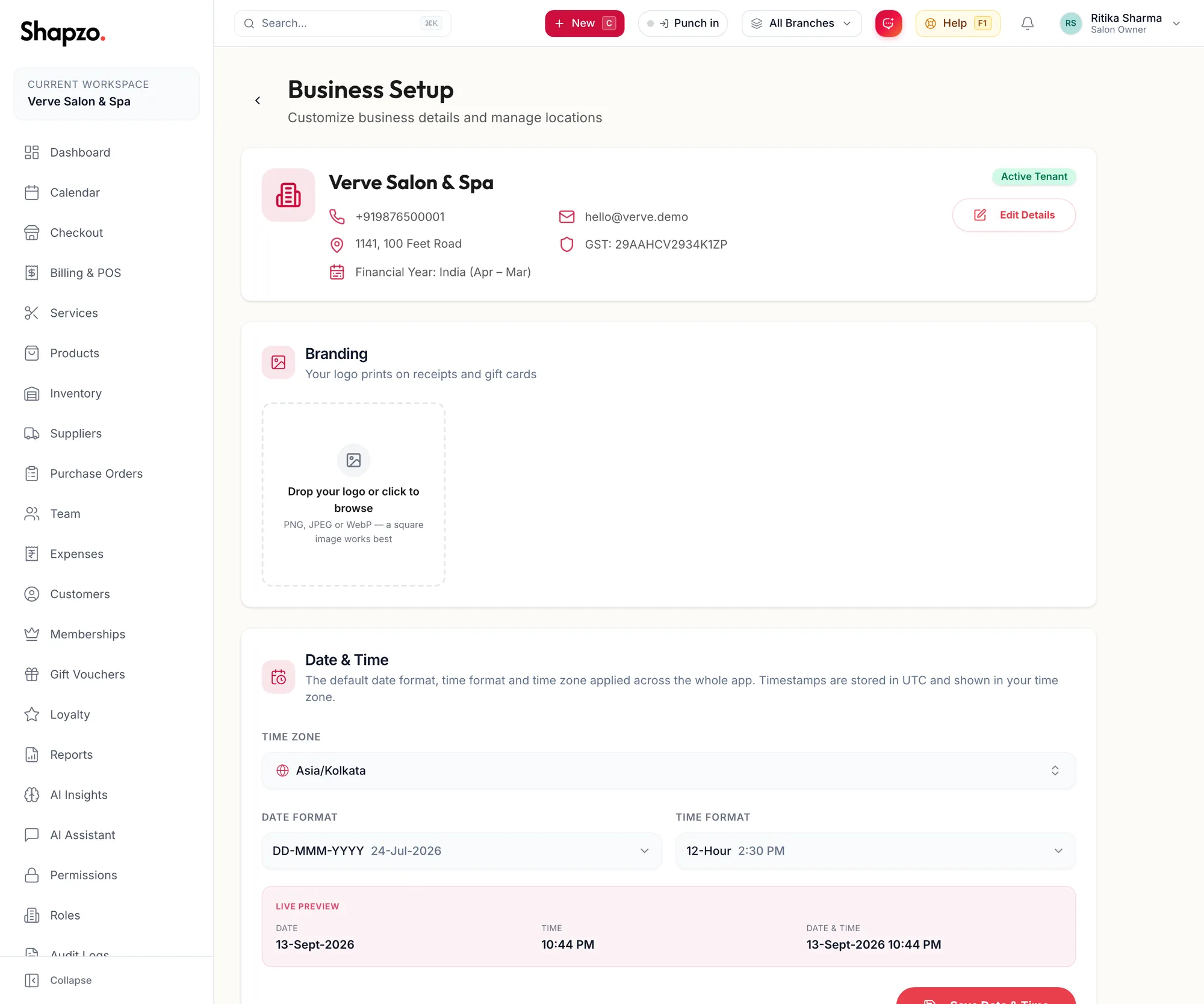
The Business setup page with business details, branding and date and time -
Click the edit control on the business details card. The Edit Business Details dialog opens.
-
Check the Business Name, Business Phone, Email Address and GST Number. The GST number prints on every tax invoice, so copy it from your certificate.
-
Search for your registered address and confirm the pin on the map.
-
Save.
Logo
- On the Branding card, drop your logo file or click to browse. PNG, JPEG or WebP; a square image works best.
- Frame the logo in the crop dialog and confirm.
The logo prints on receipts and on gift cards. Remove it from the same card if you need to replace it.
Date & Time
Set Time Zone, Date Format, Time Format, Week starts on and Financial year starts in, then click Save Date & Time. The financial year matters for invoice numbering that resets yearly and for the reports that compare years.
Branches
Every business starts with one branch. Add more from the Branches section on the same page; see the Settings articles for branches and per-branch stock.
Related articles
- The Getting Started checklist · Getting started
- Set up your tax rates · Getting started