
Set up your tax rates
Create the GST rates you charge, group them if you need CGST and SGST split out, and choose the defaults for new services and products.
Every service and product carries a tax rate. Set the rates once here; new items pick up the default automatically and you can override any item individually.
Steps
-
Open Settings, then Point of Sale, then the Tax section.
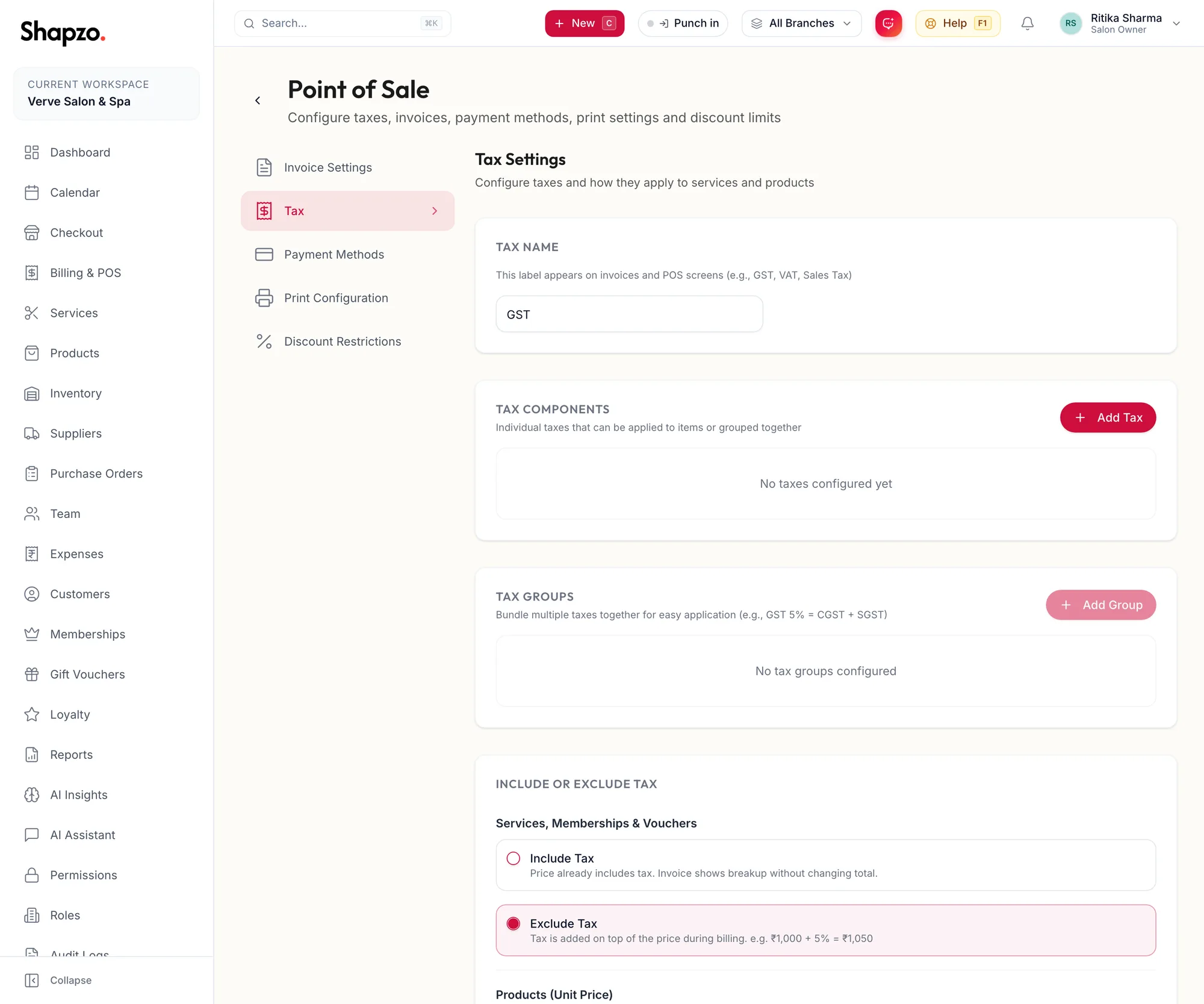
The Tax section of Point of Sale settings -
Under Taxes, click Add Tax.
-
Enter a Tax Name (for example GST 18%), the Tax Percentage (%), and optionally a SAC / HSN Code. Choose Include or Exclude Tax to say whether your listed prices already include this tax.
-
Save the tax. Repeat for each rate your accountant confirms for your services and products. A business category alone does not determine the rate or exemption; use the settings that apply to the actual supply.
-
If your invoices must show CGST and SGST separately, create a group: under Tax Groups click Add Tax Group, give it a Group Name, and pick the component taxes under Select Taxes.
-
Under Default Tax Assignment, choose the default for Services, Memberships & Vouchers and for Products (Unit Price).
-
Click Save Tax Settings.
What the customer sees
Invoices show the tax as CGST and SGST lines and a Total. You can add per-item tax columns to A4 and A5 invoices under Print Configuration.
Related articles
- The Getting Started checklist · Getting started
- Set up your business profile and logo · Getting started