
Blocked time types, cancellation reasons, appointment statuses
The three lists the calendar draws from, and how to add your own entries.
All three live under Settings, Scheduling.
Blocked time types
On the web
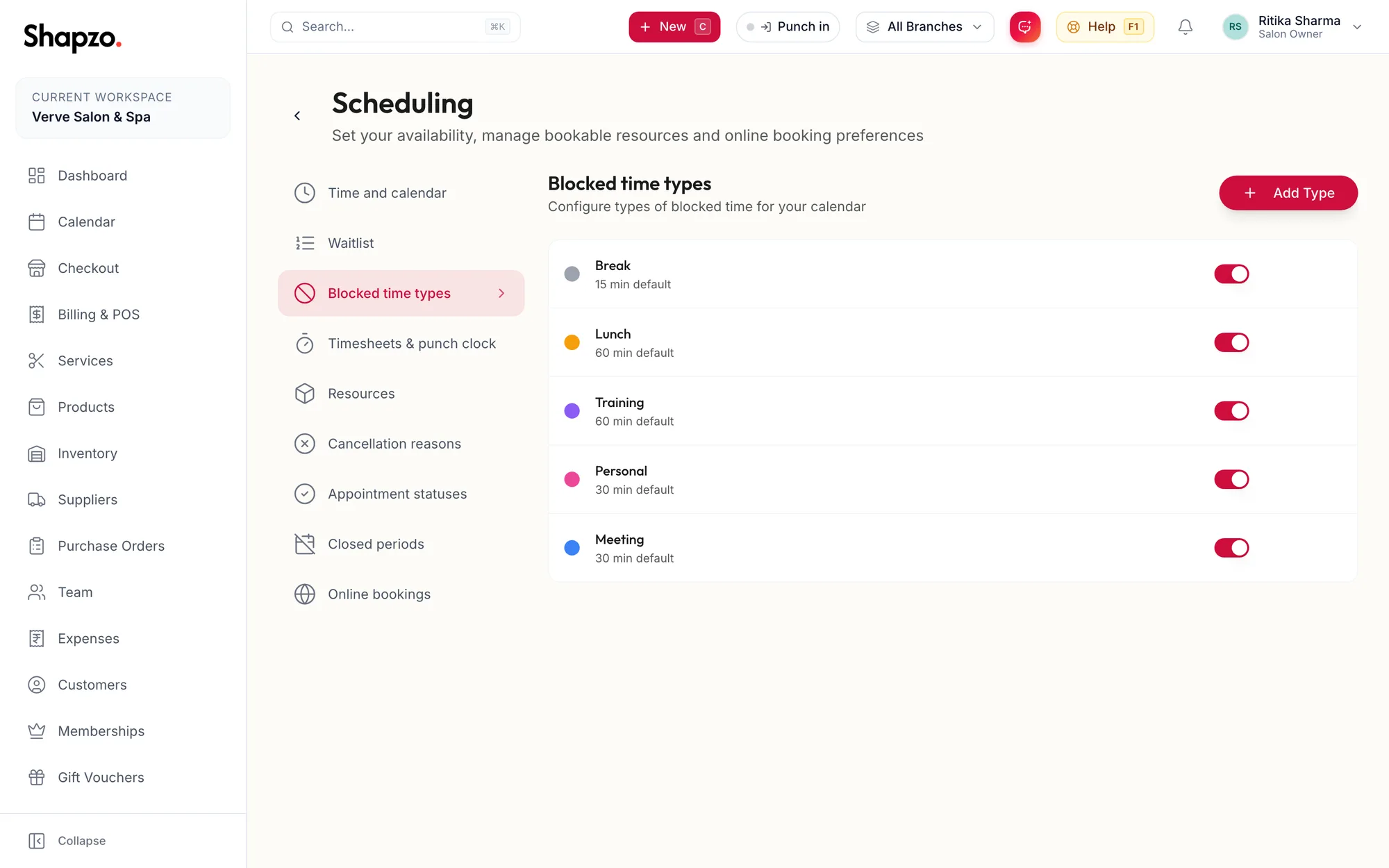
Lunch, training, cleaning: the reasons a team member is unavailable. Click Add Type (or Add First Type), enter the Name, a Default Duration (minutes) and a Color, and save. Delete asks Delete “{{name}}”?. Blocked time types are also the Break types on the punch clock.
In the app
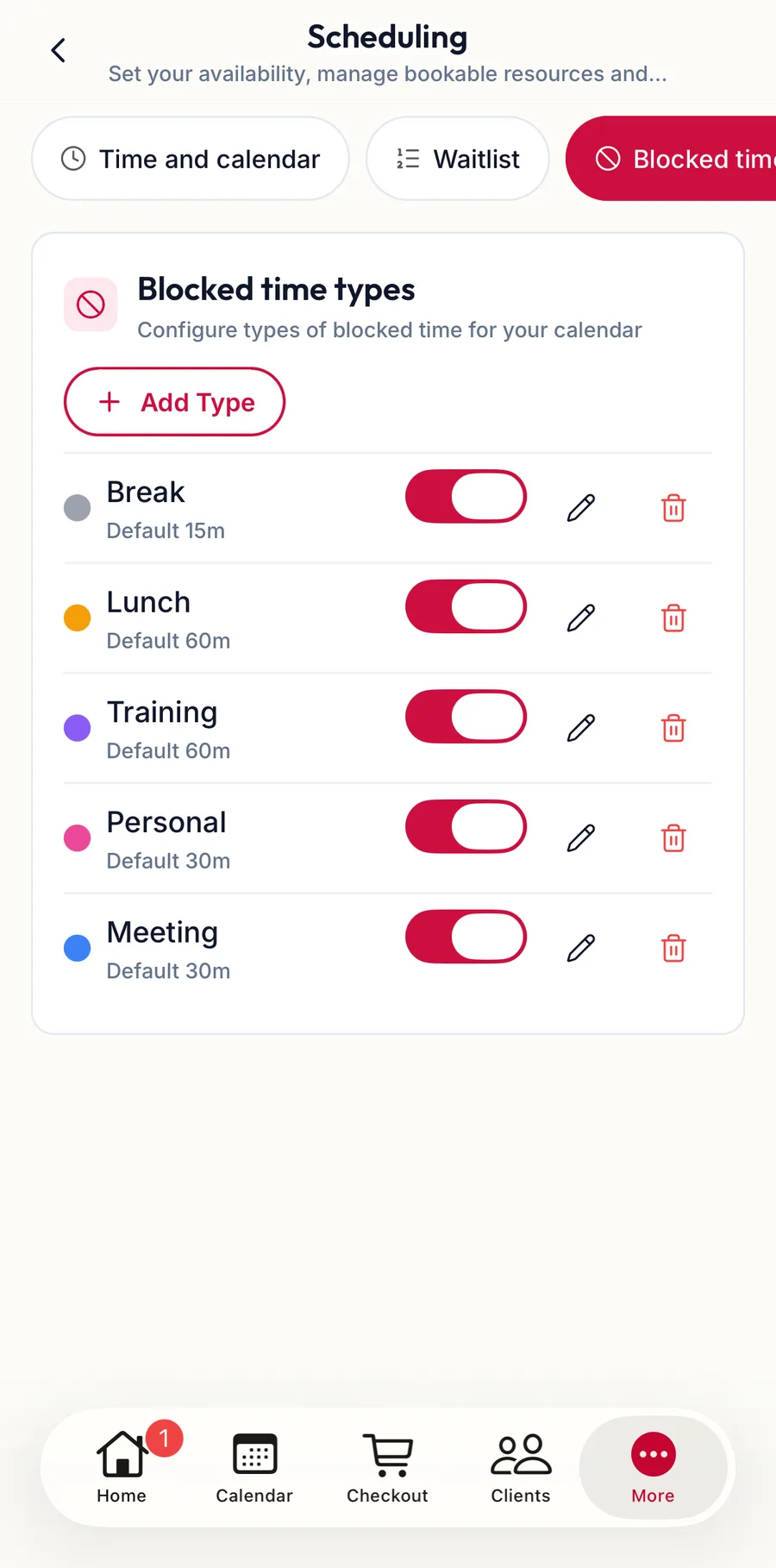
Tap More, then Settings, then Scheduling, then the blocked time chip. Add, edit and remove types the same way.
Cancellation reasons
On the web
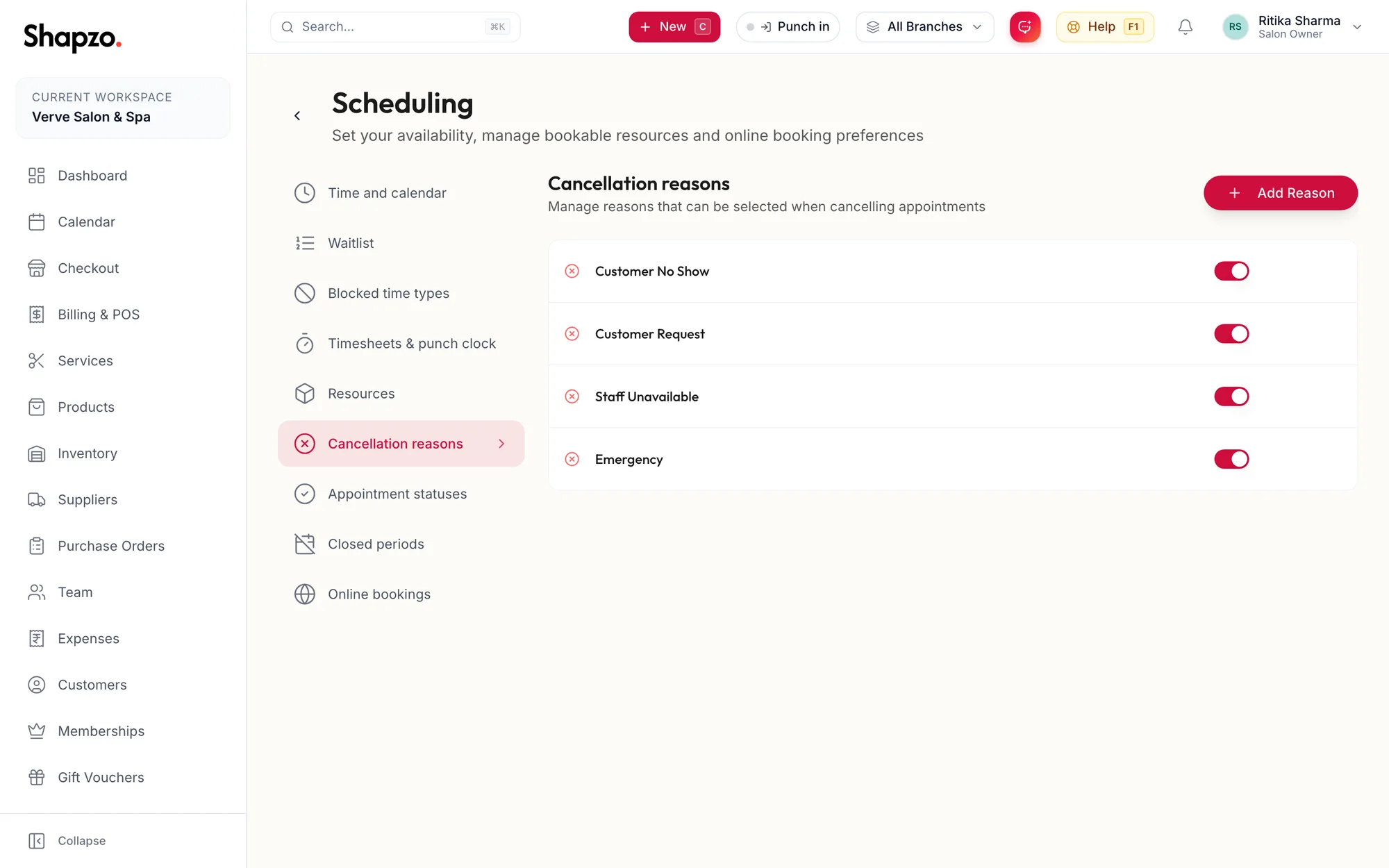
The reasons offered when a booking is cancelled; see Cancel or mark a no-show with a reason. Click Add Reason, enter the Reason (for example Customer No Show), and save.
In the app
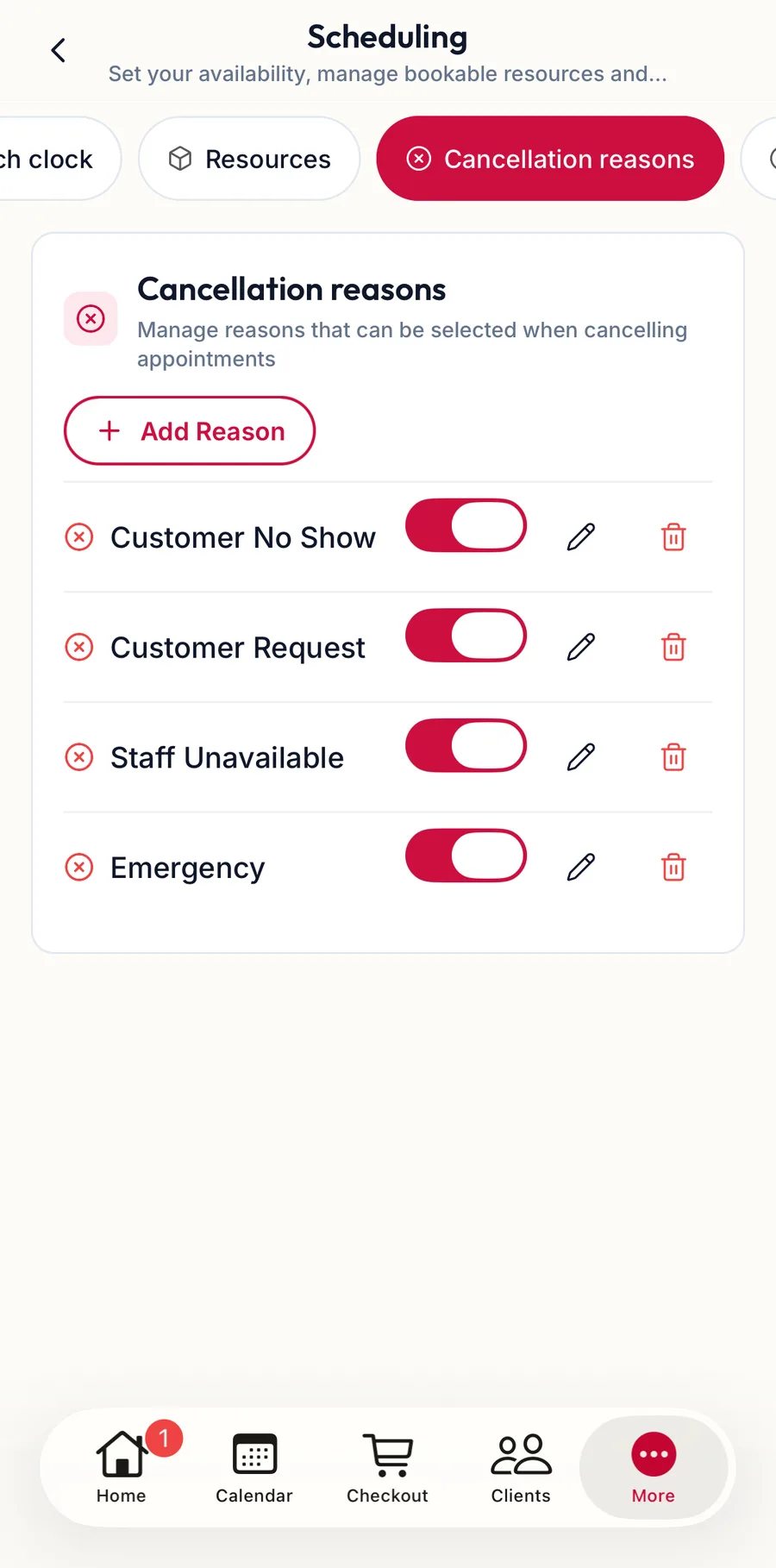
The cancellation reasons chip lists the reasons offered at cancellation.
Appointment statuses
On the web
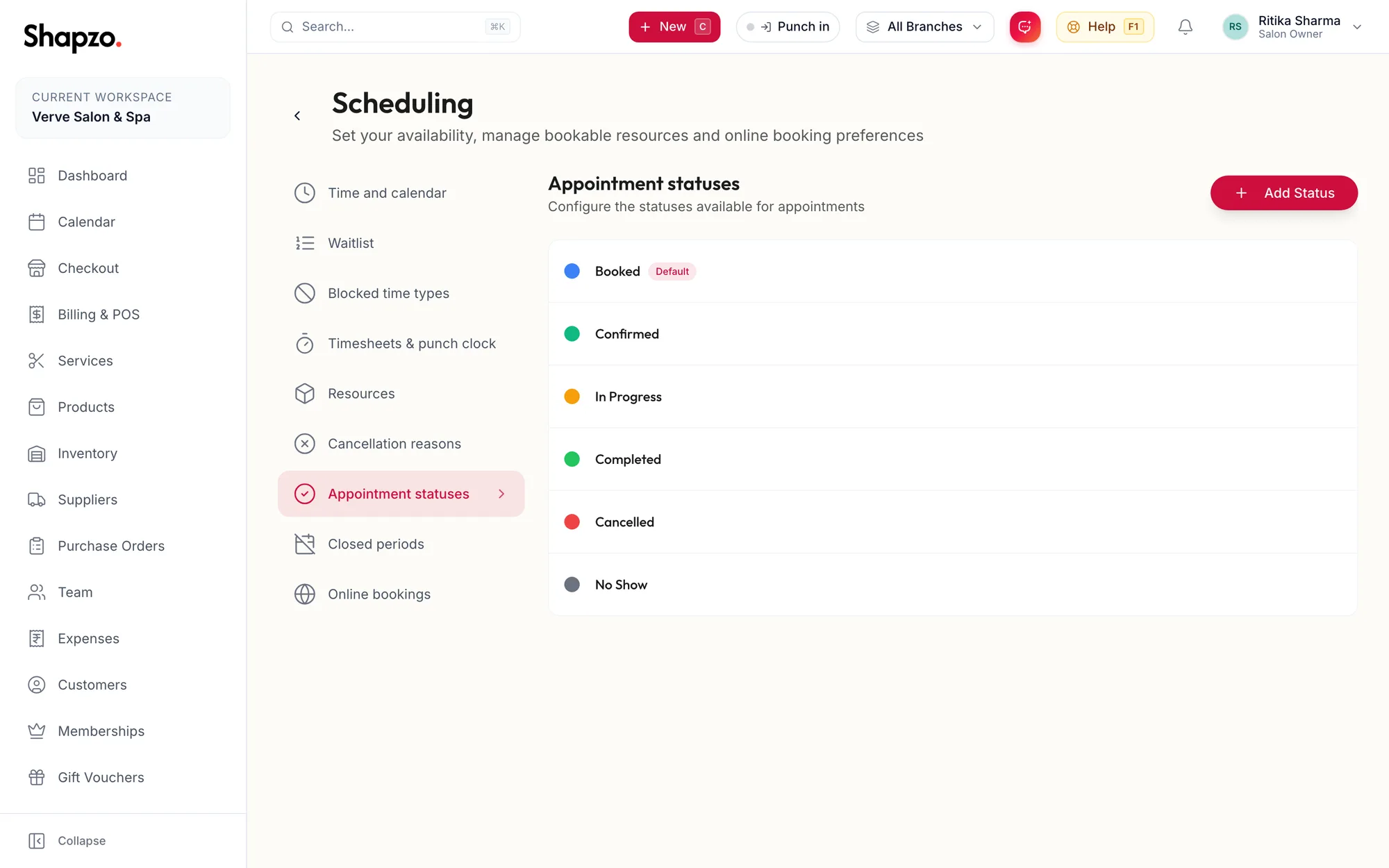
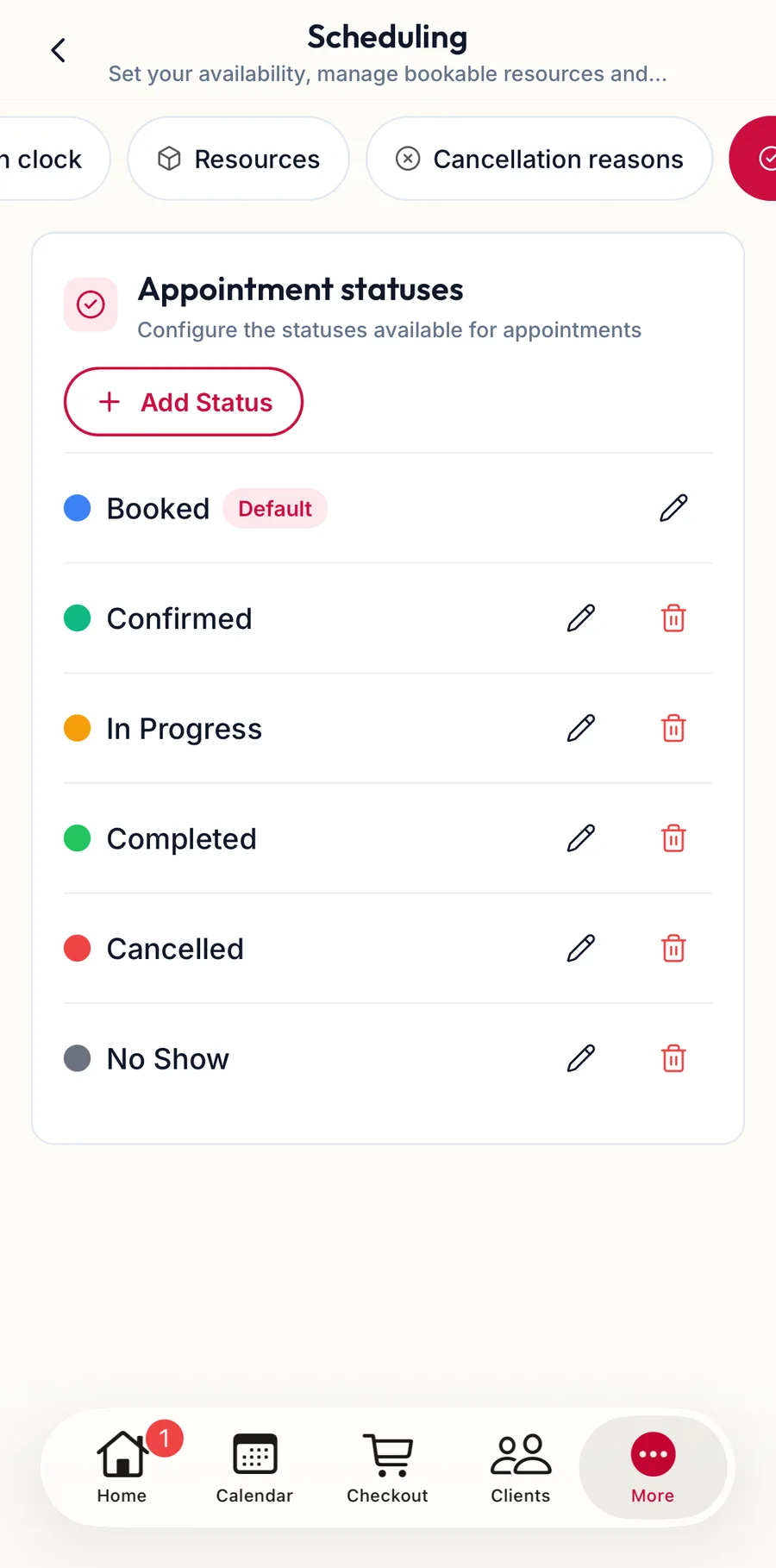
The built-in statuses are Booked, Confirmed, In Progress, Completed, Cancelled and No Show. Add your own, such as Waiting or Washing, with Add Status: a Label, a Color and whether it is the Default for new bookings. Custom statuses are for the team's workflow; billing and reports still turn on the built-in ones.
In the app
The appointment statuses chip lists the built-in and custom statuses.
Related articles
- Blocked time and closed days on the calendar · Calendar
- Cancel or mark a no-show with a reason · Calendar
- Open an appointment and change its status · Calendar