
Taxes and tax groups
Define GST rates, combine them into groups such as CGST plus SGST, and choose the defaults for new services and products.
The first-time walkthrough is in Set up your tax rates. This is the reference.
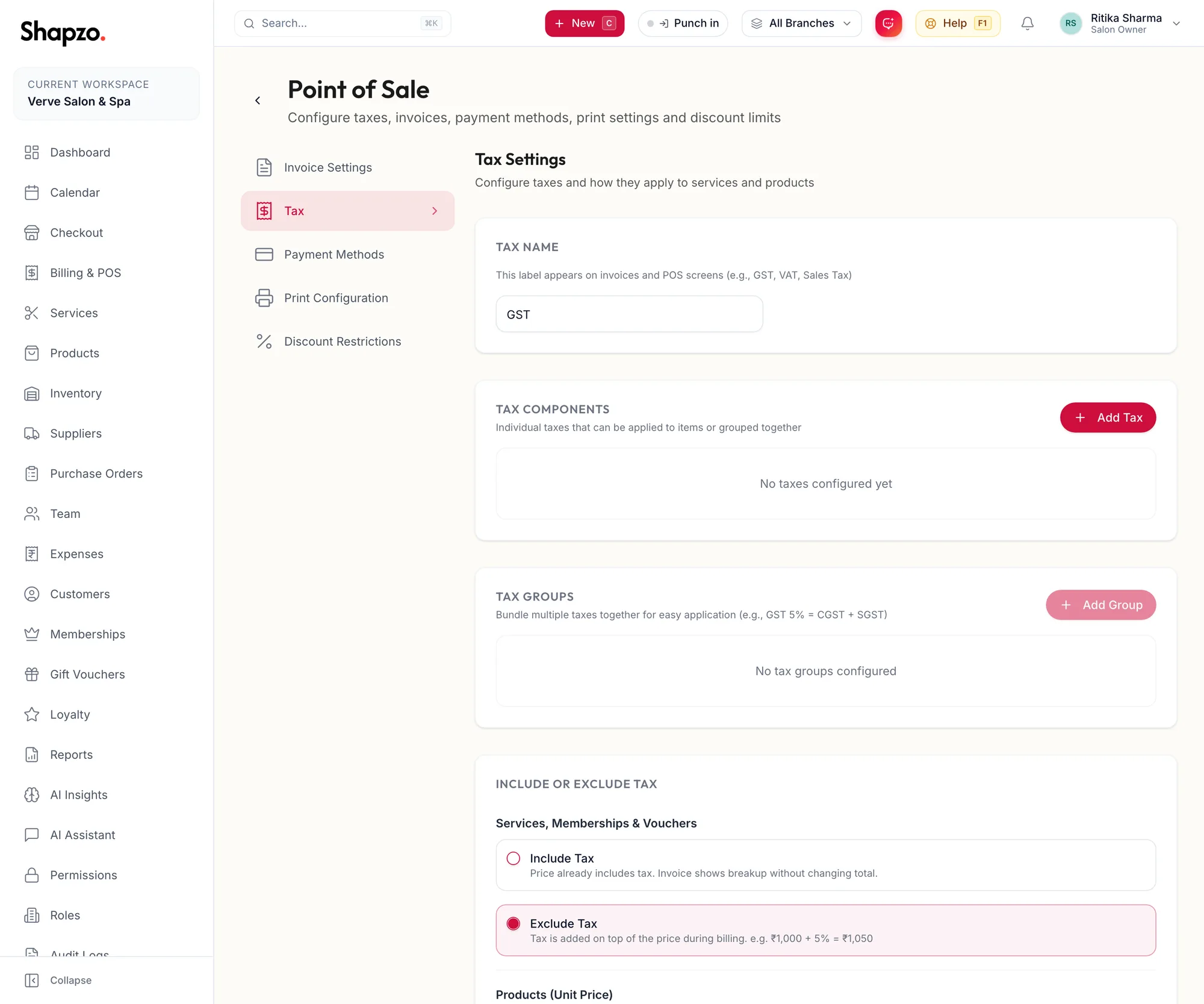
Taxes
On the web
Click Add Tax: Tax Name, Tax Percentage (%), SAC / HSN Code, and Include or Exclude Tax. An inclusive tax is inside the price you type; an exclusive one is added on top.
In the app
Tap More, then Settings, then Point of Sale, then the tax chip. Taxes, tax groups and the default assignment follow one under the other.
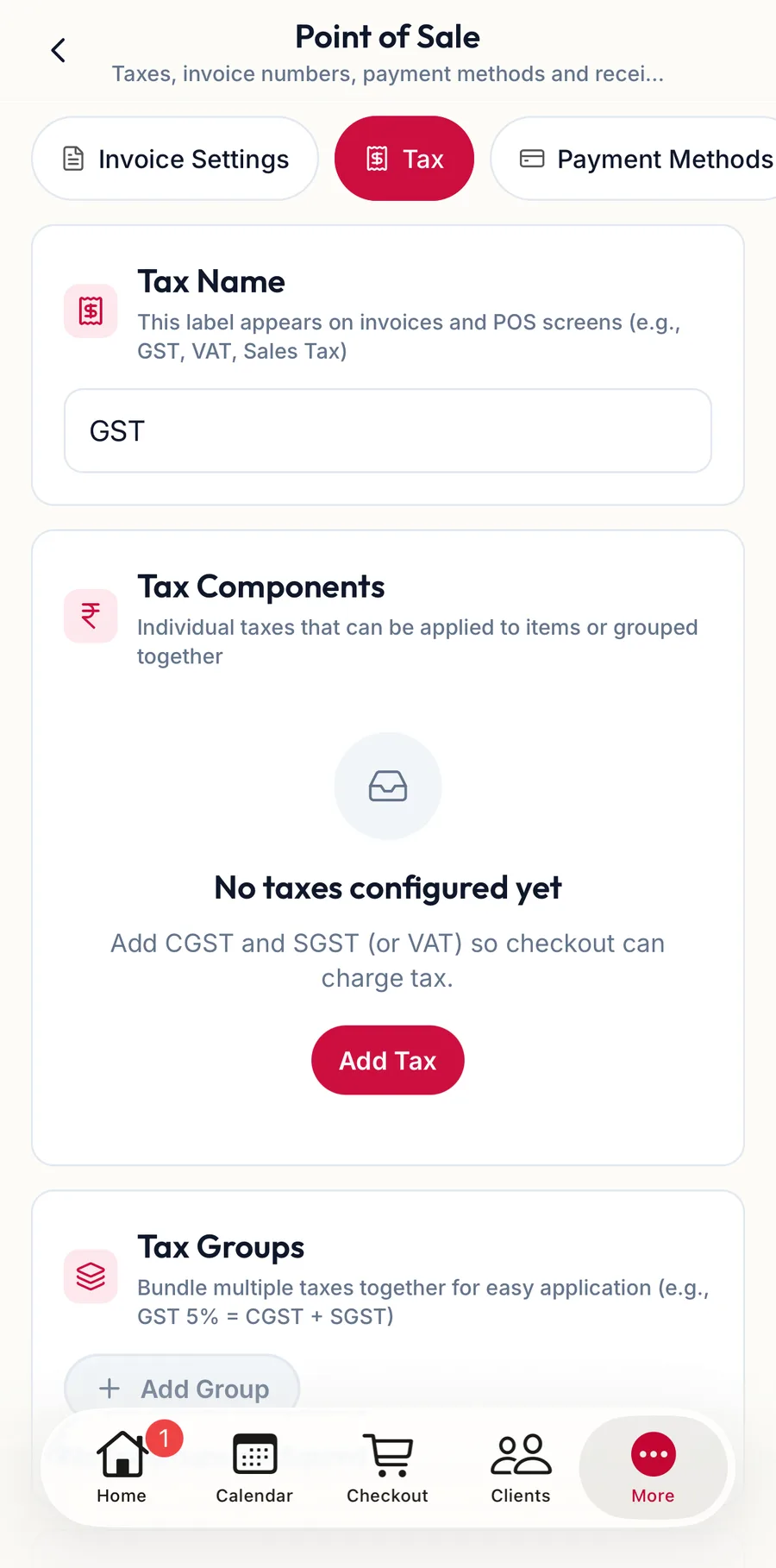
Tax Groups
Indian GST is split on the invoice as CGST and SGST. Create the components as taxes (CGST 9%, SGST 9%), then click Add Tax Group, give it a Group Name (GST 18%) and Select Taxes; the Tax Components show the split. Assign the group, not the components, to items.
Default Tax Assignment
Choose the default for Services, Memberships & Vouchers and for Products (Unit Price). The note reads Default tax is assigned to new items only. Existing items keep their current tax settings. Click Save Tax Settings.
Which rate
Beauty and wellness services are taxed at 18% under SAC 999729. Cosmetics and hair products are mostly 18% under their HSN codes. A composition-scheme business sets no tax and prints its composition declaration in the invoice footer. Confirm with your accountant.
Related articles
- Set up your tax rates · Getting started
- Product types, units, HSN and GST · Products & stock
- Point of Sale: invoice numbering and behaviour · Settings