
Business setup and branches
The business's name, contact, GST number and logo, and the branches that own stock, bookings, invoices and staff.
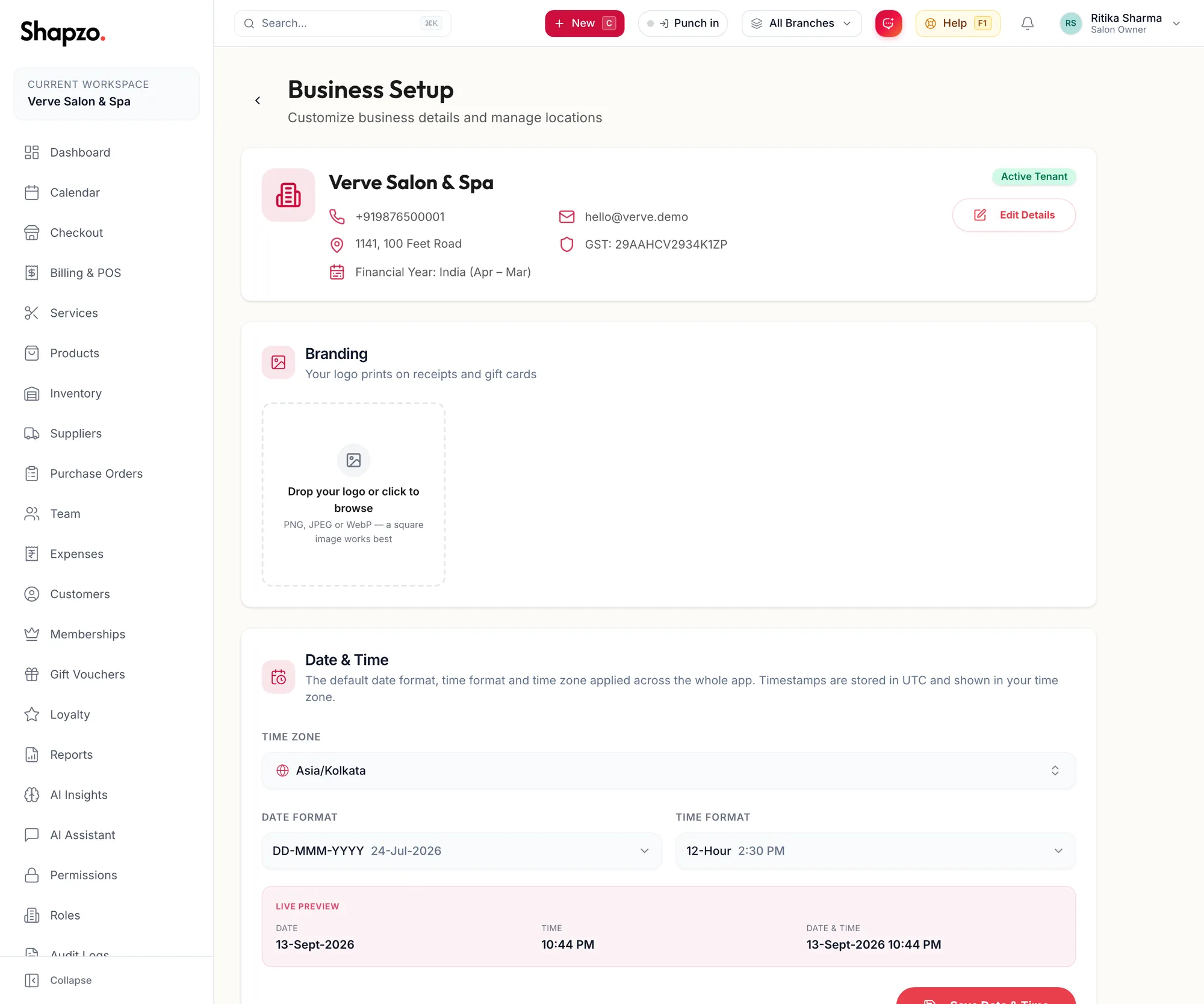
Open Settings and Business setup. Your first-time setup is covered in Set up your business profile and logo; this article is the reference for the page.
Business details
On the web
Edit Business Details opens the Business Name, Business Phone, Email Address, GST Number and address. The name, GST number and address print on every invoice, so keep them exactly as registered.
In the app
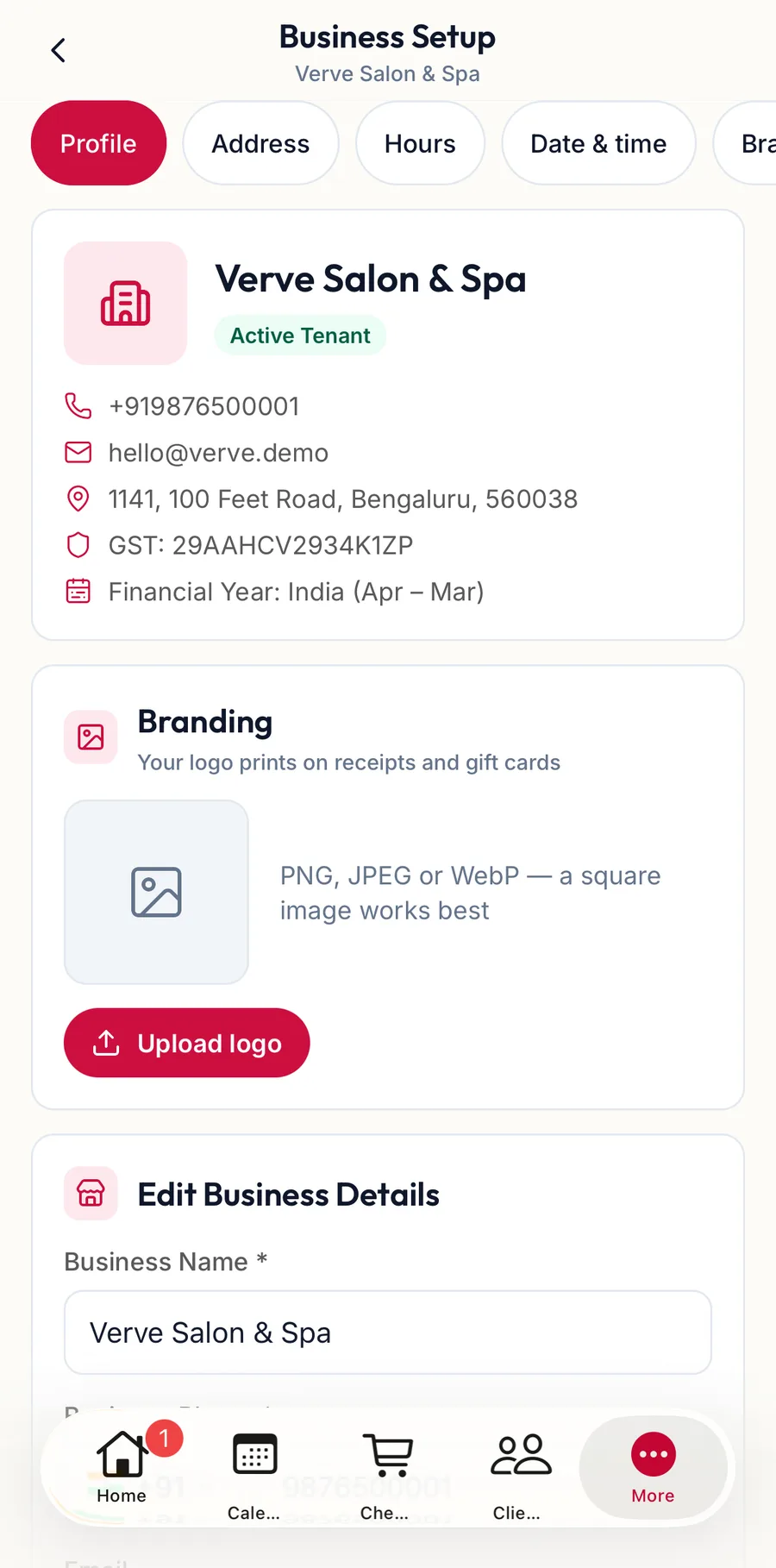
Tap More, then Settings, then Business Setup. The chips at the top switch between the profile, address, hours, date and time, and Branches. Under the profile, Edit Business Details opens the Business Name, Business Phone, Email and GST Number; tap Save Business Details.
Branding
On the web
Drop your logo or click to browse. PNG, JPEG or WebP — a square image works best; the Frame your logo crop keeps it tidy. Your logo prints on receipts and gift cards.
In the app
Under the profile, tap Upload logo (or Replace logo) and pick an image from the phone.
Branches
On the web
Every business has at least one branch. A branch owns its stock, appointments, invoices and staff assignments, and the branch selector in the top bar switches between them; see Switch between branches.
Add a branch
-
Click Add Branch. From anywhere, the New menu offers Branch.
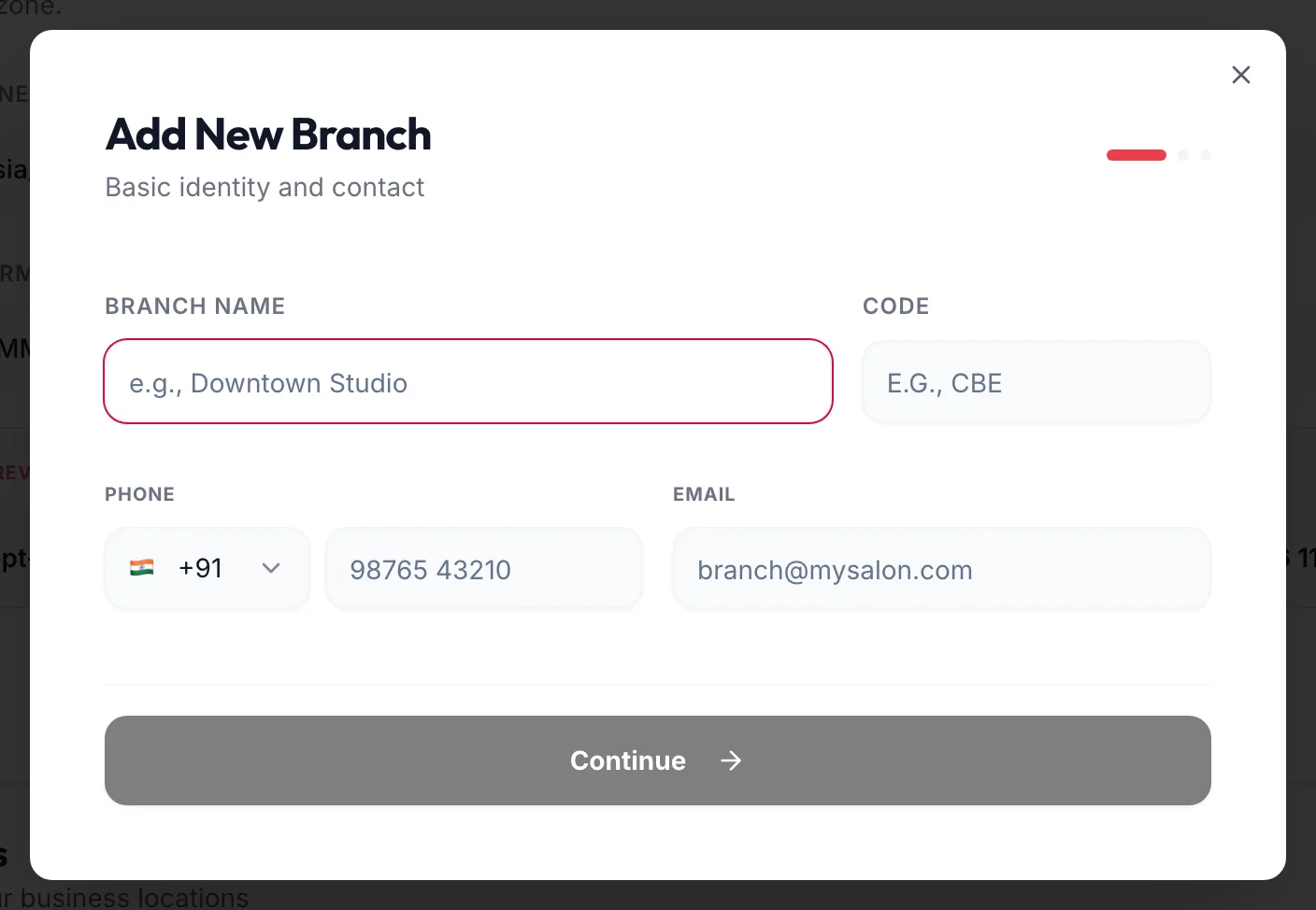
The Add New Branch dialog -
Enter the Branch Name, Contact Number, Email and Address.
-
Leave Branch Active Status on. Switch on Custom date & time for this branch only if it runs in a different time zone or format from the business.
-
Save. The toast reads Branch created successfully.
Edit, deactivate, delete
Edit from the branch card. Deactivating hides the branch from selectors and booking without losing anything. Deleting asks Delete {{name}}? and warns: A branch owns its stock, appointments, invoices and staff assignments. If any exist, the branch cannot be deleted — deactivate it instead. This cannot be undone.
In the app
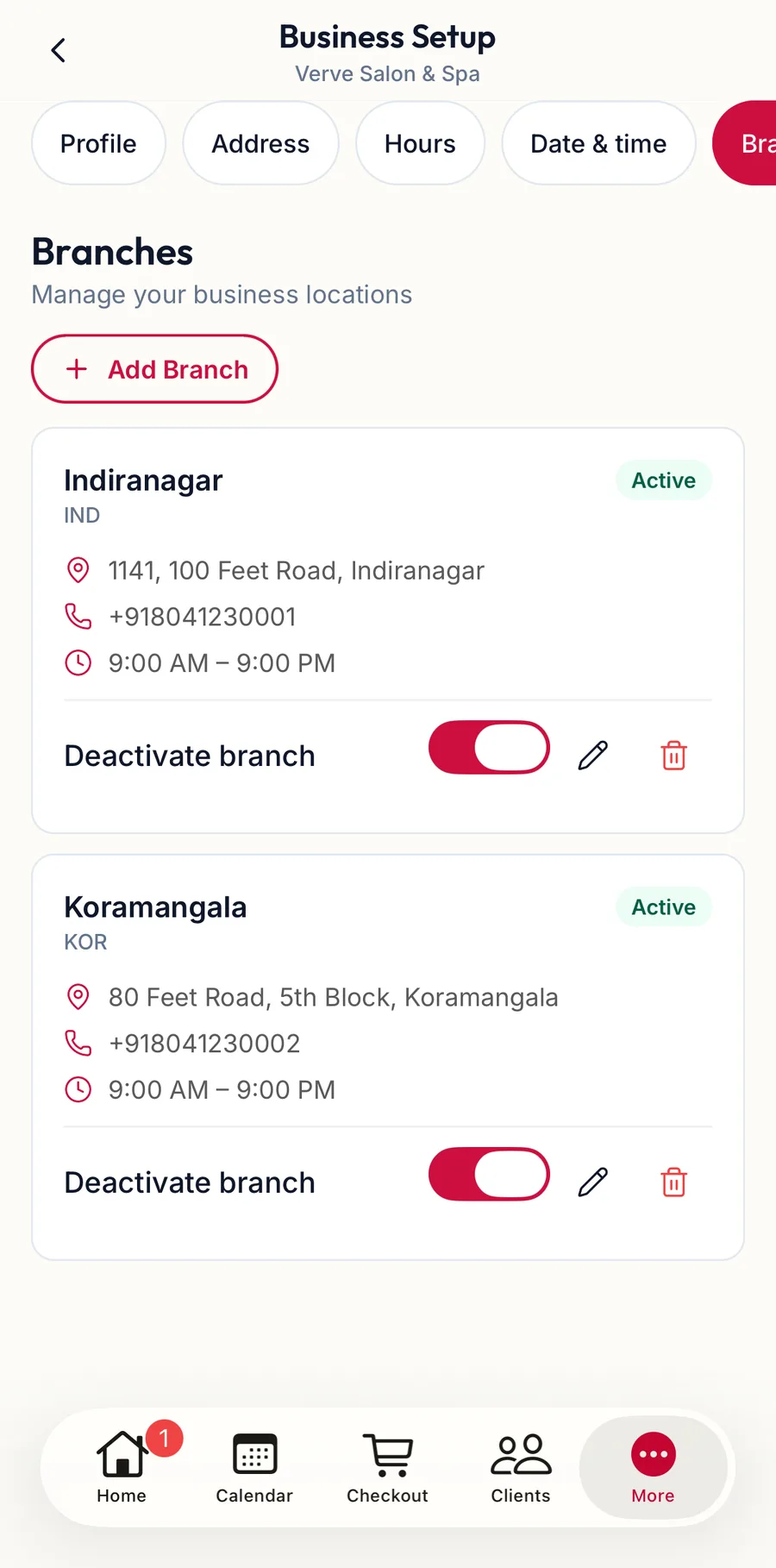
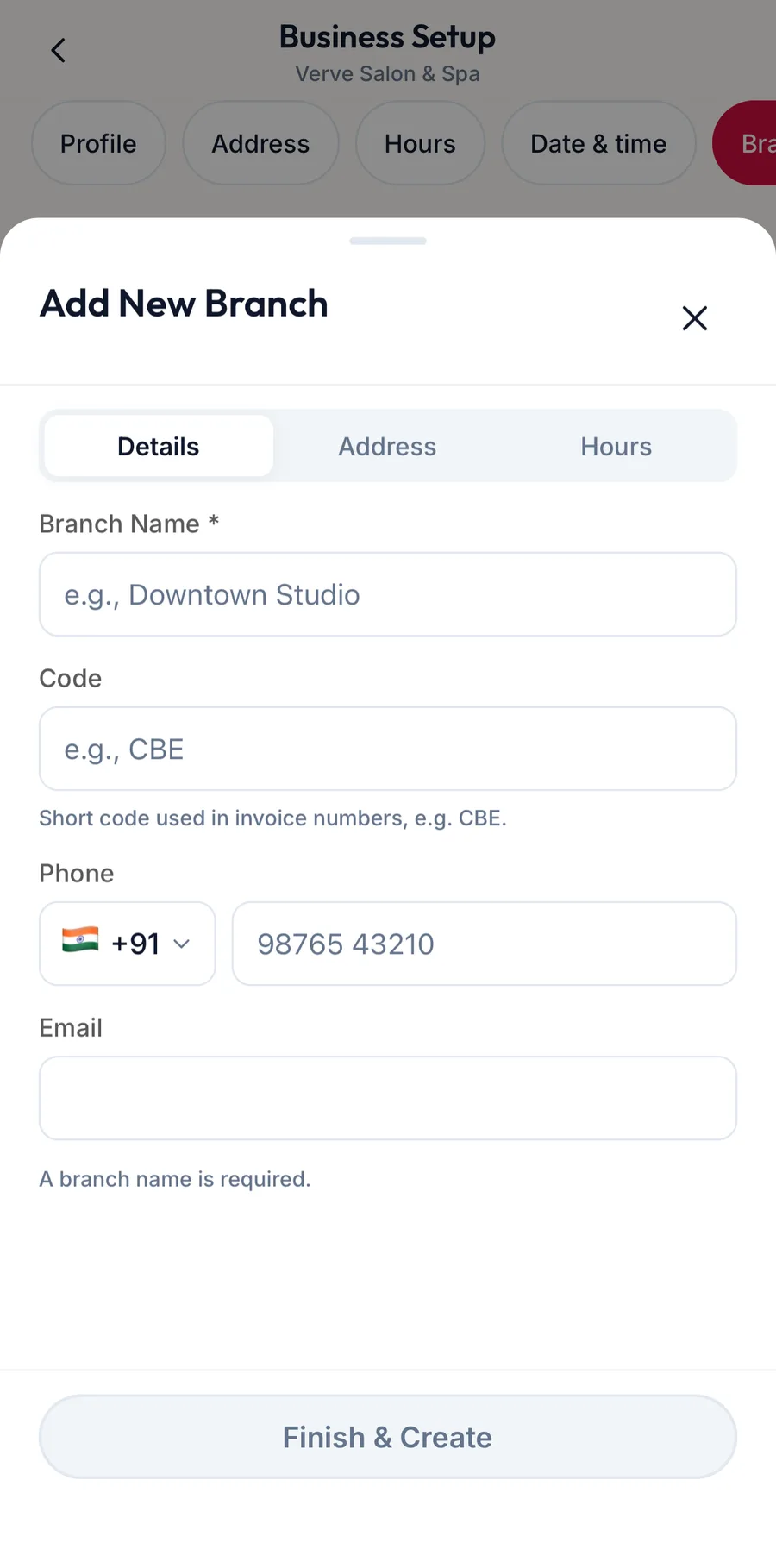
Tap the Branches chip. Each branch is a card with Edit Branch and an active switch; tap Add Branch for a new one and fill in the Branch Name, Code, Phone, Email, the address and the Weekly Schedule, then Finish & Create.
Related articles
- Set up your business profile and logo · Getting started
- Switch between branches · Around the portal
- Date, time and financial year · Settings