
Gift card, dashboard default and notification settings
Three smaller settings pages: how gift cards are delivered, what dashboard people see first, and which events notify whom by which channel.
Gift Cards
On the web
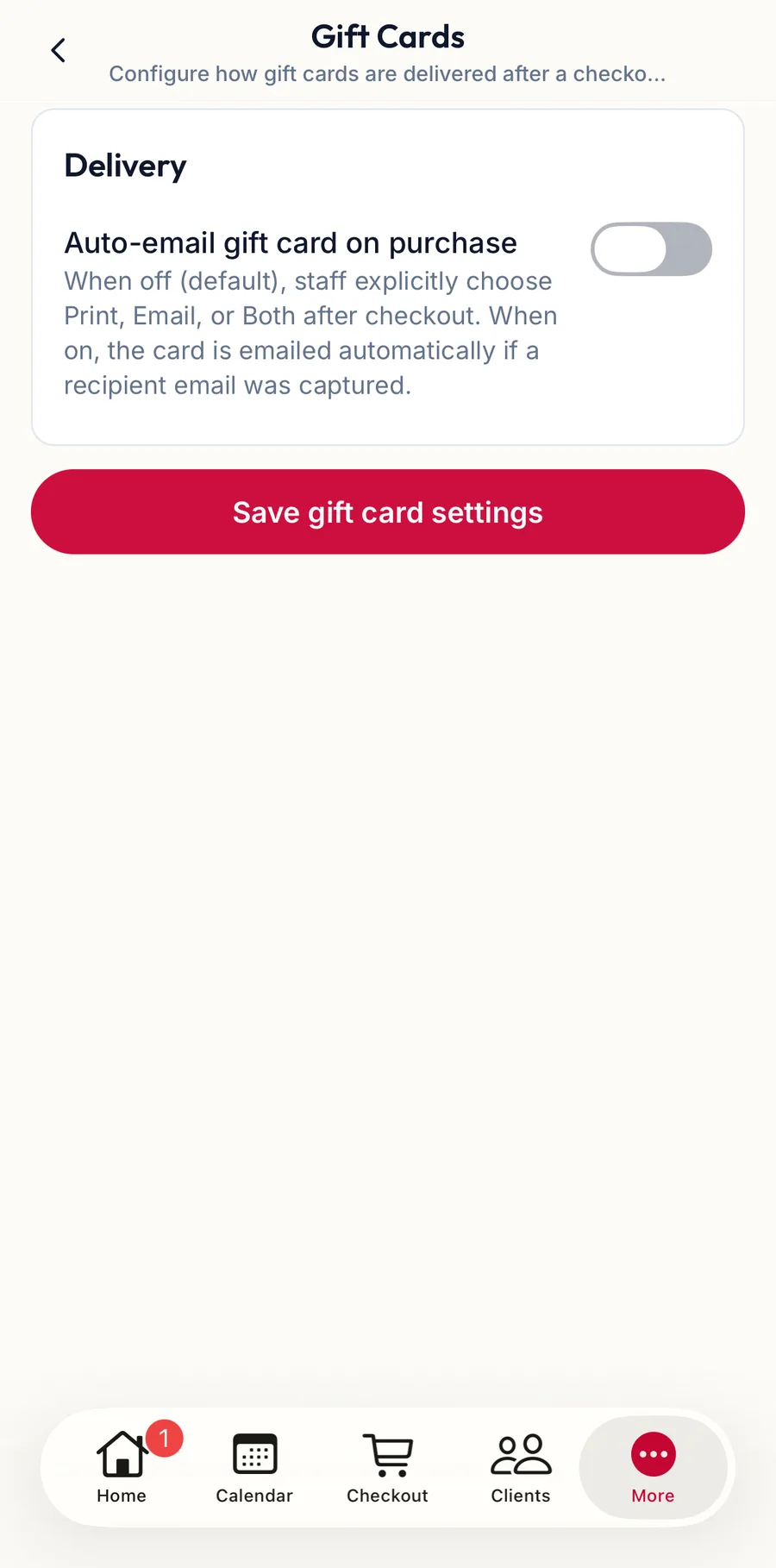
Open Settings, Gift Cards. One switch: Auto-email gift card on purchase. When off (default), staff explicitly choose Print, Email, or Both after checkout. When on, the card is emailed automatically if a recipient email was captured. Click Save Gift Card Settings.
In the app
Tap More, then Settings, then Gift Cards: the same Auto-email gift card on purchase switch and Save gift card settings.
Dashboard defaults
On the web
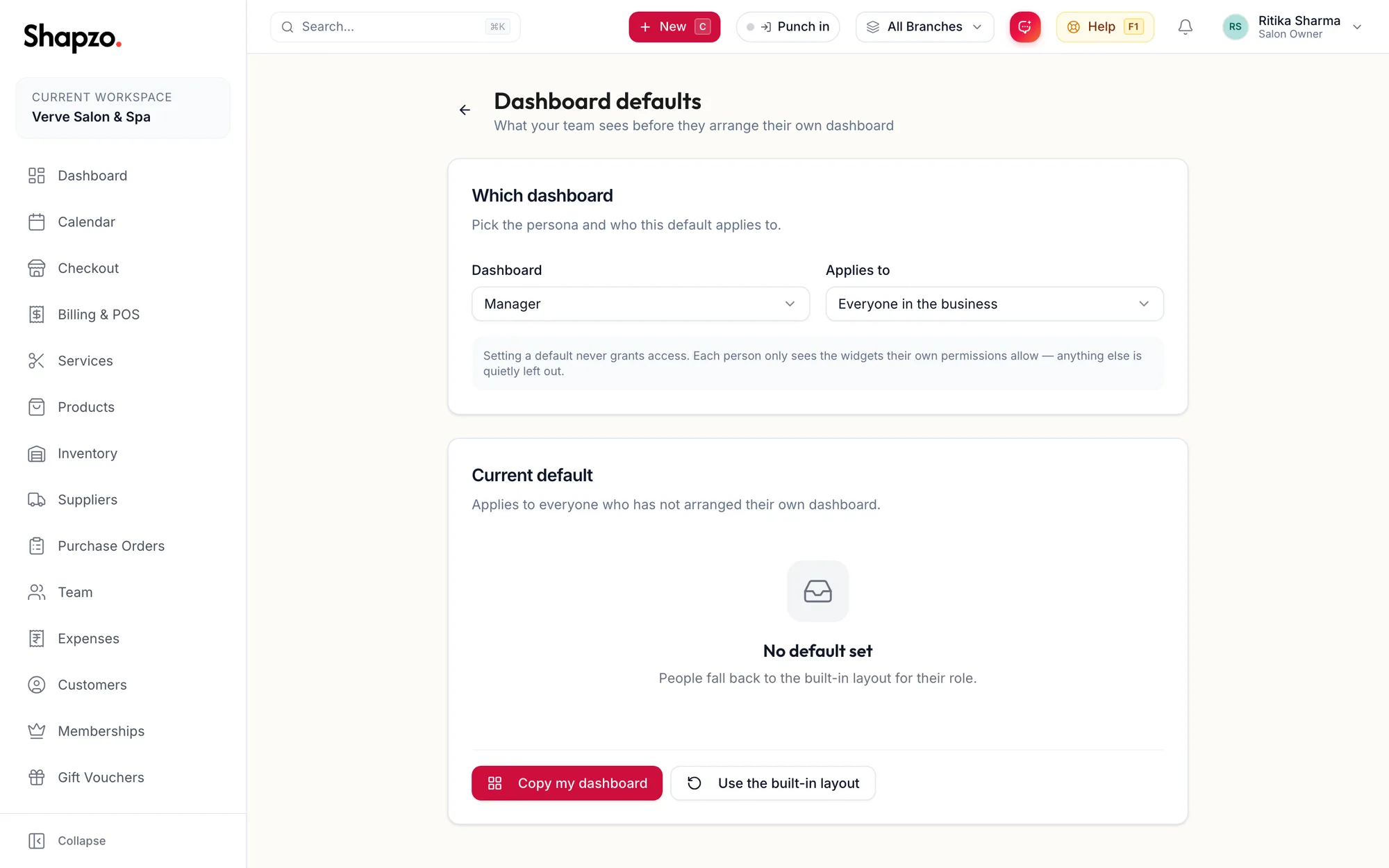
Open Settings, Dashboard defaults. Under Which dashboard, pick the Dashboard persona (Owner, Manager, Front desk, Staff or Limited access) and who it Applies to: Everyone in the business or One role only with the Role. Copy my dashboard uses your own arrangement as the default; Use the built-in layout goes back to the standard one; Clear default removes it.
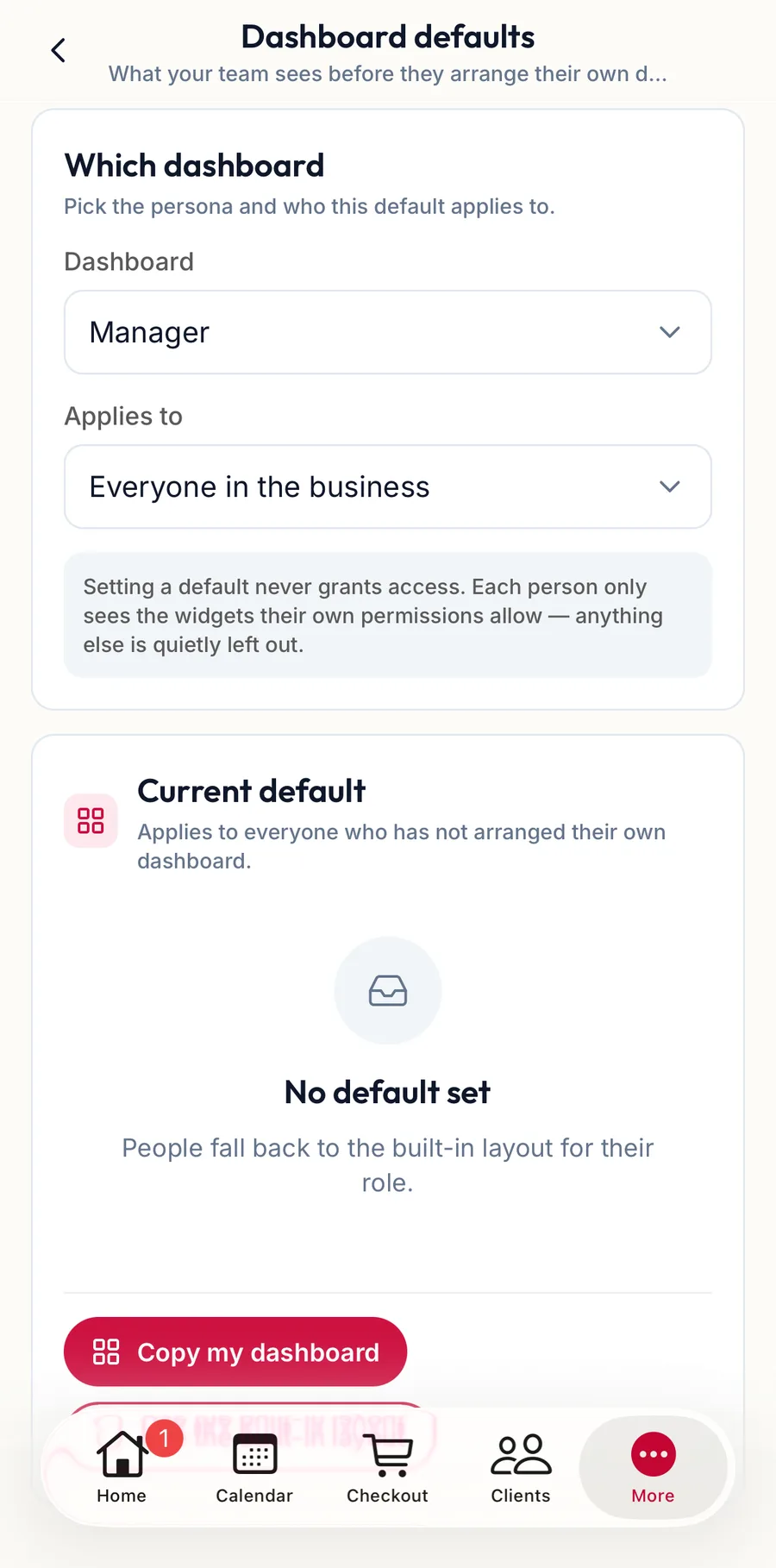
The page is explicit: Setting a default never grants access. Each person only sees the widgets their own permissions allow — anything else is quietly left out.
In the app
Under Settings, tap Dashboard defaults. Choose Which dashboard, who it Applies to (Everyone in the business or One role only), then Copy my dashboard or Use the built-in layout; Clear default removes it.
Notifications
On the web
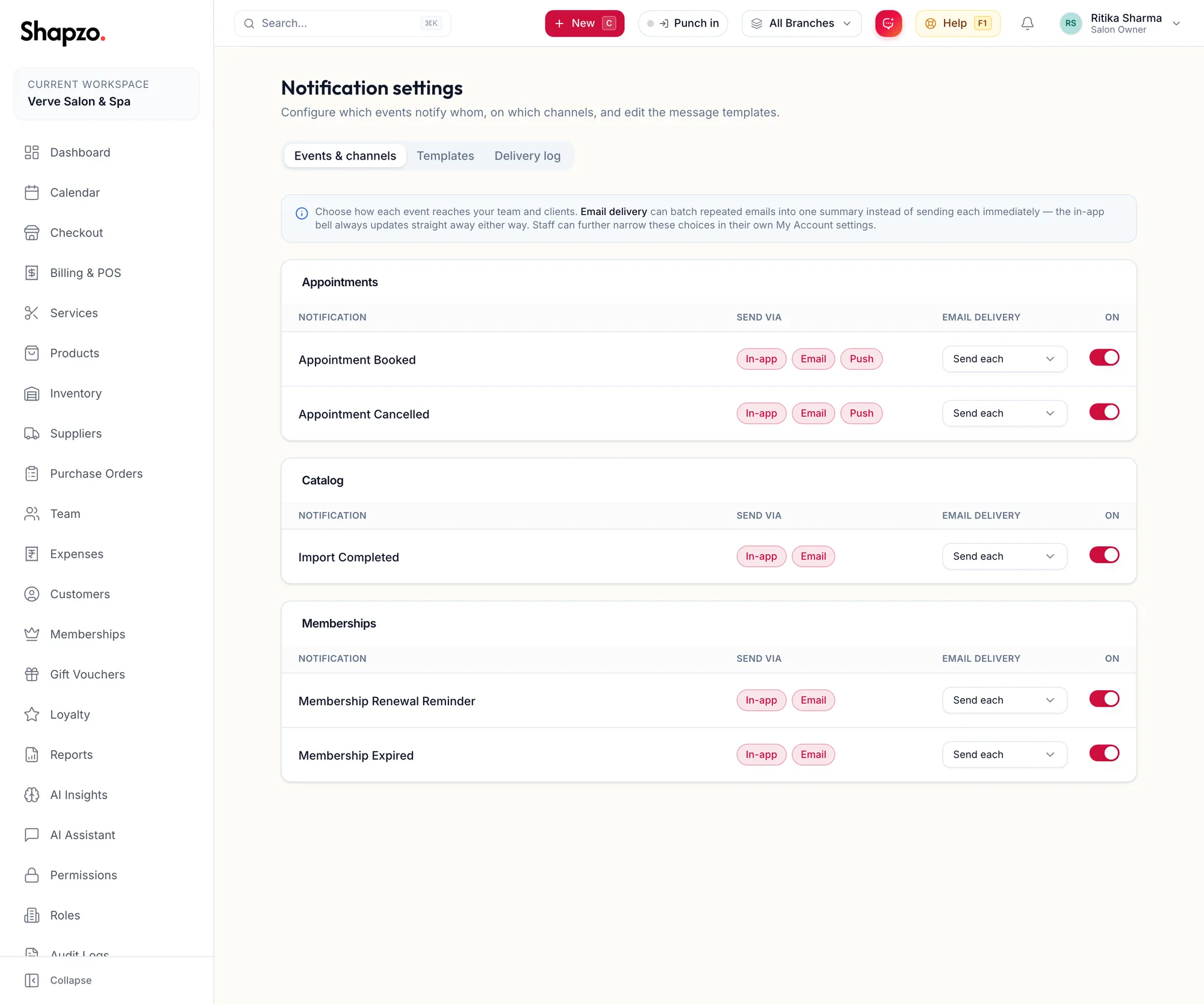
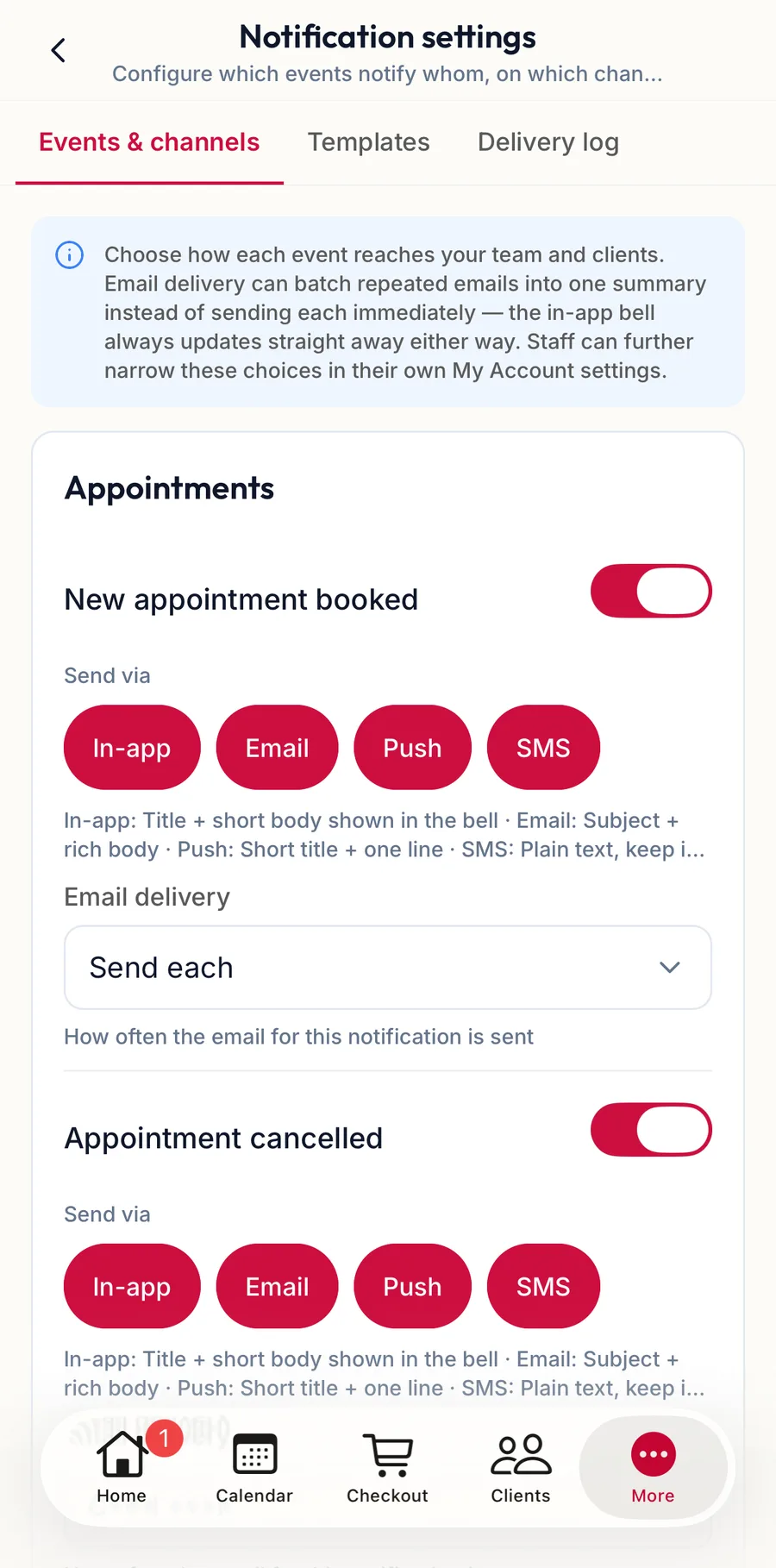
Open Settings, Notifications. The page explains: Choose how each event reaches your team and clients. Email delivery can batch repeated emails into one summary instead of sending each immediately, while the in-app bell always updates straight away. Staff can further narrow these choices in their own My Account settings.
- Events & channels: one row per event, grouped by module. Send via shows the channels for the event (In-app, Email, Push; SMS and WhatsApp join the list once their provider is set up, until then a channel reads Requires SMS provider setup or Requires WhatsApp provider setup). Email delivery chooses Send each email at once, or an hourly or daily summary. The On switch turns the event off entirely.
- Templates: Every notification ships with built-in wording…; Write your own wording, insert details from Available details — click to insert, Send test to me, then Save & use this wording. Version history keeps the old ones.
- Delivery log: Delivery metrics (last {{days}} days) and every delivery with a Retry for failures.
The events themselves are listed in Notification events. What each person receives is also filtered by their own Notification preferences.
In the app
Under Settings, tap Notifications for the same events, channels, templates and delivery log.
Related articles
- Where selling and redeeming happen · Gift vouchers
- Notifications and the bell · Around the portal
- Notification events · Reference