
Notifications and the bell
New bookings, cancellations, imports, expiring memberships and system alerts arrive in the bell and on the Notifications page.
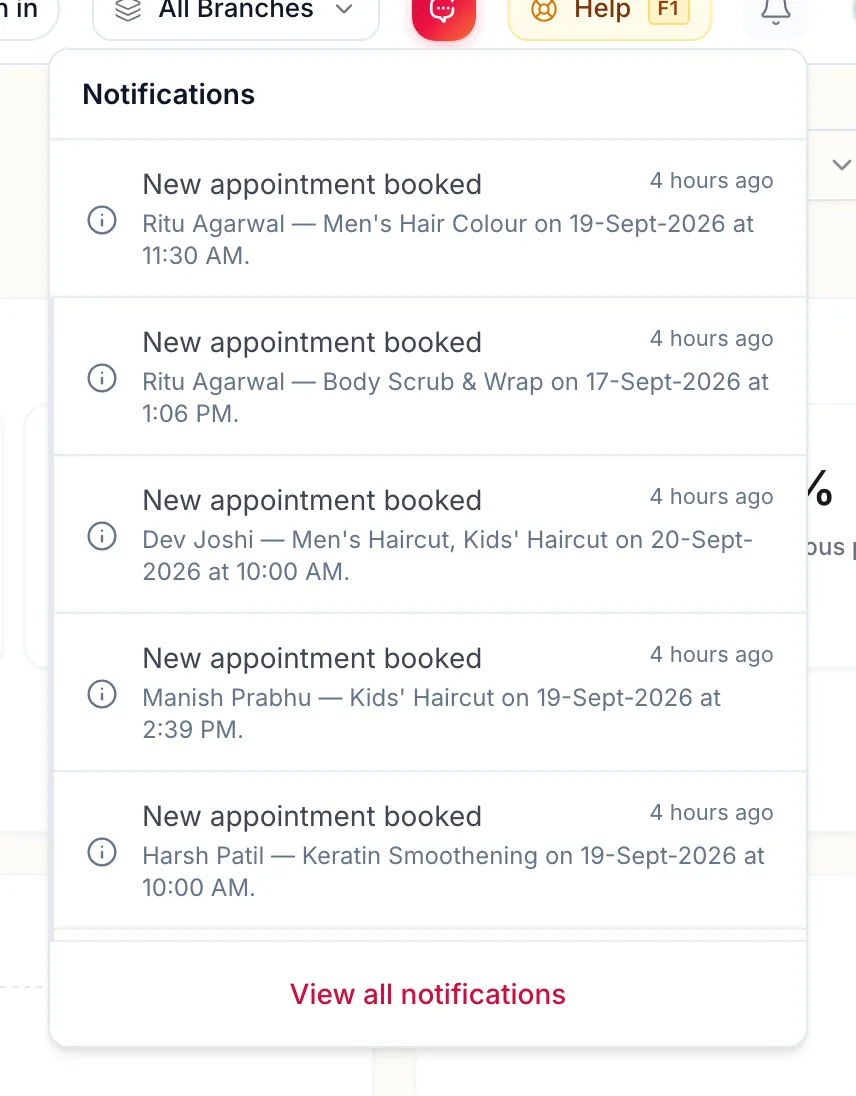
The bell in the top bar shows how many notifications you have not read. Click it for the latest few, or open the full page for everything.
The bell
On the web
- Click the bell. The dropdown lists your newest notifications.
- Click one to open the record it is about, for example the appointment that was booked.
- Mark all read clears the badge. View all notifications opens the page.
In the app
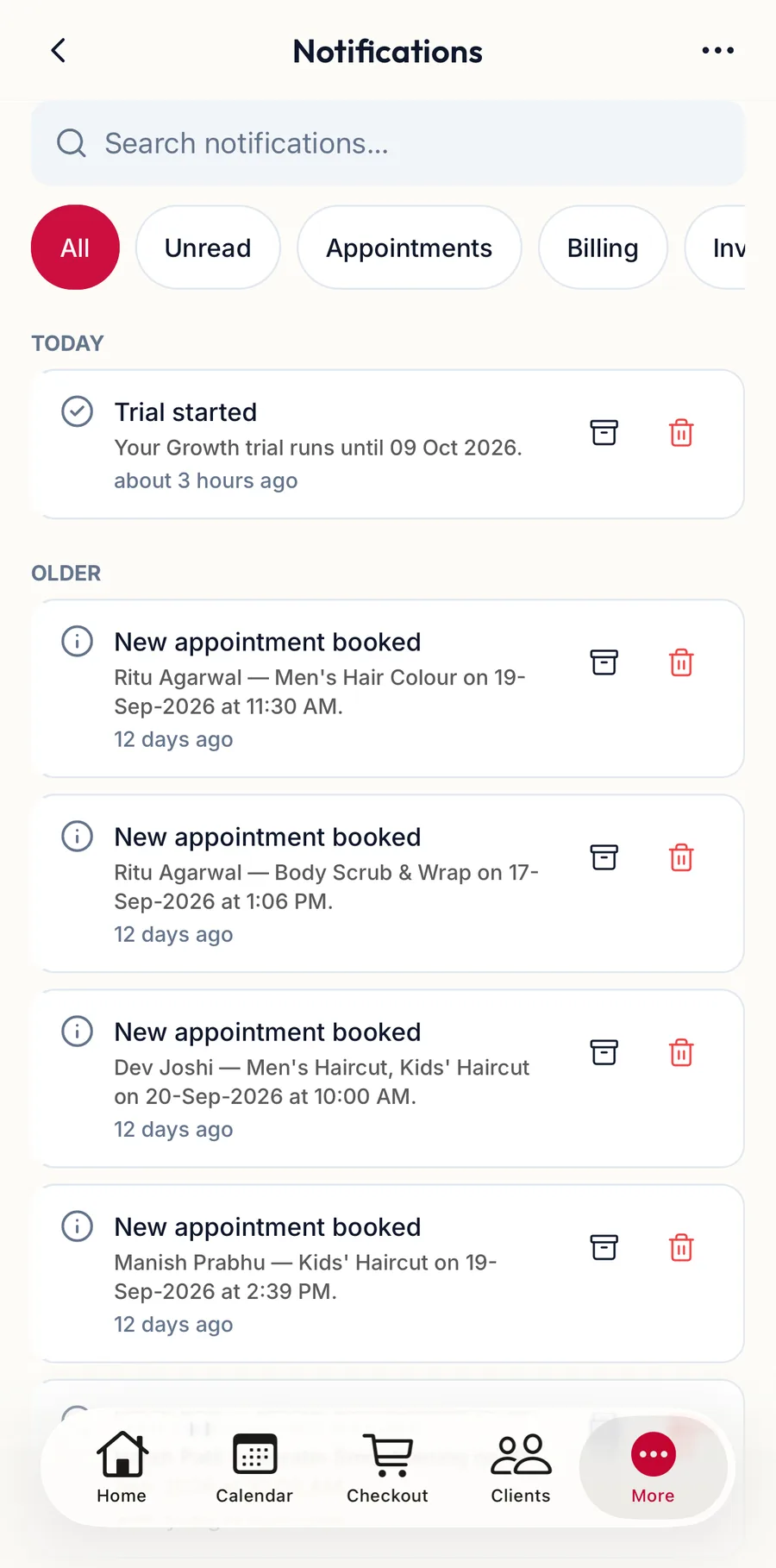
The bell sits at the top right of Home, and the Home tab shows the unread count as a badge. Tap either to open Notifications, which is also under More.
-
Filter with the chips: All, Unread, the categories and Archived. Search narrows any of them.
-
Each row has an archive and a delete icon. More actions (the three dots at the top right) holds Mark all as read, Select for archiving or deleting many at once, and Preferences.
-
Preferences opens your own notification settings: which events reach you, and whether the phone shows a push notification for them.
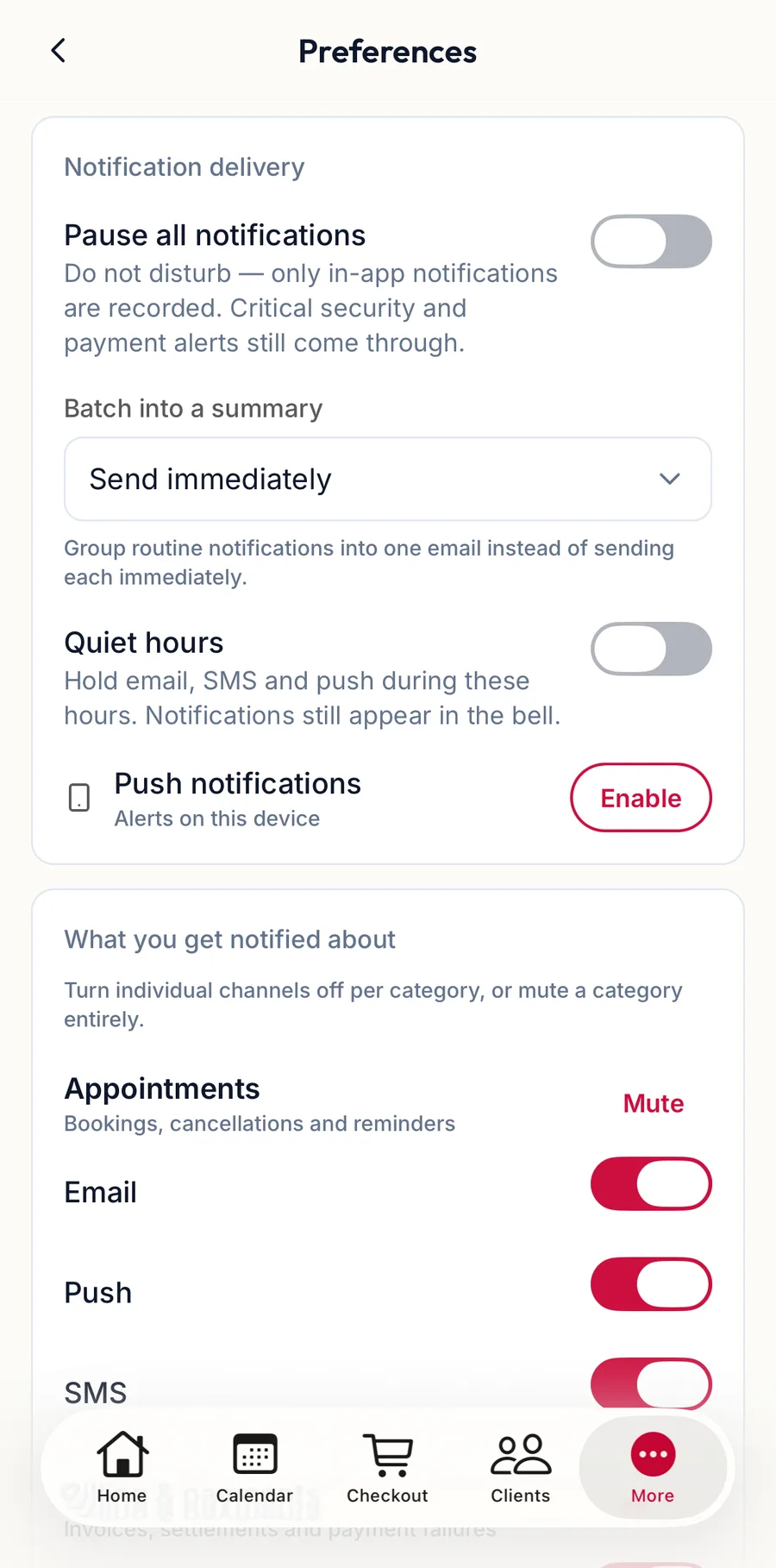
Notification preferences in the app
The Notifications page
On the web
Open it from the bell, or press g n.
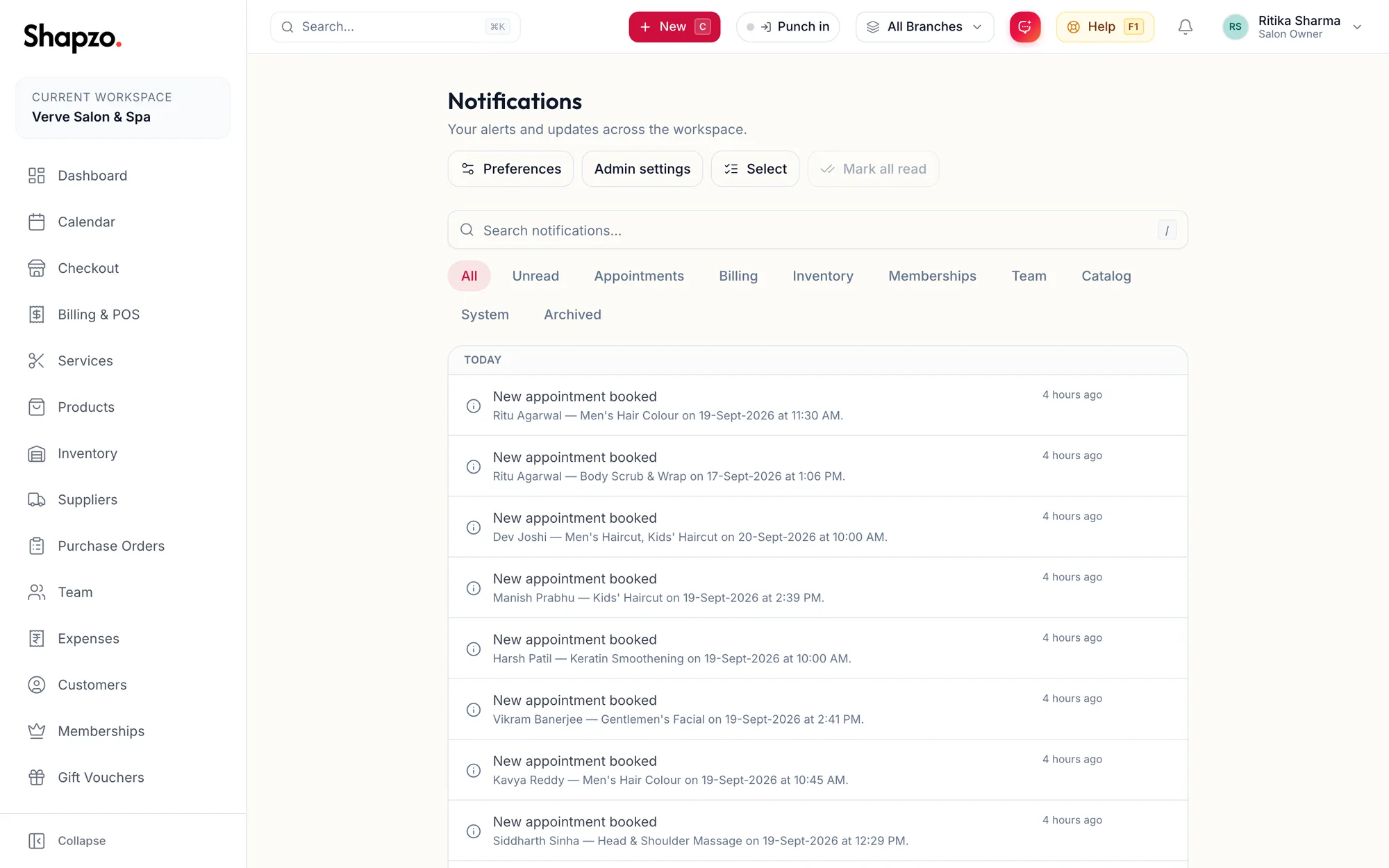
- Filter with the tabs: All, Unread, Appointments, Billing, Inventory, Memberships, Team, Catalog, System and Archived. The search box narrows any tab.
- Notifications are grouped into Today, Yesterday, Earlier this week and Older.
- Each row has Archive and Delete. Archived notifications move to the Archived tab, where Restore brings them back.
- Select switches on checkboxes so you can Archive or Delete many at once. Select all in this view takes the whole tab.
- Preferences opens your own notification settings; see Notification preferences. Owners also see Admin settings, which control what the business sends and on which channels.
In the app
The same list, filters and actions are in the app under More, Notifications. Push notifications on the phone are switched on per event under Notification settings; the phone also has to allow notifications for Shapzo in its own settings.
What you are told about
Examples: New appointment booked, Appointment cancelled, an import finishing, Membership expiring soon, Membership expired, and system notices such as a support session on your account ending. Which of these reach you, and whether they also go by email, SMS or WhatsApp, depends on the business's notification settings and your own preferences.
Related articles
- Notification preferences · Your account
- The sidebar and the top bar · Around the portal