
The sidebar and the top bar
Where everything lives: the module list down the left, and search, the + New menu, branches, help, notifications and your profile along the top.
Every screen has the same frame. Once you know the frame, you know where to look.
The frame
On the web
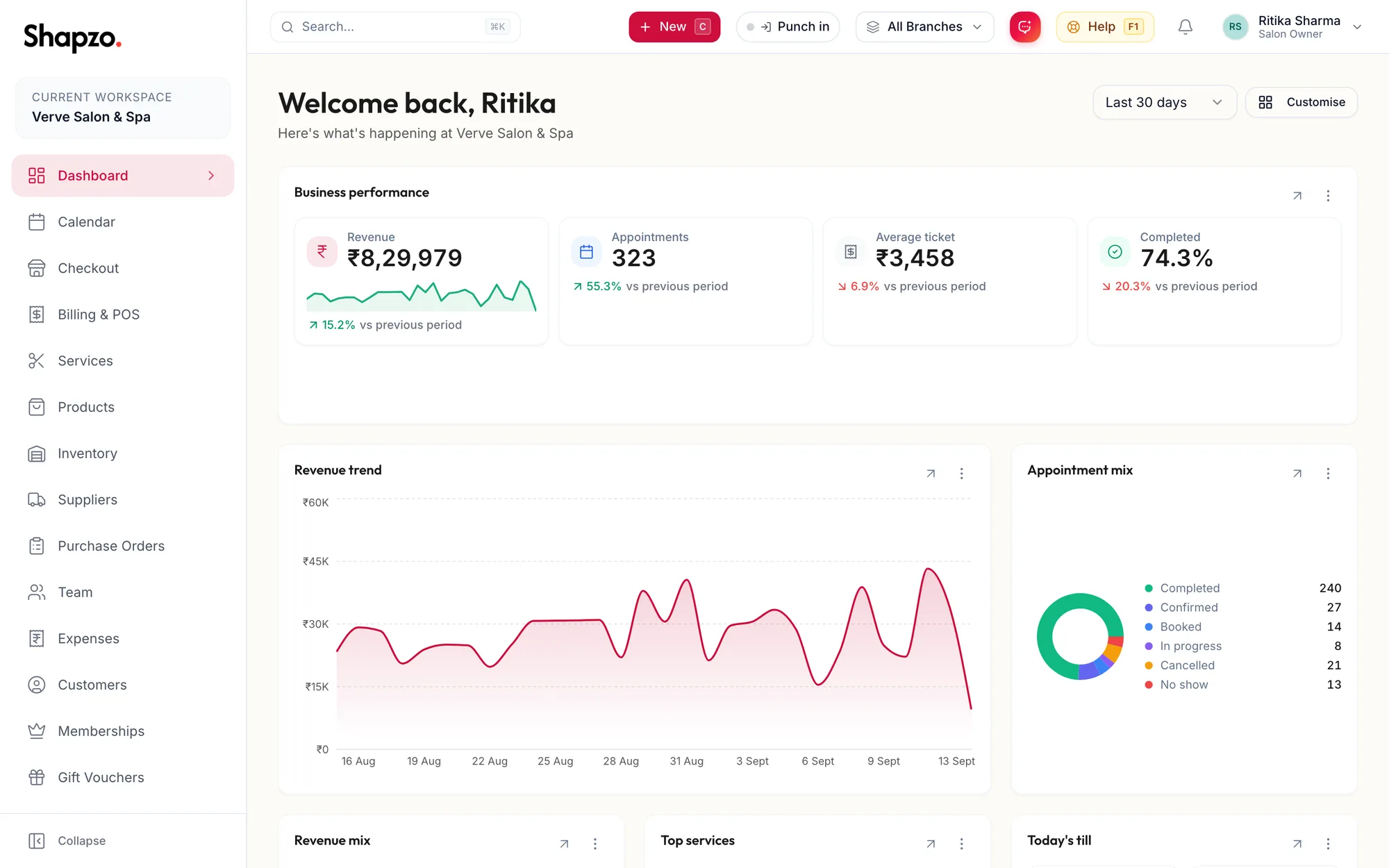
The sidebar
The sidebar lists your modules: Dashboard, Calendar, Checkout, Billing & POS, Services, Products, Inventory, Suppliers, Purchase Orders, Team, Expenses, Customers, Memberships, Gift Vouchers, Loyalty, Reports, AI Insights, AI Assistant, Permissions, Roles, Audit Logs and Settings.
- You only see the modules your role can open. A stylist's sidebar is much shorter than the owner's, and shows Leave and My Salary instead of Team.
- The Current Workspace card at the top names the business you are signed in to.
- Collapse at the bottom shrinks the sidebar to icons. Press ⌘B on a Mac or Ctrl B on Windows to do the same from the keyboard.
- Press g and then a letter to jump straight to a module, for example g c for the calendar. The full list is under Keyboard shortcuts.
The top bar
From left to right:
| Control | What it does |
|---|---|
| Search box | Finds customers, invoices, services, products and more. See Search everything. |
| New | Creates anything from anywhere. See The + New menu. |
| Punch in | Your own time clock, if the business uses one. See the Team articles. |
| Branch selector | Switches the whole portal between locations. See Switch between branches. |
| AI assistant | Opens the assistant. |
| Help | Keyboard shortcuts and the guided tours. F1 does the same. |
| Bell | Your notifications. See Notifications and the bell. |
| Your name | My Account, Language, Contact support and Logout. |
On a phone or a narrow window the sidebar folds away behind the menu button at the top left, and the top bar keeps only the essentials.
In the app
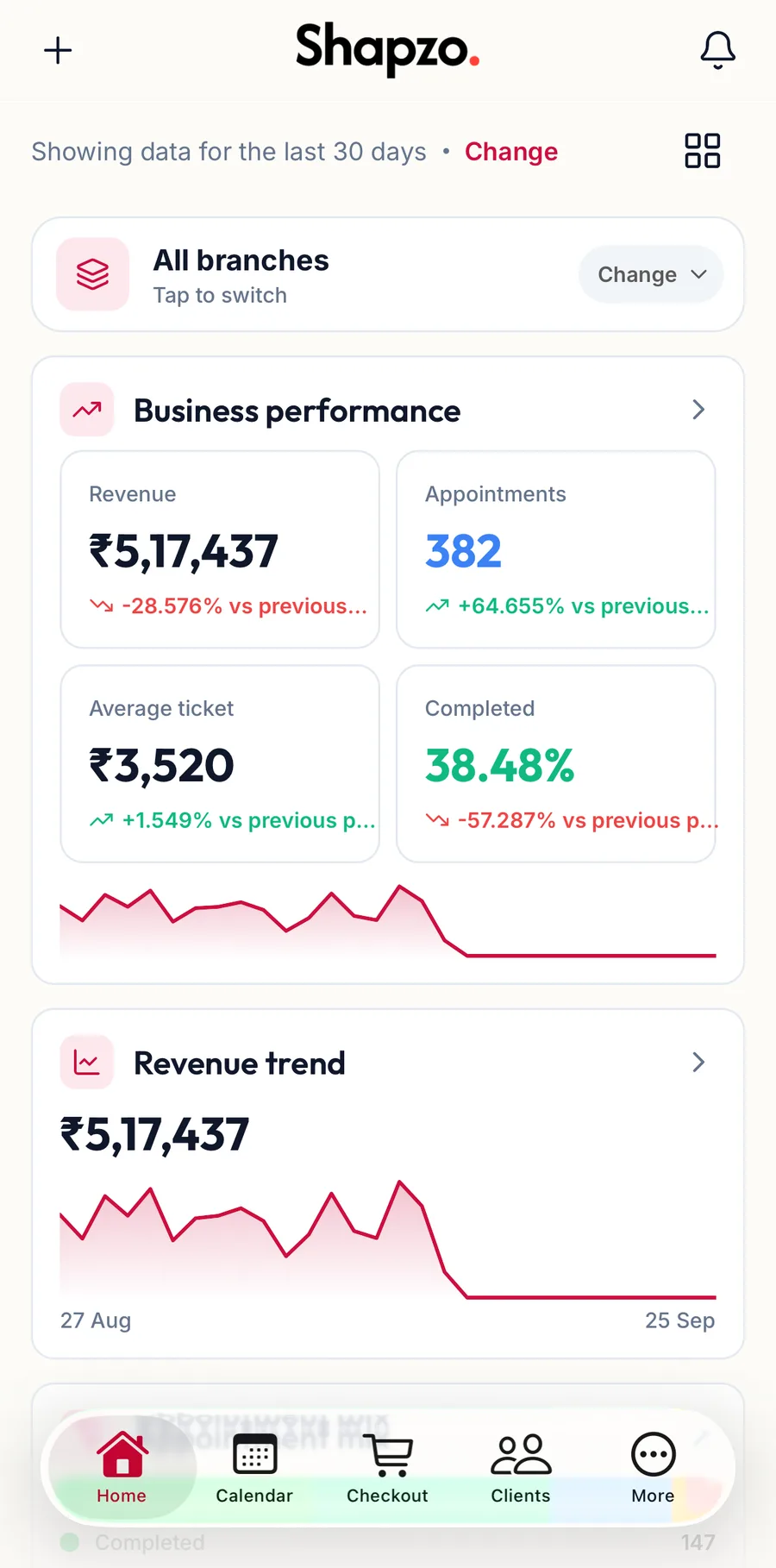
The app has five tabs along the bottom and puts everything else behind More.
| Tab | What it holds |
|---|---|
| Home | The dashboard widgets, the branch card, the + button to create things and the bell for notifications. |
| Calendar | The day, week, month and list views, the waitlist and the booking form. |
| Checkout | The bill: customer, items, notes and payment. |
| Clients | The customer list, filters, segments and profiles. |
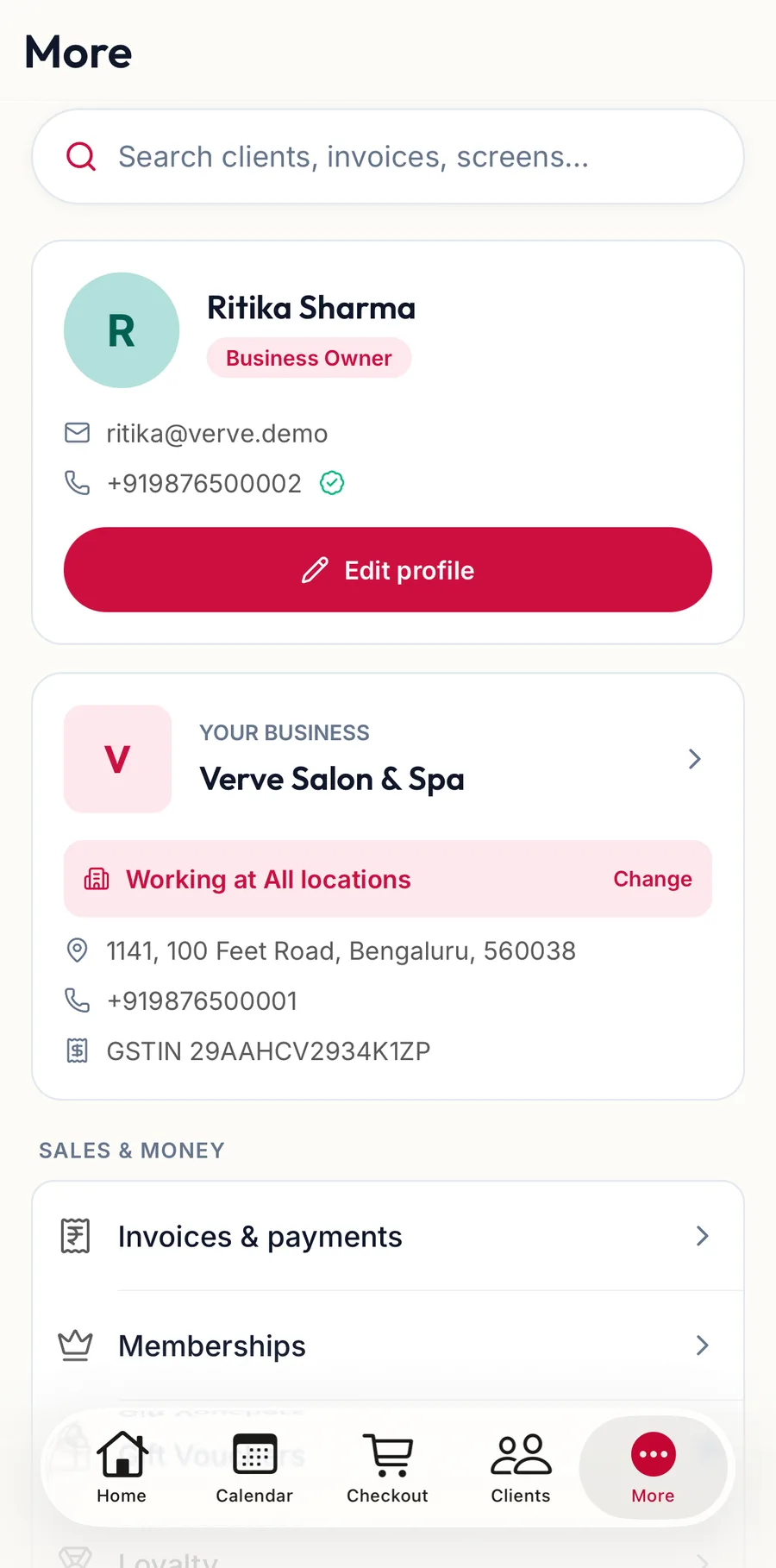
| More | Search, your profile card, your business and its locations, then every other module grouped as Sales & money, Catalog & stock, Team, Insights, Admin and Help, plus Notifications, Punch, Language, About this app and Sign Out. Billing is listed there as Invoices & payments. |
- You only see the tabs and modules your role can open, the same as the sidebar on the web.
- Your profile card at the top of More names you and the business you are signed in to; tap it for My account.
- A module that is not in the app yet says Not on mobile yet and points you to the web portal.
Related articles
- Switch between branches · Around the portal
- Search everything · Around the portal
- The + New menu · Around the portal
- Keyboard shortcuts · Around the portal