
Contact support and the Help button
Help opens shortcuts and tours; Contact support prepares an email with your workspace and screen already filled in.
The Help button
Help in the top bar, or F1, opens a dialog with three things: a link to this Help centre under Open the help centre, the guided tours under Take a tour, and the full list of keyboard shortcuts for the screen you are on. The help centre opens in a new tab, so nothing you were doing is lost.
Contact support
-
Click your name at the top right.
-
Click Contact support.
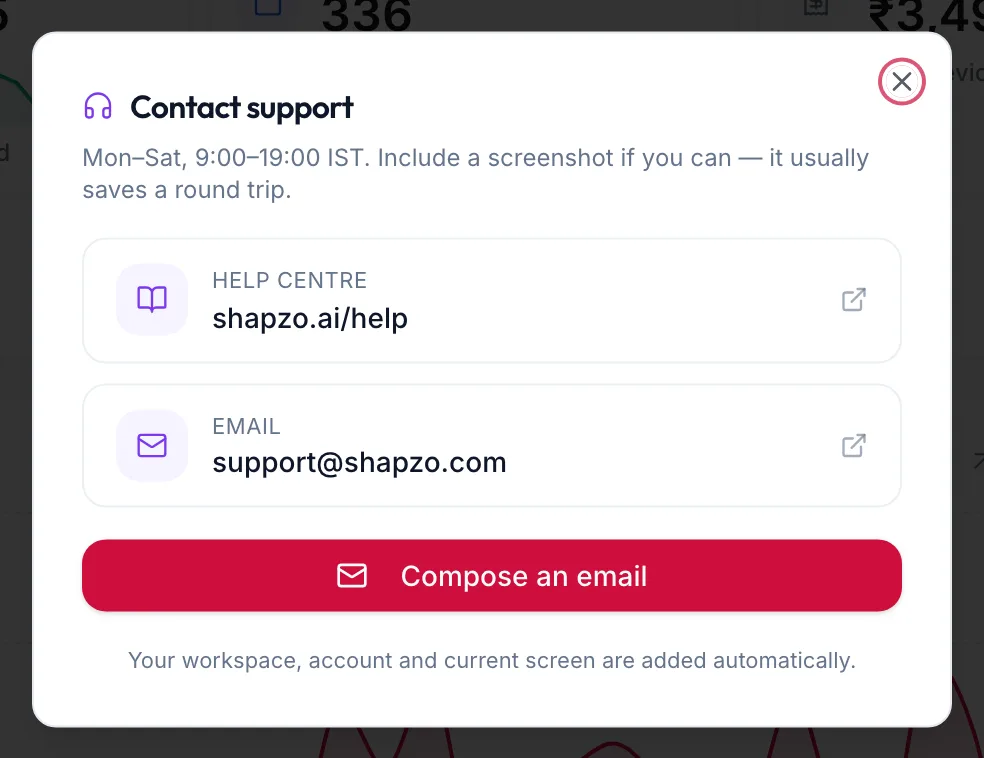
The Contact support dialog -
The dialog shows a Help centre link first, then the support email, the support hours and, if the business has one, a phone number. Check the help centre before you write: most questions are answered there with screenshots.
-
Click Compose an email. Your email app opens with a message that already names your workspace, your account and the screen you were on, so you only need to describe the problem.
The same Contact support link is on the Application Status page for businesses still under review.
Related articles
- Take the guided tours · Getting started
- Keyboard shortcuts · Around the portal