
The + New menu
Create a booking, invoice, customer, service, product, purchase order, expense or team member from any screen.
The New button in the top bar opens a menu of everything you can create. Choosing an item takes you to the right screen with its form already open.
Steps
On the web
- Click New in the top bar, or press c anywhere in the portal.
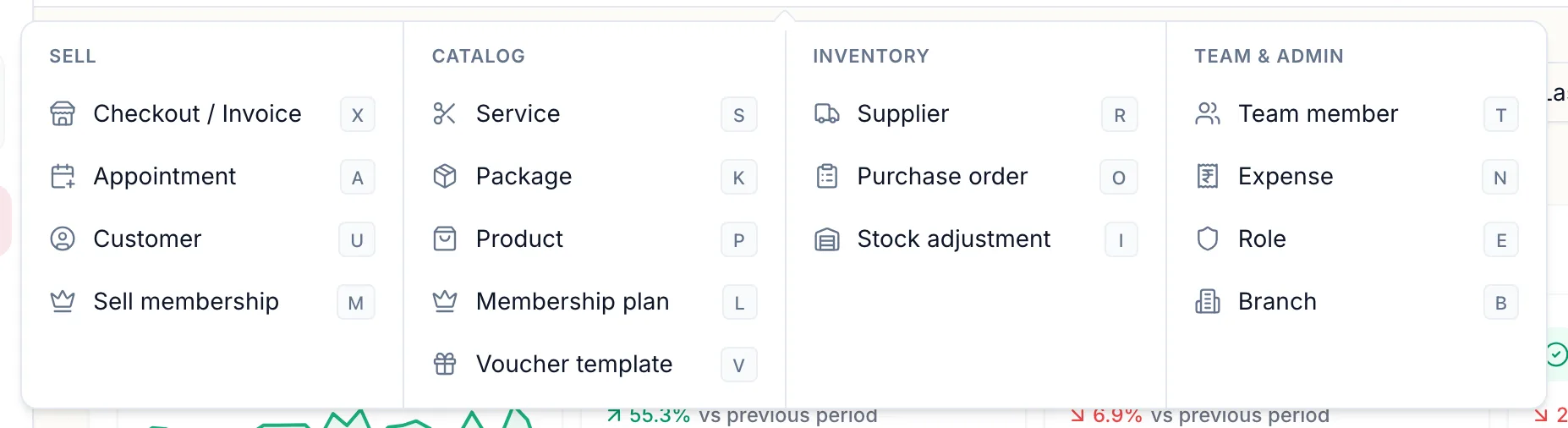
- Pick what to create. The menu is grouped:
- Sell: Checkout / Invoice, Appointment, Customer, Sell membership.
- Catalog: Service, Package, Product, Membership plan, Voucher template.
- Inventory: Supplier, Purchase order, Stock adjustment.
- Team & admin: Team member, Expense, Role, Branch.
- Fill in the form that opens and save.
Each item shows a letter next to it. Press c and then that letter to open it without the mouse, for example c a for a new appointment or c u for a new customer.
In the app
-
On Home, tap the + button at the top left.
-
Pick what to create. The sheet is grouped the same way as on the web.
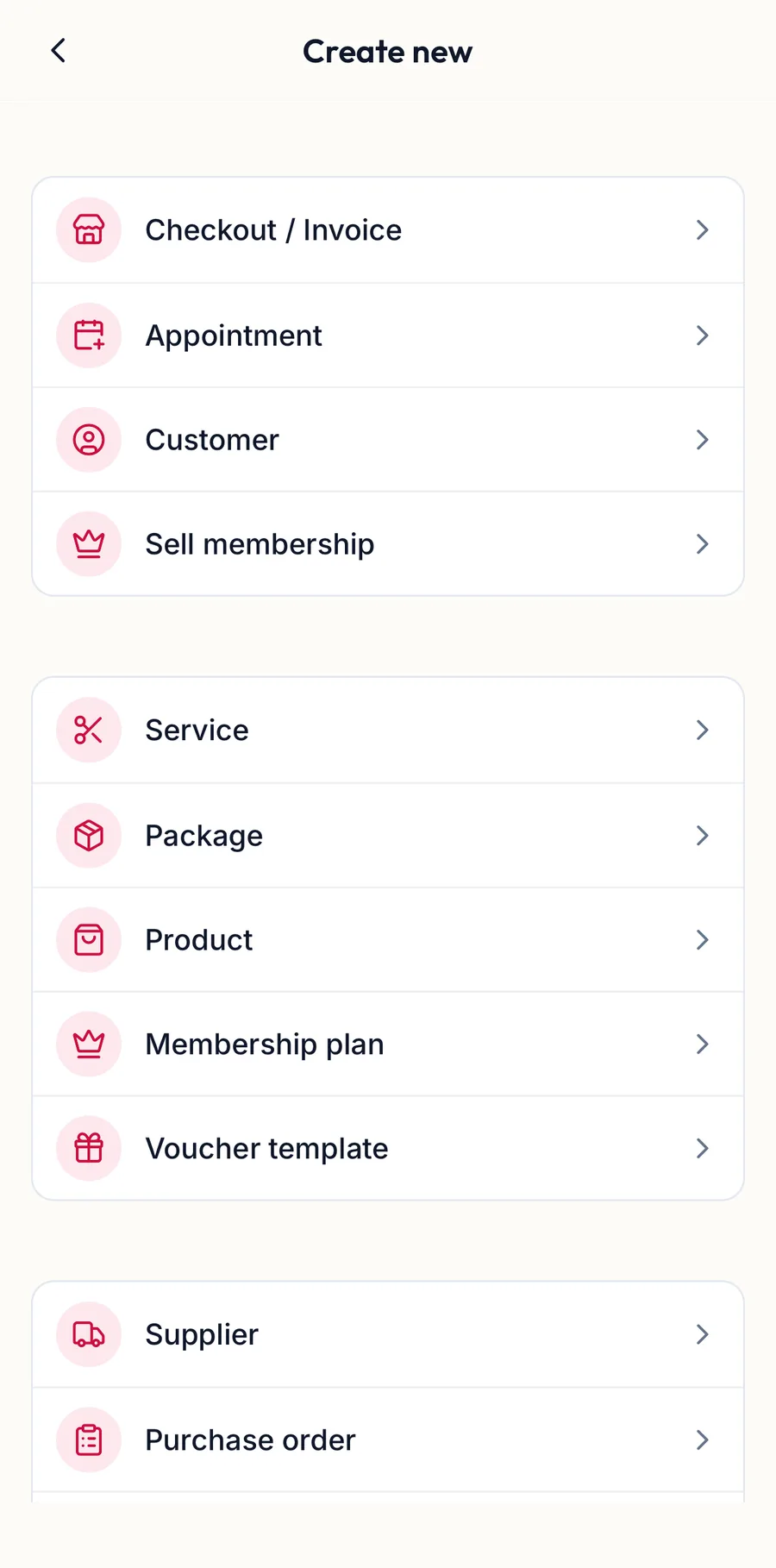
The create sheet in the app -
Fill in the form that opens and save.
The + buttons on the Calendar and Clients tabs create a booking and a customer directly.
Related articles
- Keyboard shortcuts · Around the portal
- Book an appointment · Calendar