
Keyboard shortcuts
Move around, create records and drive lists, the calendar and checkout without leaving the keyboard.
Press ? on any screen, or click Help in the top bar, to see the Keyboard shortcuts dialog. It lists the shortcuts that apply to the screen you are on and to your permissions.
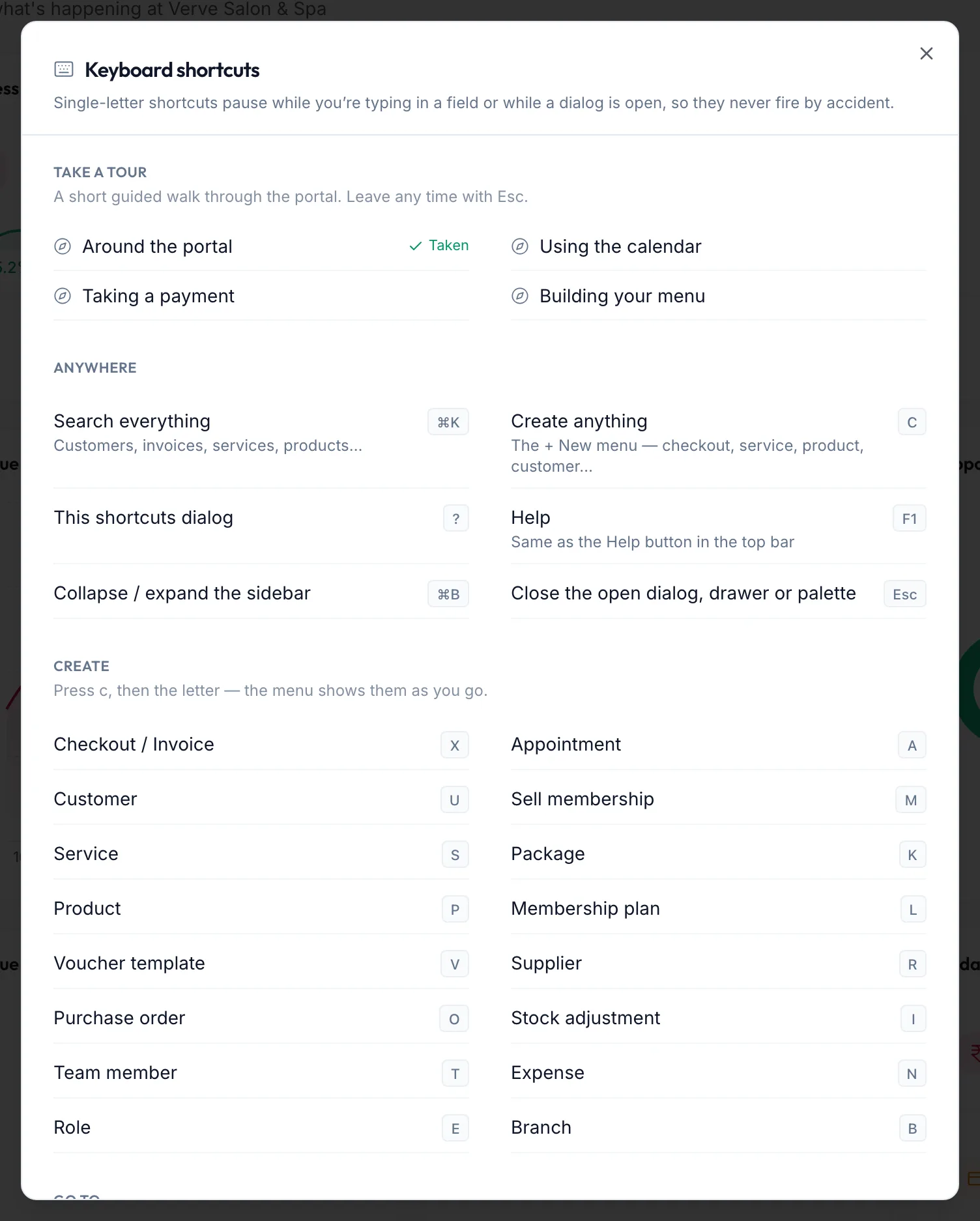
Single-letter shortcuts pause while you are typing in a field or while a dialog is open, so they never fire by accident.
Anywhere
| Keys | What it does |
|---|---|
| ⌘K / Ctrl K | Search everything |
| c | Open the New menu; then press the item's letter |
| g then a letter | Go to a module, for example g c Calendar, g x Checkout, g b Billing & POS, g u Customers, g s Services, g p Products, g i Inventory, g t Team, g e Expenses, g m Memberships, g v Gift Vouchers, g l Loyalty, g d Dashboard, g , Settings, g n Notifications |
| ? | This shortcuts dialog |
| F1 | Help |
| ⌘B / Ctrl B | Collapse or expand the sidebar |
| Esc | Close the open dialog, drawer or search |
On any list
Customers, Products, Services, Billing, Team and the other lists share these:
| Keys | What it does |
|---|---|
| n | Create a new record |
| / | Jump to the search box |
| r | Refresh the list |
| [ and ] | Previous and next page |
| Shift ← and Shift → | Previous and next tab |
On the calendar
n new appointment · t jump to today · ← and → previous and next day, week or month · d day view · w week view · m month view · l list view.
On checkout
s add service · p add product · k add package · m sell membership · v sell voucher · n customer note · ⌘S / Ctrl S book the appointment · ⌘Enter / Ctrl Enter checkout and pay.
In forms and dialogs
⌘S / Ctrl S saves, ⌘Enter / Ctrl Enter confirms the primary action, Esc cancels and closes.
Related articles
- The + New menu · Around the portal
- Search everything · Around the portal
- Take the guided tours · Getting started