
Notification preferences
Choose which categories reach you by email, SMS or push, batch routine ones into a summary, set quiet hours, or pause everything.
These are your own preferences. They decide how the portal contacts you; the business's notification settings decide what is sent in the first place. In-app notifications always stay on, so the bell keeps working whatever you choose here.
Open your preferences
On the web
-
Open My Account and click the Notifications tab.
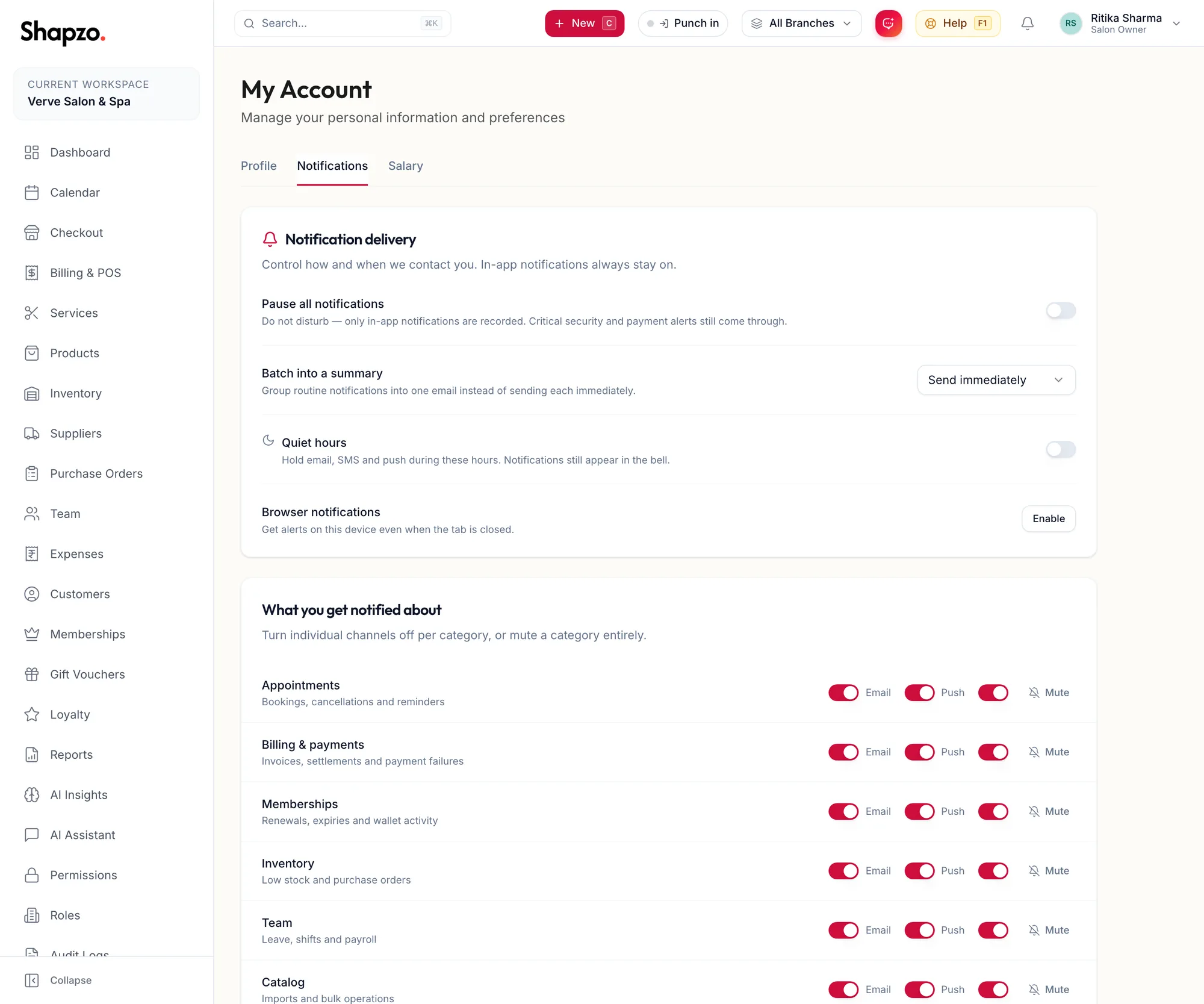
The Notifications tab of My Account
In the app
-
Tap More, then Notifications, then More actions (the three dots) and Preferences. The same screen is under Edit profile, Notification settings.
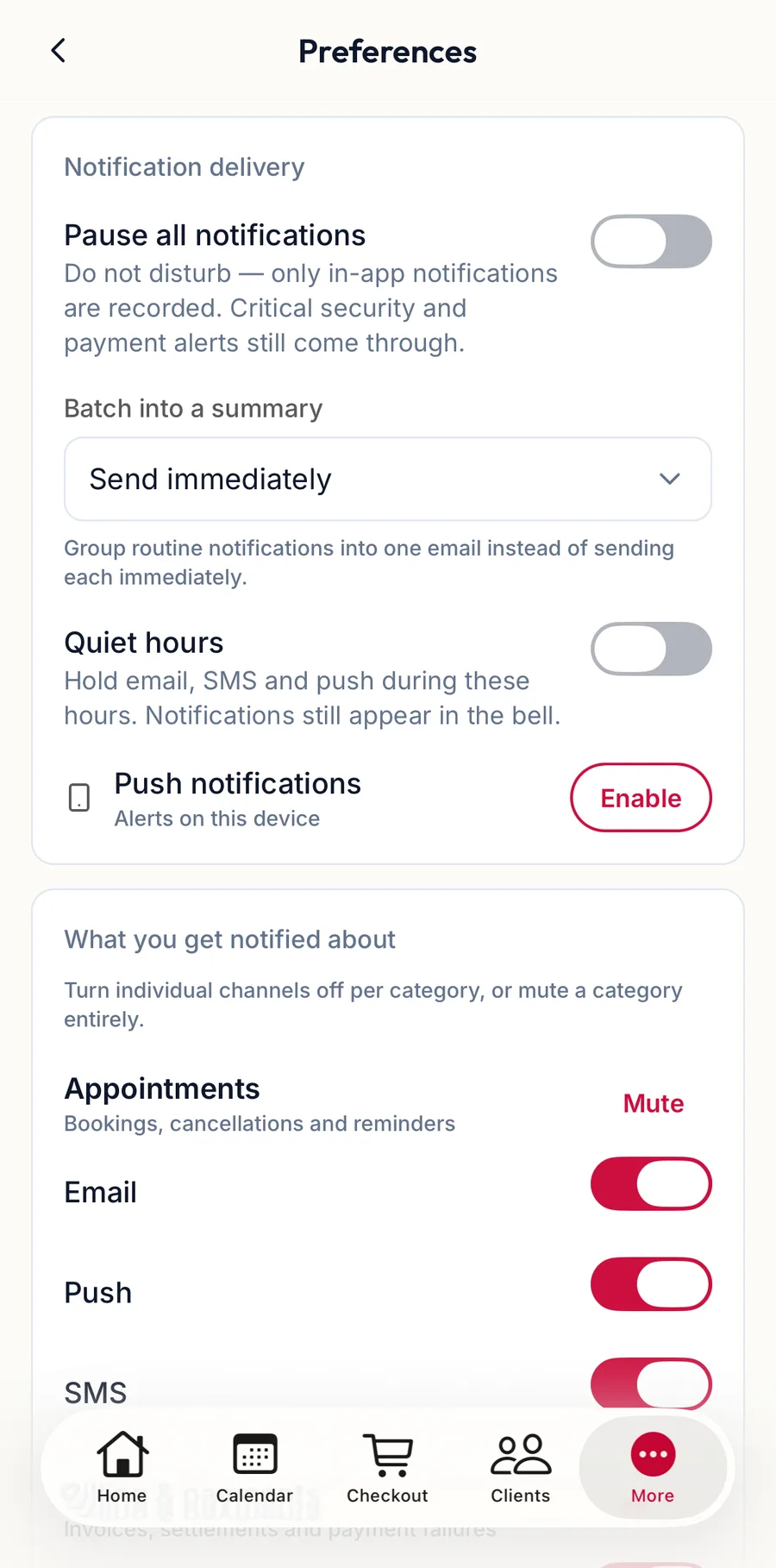
Notification preferences in the app
The switches are the same as on the web, with one phone-only channel: a push notification on the phone for each category, which also needs the phone's own notification permission for Shapzo.
What you get notified about
Each category, such as appointments or billing, has a switch per channel. Turn a channel off for a category, or Mute the category entirely. Unmute brings it back.
Notification delivery
- Batch into a summary: routine notifications are grouped into one email instead of each being sent immediately.
- Browser notifications: click Enable to get alerts on this device even when the tab is closed. The browser asks for permission once; the row then reads Enabled on this device.
Quiet hours
Switch on Enable quiet hours and set From and To. Email, SMS and push are held during those hours; notifications still appear in the bell. Click Update hours after changing the times.
Pause everything
Pause all notifications is do-not-disturb: only in-app notifications are recorded. Critical security and payment alerts still come through.
Related articles
- Notifications and the bell · Around the portal