
Verify your mobile number
Confirm your phone with a texted code so the business can reach you and so SMS sign-in codes can be used.
A verified mobile number lets the portal send you SMS codes for two-factor authentication and lets the business reach you about your account.
Steps
On the web
-
Open My Account. Next to Phone, an unverified number shows Not verified and a Verify now link. Click it.
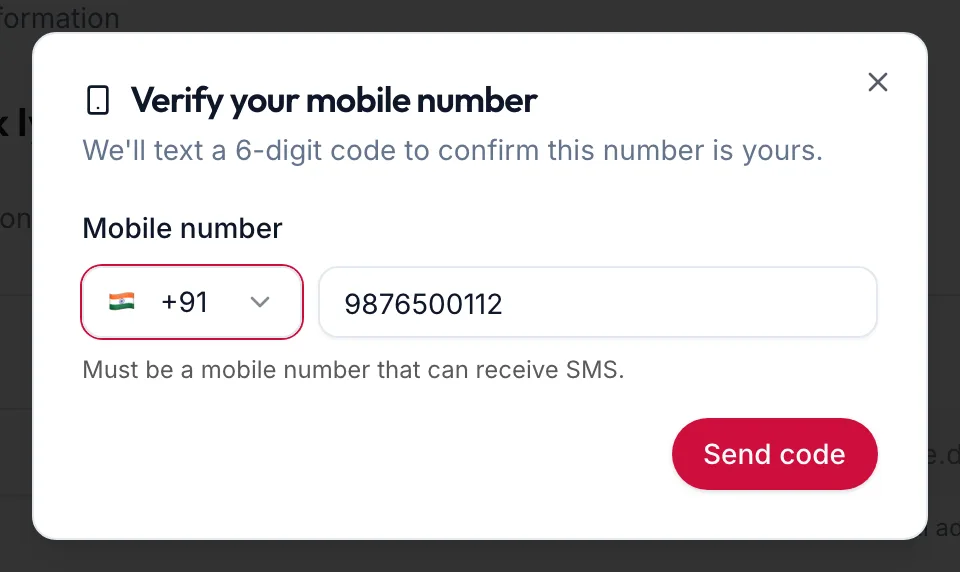
The Verify your mobile number dialog -
Check the Mobile number. It must be a number that can receive SMS.
-
Click Send code.
-
Enter the 6-digit code from the text message and click Verify.
The number now shows Verified. If you change the number later, verify it again.
In the app
- Tap More, then Edit profile. Under Phone, an unverified number shows Not verified and a Verify link. Tap it.
- Check the number and tap Send code. The sheet confirms Code sent to {{phone}}.
- Enter the 6-digit code from the text message and tap Verify. Resend code sends another after a short wait.
The number now shows Verified.
Troubleshooting
- "We couldn't send the code. Please check the number and try again." The number is not a mobile number or has a typo. Click Use a different number and check it.
- The code does not arrive. Wait a minute; SMS can be delayed. If your business is new, SMS may not be set up yet; the owner can confirm under Settings, Notifications.
- You are prompted to verify soon after setup. The portal asks once the setup checklist is done. Choose Verify number, or Not now to be asked later.
Related articles
- Set up two-factor authentication · Your account
- Profile and password · Your account