
My Salary: payslips, commission and advances
See your monthly payslips, what you earned in commission, and request or track a salary advance, all on the Salary tab.
If the business runs payroll through Shapzo, the Salary tab on My Account shows your side of it. Team members who do not manage the team also get a My Salary item in the sidebar; press g y to jump there.
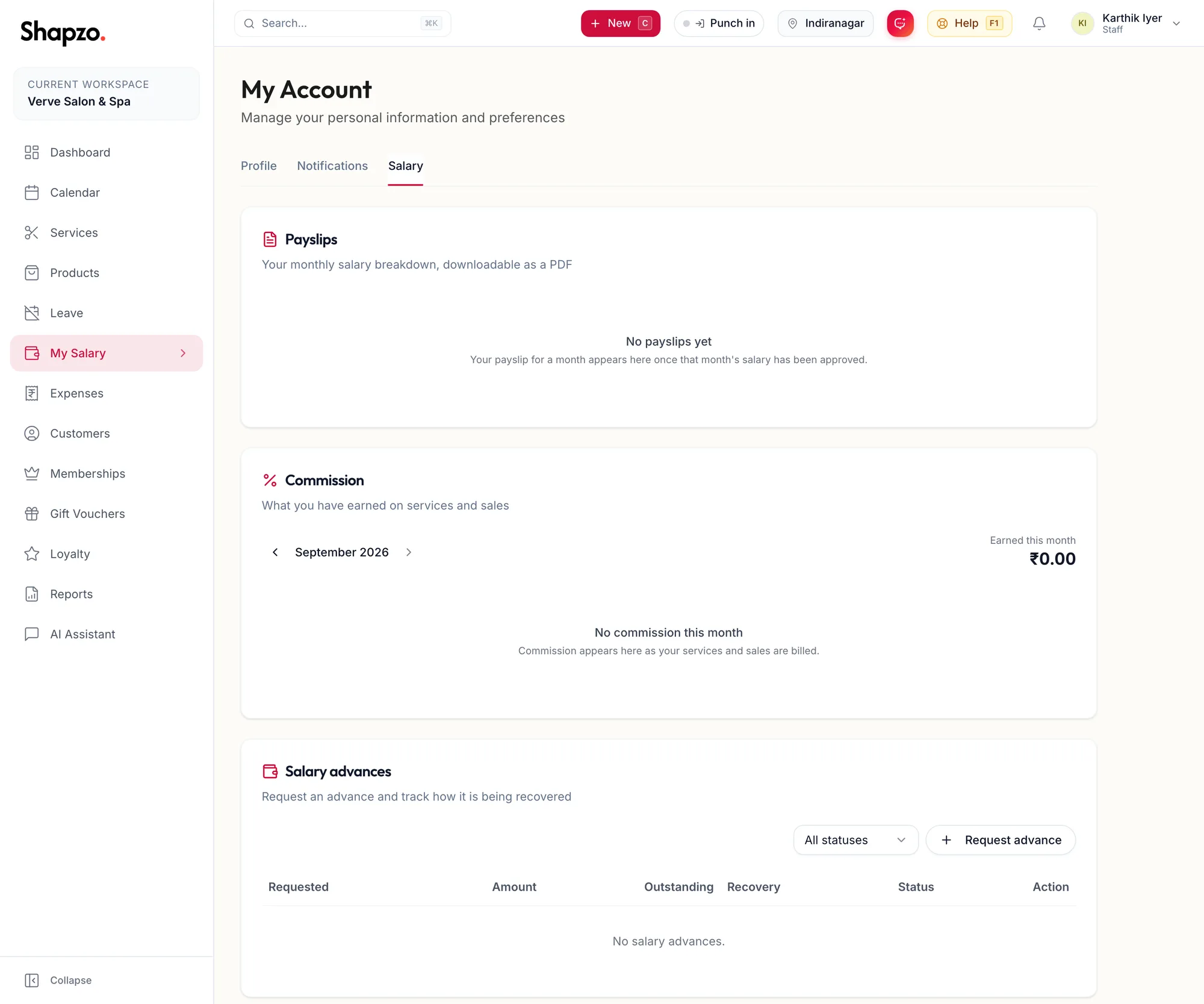
Payslips
On the web
Each pay run the business has approved appears as a row with the period, what you earned, deductions and take-home. Click PDF to download the payslip. A row marked Awaiting payment has been approved but not yet paid out; a reversed row was cancelled and does not count towards your pay.
In the app
Tap More, then My Salary. The Payslips tab lists each approved pay run with what you earned, deductions and take-home; Payslip PDF downloads or shares it.
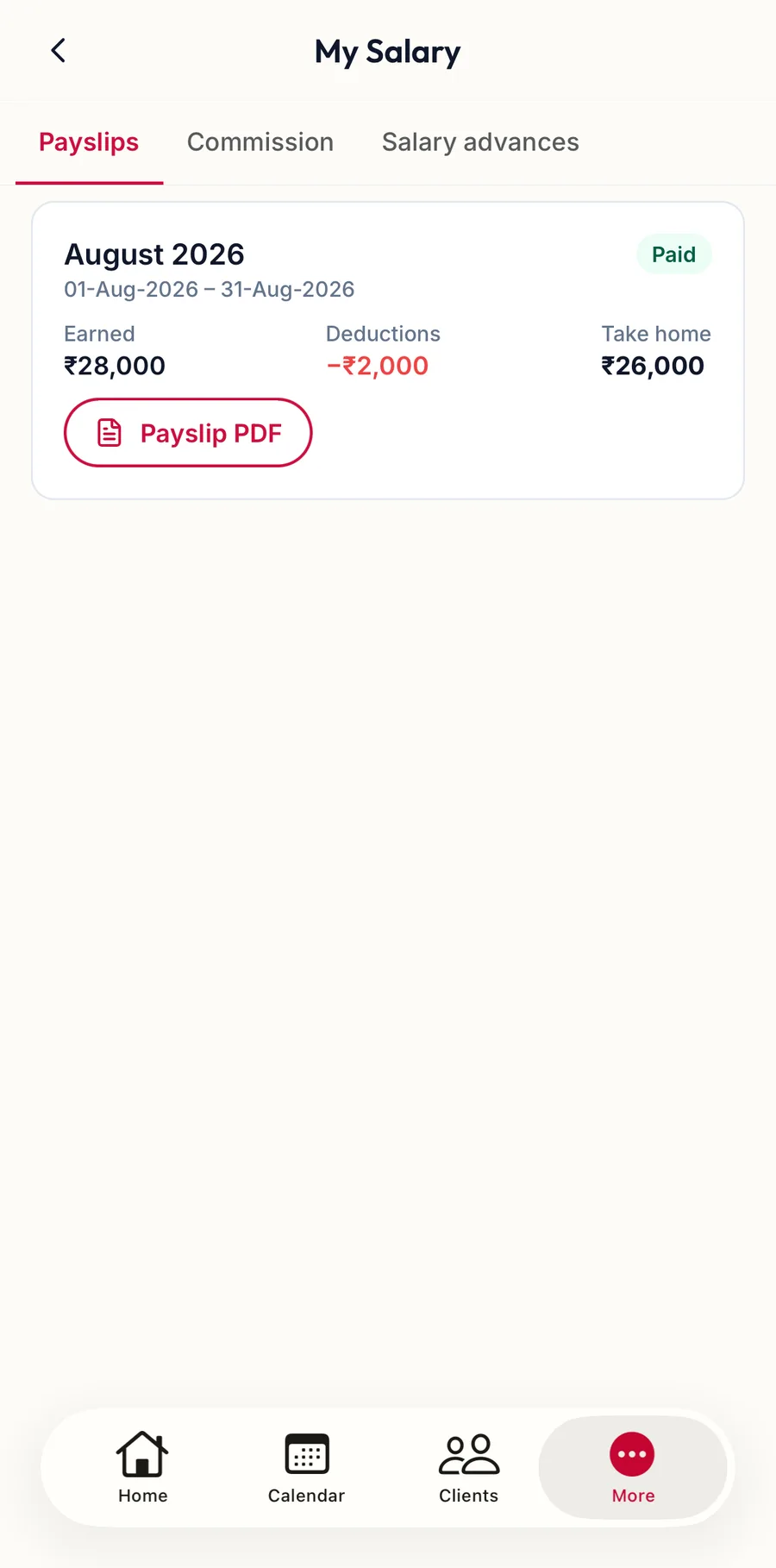
Commission
On the web
Use the month arrows to move between months. Earned this month is the total, split into services, products, memberships and gift vouchers, with every sale listed below. Commission is calculated the moment a bill is paid, from the rules on your team member record.
In the app
On the Commission tab, use Previous month and Next month to move between months. Earned this month is the total, with every sale listed below it.
Salary advances
On the web
- Click Request advance.
- Enter the Amount (₹) and choose the Recovery: Single deduction from your next pay, or Monthly instalments over the number of Months (1–24) you enter.
- Add a Reason (optional) and click Request advance.
The request shows as Pending until a manager approves or rejects it. You can Withdraw a pending request. Approved advances are recovered automatically from your pay runs; the Outstanding column shows what is still to be recovered.
In the app
- On the Salary advances tab, tap Request advance.
- Enter the amount, choose how it is recovered and add a reason if you like, then tap Request advance.
The request shows as Requested until a manager approves or rejects it; Withdraw takes it back while it is pending.
Related articles
- Profile and password · Your account