
Resources: rooms and equipment
Define the rooms, chairs and machines a service needs so the calendar can book them alongside the team member.
Before you start
Switch on Book rooms and equipment under Settings, Scheduling, Time and calendar. Without it the resources layer stays hidden.
Resource types
A type is a class of thing: Massage room, Facial bed, Hair-wash station, Laser machine. Under Resources, click Manage Resource Types to add or rename them. A type still in use cannot be deleted; the dialog says so.
Add a resource
On the web
-
Open Settings, Scheduling, Resources, and click New Resource.
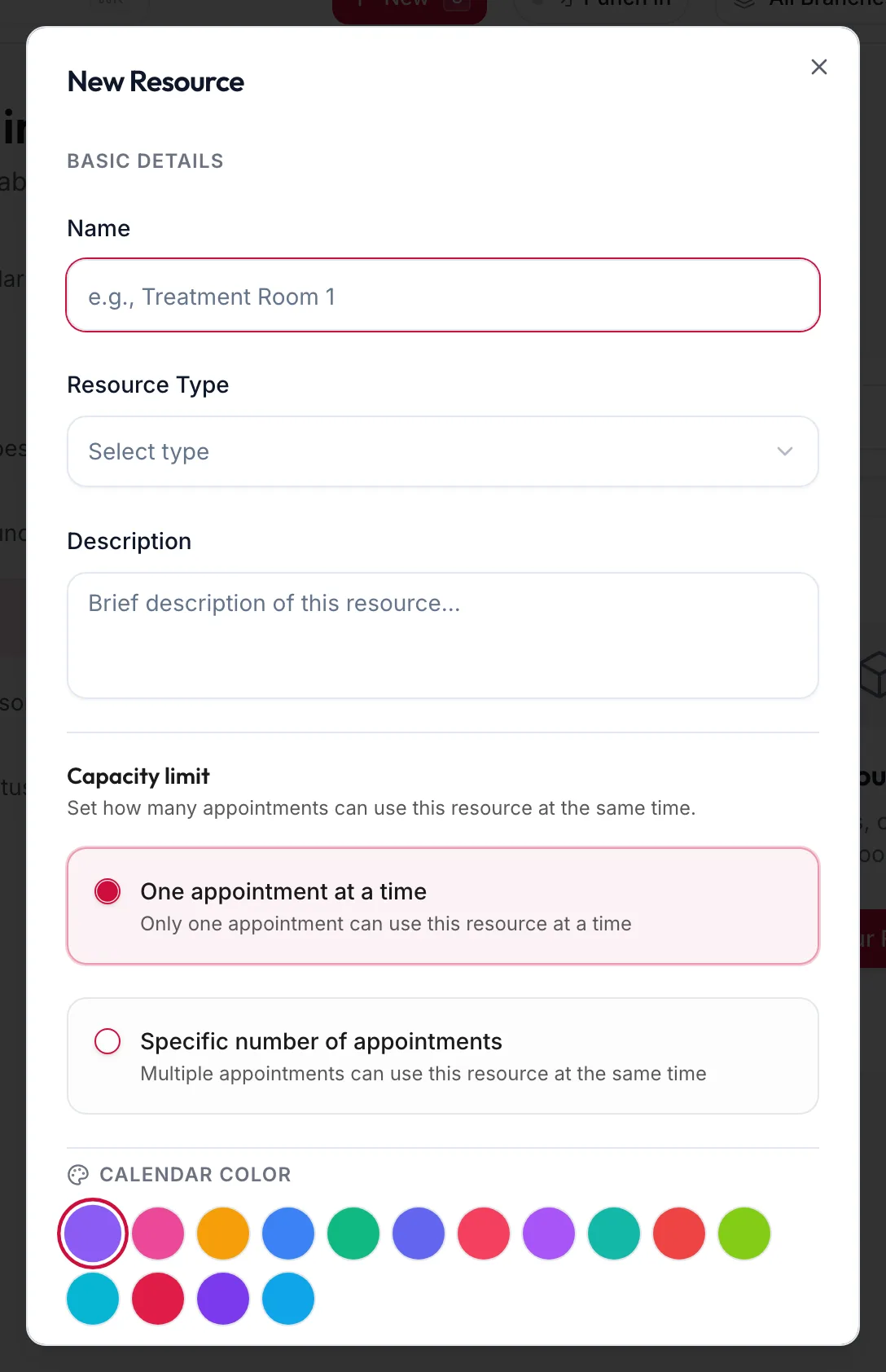
The New Resource dialog -
Under Basic details, enter the Name (for example Treatment Room 1), choose the Resource Type and add a Description.
-
Under Capacity limit, choose One appointment at a time or Specific number of appointments for a resource several bookings can share, such as a sauna.
-
Pick a Calendar color and save. The resource belongs to the branch selected in the filter above the list.
Search, filter by branch and drag to reorder the list.
In the app
-
Tap More, then Settings, then Scheduling, then the resources chip.
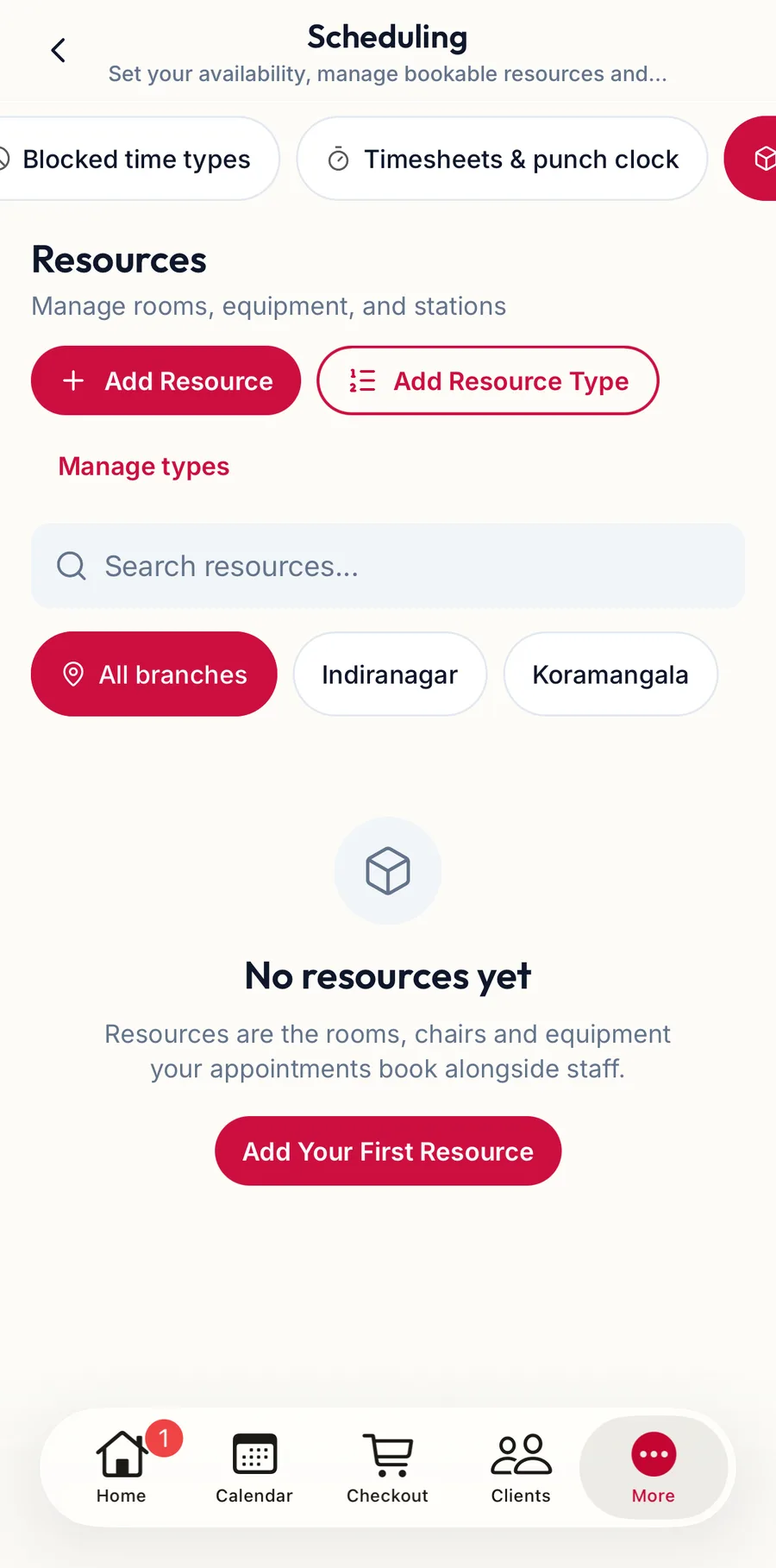
The resources section in the app -
Tap Add Resource, enter the Name, choose the Resource Type (or Add Resource Type), the Branch and a Capacity limit, and save.
Link services
On a service's Resources tab, choose the required resource type. Bookings then need a free resource of that type, and the calendar's By room view shows the day by resource; see Rooms and equipment on the calendar.
Related articles
- Rooms and equipment on the calendar · Calendar
- Add a service · Services & packages
- Scheduling: time and calendar · Settings