
Add a service
Create a service with its category, price, tax, duration and description, then choose where and by whom it is offered.
Steps
On the web
-
Open Services, click Add New, then New service. Or press n.
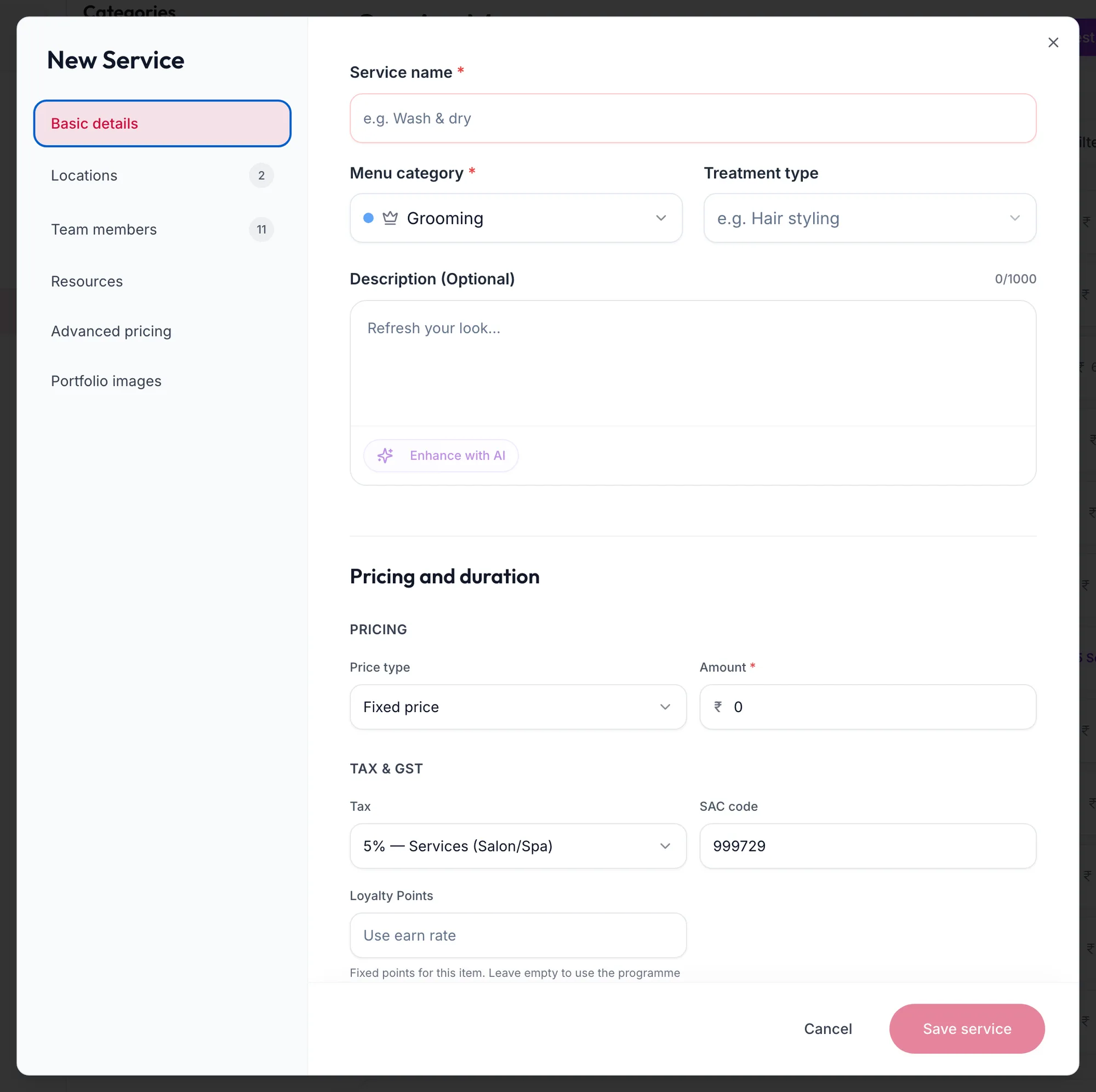
The New service form on Basic details -
Under Basic details:
- Service name, for example Women's Haircut & Blow Dry.
- Menu category. Use Add New Category if none fits.
- Treatment type, optional.
- Description (Optional), up to 1000 characters. Enhance with AI rewrites a rough draft.
-
Under Pricing and duration:
- Price type: Fixed price, From (starting at) for a price that depends on the customer, or Free.
- Amount.
- Tax: pick a rate from Tax & GST. The default set under Point of Sale is preselected. SAC code is the GST service code, 999729 for beauty services.
- Loyalty points if this service should earn a fixed number of points instead of the programme's rate.
- Duration, chosen as Service time. Add Processing time, Blocked time or Extra servicing time with Add extra time; see Variants and extra time.
-
Under Locations, tick the branches that offer the service. Select all for every branch.
-
Under Team members, tick who can perform it. Only these people appear as providers.
-
Click Save service, or press ⌘S / Ctrl S.
The portal confirms with Service added and the service can be booked straight away.
In the app
-
Tap More, then Services, then the + button and New service.
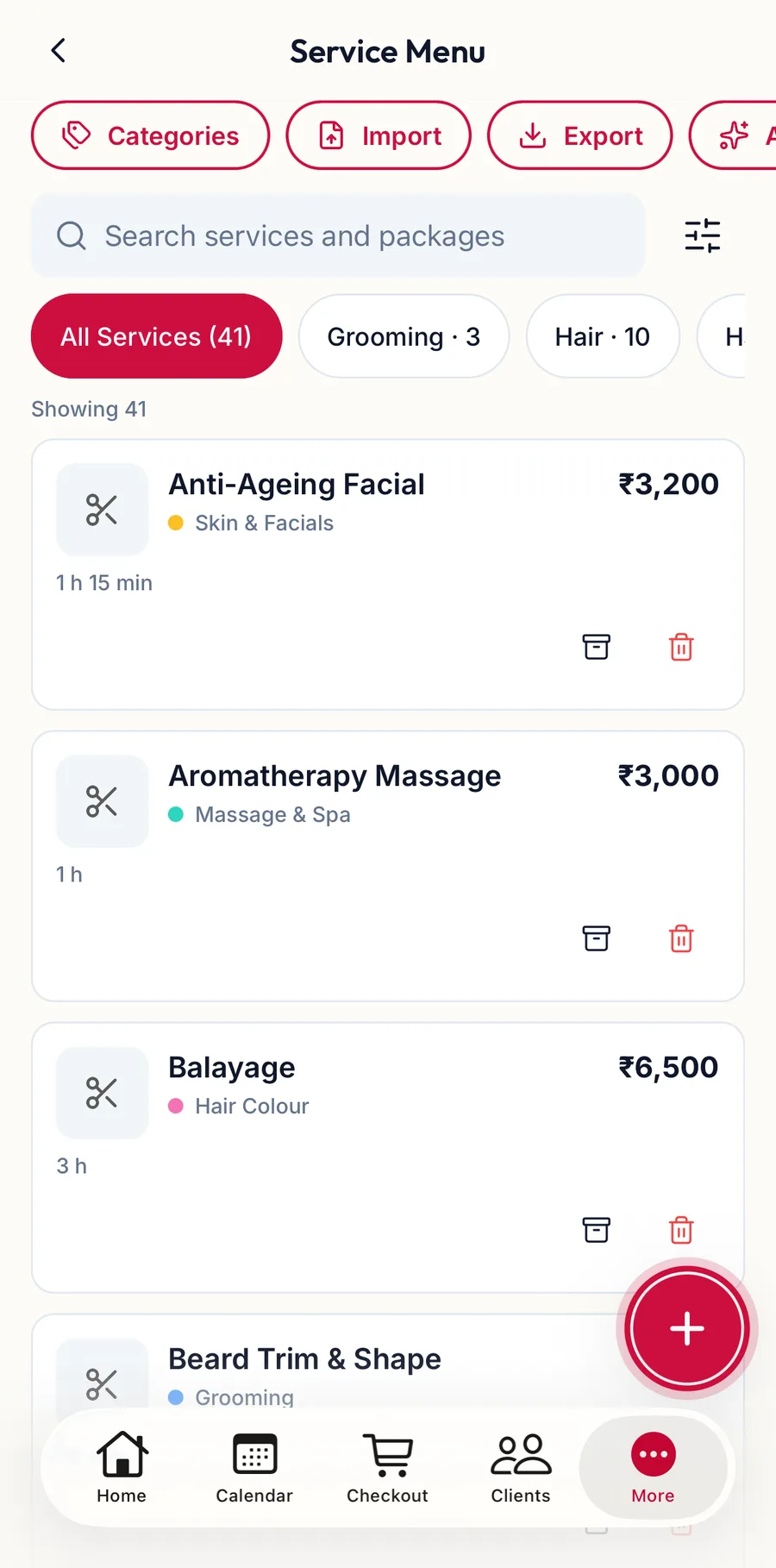
The Service Menu in the app with the add button highlighted -
Under Basic details, enter the Service name, pick the Menu category (or Add New Category), an optional Treatment type and a Description (Optional). Enhance with AI rewrites a rough draft.
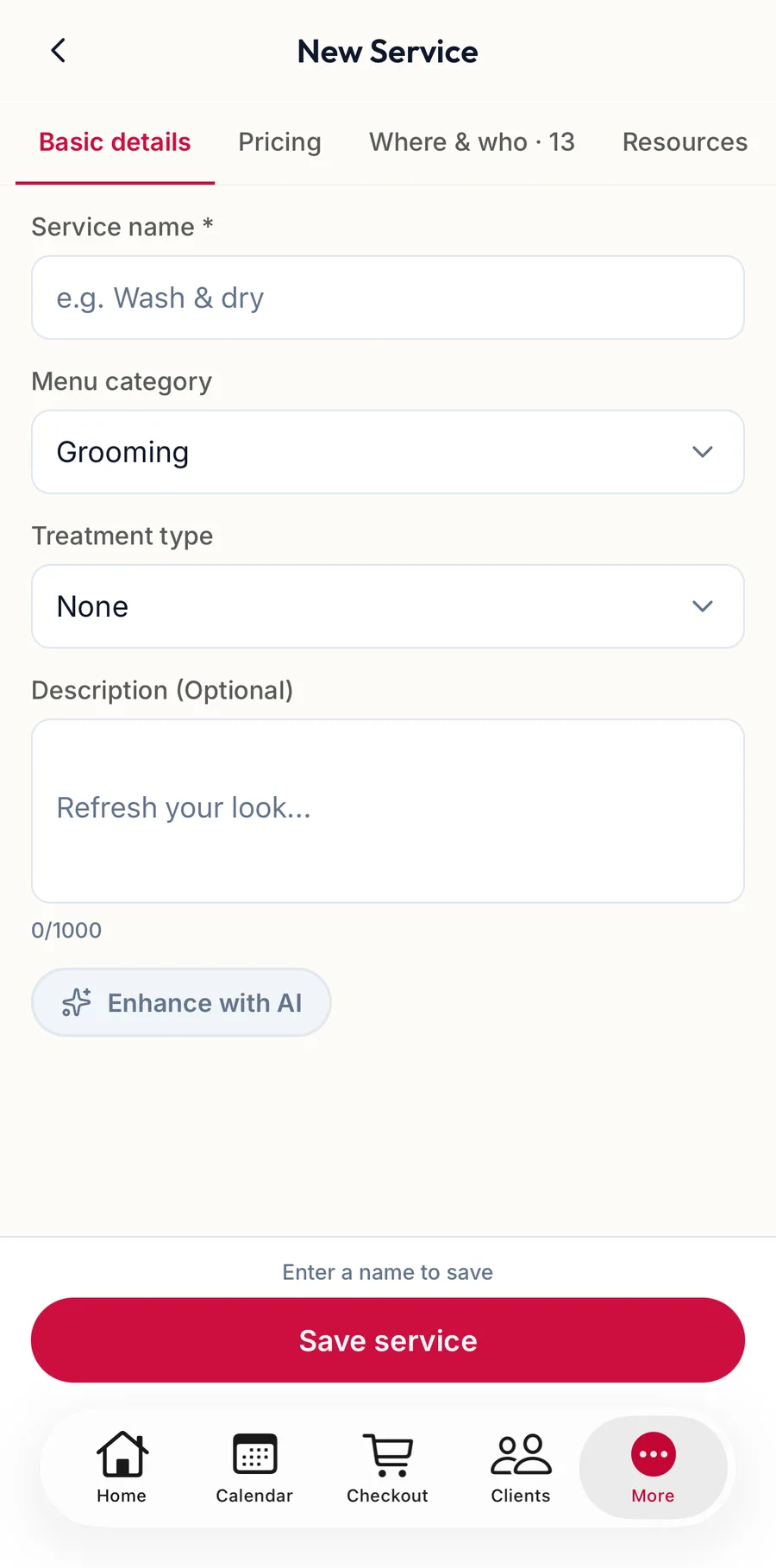
The New Service form in the app on Basic details -
Tap Pricing: choose the Price type (Fixed price, From (starting at) or Free), the Amount, the SAC code, any fixed Loyalty Points and the Service time. Add extra time adds processing or blocked time; New variant adds a variant.
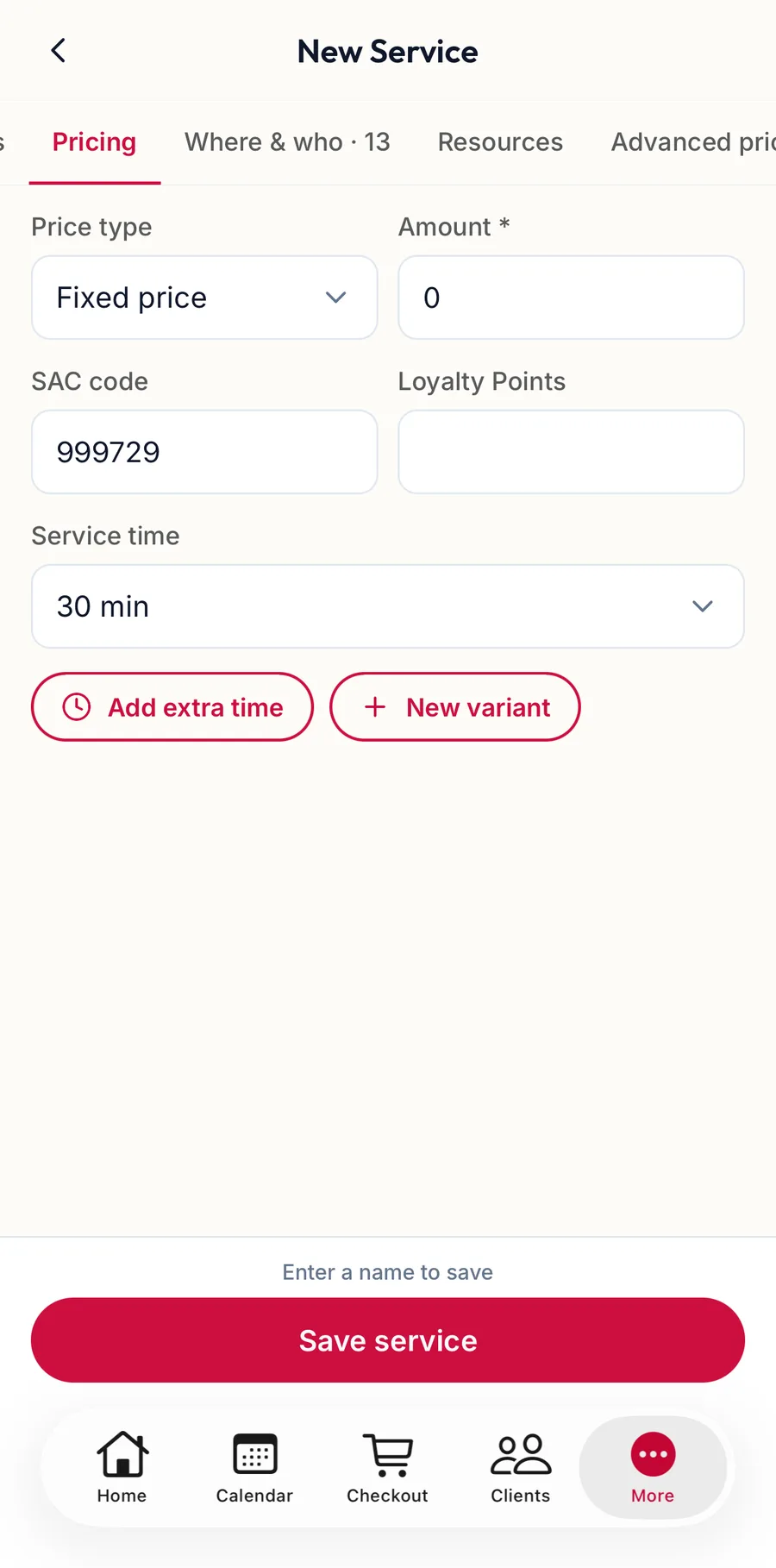
The Pricing section of the service form in the app -
Tap Where & who and tick the branches that offer the service and the team members who can perform it.
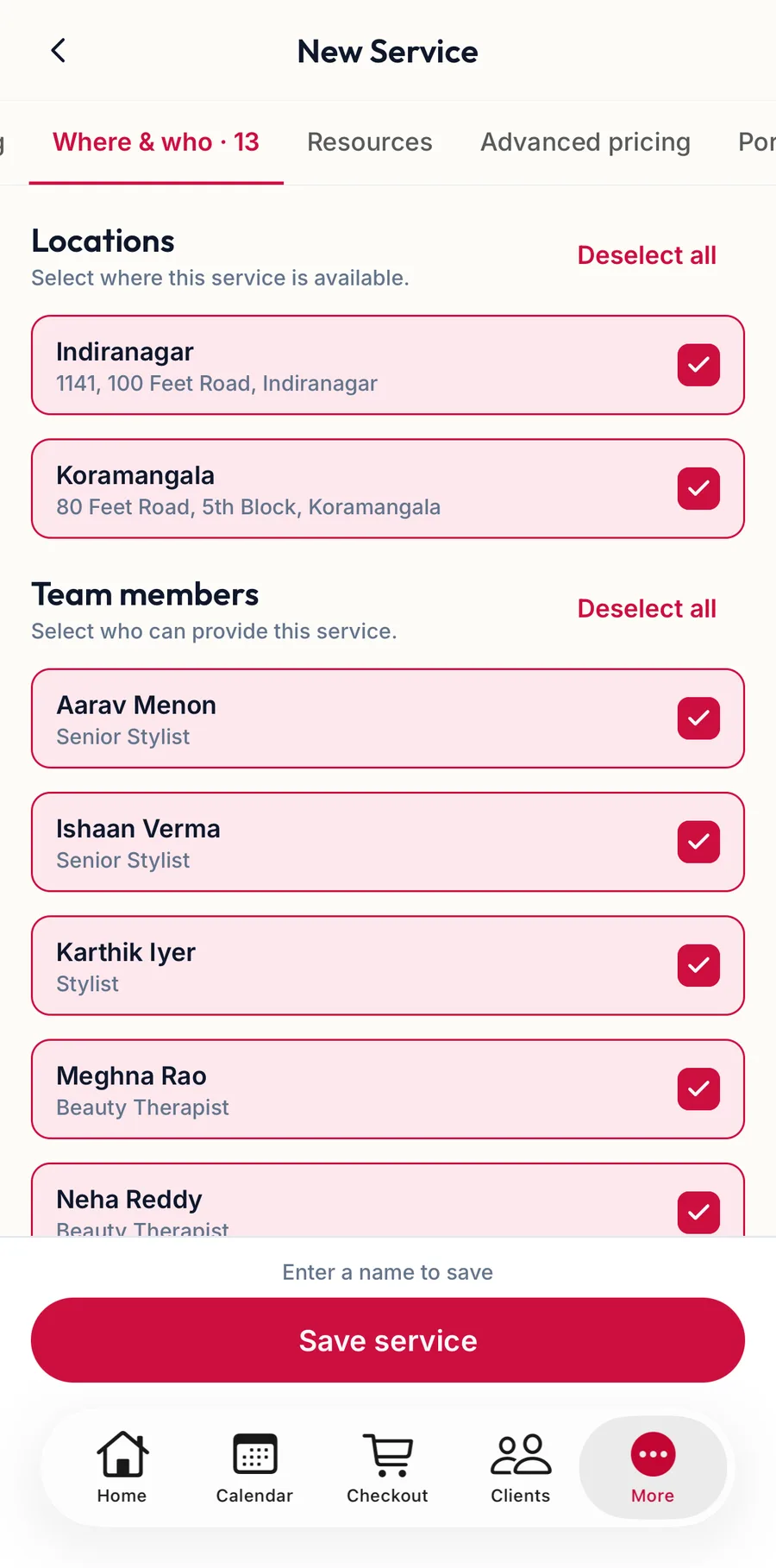
The Where and who tab of the service form in the app -
Tap Save service.
The app confirms with Service added.
The other tabs
- Resources: the room or equipment type the service needs. See Rooms and equipment on the calendar.
- Advanced pricing: a different price or duration per location or per team member.
- Portfolio images: photos of the work.
Related articles
- Variants and extra time · Services & packages
- Prices per location and team member · Services & packages
- Categories and treatment types · Services & packages