
Import a menu from a photo or PDF (AI)
Photograph your printed price list or upload the PDF; the importer reads the services, packages and products off it for you to review.
Steps
On the web
-
Open Services, click Import, then From menu / brochure (AI). You can also click Import your service menu on the Getting Started checklist.
-
On Add to your catalog, choose Add using AI.
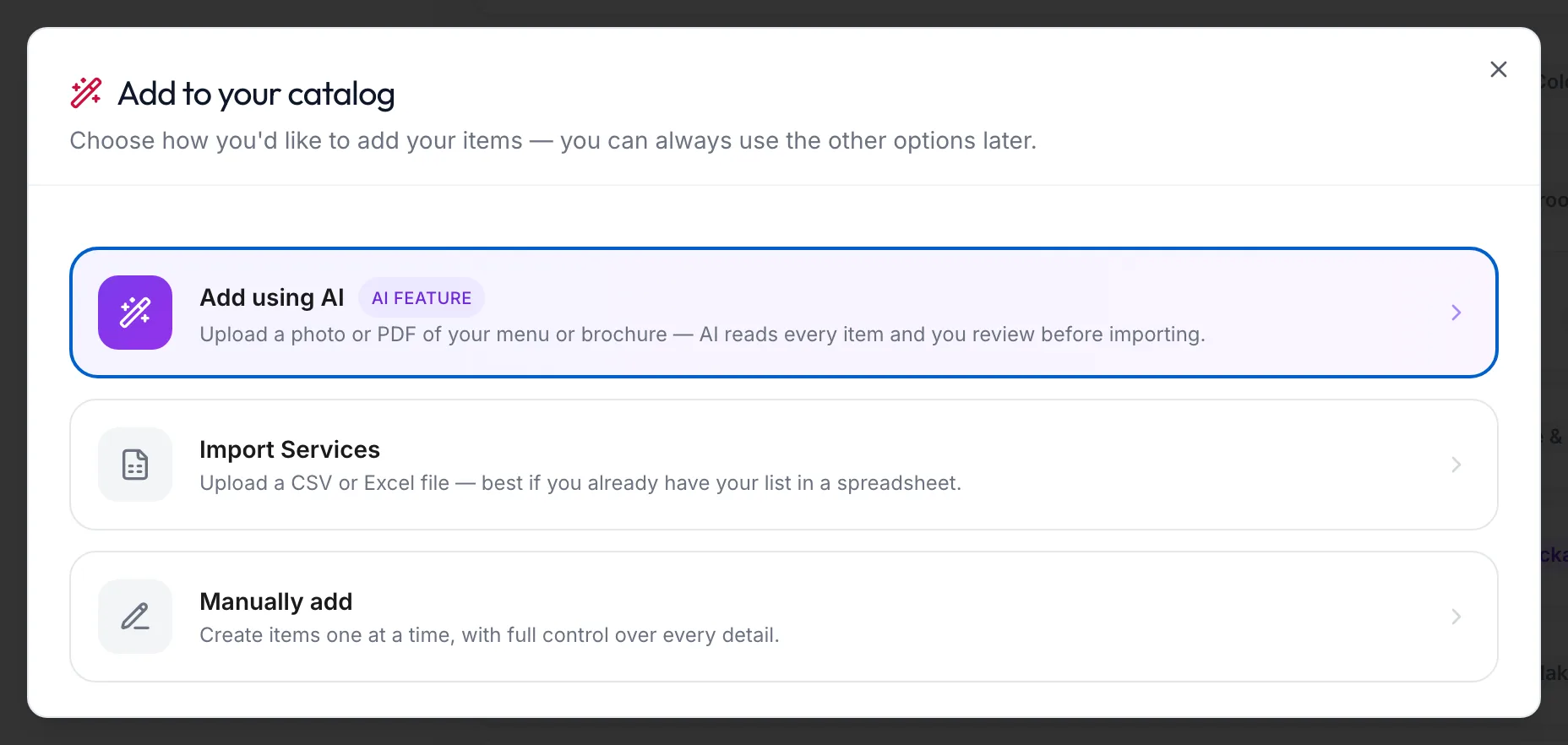
The importer's upload step -
Drop photos or a PDF onto the upload area, up to eight files, and click Extract items. Large brochures can take up to a minute.
-
Review the list. Each row has a Type (Service, Package or Product), a Name, Category, Price and duration or MRP. Fix anything the reader got wrong. Rows already in your catalogue are ticked off with an in catalog chip.
-
Untick what you do not want and click the import button.
In the app
-
On Services, tap Import in the row of buttons at the top, then Add using AI.
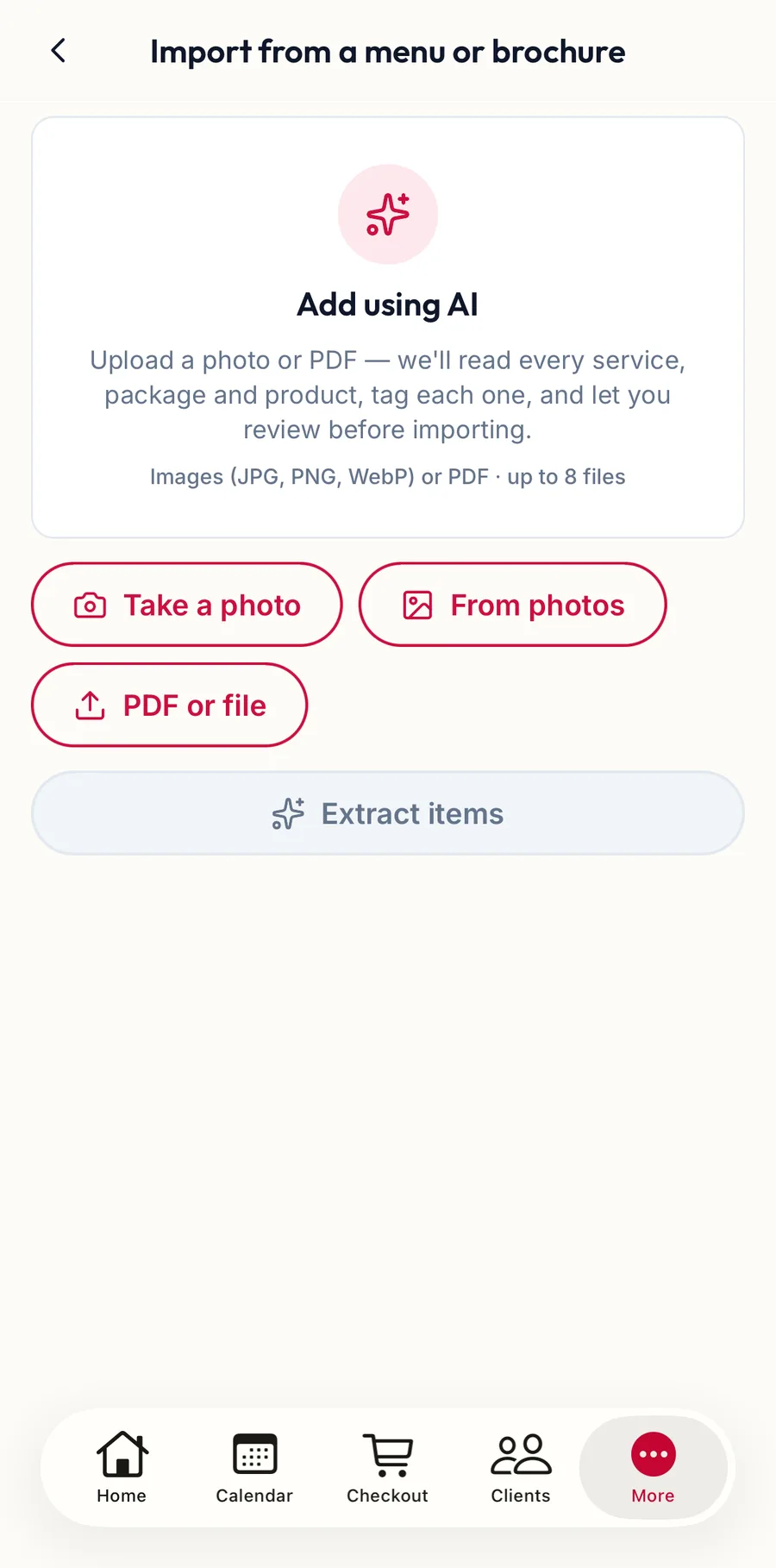
The menu importer in the app -
Tap Take a photo, From photos or PDF or file, up to eight files, then Extract items.
-
Review the list, untick what you do not want and tap Import {{count}}.
The phone's camera makes this the quickest way to load a printed menu: photograph each page and extract.
What to expect
- Tiered prices (Short / Medium / Long) become separate rows.
- Products found on the menu come in as products, not services.
- Packages come in as drafts. Open each one afterwards and give it sessions and validity in the package builder.
- The importer flags a brochure it could not read fully, or prices that look like another currency.
Related articles
- Import services from a spreadsheet · Services & packages
- AI Suggest, archive and delete · Services & packages