
Portfolio images
Attach photos of the finished work to a service and choose the cover image.
Steps
On the web
-
Open the service and go to Portfolio images.
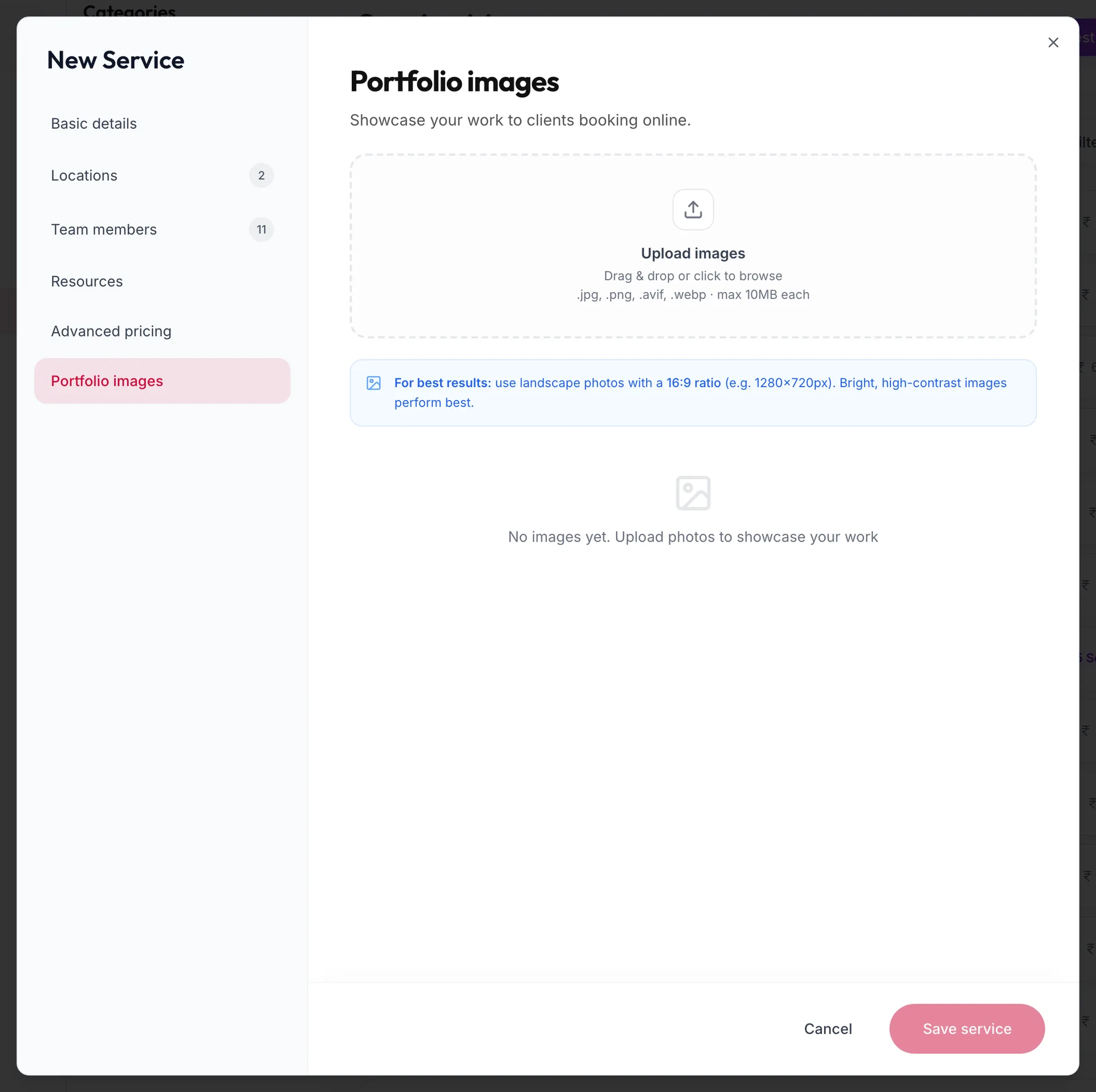
The Portfolio images tab of a service -
Drag photos onto the drop zone or click Upload images. JPG, PNG, AVIF or WebP, up to 10 MB each.
-
Hover a photo to Remove it or make it the Cover. Add more uploads further photos.
-
Save the service.
The cover is used wherever the service is shown with a picture. Packages have the same tab.
In the app
-
Open the service and tap Portfolio images.
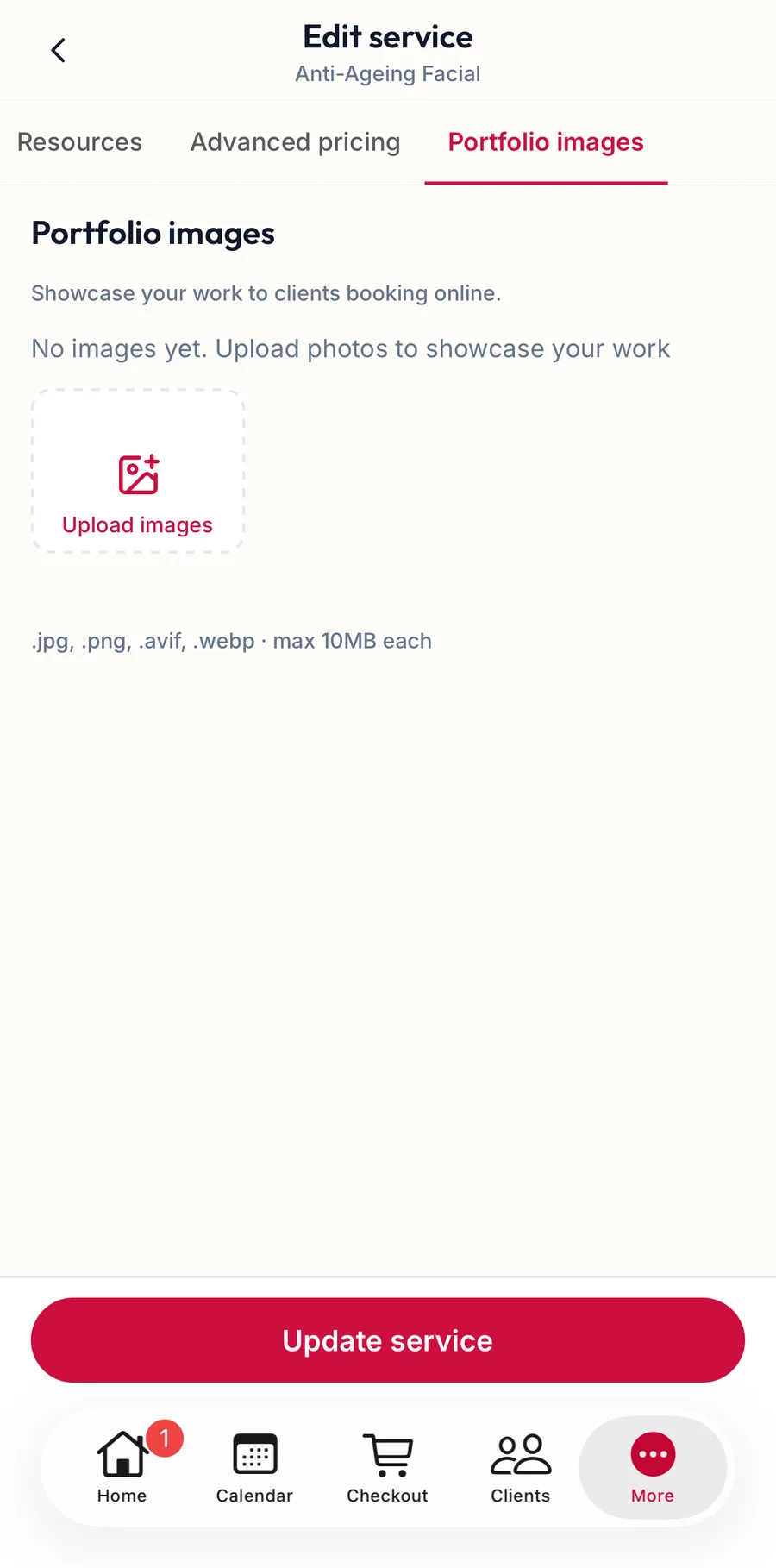
The Portfolio images section of a service in the app -
Tap Upload images and pick photos from the phone, or take them there and then.
-
Tap a photo to Remove it or Set as cover.
-
Tap Save service.
Related articles
- Add a service · Services & packages