
Import services from a spreadsheet
Load a whole menu from the Excel template, with category, treatment type and price type as dropdowns.
Steps
On the web
-
Open Services, click Import, then From file (CSV / XLSX).
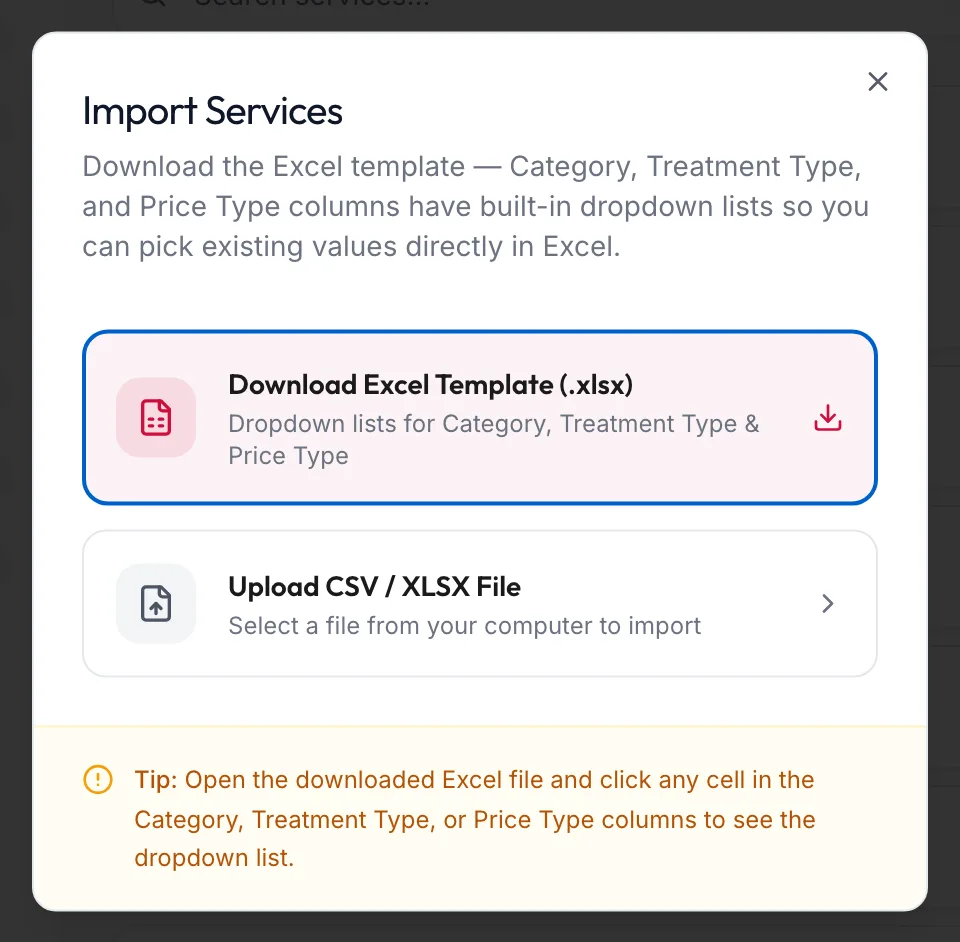
The Import Services dialog -
Click Download Excel Template (.xlsx). The Category, Treatment Type and Price Type columns are dropdowns, so values always match the portal.
-
Fill in a row per service: name, category, price, duration and anything else you know.
-
Click Upload CSV / XLSX File and choose the file.
A panel tracks {{processed}} of {{total}} rows processed and ends with Import Complete: Imported, Total Rows, Already Existed (same name, skipped) and Invalid Rows (missing name or category). You also receive a confirmation email.
In the app
-
On Services, tap Import in the row of buttons at the top.
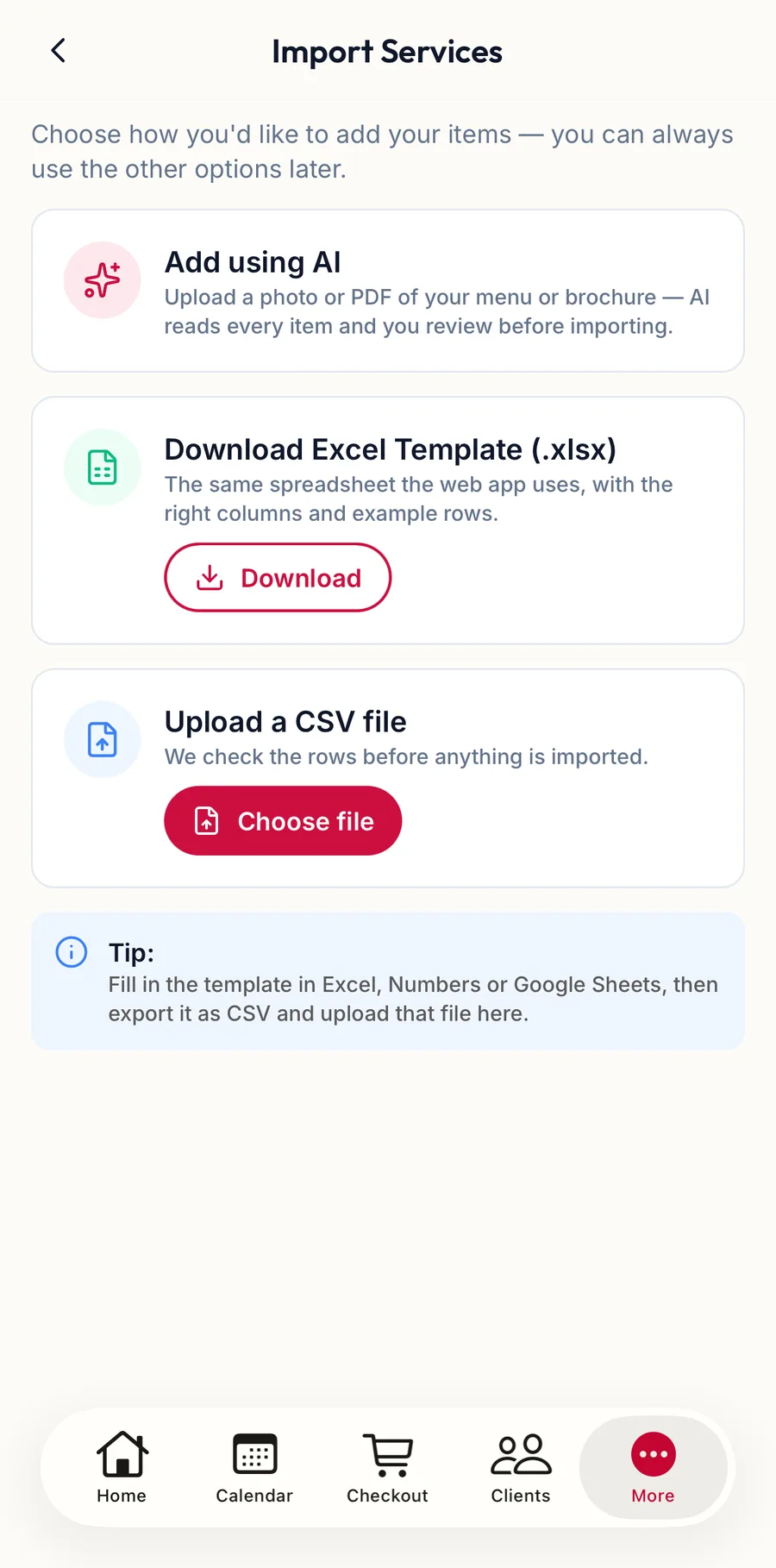
The import screen in the app -
Download Excel Template (.xlsx) saves the template to the phone; fill it in on a computer.
-
Tap Choose file, pick the CSV or XLSX, check Rows ready to import and tap Import {{count}}.
Related articles
- Import a menu from a photo or PDF (AI) · Services & packages
- Add your service menu · Getting started