
Categories and treatment types
Categories group the menu for staff and customers; treatment types are a second, finer label used for filtering and reports.
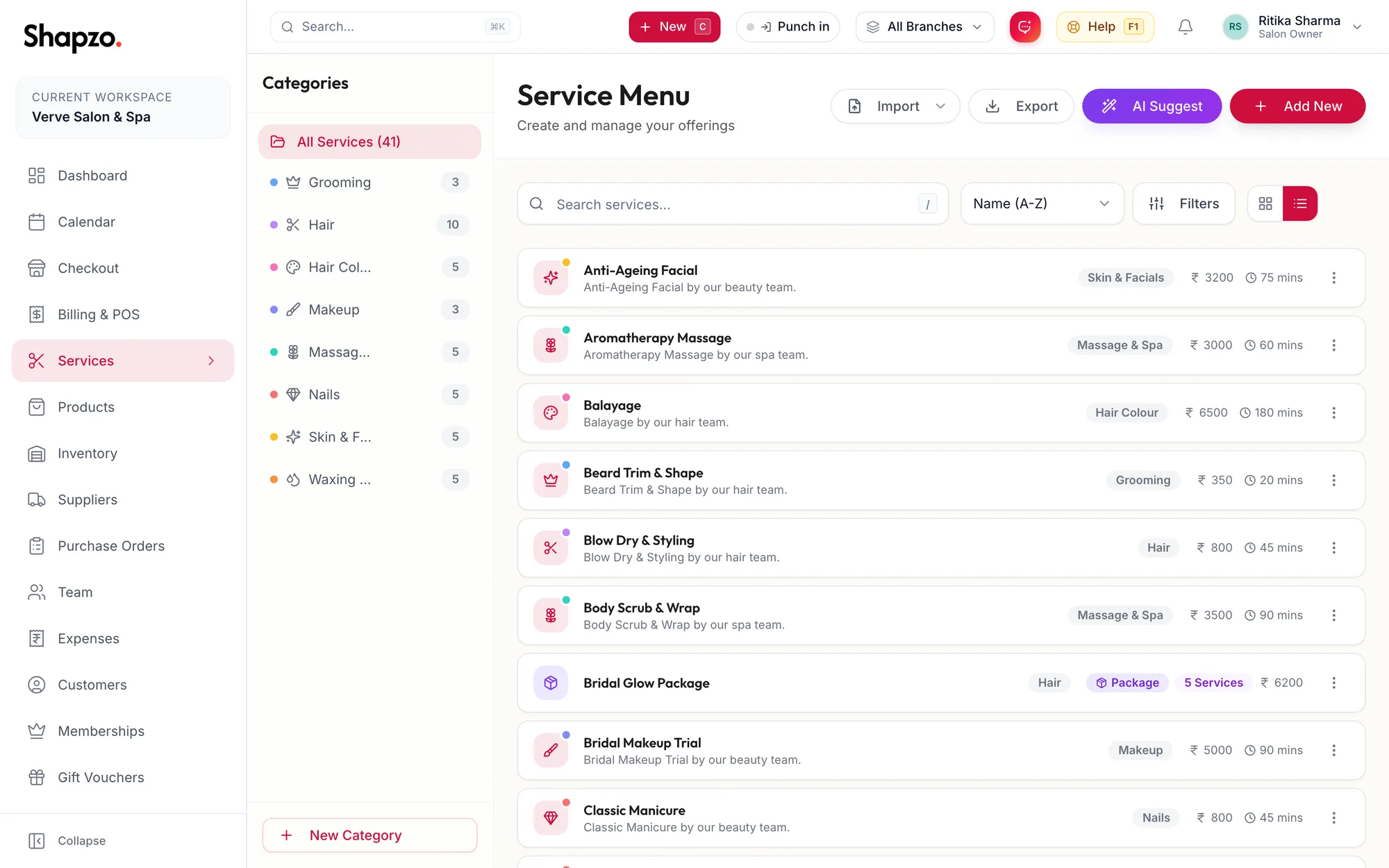
Categories
On the web
The sidebar on Services lists your categories with a colour, an icon and a count. All Services shows everything. New businesses start with Hair, Hair Colour, Skin & Facials, Nails, Massage & Spa, Waxing & Threading, Makeup and Grooming; rename or delete what you do not need.
Add a category
-
Click New Category at the bottom of the sidebar.
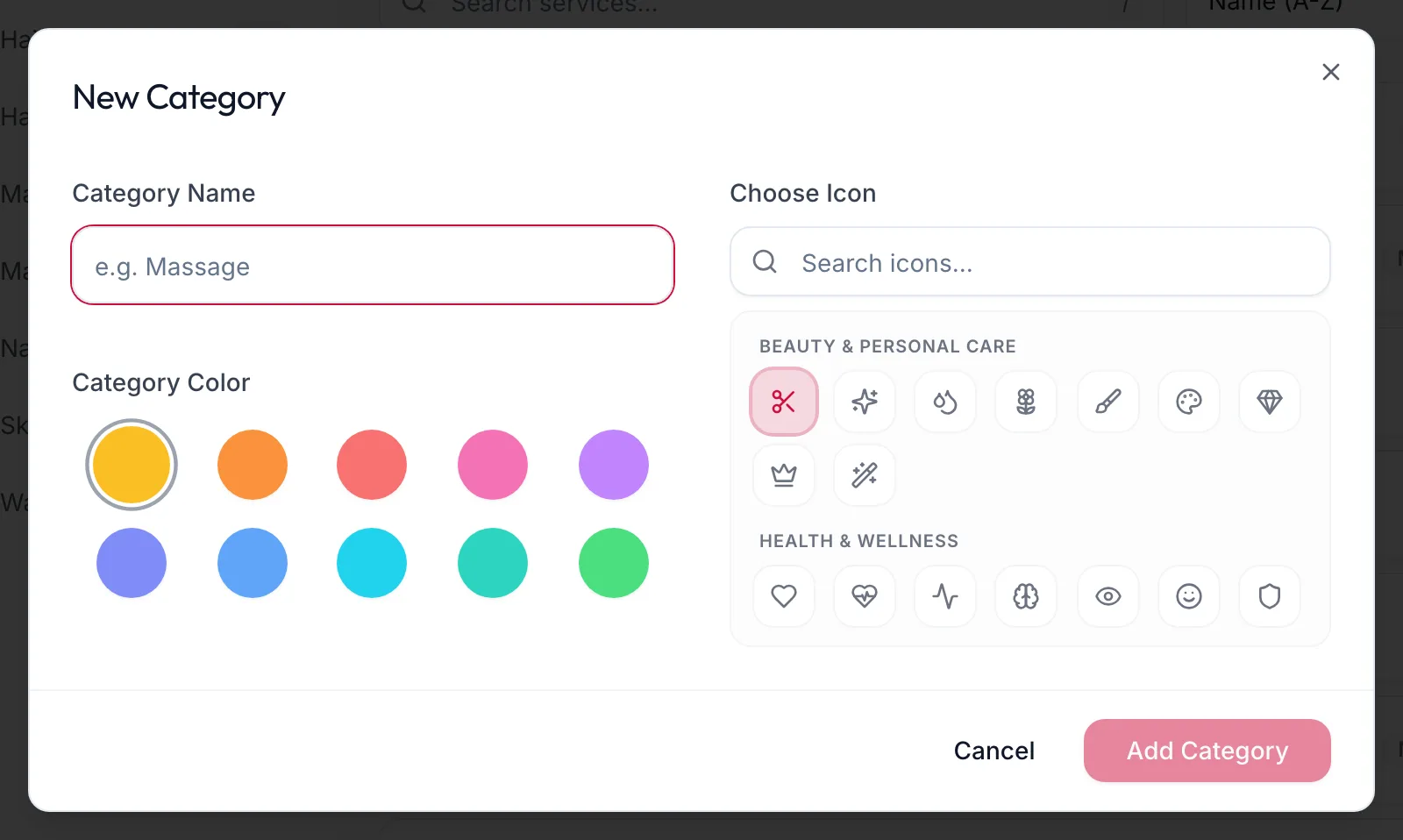
The New Category dialog -
Enter the Category Name, pick a Category Color and an icon under Choose Icon.
-
Click Add Category.
Edit or delete
Hover a category to reveal the pencil and the bin. Deleting asks Delete Category and warns that every service under it is deleted too, so move services first if you want to keep them.
In the app
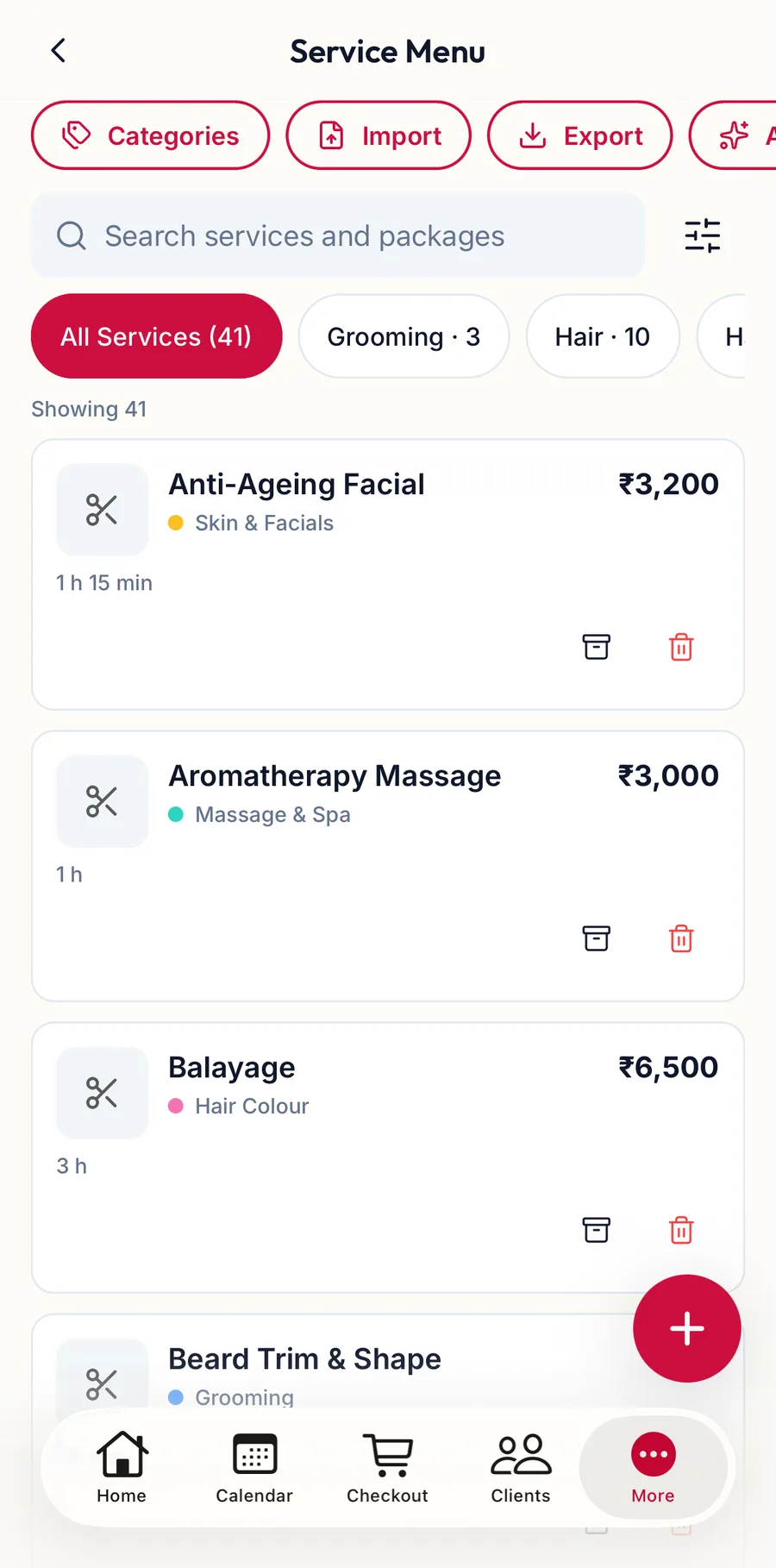
Tap More, then Services. The chips under the search box are your categories; All Services shows everything.
-
Tap Categories in the row of buttons at the top.
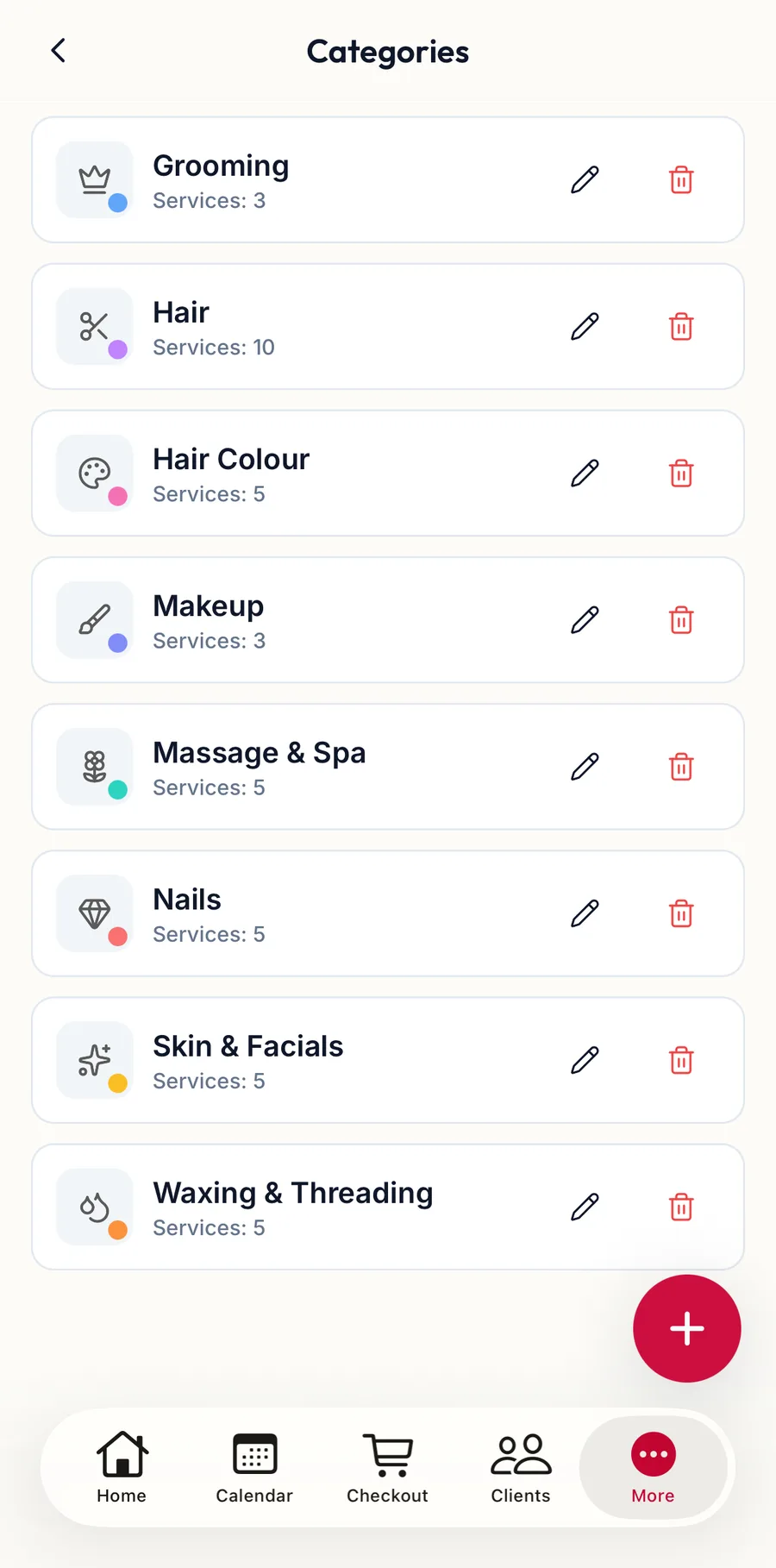
The categories screen in the app -
Tap the + button, enter the Category Name, pick a Category Color and an icon under Choose Icon, and tap Save.
Tap a category to edit it; the bin deletes it after the Delete Category warning.
Treatment types
A treatment type is a label such as Haircut, Balayage or Deep Tissue Massage that cuts across categories. Set it on each service; filter the list by it under Filters, Treatment Type. Add new ones from the service form with Add New Treatment type.
Related articles
- Add a service · Services & packages
- Add your service menu · Getting started