
Date, time and financial year
The time zone, date and time formats, week start and the month the financial year begins, which every report and pay run follows.
Set the date, time and financial year
On the web
-
Open Settings, Business setup, and scroll to Date & Time.
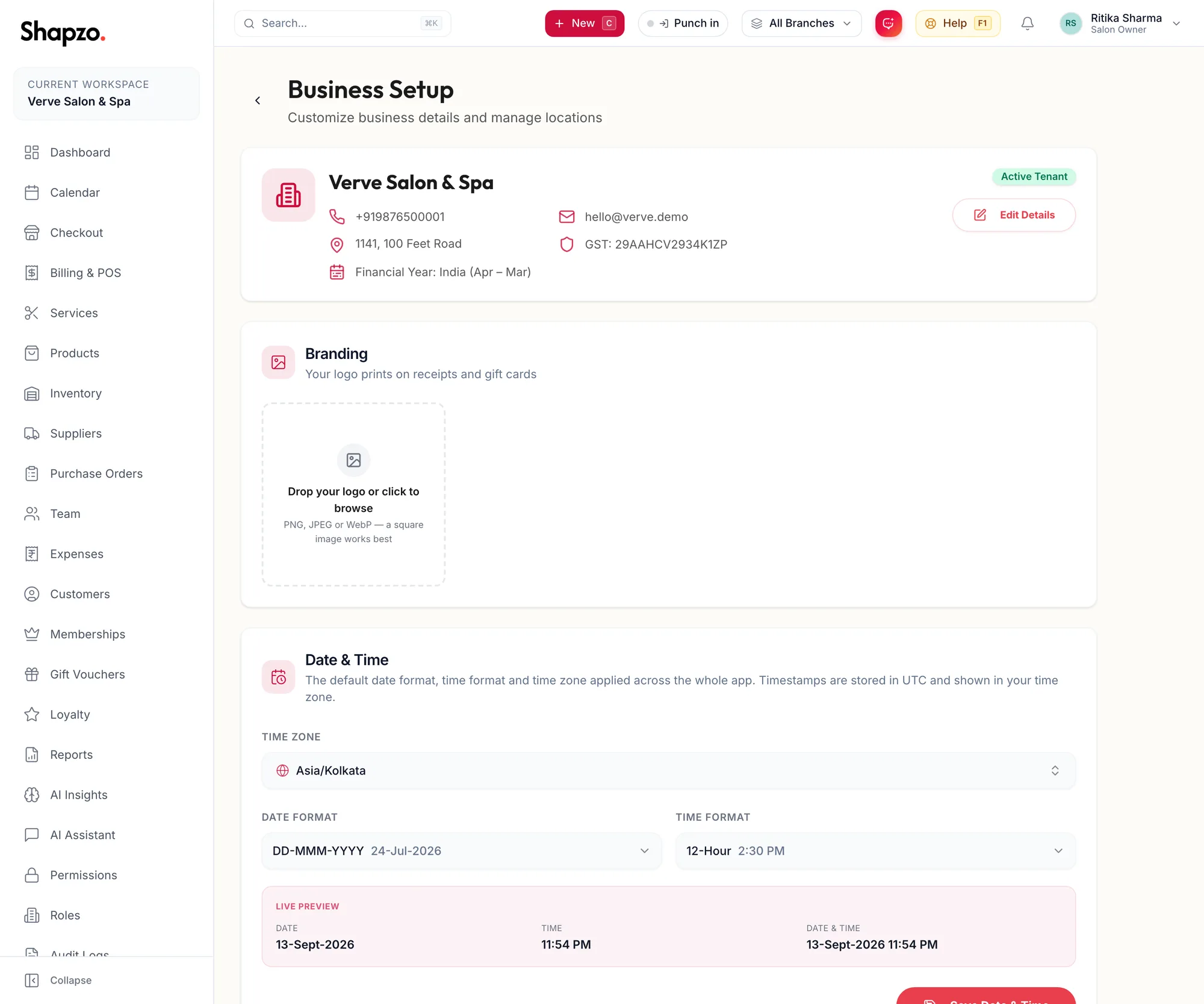
The Date and Time card -
Set the Time Zone. Indian businesses use Asia/Kolkata.
-
Choose the Date Format and Time Format you want on screens and invoices.
-
Choose Week starts on. Monday suits most rosters.
-
Choose Financial year starts in. April is the Indian financial year; the expense reports, yearly invoice-number resets and the Current financial year range all follow it.
-
Click Save Date & Time.
A branch in a different zone can override these with Custom date & time for this branch on its own card.
In the app
-
Tap More, then Settings, then Business Setup, then the date and time chip.
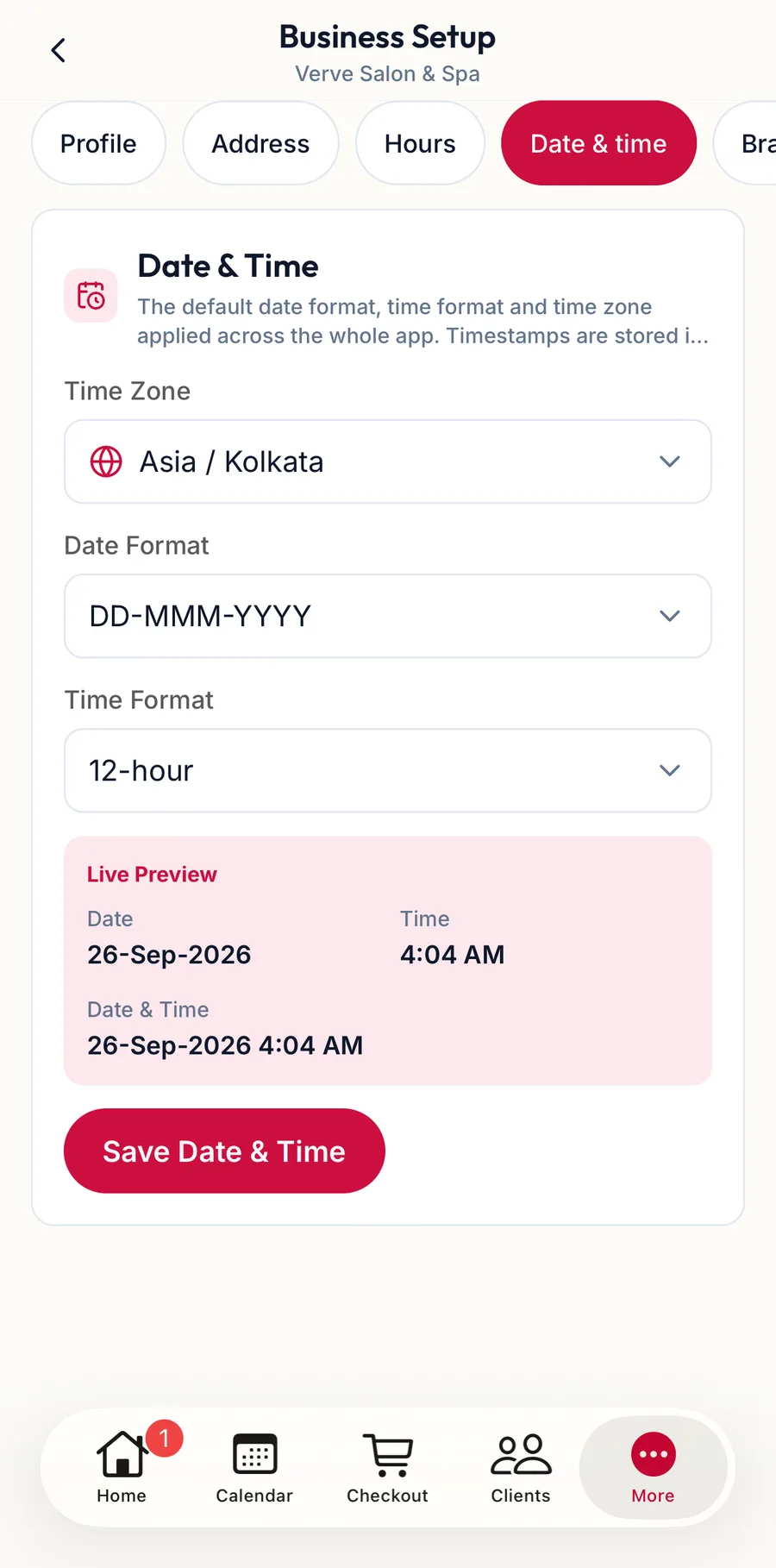
The Date and Time settings in the app -
Set the Time Zone, the Date Format and Time Format (a Live Preview shows the result), and the Financial Year.
-
Tap Save Date & Time.
Related articles
- Business setup and branches · Settings
- Expense reports · Expenses