
Add services, products and packages
Build the order from the add-items bar: services from the menu, retail products from stock, and packages the customer is buying.
Steps
On the web
-
On the add-items bar at the bottom, click Service, Product or Package, or press s, p or k.
-
The picker opens with Favorites, Recent and the full list. Search by name.
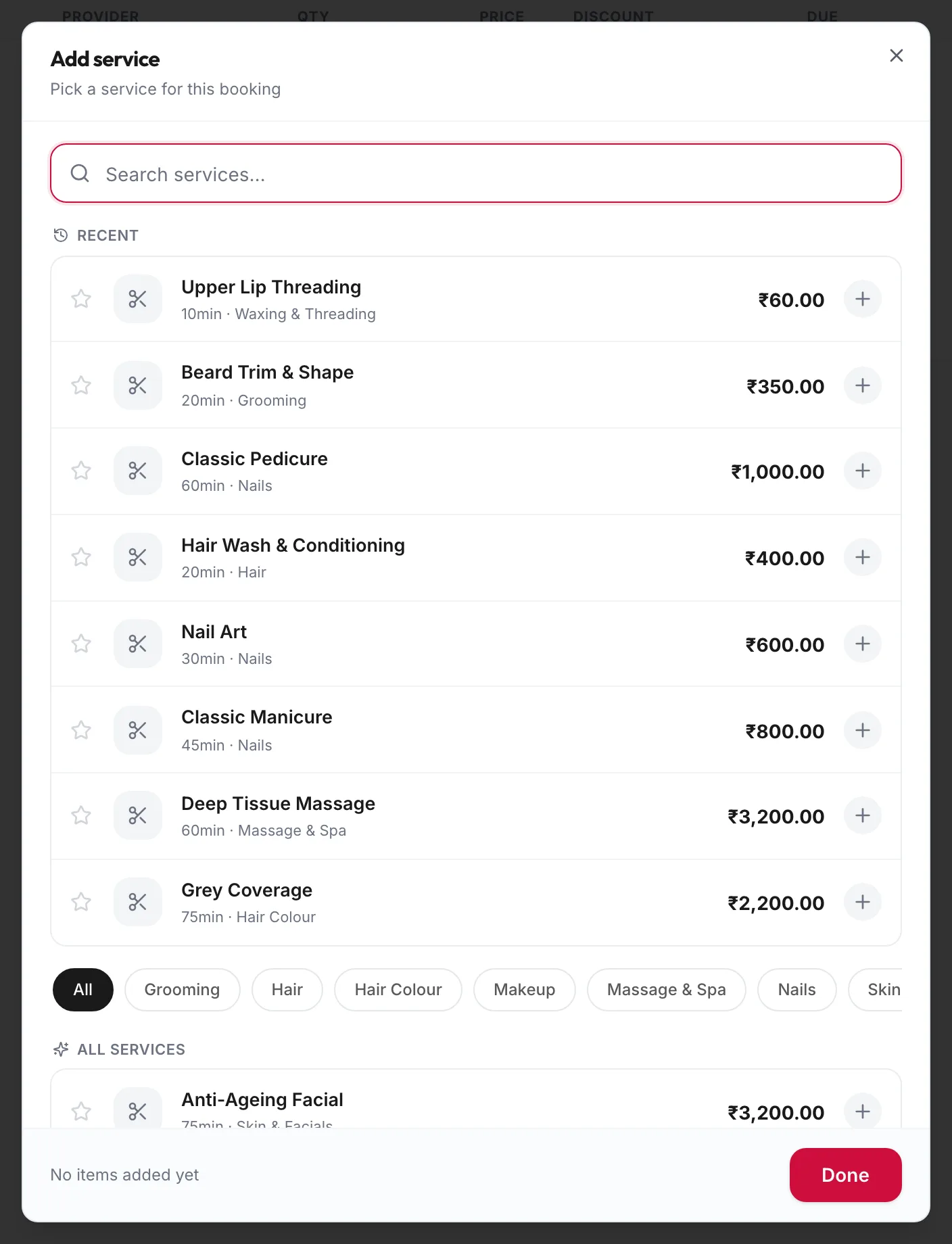
The item picker listing services -
Click an item to add it. Click again for a second unit. Click Done when the order is complete.
Each item becomes a row in the grid. Change Qty with the plus and minus, or edit the Price if the business allows price adjustments.
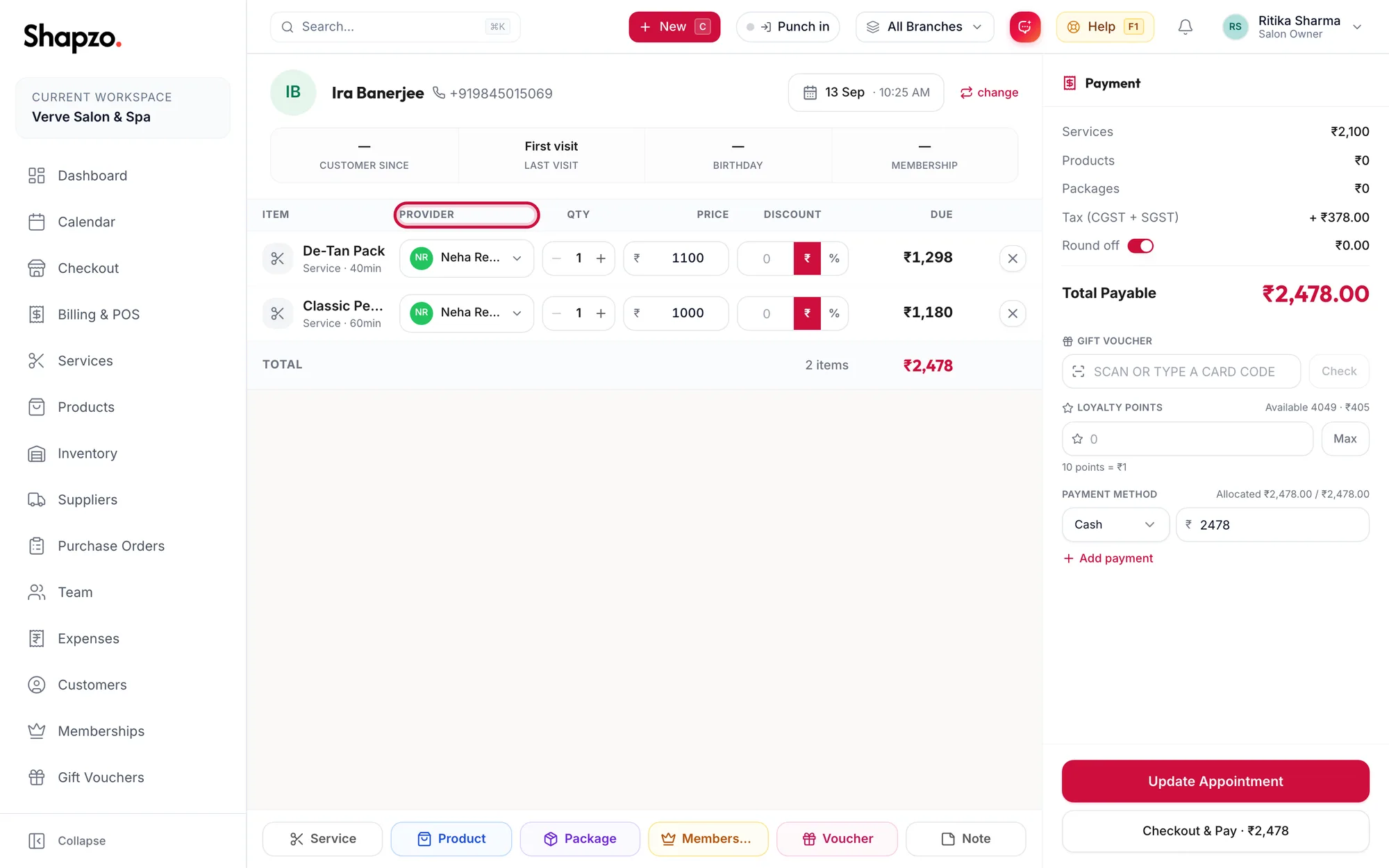
In the app
-
On the Checkout tab, tap Add item.
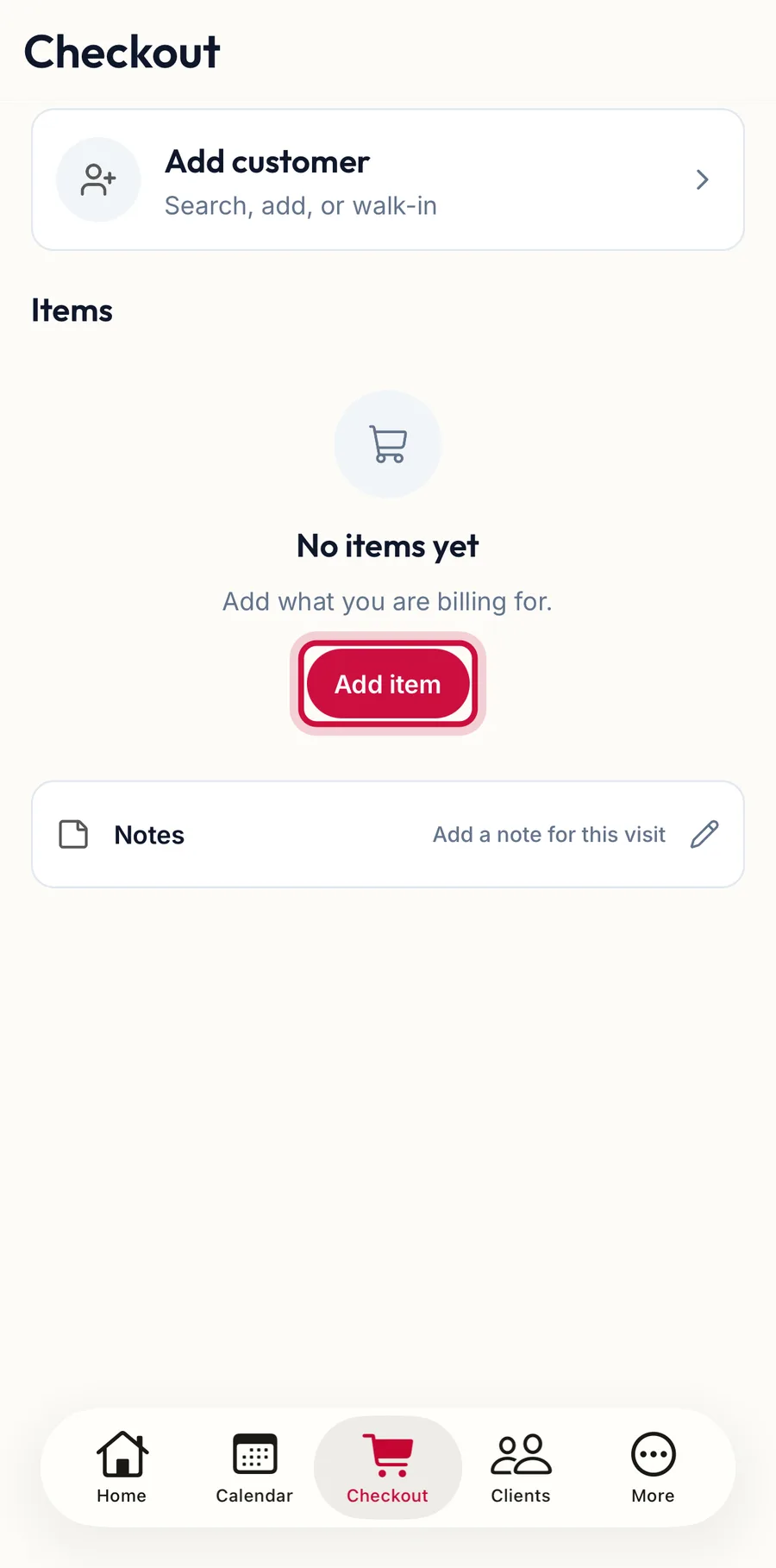
The checkout tab with the Add item button highlighted -
The picker opens on Services; the tabs along the top switch to Products, Packages, Memberships and Vouchers. Search by name, filter by category, or pick from Favorites and Recent.
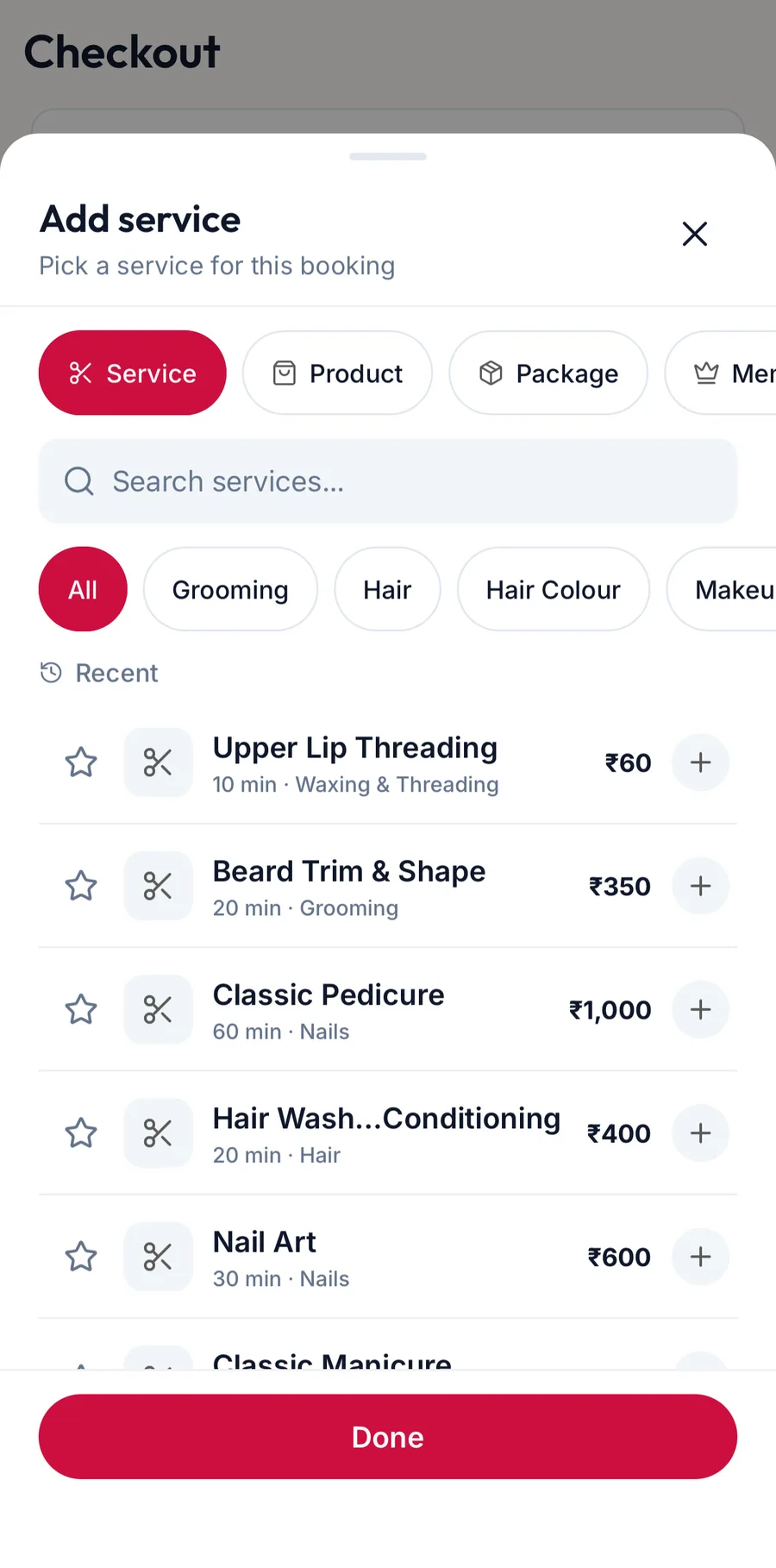
The item picker in the app -
Tap an item to add it. Tap again for a second unit. Tap Done when the order is complete.
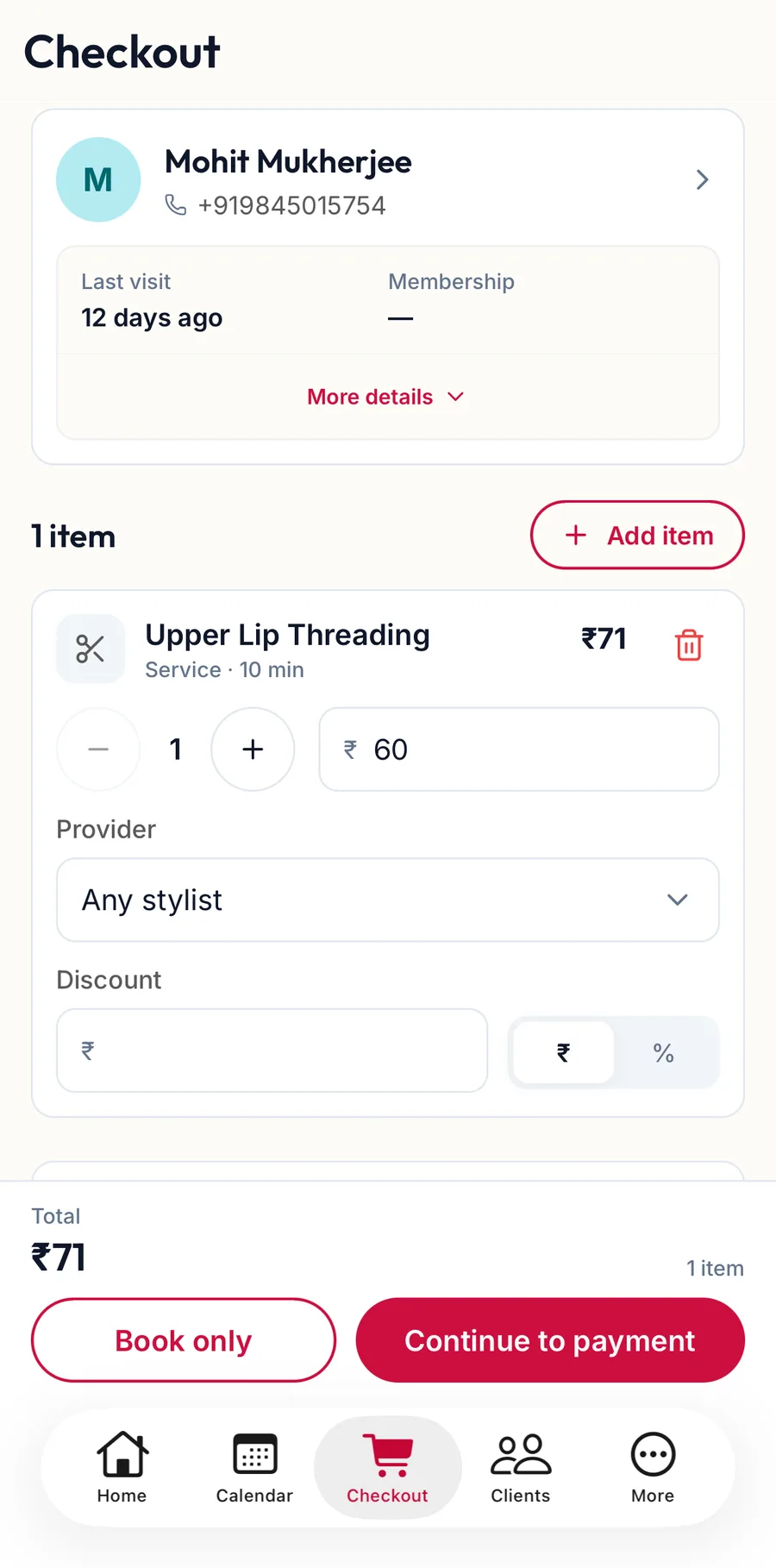
Each item becomes a card under Items with its provider, quantity and price. Tap the card to change them or remove the item.
Things to know
- Services and packages take a provider and, for a booking, a time. Products do not; they come out of the selected branch's stock the moment the invoice is created.
- A package is a bundle bought now and redeemed over later visits. Adding it sells it; the sessions are used at future checkouts from the Package benefits bar.
- The star in the picker marks an item as a favourite for everyone at the till.
- An item that shows Unavailable — includes a deleted service cannot be sold until the package is repaired under Services.
- Use Remove item on a row to take it out.
Notes on the order
Note (or n) opens Customer note, a line for staff on this order such as "Allergic to almond oil". It is not printed on the invoice.
Related articles
- The checkout screen · Checkout
- Assign providers and rooms · Checkout
- Discounts on items · Checkout