
The checkout screen
The two halves of checkout: the customer and the items on the left, the payment on the right, and the bar that adds things to the order.
Checkout turns a visit into an invoice. Open it from Checkout in the sidebar, from Checkout & Pay on a booking, from Create Invoice in Billing & POS, or with the g x shortcut.
The screen
On the web
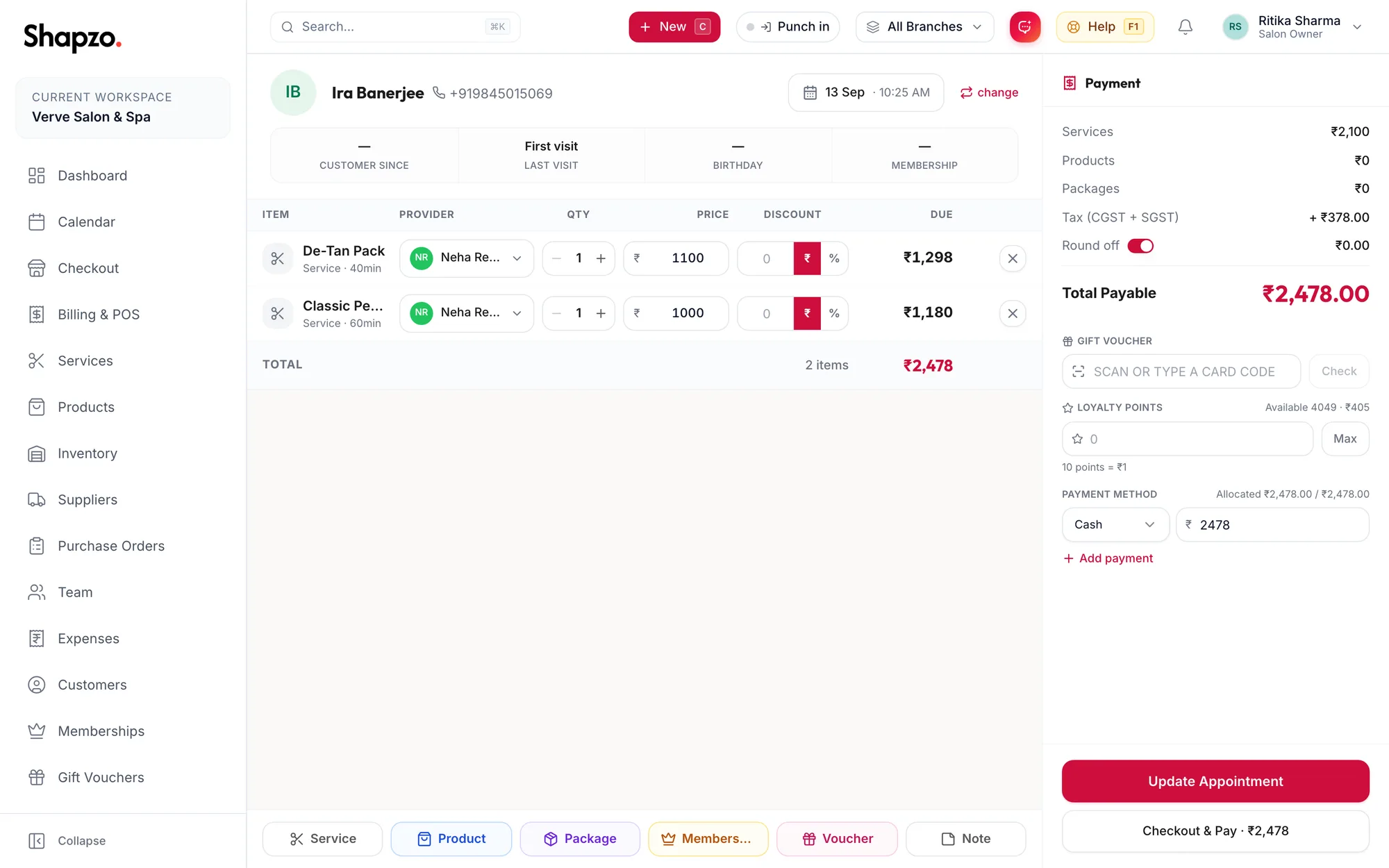
The left half: who and what
- The customer at the top. Registered customers show their visit count, last visit and membership; a walk-in shows just a name and phone. Change swaps the customer.
- The items grid: one row per service, product, package, membership or gift voucher, with its Provider, Qty, Price, Discount and what is Due for the row. When the business books rooms there is a Room column too.
- Benefit bars appear between the two when the customer has a membership, a package or a gift card with included visits. They let you apply the benefit to the order.
- The add-items bar along the bottom: Service, Product, Package, Membership, Voucher and Note. Each opens a picker; each has a single-letter shortcut.
The right half: the money
The Payment panel adds up Services, Products, Packages, Memberships and Gift Vouchers, subtracts discounts and credits, adds Tax (CGST + SGST) and any Round off, and shows the Total Payable. Below it: a gift card code box, Loyalty Points, an Advance line for customers with a wallet balance, and the Payment method rows.
Two buttons finish the job. Book Appointment saves the order as a booking for later without taking money. Checkout & Pay takes the payment and creates the invoice; it reads Checkout · Save Due when the tenders do not cover the total.
In the app
Tap Checkout in the tab bar, or Checkout & Pay on a booking. The phone splits the same job over two screens.
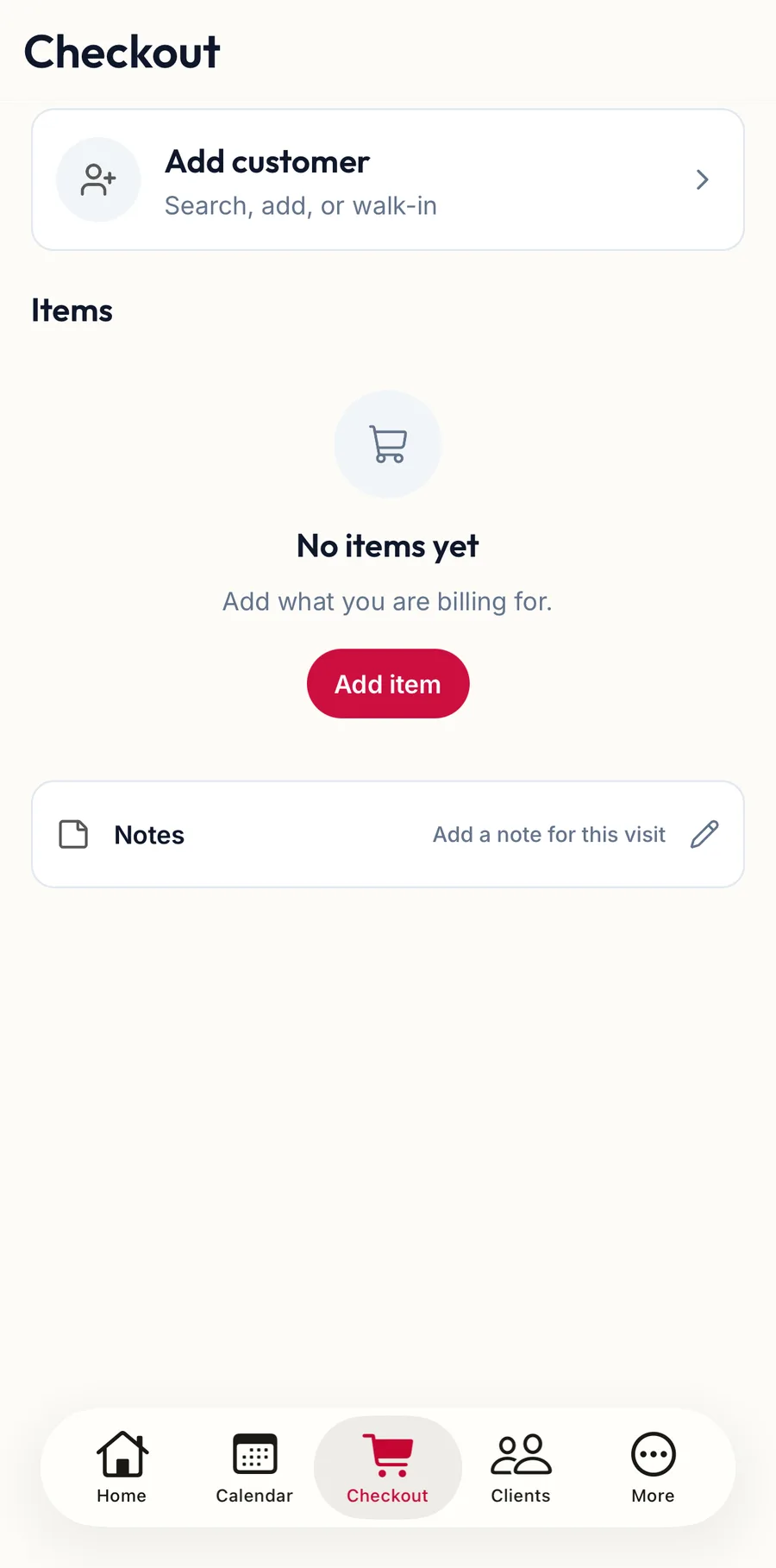
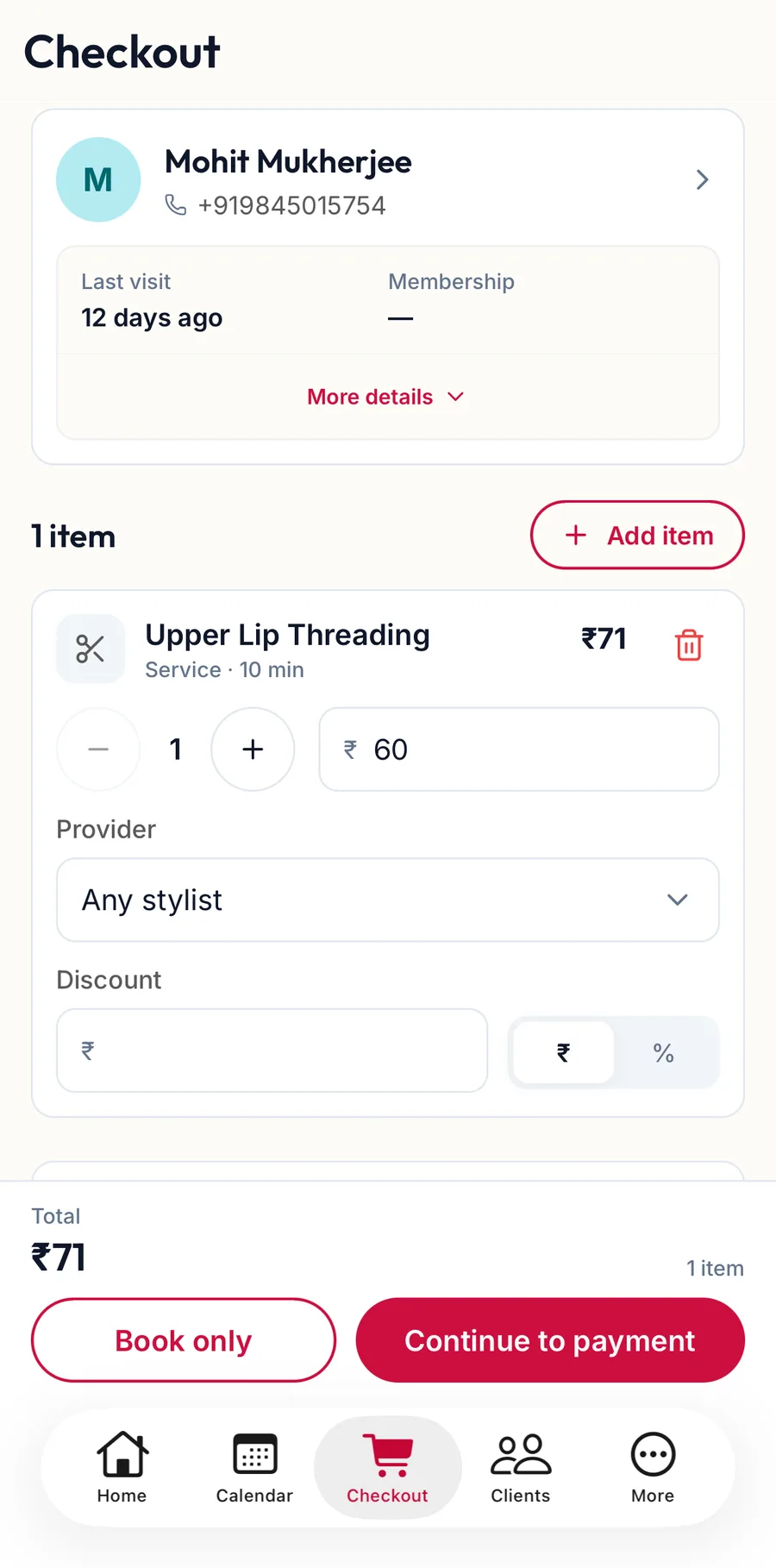
- The customer card at the top. Add customer opens the picker; a chosen customer shows their last visit and membership, with More details for the rest. Tap the card to change them.
- Items: one card per service, product, package, membership or gift voucher, with its quantity, price, Provider and Discount. Add item opens the picker.
- Notes holds a line for staff about this visit.
- The footer shows the Total. Continue to payment goes to the second screen; Book only saves the order as a booking without taking money.
The Payment screen is the right half of the web page: the totals, gift card, loyalty points, advance and the payment methods, with the button that takes the money at the bottom.
Related articles
- Choose or add a customer · Checkout
- Add services, products and packages · Checkout
- Take payment: cash, card, UPI and split tenders · Checkout