
Designs and your own artwork
Keep a library of card designs, upload your own artwork, and set the default for new templates.
Create a design
On the web
-
Open Gift Vouchers and the Designs tab.
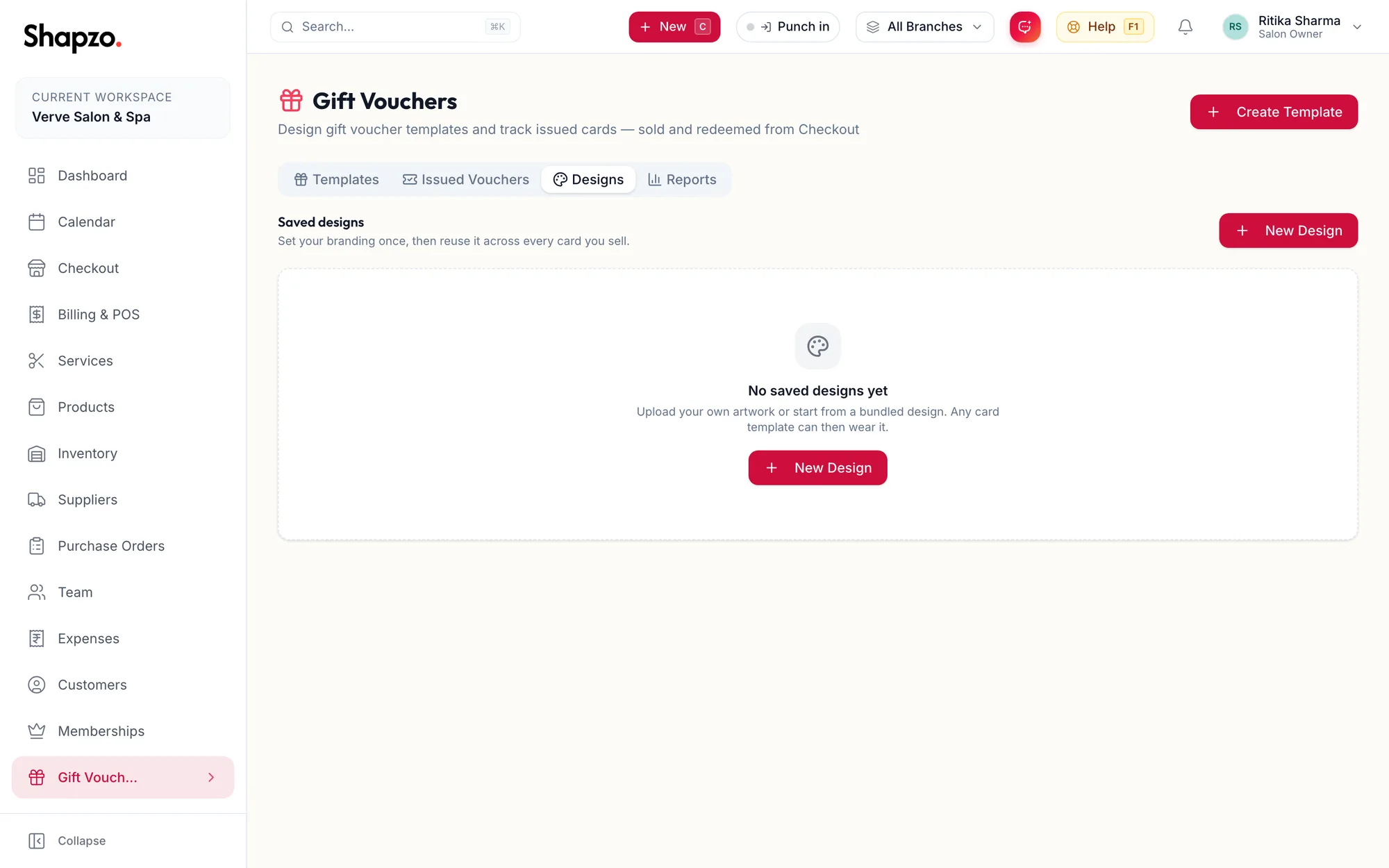
The Designs tab -
Click Create design.
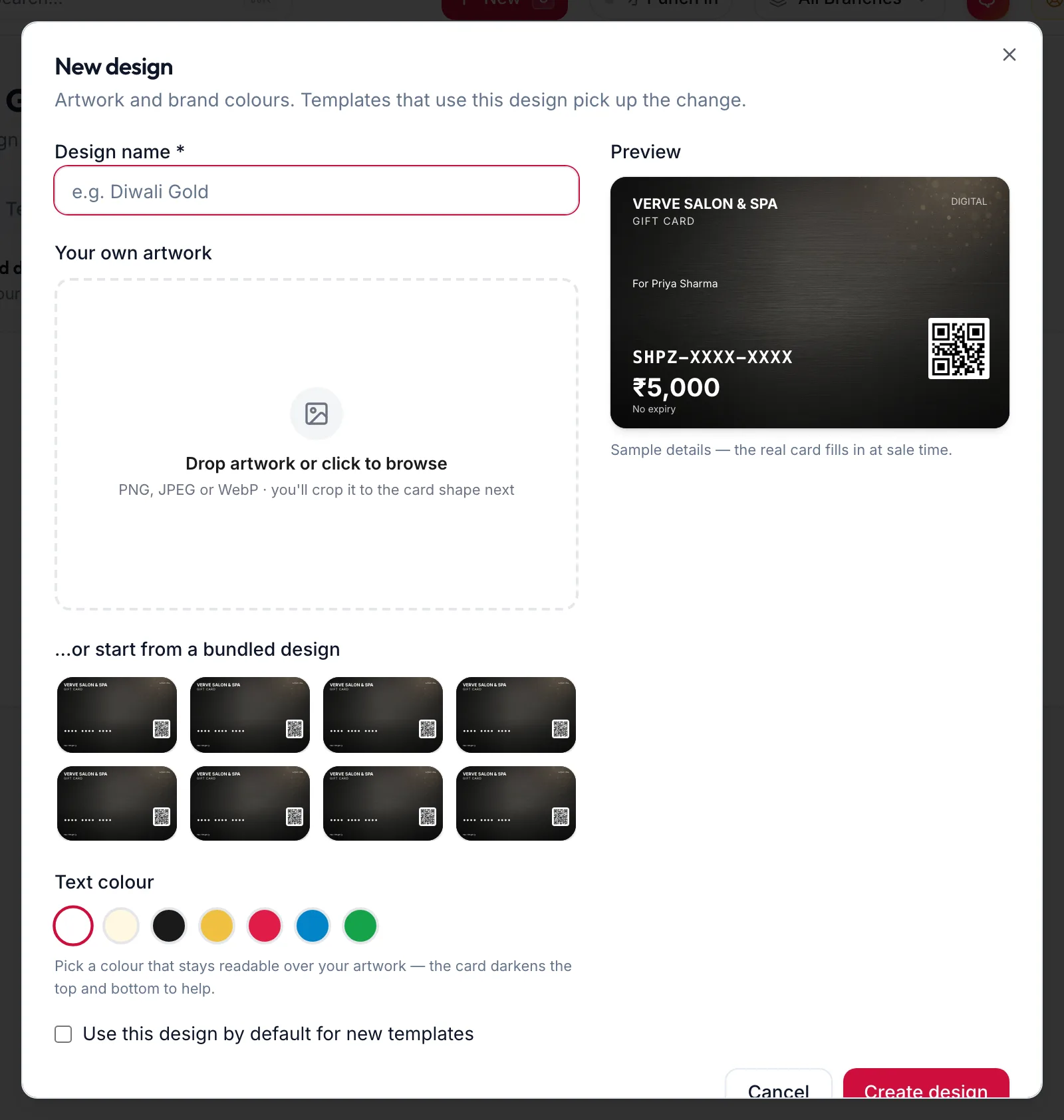
The New design dialog -
Enter the Design name, upload the artwork, and pick the text colour that reads well on it.
-
Tick Use this design by default for new templates if this is your house design.
-
Save. The toast reads Design saved.
Each design card can be edited or archived; archiving asks Archive “{{name}}”?.
In the app
-
Tap More, then Gift Vouchers, then the Designs tab and New Design.
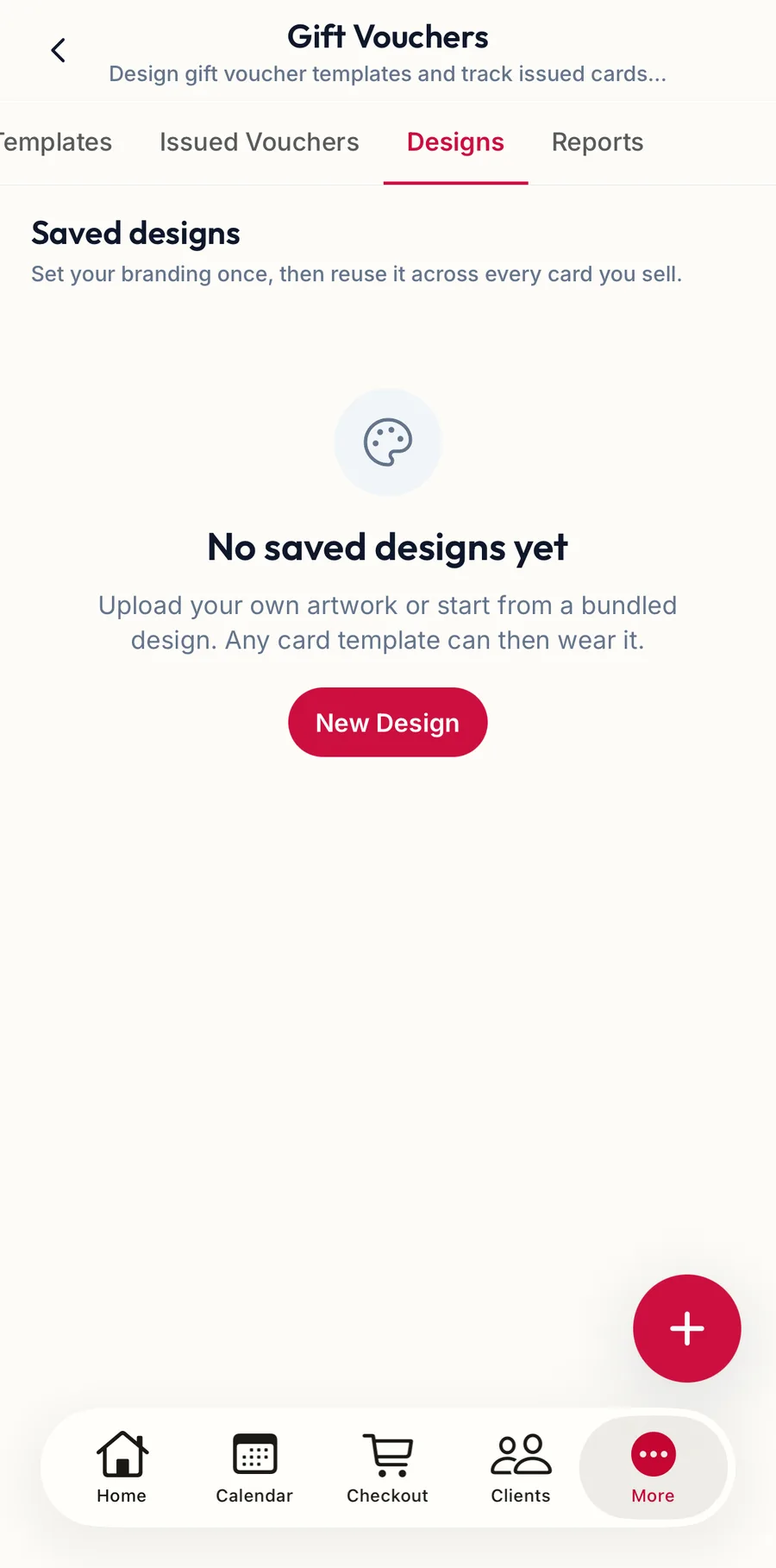
The Designs tab in the app -
Enter the Design name, tap Choose artwork to pick a photo from the phone (a cropper frames it to card proportions), and pick the Text colour.
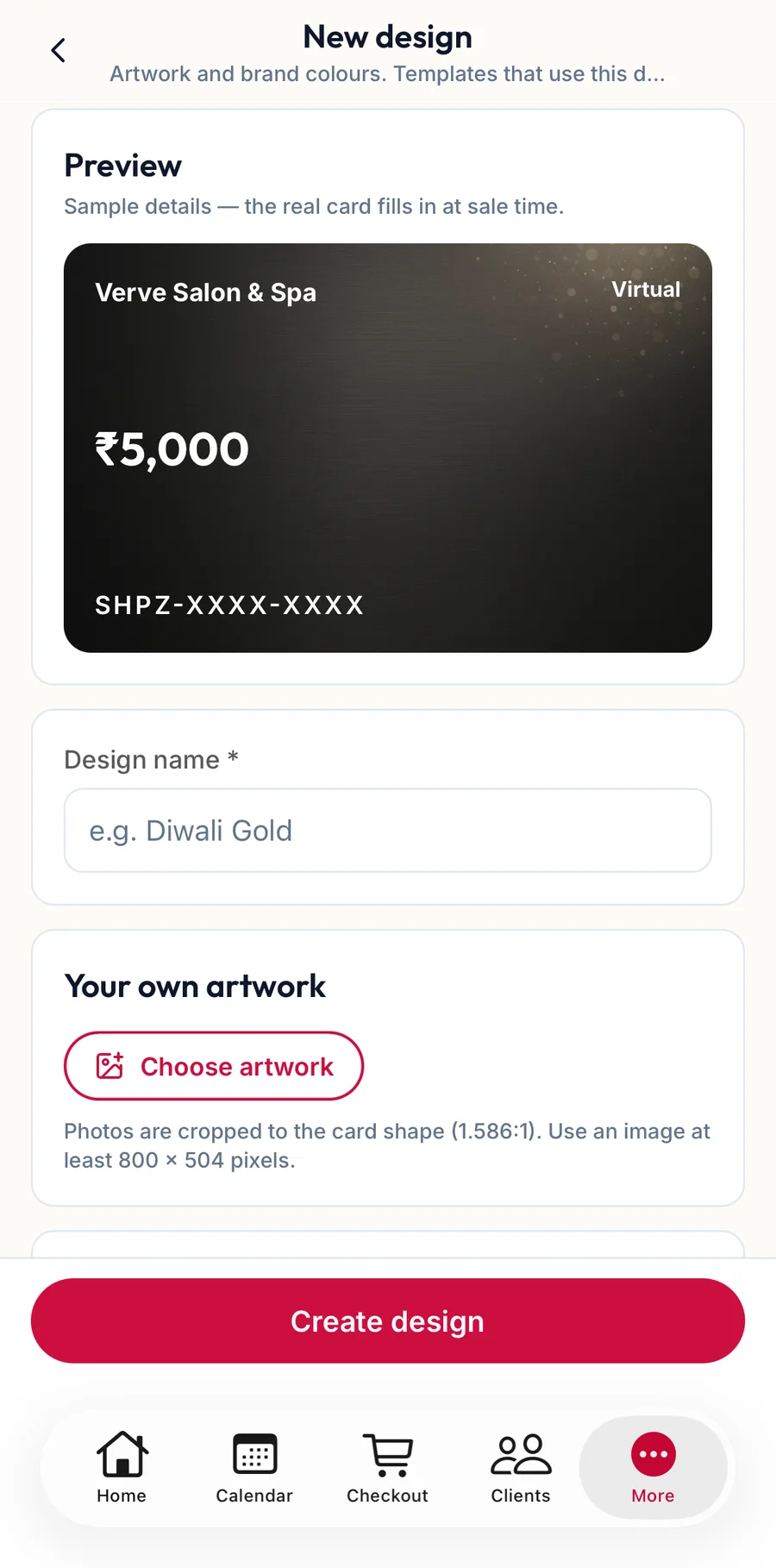
The New design form in the app -
Switch on Default if this is your house design and tap Create design.
Using a design
In the template dialog, choose it under Design Template, or after saving the template use Or use your own artwork to attach artwork to that one template.
Your business logo from Settings, Business setup, Branding prints on every card as well.
Related articles
- Create a voucher template · Gift vouchers
- Set up your business profile and logo · Getting started