
Adjust a customer's points
Add or remove points on one customer with a reason, for goodwill, a missed bill or a correction.
Adjust a customer’s points
On the web
-
Open the customer and the Loyalty tab.
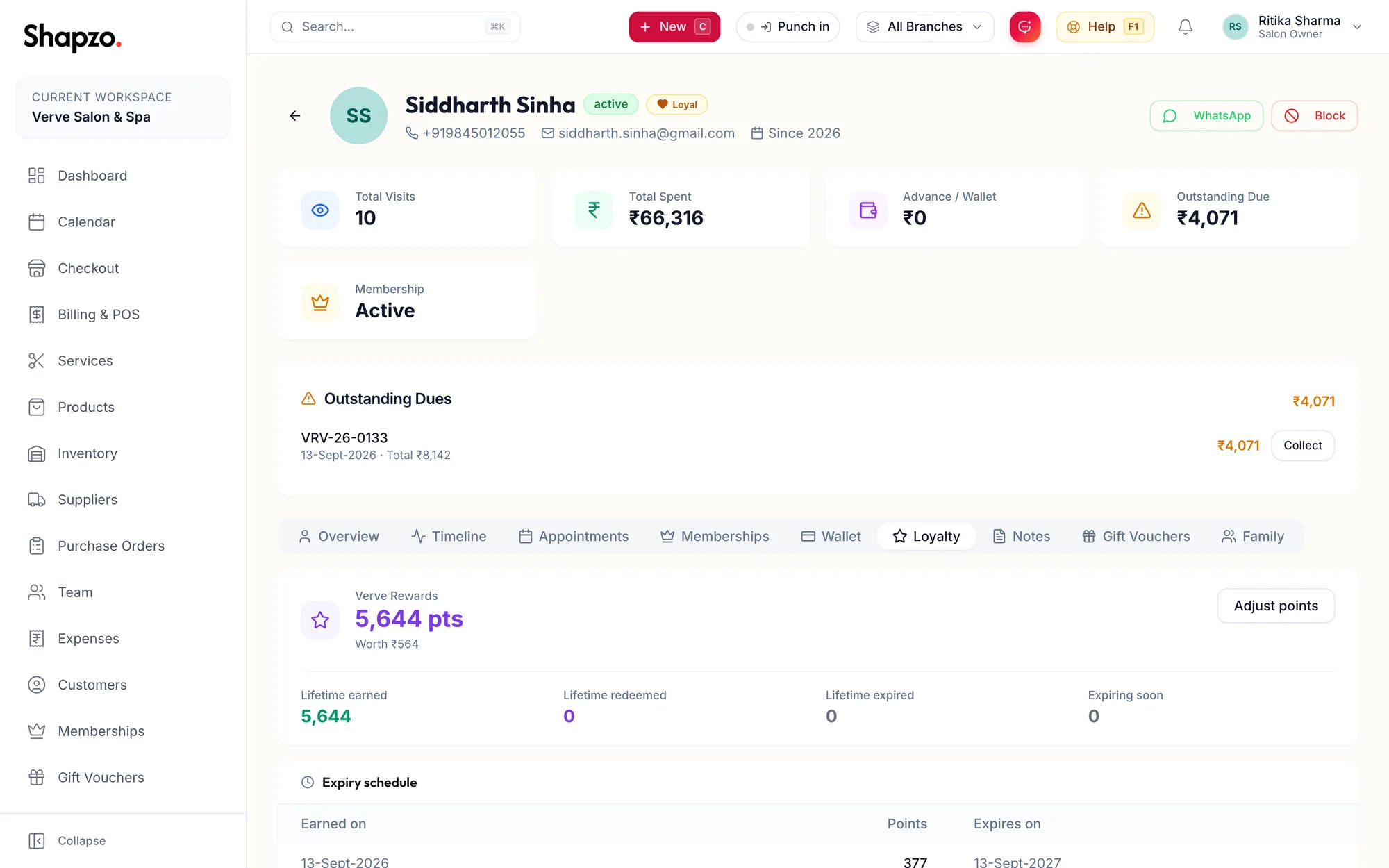
The Loyalty tab on a customer profile -
Click Adjust points.
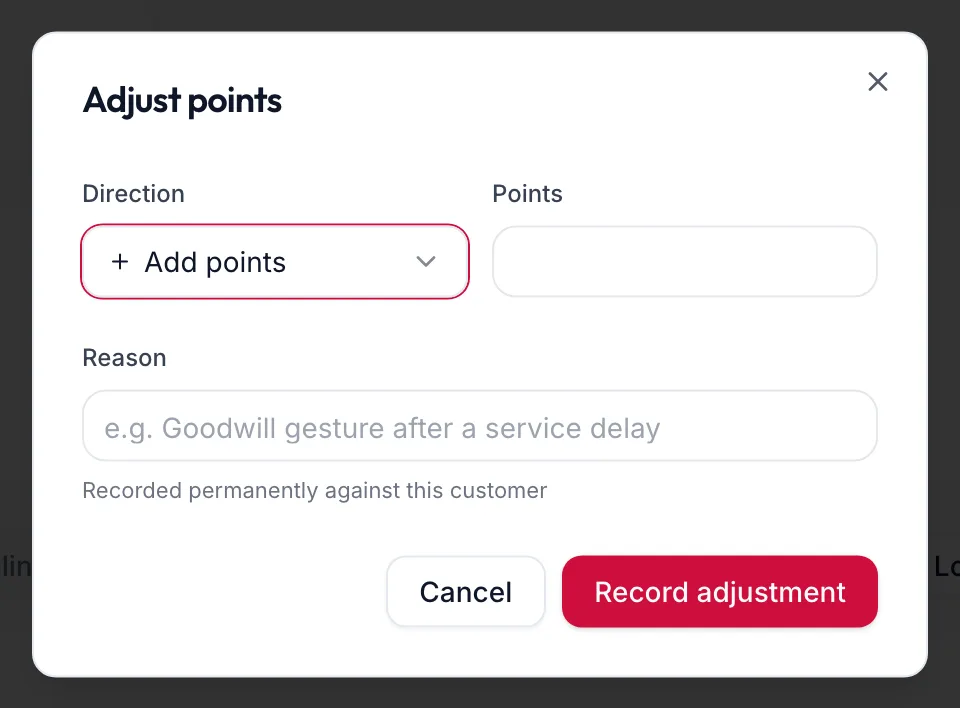
The adjust points dialog -
Choose the Direction: Add points or Deduct points, and enter how many.
-
Write a Reason, for example a goodwill gesture after a service delay. It is Recorded permanently against this customer.
-
Click Record adjustment. The toast reads Points balance updated.
The movement appears as Adjusted in the customer's Points history and in the business ledger, with your name against it. Added points follow the programme's expiry rule from today. When deducting, If the customer has already spent these points, the balance stops at zero and the shortfall is recorded.
In the app
-
Open the customer and the Loyalty tab, or on Loyalty tap Look up a customer's points and pick them.
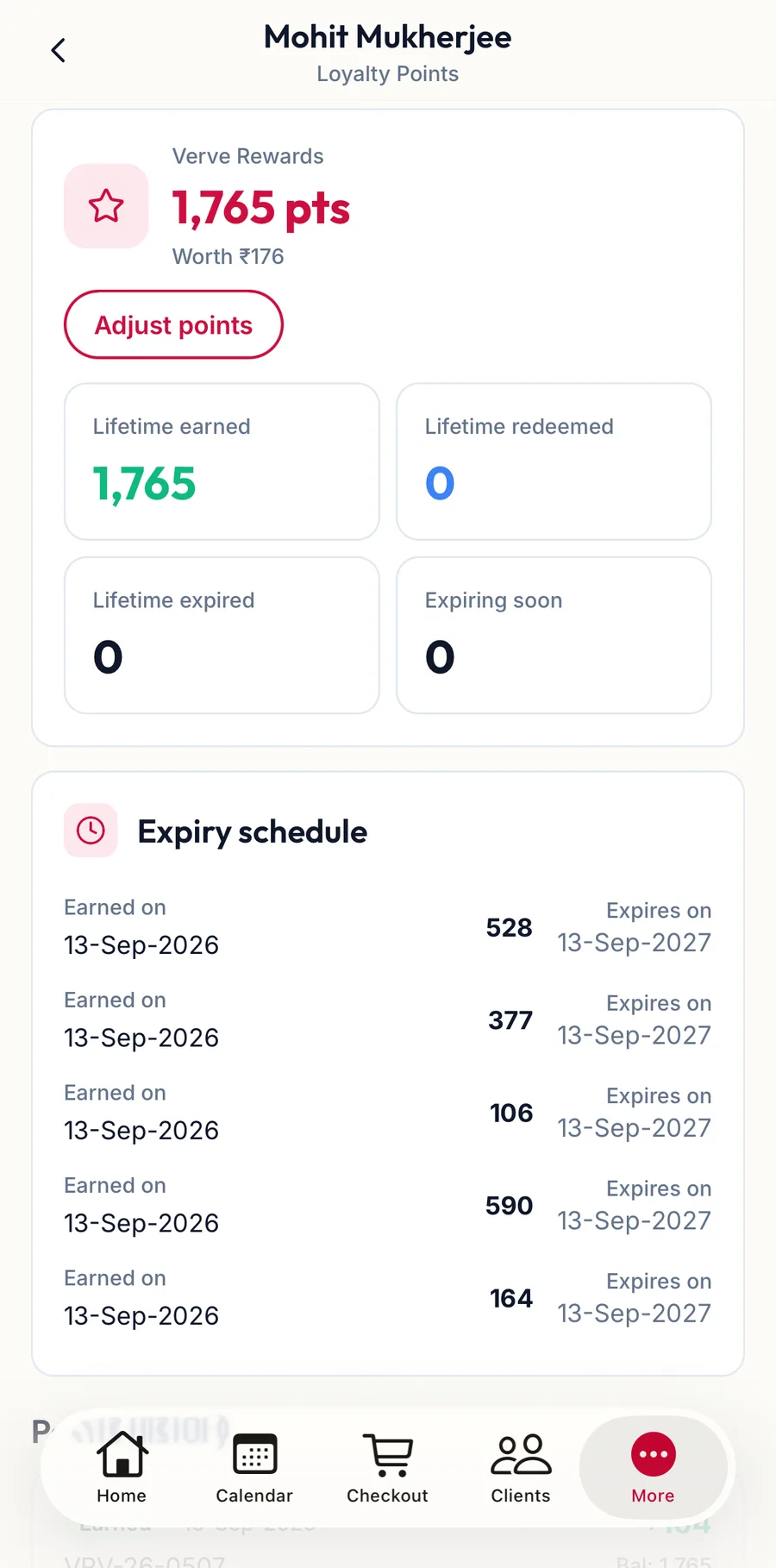
A customer's loyalty points in the app -
Tap Adjust points.
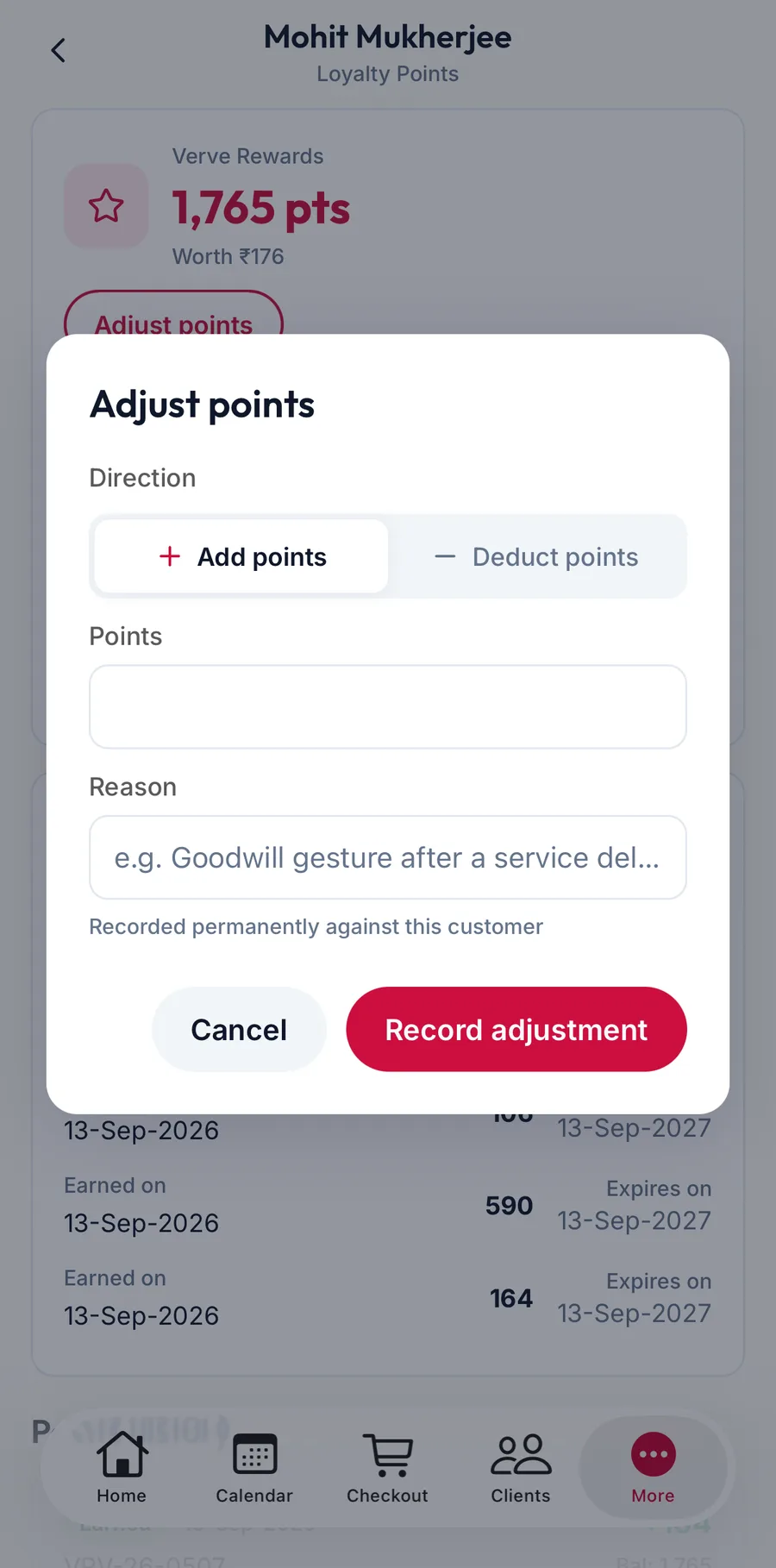
The adjust points dialog in the app -
Choose the Direction, Add points or Deduct points, enter the Points and write a Reason.
-
Tap Record adjustment.
Related articles
- The points ledger · Loyalty
- The customer profile · Customers