
Run, filter and drill into a report
Pick a date range and branch, page through the rows, and open a status or group to see the records behind it.
Run a report
On the web
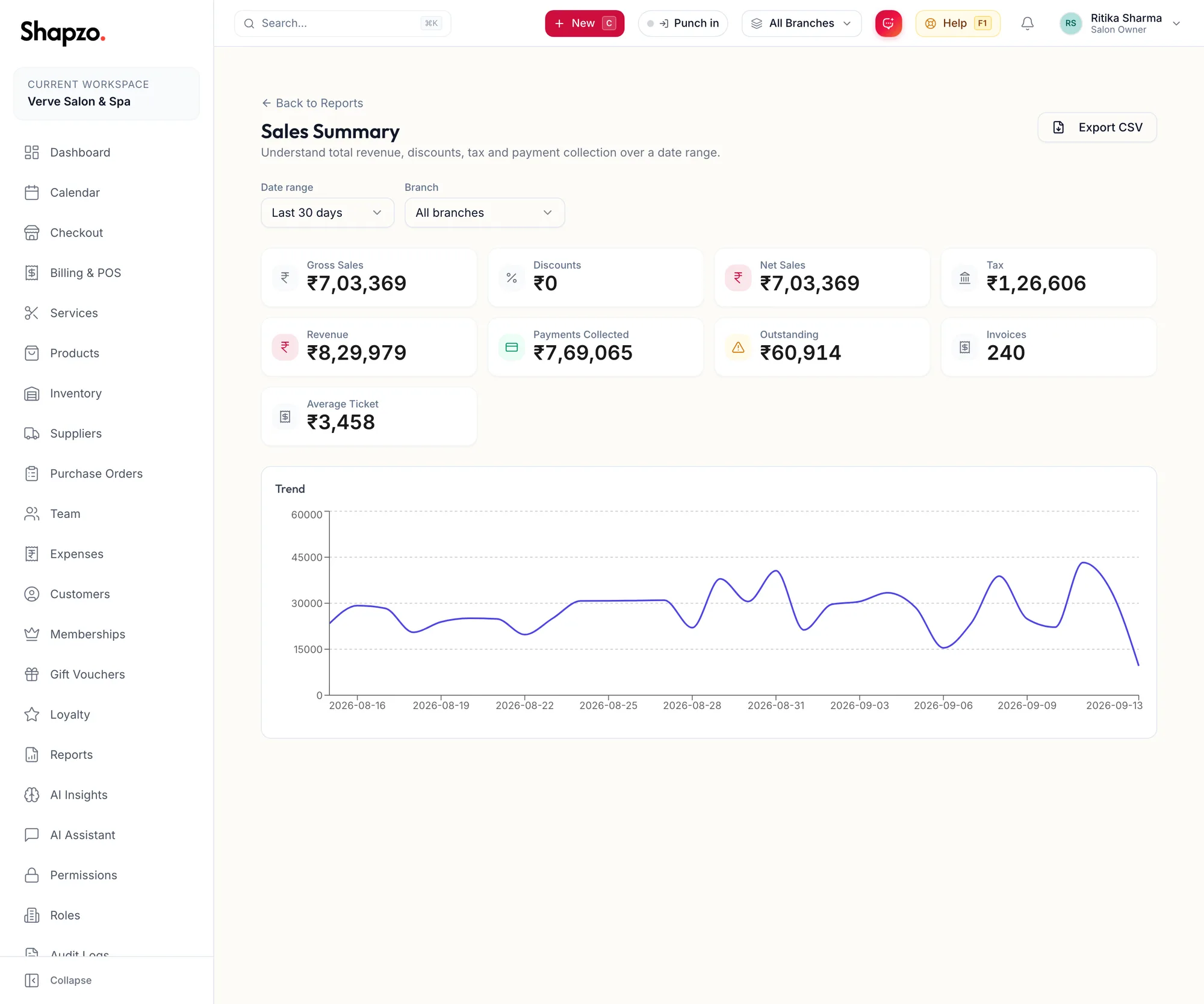
- Open a report from the library.
- Choose the Date range: Today, Yesterday, Last 7 days, Last 30 days, This week, This month, Last month, or your own dates.
- Choose the Branch, or All branches, where the report supports it.
- Reports with many rows add Search and filters such as Payment status, Payment mode or Movement type, and page through the rows.
- Where a summary can be opened, click View details: {{status}} ({{count}}) to see the underlying records, then Back to summary.
Back to Reports returns to the library.
In the app
-
Open a report from the library.
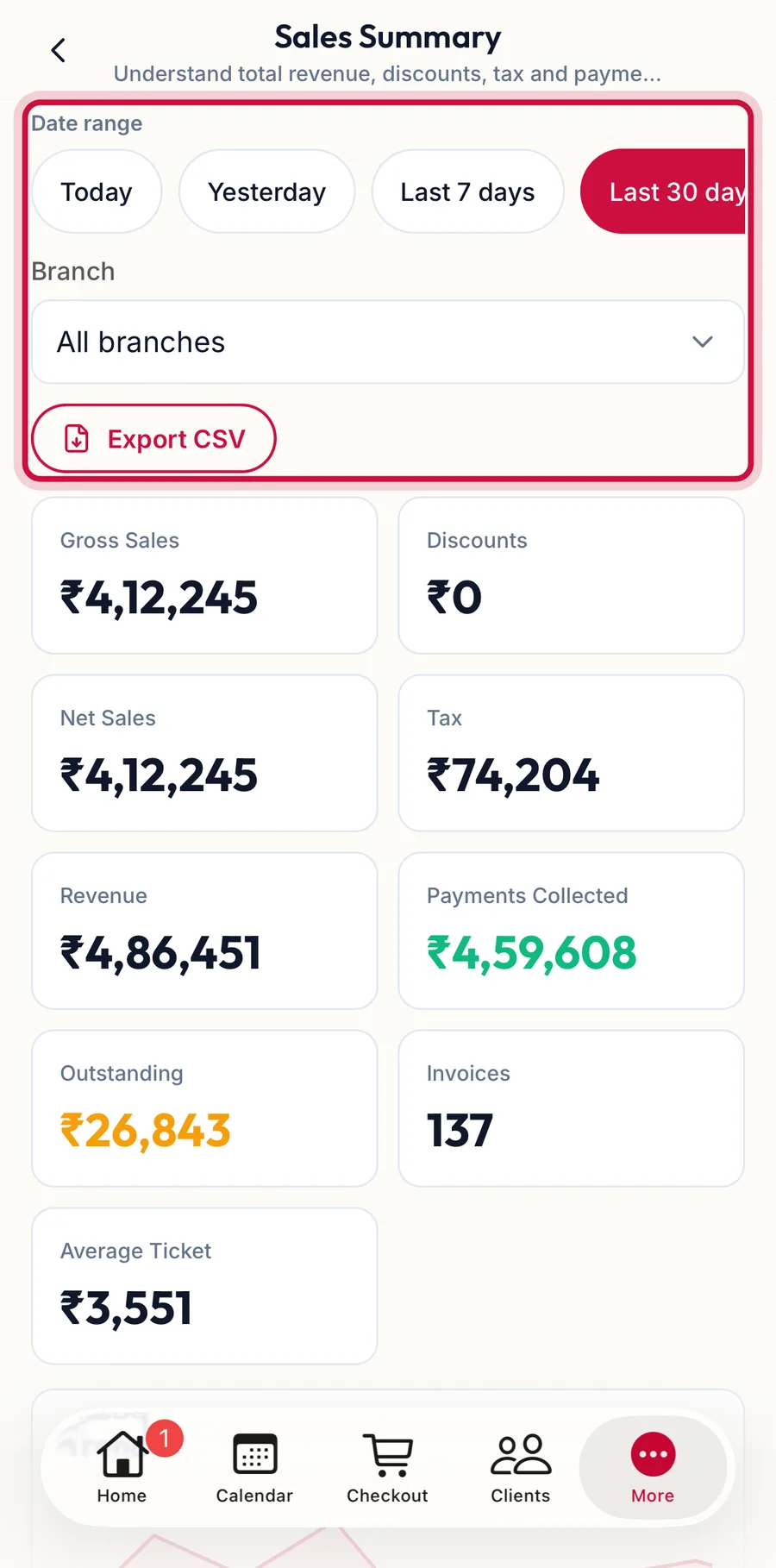
A report open in the app with its filter bar highlighted -
The filter bar under the title holds the Date range presets and the Branch; reports with many rows add Search and the same filters, and page through the rows.
-
The tiles come first; tap What these figures mean for the definitions. Charts and tables follow one under the other, and a summary row opens its records the same way.
Messages you may see
- No data for this range: try a wider range or another branch.
- That date range is too wide for a live view. Narrow it, or use Export instead.: the live view is capped to keep it fast; the export is not.
- Report not found or not available to you: your role does not include it.
Related articles
- The report library and Recommended for you · Reports & AI
- Export a report · Reports & AI