
Salon billing and GST setup in Shapzo
Shapzo lets you configure item tax rates and groups, combine services and products on a bill, and record payments and dues. Configure your accountant-approved rates before checkout, then review a printed invoice. Software settings do not determine your registration or tax obligations.
By Shapzo editorial team. Reviewed .
Tax requirements and product settings are separate
For registered suppliers, GST invoice particulars are set out in Rule 46 of the CGST Rules. Section 31 of the CGST Act addresses invoicing, including bills of supply for specified supplies. Which requirements apply depends on your business and transaction.
Use the official sources below with your accountant to confirm registration, rates, classification and invoicing requirements. This guide explains Shapzo settings; it does not prescribe a tax rate or establish that an invoice meets every legal requirement.
Configure the business and tax settings
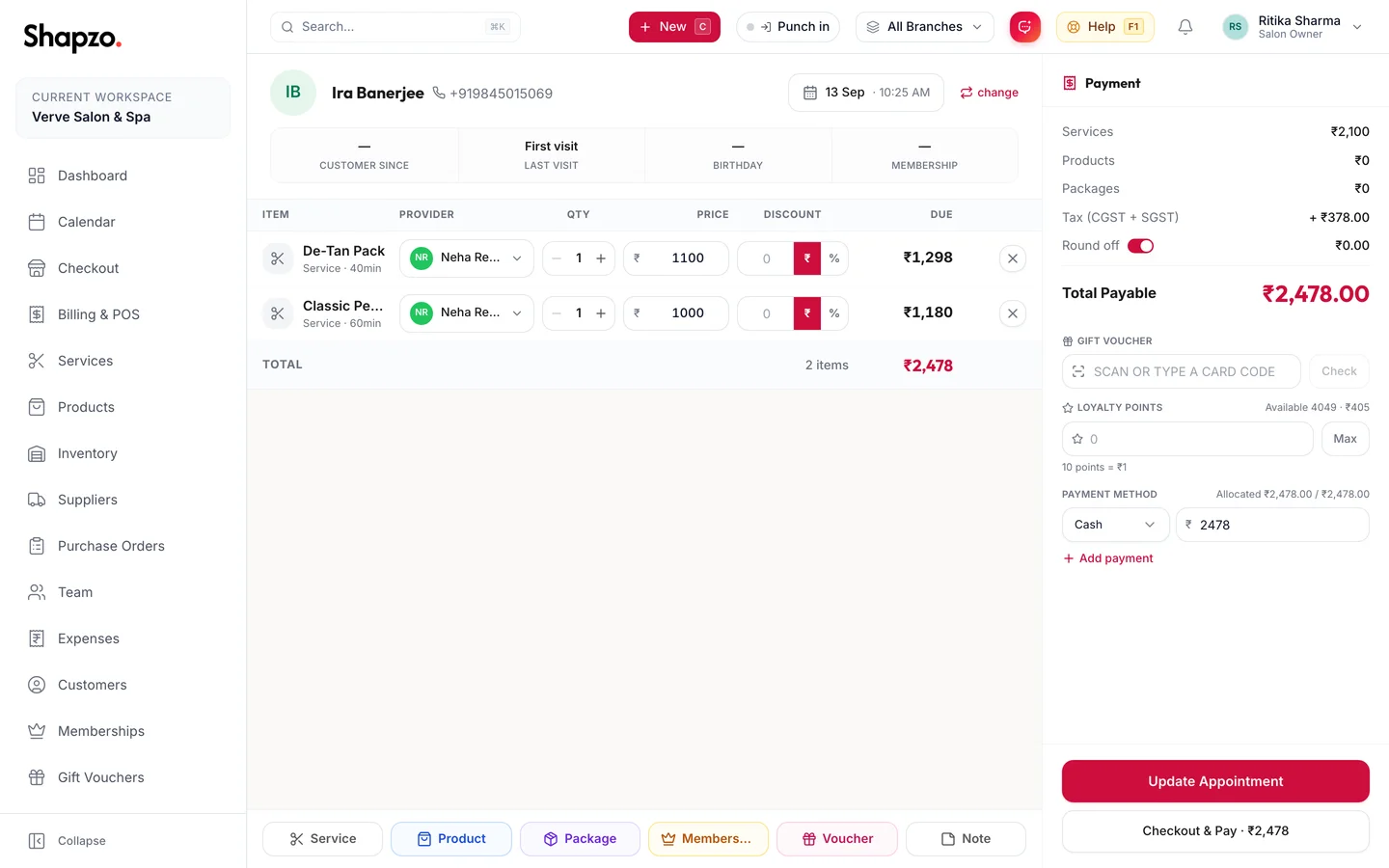
Set your business profile and invoice details first. In Point of Sale settings, create the taxes and any tax groups your accountant requires. Set whether item prices include or exclude tax and choose defaults for new services, memberships, vouchers and products.
Defaults apply to newly created items. Existing items keep their current settings until edited. Review services and retail separately instead of assuming a single rate applies to everything. If you need separate CGST and SGST lines, follow the tax-group instructions in the manual.
Test a complete checkout
Select the customer, add services and products, and assign the providers. Review discounts and the tax calculation, then record the payment. A split payment records multiple tenders against the same bill; a due records what remains to be collected.
Open the invoice and inspect the printed output before using it for customers. Check business details, item descriptions, tax lines and totals against your accountant’s requirements. Keep payment collection and invoiced revenue distinct when reviewing reports.
Handle corrections through the recorded workflow
Use the product’s refund or void workflow when a transaction needs correction, and review the reason and resulting records. Collect later payments against the existing due rather than creating another invoice for the same service.
Shapzo provides billing records and invoice export. Do not infer automatic GST return filing or government e-invoice registration from the ability to print an invoice.