
Categories and ledger codes
Group spending your accountant's way, with a colour, an optional ledger code carried into exports, and an Active switch.
New businesses start with Rent, Utilities, Salon Supplies, Equipment, Marketing, Travel, Meals & Entertainment, Training and Miscellaneous.
Steps
On the web
-
Open Expenses and Categories.
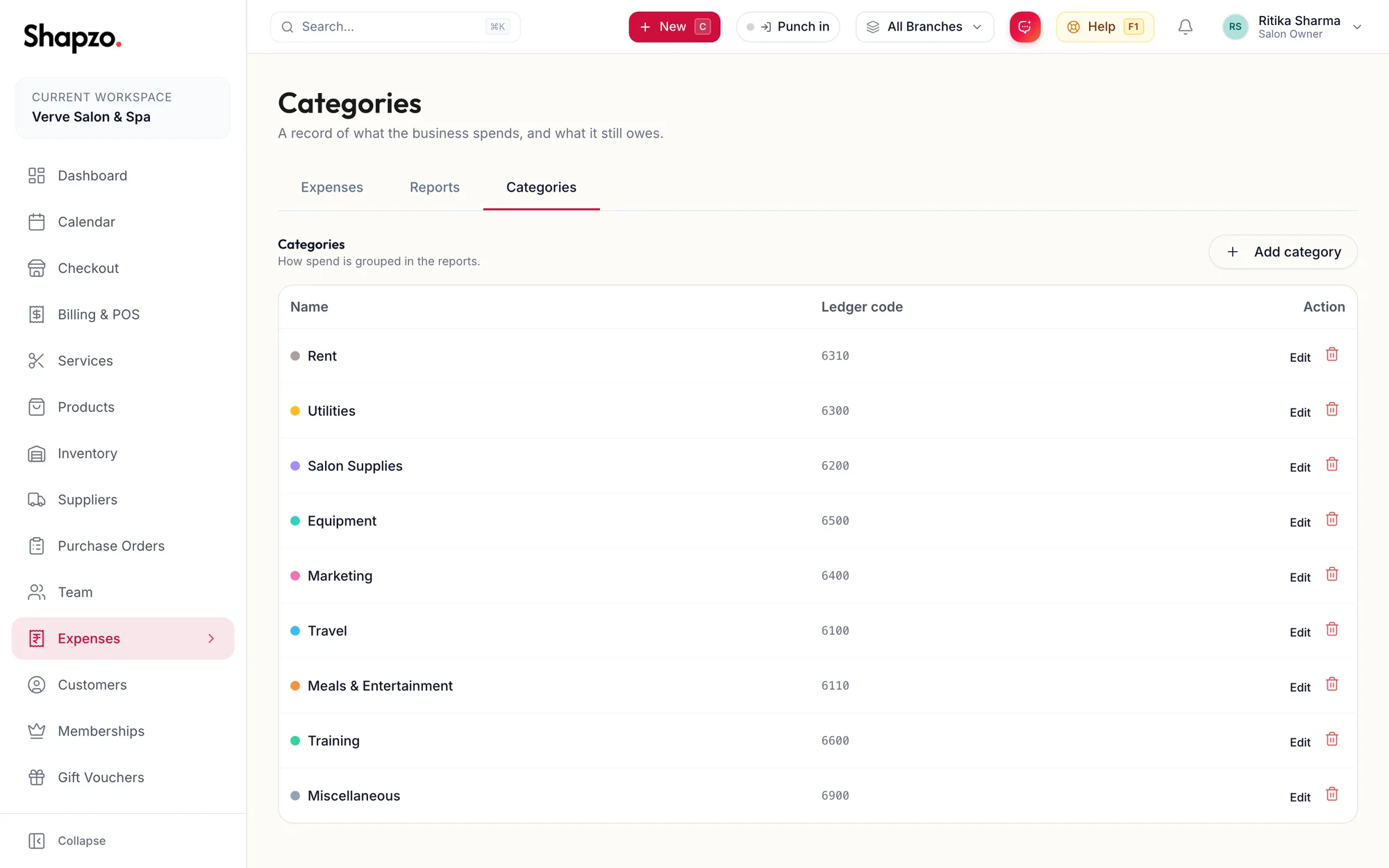
The Categories tab -
Click Add category.
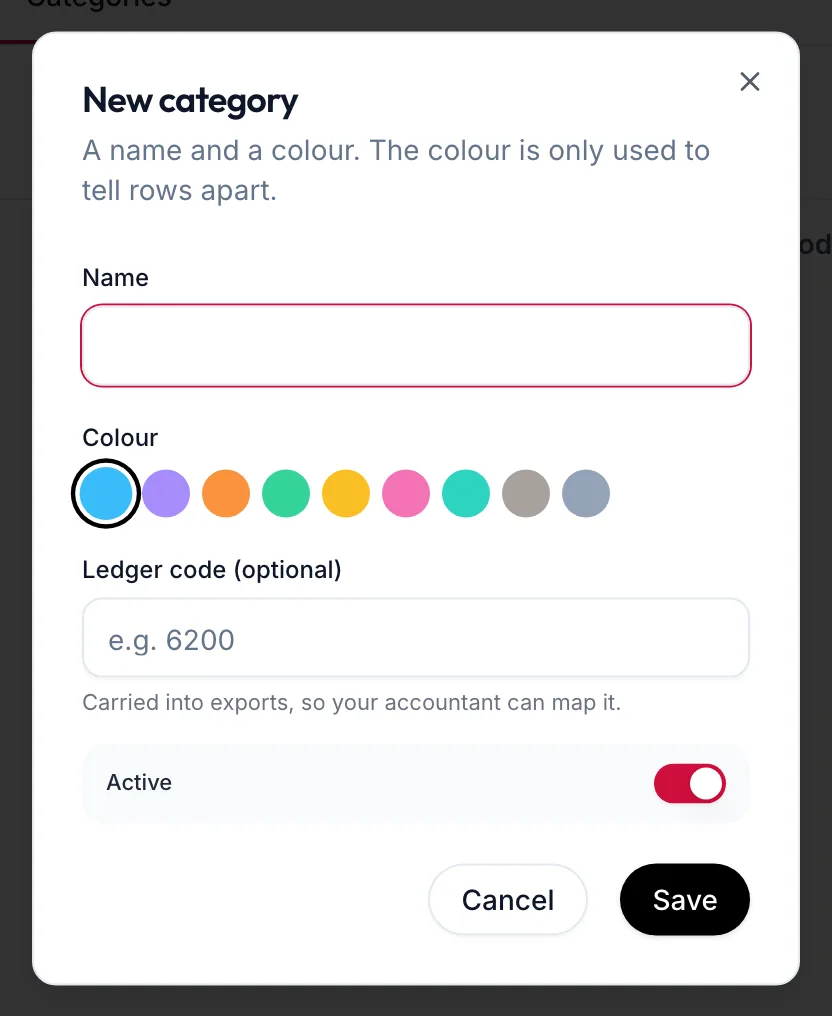
The New category dialog -
Enter the Name, pick a Colour (only used to tell rows apart) and, if your accountant uses one, the Ledger code (optional), for example 6200. It is Carried into exports, so your accountant can map it.
-
Leave Active on and save. The toast reads Category added.
Edit changes any of it. Switch Active off to retire a category without losing history; it shows an Off chip and drops out of the pickers.
Delete asks Remove this category? and explains: If it is already used on an expense it will be switched off instead, so existing rows keep their category.
In the app
-
Tap More, then Expenses, then the Categories tab.
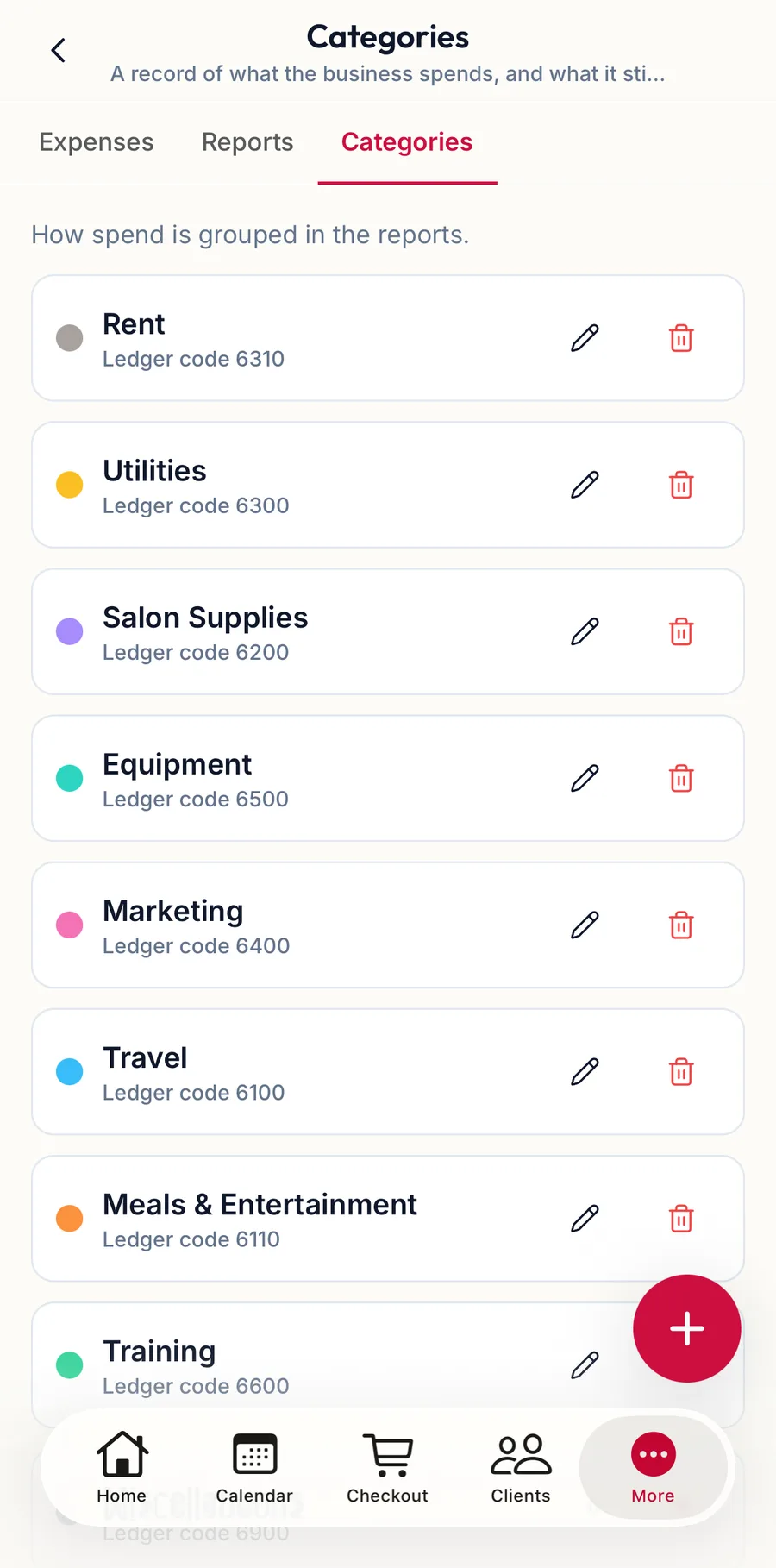
The expense categories in the app -
Tap Add category, enter the Name, pick a Colour and the Ledger code (optional), leave Active on and tap Save.
Tap a category to Edit it; switch Active off to retire it.
Related articles
- Record an expense · Expenses
- Filters, export and who can see what · Expenses