
Record an expense
Log what the business spent, by hand, with the category, branch, payment method, tax and an attached receipt.
Steps
On the web
-
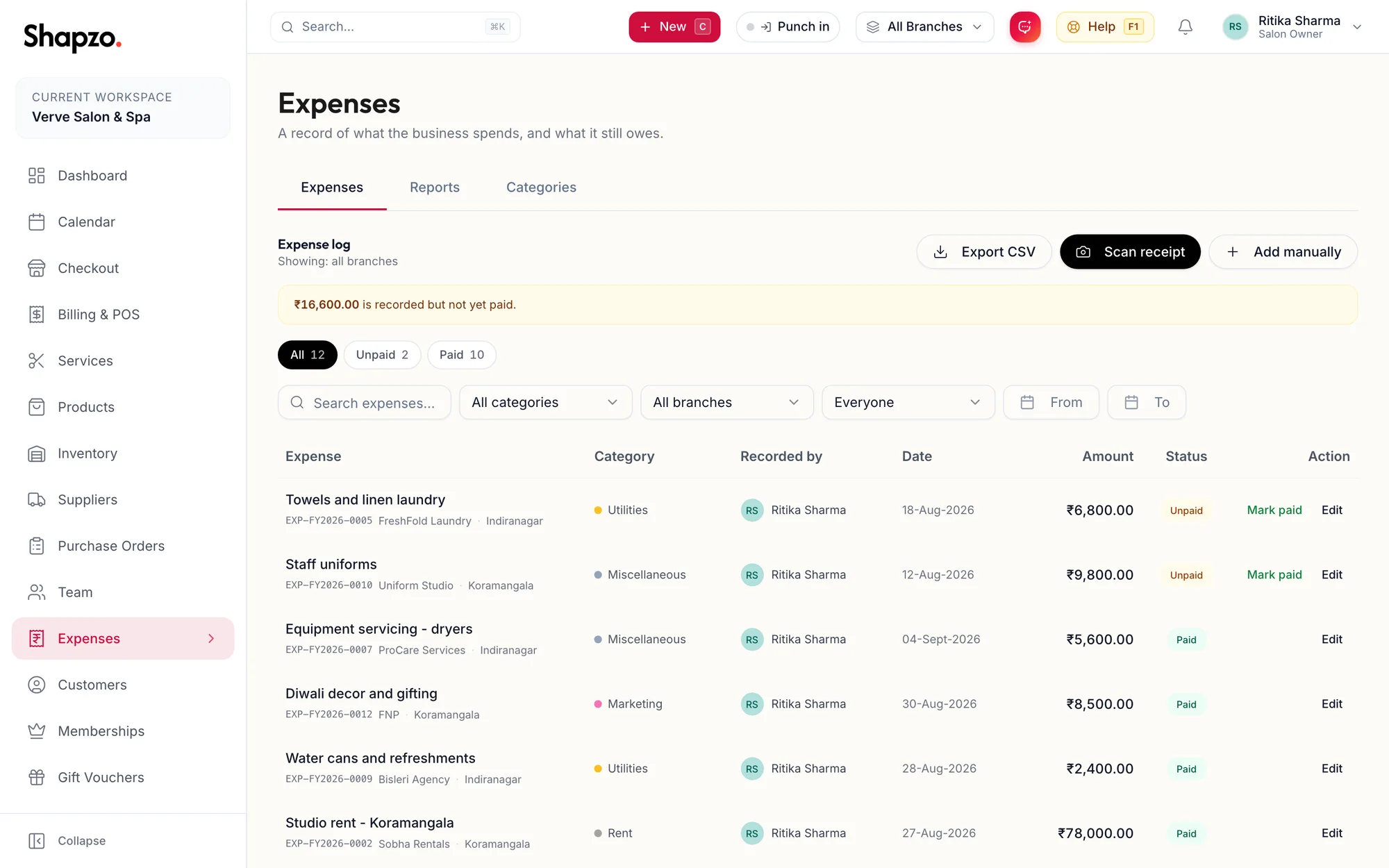
Open Expenses and click Add manually, or press n. From anywhere, the New menu offers Expense.
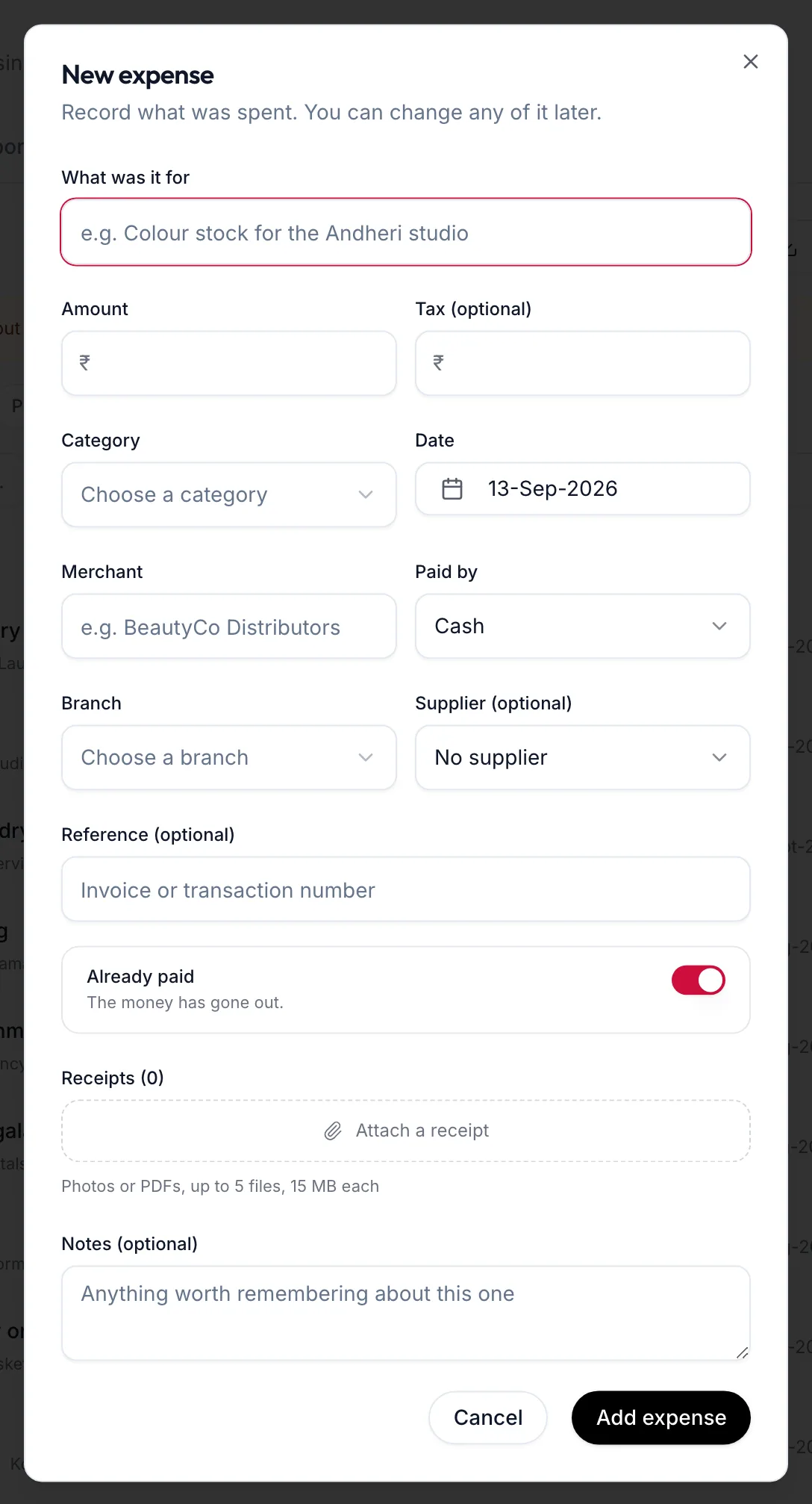
The New expense dialog -
Under What was it for, describe it, for example Colour stock for the Indiranagar studio.
-
Enter the Amount and, if the bill shows it, the Tax (optional) included in that amount.
-
Choose a Category, the Date it was spent, the Merchant, how it was Paid by (Cash, Card, UPI, Bank transfer, Cheque, Company card or Other) and the Branch.
-
Optionally pick the Supplier (optional) from your supplier list and add a Reference (optional) such as the invoice number.
-
Leave Already paid on if the money has gone out. Switch it off for a bill you still owe, and set a Due date (optional) so it is flagged when overdue.
-
Attach a receipt (photo or PDF) and add Notes (optional).
-
Click the save button. The toast reads Expense recorded.
In the app
-
Tap More, then Expenses, then Add manually or the + button.
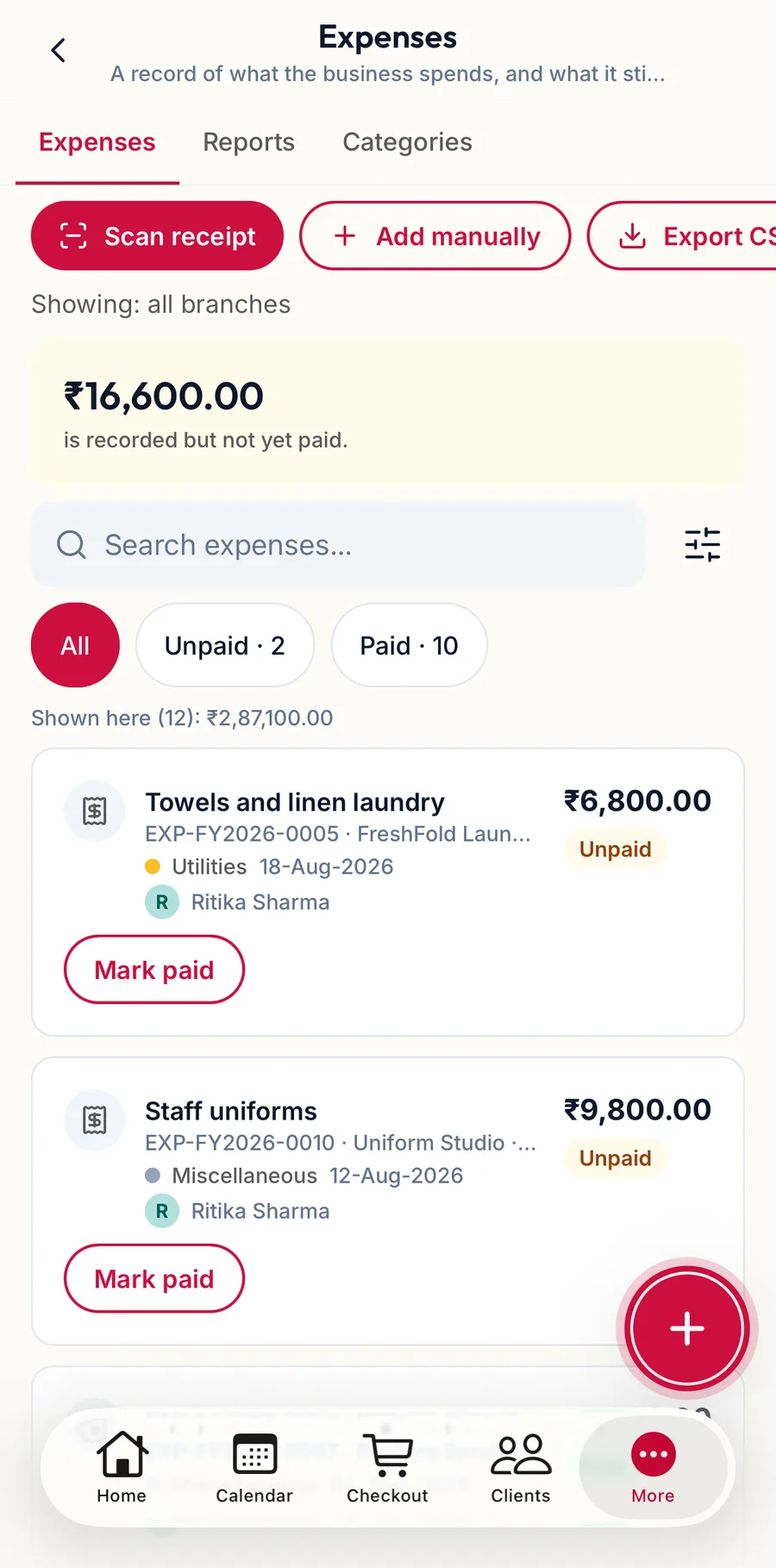
The Expenses screen in the app with the add button highlighted -
Under What was spent, describe it, enter the Amount and, if the bill shows it, the Tax (optional).
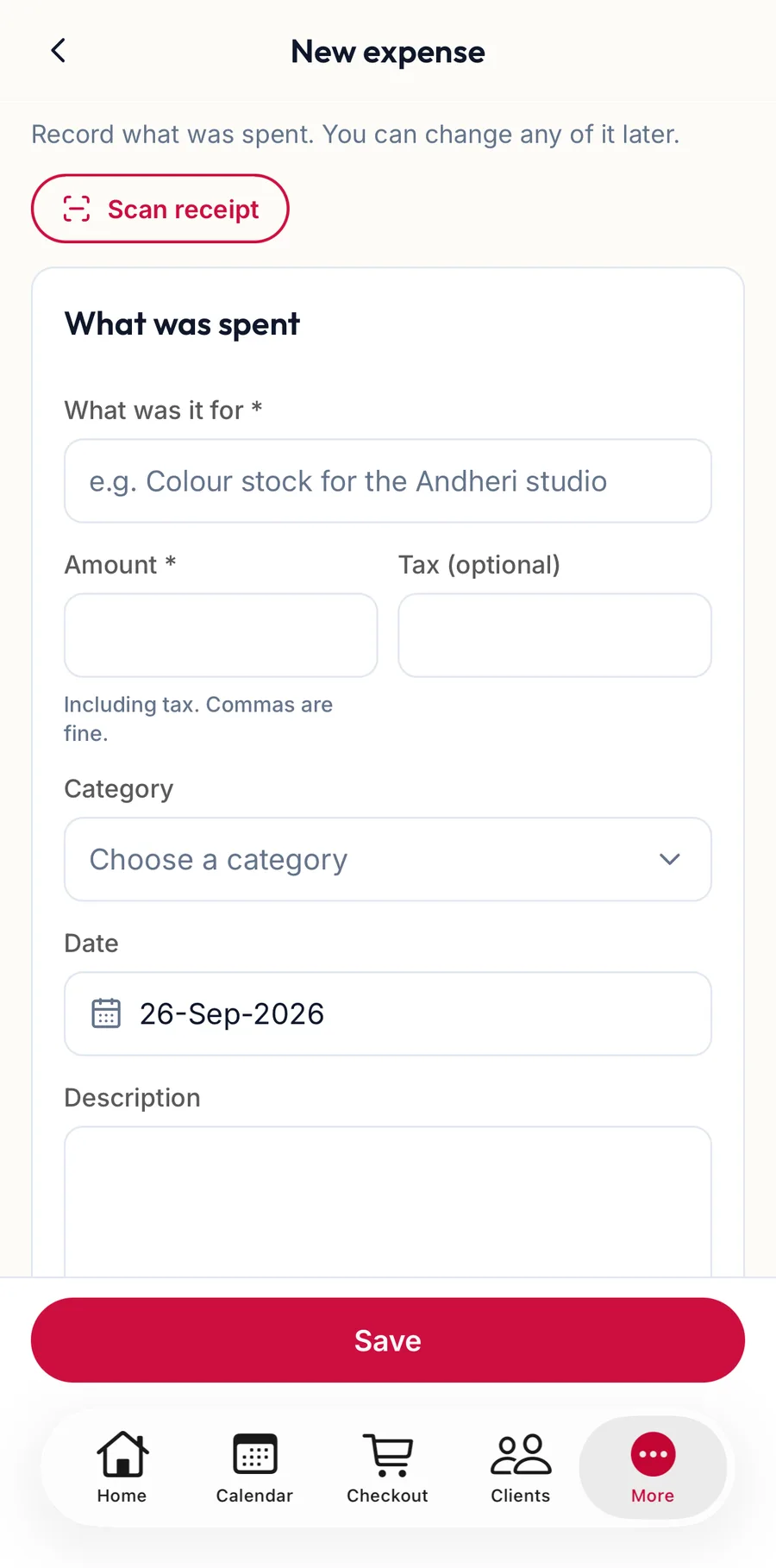
The New expense form in the app -
Choose a Category and the Date, then under Where and with whom the Merchant, an optional Supplier (optional) and a Reference (optional).
-
Under Payment, choose Paid by. Leave Already paid on if the money has gone out; switch it off for a bill you still owe and set a Due date (optional).
-
Add receipt takes a photo or picks a file, or Scan receipt reads one for you. Add Notes (optional).
-
Tap Save.
Rules
- The date cannot be in the future.
- Tax cannot be more than the total.
- There is a per-expense limit; the form says That's above the {{max}} limit for a single expense. if you cross it.
Afterwards
On the web
Click the row for the detail sheet: every field, the Receipts ({{count}}) with Add receipt and Remove receipt, Mark paid / Mark unpaid, Edit and Delete. Deleting asks Delete this expense? and cannot be undone.
In the app
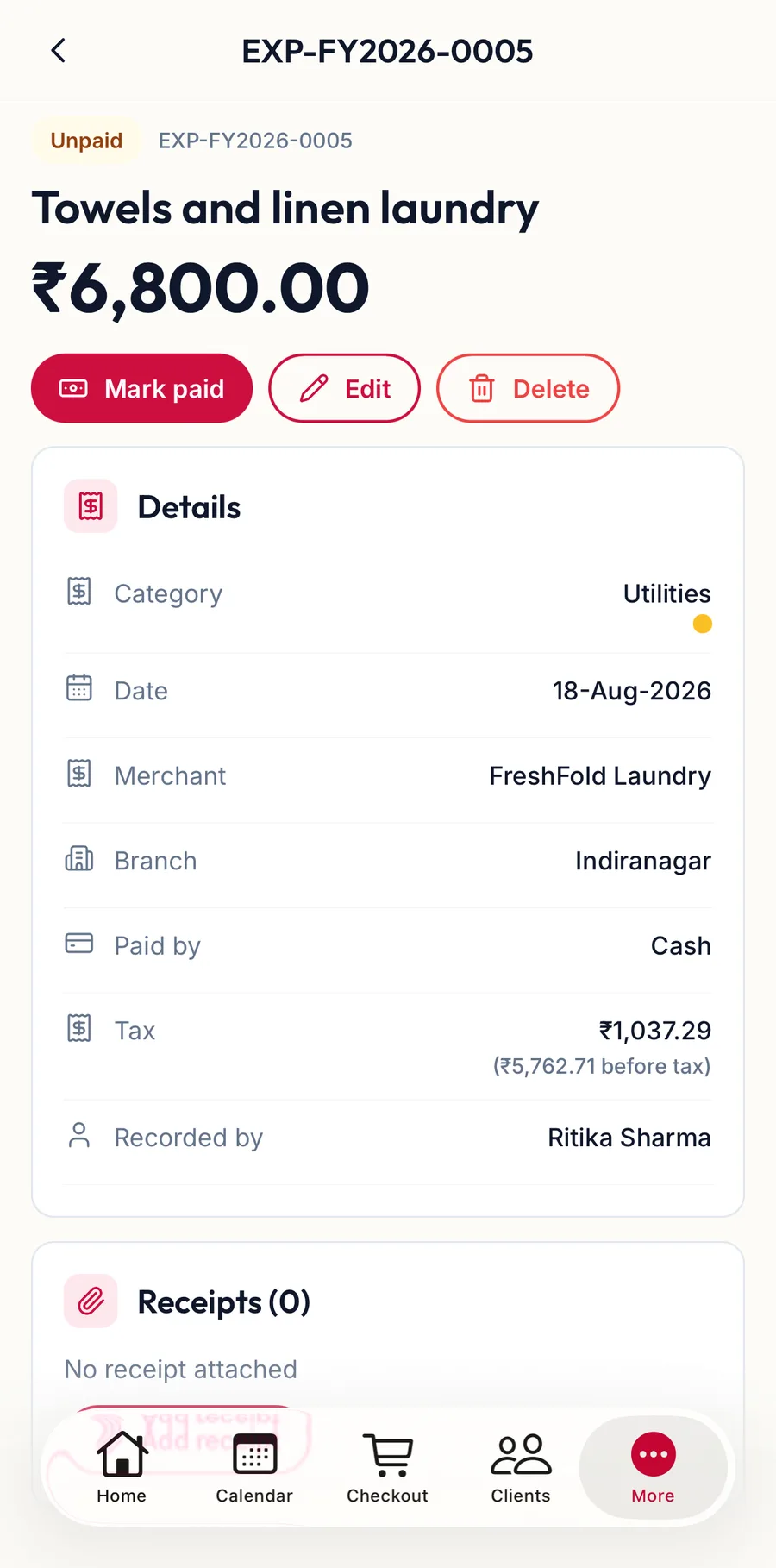
Tap the row for the detail sheet with every field, the Receipts ({{count}}), Mark paid / Mark unpaid, Edit and Delete.
Related articles
- Scan a receipt · Expenses
- Mark paid or unpaid; due dates · Expenses
- Categories and ledger codes · Expenses