
Scan a receipt
Photograph or upload a receipt and let the portal read the merchant, date, amounts and category before you save.
Steps
On the web
-
Open Expenses and click Scan receipt.
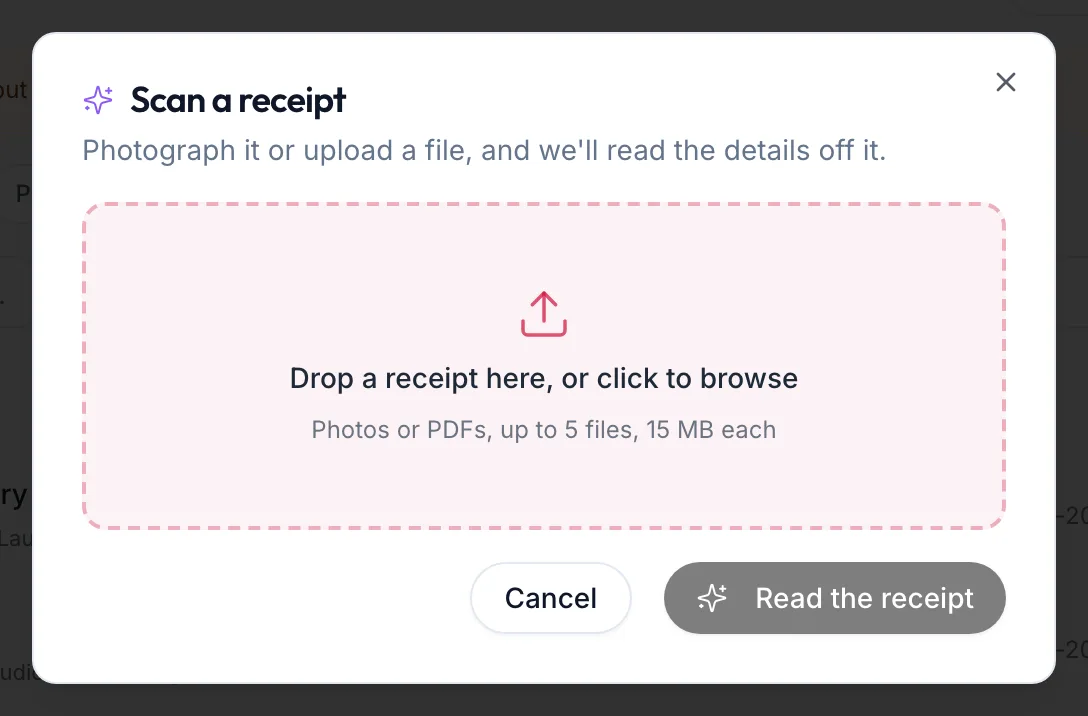
The Scan a receipt dialog -
Drop the file where it says Drop a receipt here, or click to browse, or on a phone click Take a photo. Photos or PDFs, several files per receipt.
-
Click Read the receipt. The progress reads Reading the receipt…, Finding the merchant and the date…, Picking out the amounts… and Checking the totals add up….
-
On Check what we read, confirm the Merchant, Amount, Tax, Date, Category (Suggested from the receipt — change it if it's wrong.), Reference (optional) and Paid by. Anything uncertain carries a note such as Reasonably sure — worth a glance. or Hard to read. Please check this yourself. Line items and the Subtotal are shown for comparison.
-
Click Use these details. The expense form opens filled in, with the receipt attached, for you to finish and save.
In the app
-
Tap More, then Expenses, then Scan receipt at the top. The same button sits inside the expense form.
-
Tap Take a photo to use the camera, or From photos or PDF or file.
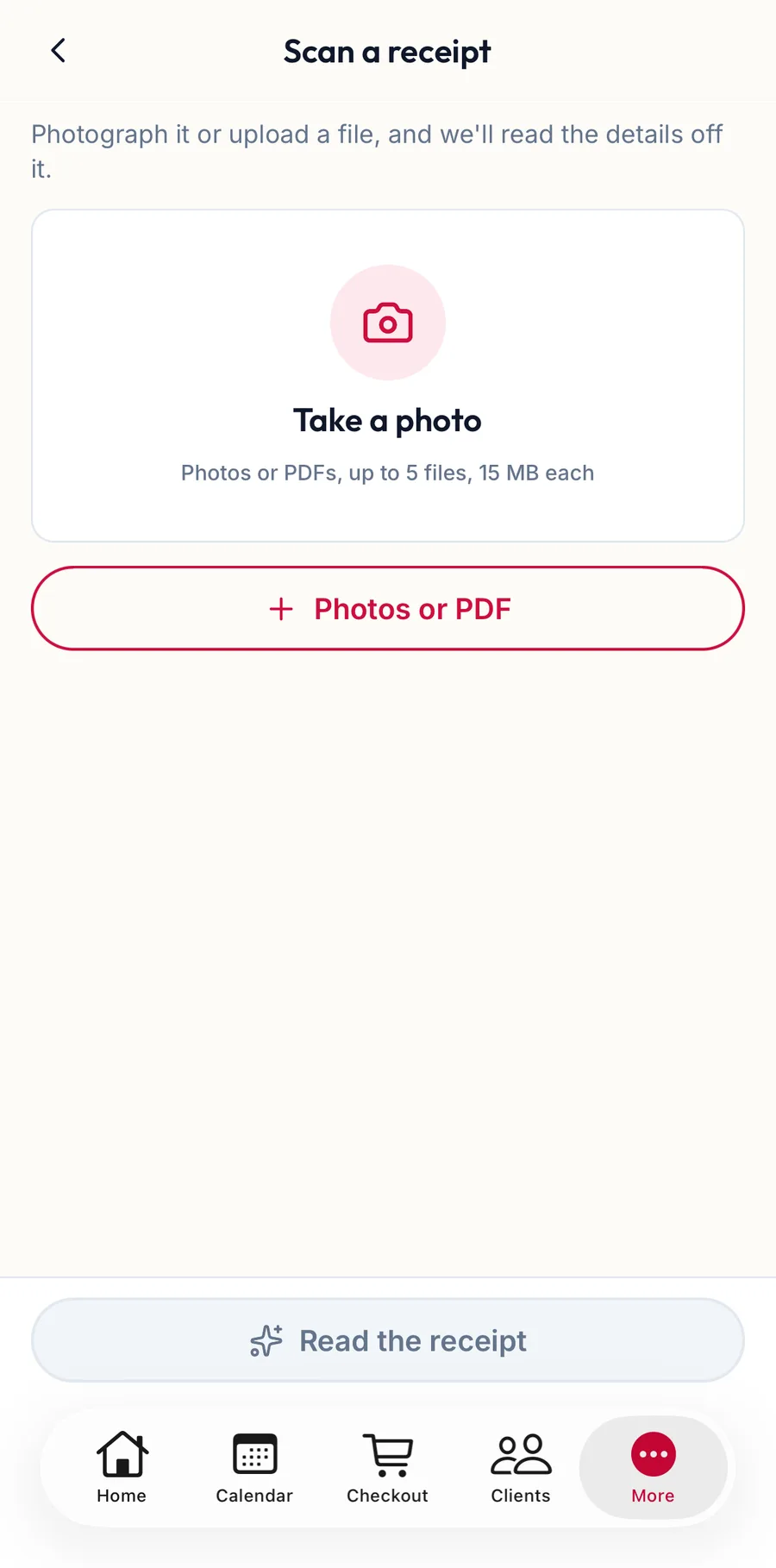
The Scan a receipt screen in the app -
Tap Read the receipt, then on Check what we read confirm the Merchant, Amount, Tax, Date and Category.
-
Tap Use these details. The expense form opens filled in, with the receipt attached.
The phone is the natural place for this: photograph the receipt at the counter and it is recorded before it fades.
Warnings you may see
- We couldn't find a date on the receipt. or That receipt is {{days}} days old.: check the date by hand.
- We couldn't read that receipt. You can enter it by hand instead.: the image was too faint or blurred.
Related articles
- Record an expense · Expenses
- Receipt scanning and menu import: what AI does and does not do · Reports & AI